Netflix Is So Slow or Keeps Buffering? 10+ Fixes!
A common complaint keeps appearing across Reddit and streaming forums about watching Netflix movies and TV shows:
Why is Netflix the only streaming service that is so slow to load or keeps buffering? My internet is fast, YouTube works fine, Disney+ works fine, but Netflix constantly gets stuck loading.
Many Netflix subscribers report problems with Netflix buffering even when they have stable internet connections, modern routers, and streaming plans capable of handling HD or 4K video. In some cases, Netflix may take forever to load, repeatedly show the spinning wheel, or suddenly drop video quality while other streaming apps continue to work perfectly.
The frustrating part is that buffering isn't always caused by slow internet. A household can have a 100 Mbps, 300 Mbps, or even gigabit connection and still encounter Netflix playback problems. Wi-Fi interference, network instability, overloaded devices, VPN routing, outdated apps, and even ISP congestion can all contribute to a poor streaming experience.
Fortunately, most Netflix buffering issues can be fixed in just a few minutes once you identify the real bottleneck. This guide will help you diagnose the cause and walk you through the most effective solutions.
Quick Diagnosis Table: Why Is Netflix So Slow or Keeping Buffering and Quick Fix
Netflix buffering is a symptom, not a diagnosis. While many troubleshooting guides immediately jump into a long list of fixes, that approach often wastes time because different buffering problems have different causes. Use the table below to find the most likely cause based on the symptoms you're seeing.
| Symptom | Most Likely Cause | Recommended Fix |
|---|---|---|
| Netflix buffers on all devices | Internet or router issue or Netflix servers | Test connection and restart network equipment or check Downdetector |
| Netflix buffers only on TV | TV hardware, app, or firmware issue | Update TV software and Netflix app |
| Netflix buffers despite fast internet | Network instability, VPN, ISP throttling | Test with Fast.com and disable VPN |
| Netflix becomes slow at night | Network congestion or ISP traffic management | Use Ethernet or contact ISP |
| Netflix quality keeps dropping | Weak Wi-Fi signal | Move closer to router or switch bands |
| Blurry video quality that won't improve | Data usage settings or low bandwidth | Set playback to "Auto" or use Fast.com to check speeds |
| Netflix is slow to load, but other apps work fine | ISP throttling or overloaded cache or corrupted app cache | Change DNS, disable VPN, clear device cache, or restart or reinstall Netflix |
| Netflix app freezes completely and crashes | Device memory (RAM) is full | Perform a hard reboot or clear the TV's cache |
Why Does My Netflix Keep Buffering So Much Even With Fast Internet?
One of the biggest misconceptions is that download speed is the only thing that matters. However, Netflix buffering problems can still occur when your speed exceeds these requirements. Netflix streaming performance depends on several factors:
- Network stability
- Latency
- Packet loss
- Wi-Fi interference
- Device performance
- VPN routing
- ISP congestion
Check 1: Is Netflix Down? (Checking the Servers)
Before tearing apart your living room entertainment center, make sure the problem is actually in your house. Sometimes, a massive new show release causes temporary server strain on Netflix's end.
Step 1. Open a web browser on your phone and go to the official Netflix Help Center status page.
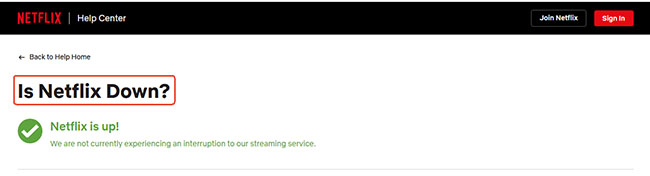
Step 2. If it says "Netflix is up", verify this by checking a third-party outage tracker like Downdetector.
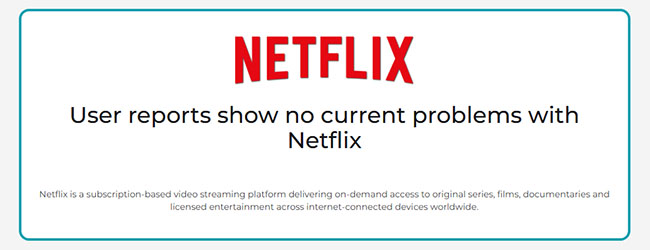
If there is a massive spike in user reports, you just have to wait it out. If the servers are clear, proceed to the next phase of troubleshooting.
Check 2: Is Your Internet Fast Enough?
You might pay for a gigabit internet connection, but that does not mean your TV is actually receiving it. Standard internet speed tests often measure peak burst speed, which looks great on paper. However, Netflix video streaming relies on sustained, stable throughput. To see what Netflix actually sees, you need to use their proprietary testing tool.
Step 1. Go to Fast.com on the device that is struggling to stream. If you are on a Smart TV, open the TV's built-in web browser or look for the "Check Network" tool in the Netflix app's Get Help menu.
Step 2. Wait for the initial download number, then click "Show more info" to look at your loaded ping.
If your loaded ping is above 200ms, your home network is congested. You might have background downloads hogging bandwidth, or your Wi-Fi is experiencing heavy interference.
 Note:
Note:
Here are the official Netflix speed requirements for smooth streaming:
- Standard Definition (SD): 1 Mbps
- High Definition (720p/1080p): 3 to 5 Mbps
- Ultra HD (4K/HDR): 15 Mbps or higher
Check 3: Does Netflix Buffer or Run So Slow on Every Device?
This is the most critical isolation test you can perform. It acts as the fork in your troubleshooting decision tree. Grab your smartphone, turn on its Wi-Fi connection, and try playing the exact same show from the exact same spot in your house.
If your phone streams perfectly in 4K but your living room TV is constantly stalling, your internet is fine. You are dealing with a localized device issue. If both devices are buffering constantly, you have a network problem on your hands.
Proven Network Fixes for Netflix Buffering/Constantly Loading
If the isolation test points to your network, we need to optimize the path between your router and your screen. Wi-Fi signals degrade quickly when passing through walls, furniture, or interference from other electronics.
Fix 1: Restart Your Modem and Router
Unplug both units from the wall, wait a full 60 seconds, and plug them back in. This flushes the router's temporary memory and often forces it to select a less congested Wi-Fi channel.
Fix 2: Reduce Local Network Congestion
Your connection is shared among all devices in your home. Pause any large video game downloads, cloud backups, or other heavy streaming happening simultaneously in your household while streaming Netflix.
Fix 3: Switch to a Hardwired Ethernet Connection
If your Smart TV or streaming box has an Ethernet port, run a cable directly to your router. This completely bypasses Wi-Fi interference and provides a flawlessly stable connection for high-bitrate 4K streaming.
Fix 4: Move Closer to Your Router
Distance and walls weaken Wi-Fi signals. If your router is located in another room or on another floor, Netflix may struggle even when speed tests appear acceptable. Try moving closer or repositioning the router in a more central location.
Fix 5: Contact Your Internet Service Provider
If Netflix buffering occurs consistently during peak evening hours, your ISP may be experiencing congestion. Tell your provider:
- Your speed test results
- Fast.com results
- When buffering occurs
This information can help them identify network issues more quickly.
Device Fixes: Netflix Constantly Buffering on Smart TVs and Sticks
If your network is healthy, your streaming device is likely the culprit. Smart TVs and streaming sticks are essentially small computers. Over time, their internal memory (RAM) and storage caches fill up with temporary data. When that memory overflows, the device literally cannot process the incoming video fast enough, resulting in stuttering and buffering.
Here is how to clear the cache and force a hard reset on the most popular streaming platforms to fix Netflix keeps buffering or lagging.
Fix Netflix Keeps Buffering on Roku Devices
Roku does not have a standard "clear cache" button. You have to use a specific sequence on your remote to trigger a memory dump.
Step 1. Navigate to your Roku Home screen.
Step 2. On your remote, press Home 5 times, Up 1 time, Rewind 2 times, and Fast Forward 2 times.
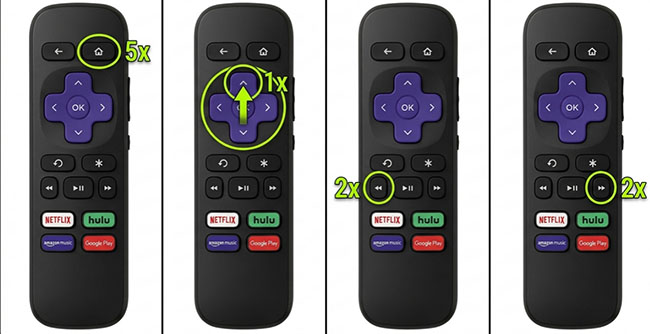
Step 3. Wait. The screen will freeze, go black, and the device will restart in about 30 seconds with completely cleared memory.

Fix Netflix Running So Slow on Amazon Fire TV
Fire OS is built on Android and frequently leaves apps running silently in the background, starving your current stream of processing power.
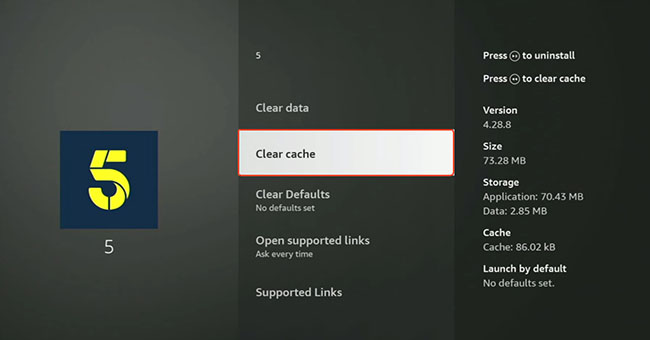
Step 1. Go to the Fire TV Settings menu, select Applications, and click Manage Installed Applications.
Step 2. Scroll to Netflix and select Force Stop.
Step 3. In that same menu, choose Clear Cache. Do not select Clear Data unless you want to log back into your account.
Fix Netflix Loading Slowly on Samsung and LG Smart TVs
Built-in TV operating systems are notorious for memory leaks. A quick optimization often resolves persistent playback errors.
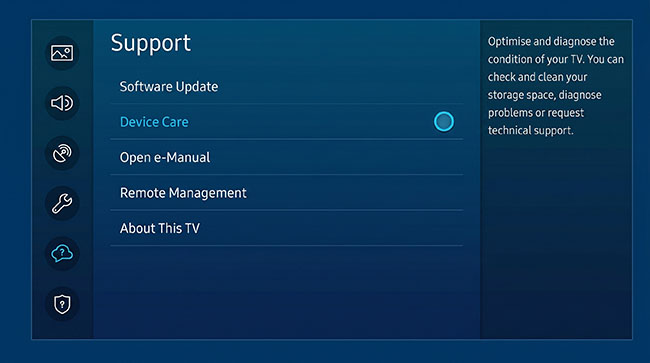
Step 1. For fixing Netflix not working on modern Samsung TVs, go to Settings, choose Support, select Device Care, and click Start Device Care.
Step 2. For fixing Netflix not working on LG TVs, open All Settings, go to Support, choose OLED Care (or Device Self-Care), and run the Memory Optimizer.
Step 3. If your TV lacks these menus, perform a "cold boot" by unplugging the television from the wall for a full 60 seconds to drain the residual power.
 Tips:
Tips:
Older Netflix app versions may contain bugs or compatibility issues on your device. You can check for updates through your device's app store and install the latest version to fix Netflix is taking so long to load.
Advanced Fixes for Netflix Is So Slow Right Now (Settings, ISPs and VPNs)
Sometimes the simplest hardware and network restarts are not quite enough. You might be falling victim to hidden app settings or external throttling.
Fix 1: Disable Your VPN Temporarily
If you use a VPN to access geo-blocked content, turn it off immediately. Free and cheap VPNs rarely have the bandwidth required to sustain HD video, causing massive bottlenecks. Additionally, Netflix actively blocks known VPN IP addresses, which can manifest as an endless loading screen.
Fix 2: Fix ISP Throttling
Another major issue is ISP throttling. If you notice that Netflix is painfully slow between 7 PM and 11 PM but blazing fast in the morning, your internet service provider might be intentionally slowing down streaming traffic to manage peak network loads. A premium, high-speed VPN can actually solve this specific issue by hiding your streaming traffic from your ISP.
Fix 3: Adjust Netflix Playback Quality
Higher quality requires more bandwidth. If buffering continues, you can check your Netflix account playback settings and set it to lower streaming quality.
Step 1. Log into Netflix on a web browser and access your Profile settings.
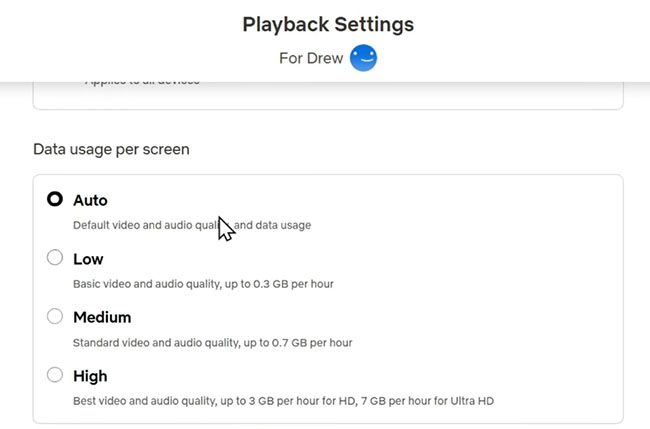
Step 2. Navigate to Playback Settings and find the "Data usage per screen" options.
Step 3. Make sure it is set to "Auto" or "Medium" instead of "High." Setting it to High forces maximum quality and disables Netflix's ability to smoothly downgrade resolution during minor network drops, leading straight to buffering.
Watch Netflix Offline Instead to Avoid Buffering Entirely
If you are stuck on a terrible public Wi-Fi connection, at a hotel, or dealing with an ongoing neighborhood internet outage, you can bypass buffering entirely by downloading your Netflix content for offline listening. This works best on mobile devices and tablets using the official Netflix app or computers and laptops using the VidiKeep Netflix Video Downloader.
For Mobile Devices
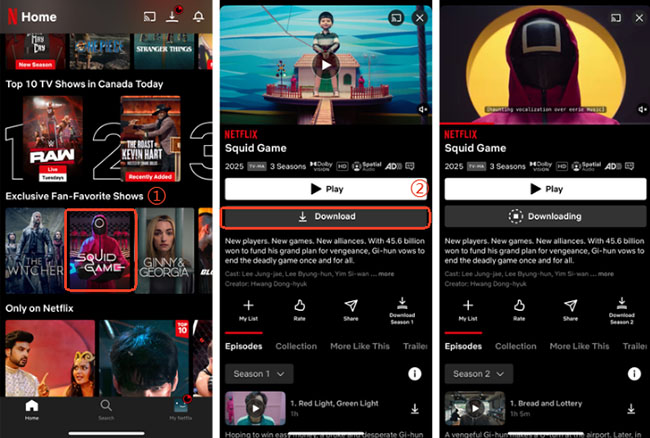
Netflix officially allows downloading many movies and TV shows for offline viewing on supported mobile devices. Follow the below steps to download and watch titles offline.
Step 1. Open the Netflix app on your supported device.
Step 2. Find the Netflix movie or TV show episode you want to watch and tap the Download icon next to the play button.
Step 3. Navigate to your Downloads tab to watch the content flawlessly offline, completely independent of your current internet speed.
For Computers/Laptops
Netflix no longer supports downloading videos on both Windows and macOS computers through its standard web experience. If you frequently experience buffering on such device, one alternative is to use a third-party Netflix downloader such as VidiKeep Netflix Video Downloader to save supported Netflix content for offline playback on your computer.

7X download Netflix movies and TV shows on Mac and Windows computer to MP4 or MKV for offline playback anywhere
 Secure Download
Step 1. Download and install VidiKeep Netflix Video Downloader on your Windows PC or Mac. Launch the program and choose Netflix from the supported streaming services.
Step 2. Log in with your Netflix account credentials within the built-in Netflix web player.
Step 3. Use the search box to locate the Netflix movie, TV series, or episode you want to save offline. You can also paste the video's Netflix URL directly into the search field.
Step 4. Click the Download button to begin downloading the selected Netflix content on your laptop. For TV shows, you can choose specific episodes or download an entire season at once.
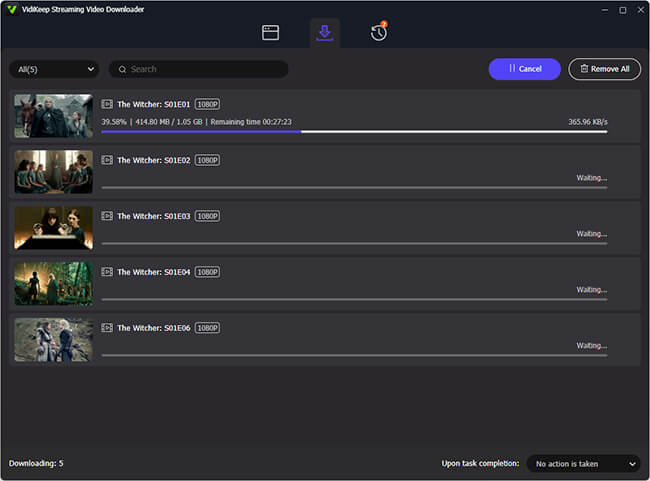
Step 5. Once the download is complete, navigate to the output folder and play the saved videos using your preferred media player without needing an internet connection.
FAQ About Netflix Taking Forever to Load/Being Buffering
Does clearing the Netflix cache delete my profile?
No. Clearing the cache only removes temporary junk files used for smooth operation. Your profiles, watch history, and saved lists are stored safely on Netflix's cloud servers. Only "Clearing Data" will force you to log back in.
Should I change my DNS settings to fix Netflix?
Sometimes. Changing your router or device DNS to Google (8.8.8.8) or Cloudflare (1.1.1.1) can bypass inefficient routing from your local ISP, potentially speeding up the initial connection to Netflix's content delivery network.
Why is Netflix buffering only on my TV?
The TV may have outdated software, limited processing power, a weak Wi-Fi connection, or app-related issues.
Why is Netflix slow at night?
Evening hours often create peak internet usage, leading to congestion within local networks or ISP infrastructure.
Does a VPN slow down Netflix?
It can. VPNs add additional routing steps that may increase latency and reduce streaming performance.
Is Ethernet better than Wi-Fi for Netflix?
Yes. Ethernet provides a more stable connection and typically delivers the most reliable streaming experience.
Conclusion
When Netflix is slow or keeps buffering, the solution isn't always more internet speed. In many cases, the real culprit is network instability, Wi-Fi interference, outdated hardware, or device-specific problems.
Instead of trying every possible fix, start by identifying where the bottleneck exists. Test your connection, compare devices, and work through the troubleshooting steps in order. In most cases, you'll be able to restore smooth Netflix streaming in just a few minutes and get back to enjoying your favorite shows without interruption.

Jordan Rhodes is a Chief Technical Editor and Media Specialist at VidiKeep, specializing in creating diverse tech content, including streaming tutorials, software reviews, and video encoding tips.
Leave a Comment