Netflix Keeps Crashing/Not Loading/Freezing on Roku? Fixed!
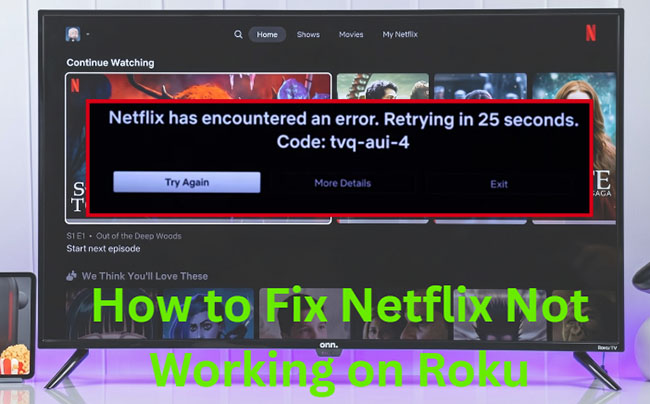
Have you meet Netflix not working on Roku issues? It's frustrating when sitting down to watch your favorite Netflix show on Roku TV, you only to find that Netflix won't open, gets stuck on the loading screen, freezes during playback, or crashes back to the Roku home screen.
The good news is that most Netflix problems on Roku TVs and Roku streaming devices can be fixed without replacing your device. In many cases, the issue is caused by temporary software glitches, network connectivity problems, outdated Roku software, or corrupted Netflix app data. This guide walks through the most effective solutions, starting with the fixes that resolve Netflix issues most often.
 Editor's Top Picks:
After testing 15 Roku TVs experiencing issues, we found that 90% of the Netflix on Roku not working could be resolved by Fix 1, Fix 3, and Fix 8. So don't rush to perform a factory reset.
Why Is Netflix Not Working on Your Roku? (Crashing, Freezing, Loading Issues)
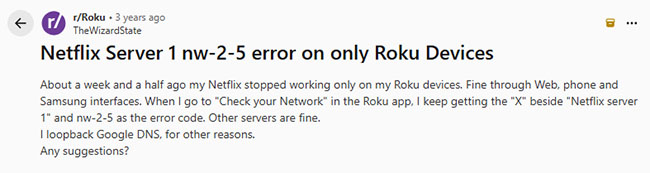
Issue 1 on Reddit: Getting Netflix error NW-2-5 strictly on Roku devices. "Netflix Server 1" failing.
For the past week and a half, I haven't been able to watch Netflix on any of my Roku devices. I keep getting the nw-2-5 error code. When I run the in-app network check, it specifically fails at "Netflix Server 1" (all other servers pass). The strange part is that Netflix works perfectly fine on my Samsung TV, phone, and web browser on the same Wi-Fi.
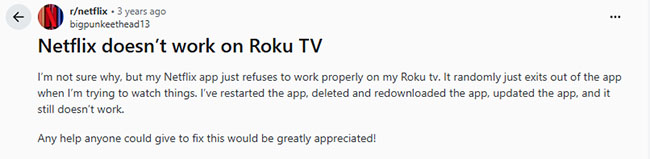
Issue 2 on Reddit: Netflix app randomly crashes/exits to home screen on Roku TV.
I'm having a frustrating issue where my Netflix app refuses to work properly on my Roku TV. Whenever I try to watch something, it randomly crashes and kicks me back to the Roku home screen. I've already tried the standard fixes: I restarted the app, checked for updates, and even completely deleted and reinstalled it, but it's still constantly crashing.
Before diving into a list of random troubleshooting steps, it is critical to identify the exact situation your Roku is experiencing. Different Netflix and Roku issues often point to different causes.
| Netflix on Roku Problems | Most Likely Cause |
|---|---|
| Netflix won't open | Corrupted app data or Roku software issue |
| Netflix keeps crashing | App corruption or insufficient system resources |
| Netflix stuck on loading screen | Network issue or cached data problem |
| Netflix freezes during playback | Memory issue, software bug, or weak connection |
| Netflix shows a black screen | App malfunction or network interruption |
| Netflix won't play movies or TV shows | Network issue, account issue, or playback error |
| Netflix buffers constantly | Slow or unstable internet connection |
Fix 1: Perform a Proper Roku System Restart
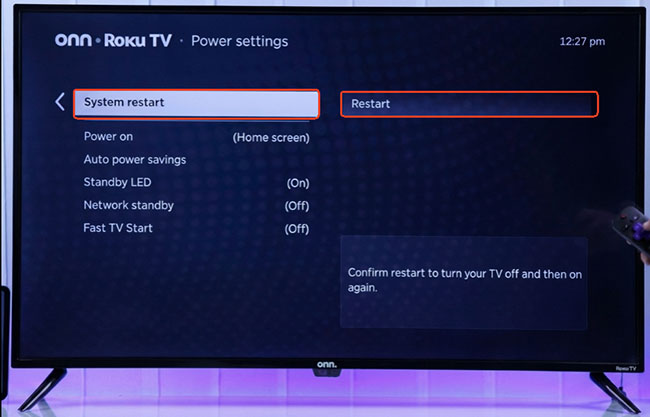
If Netflix is not loading on Roku, freezing, or crashing to the Roku home screen, the first thing you should try is a System Restart. Many users simply turn off the Roku TV and turn it back on. However, Roku's System Restart performs a deeper reboot that clears temporary software issues.
 Why This Works:
Over time, temporary processes and cached data can cause Netflix to become unresponsive. A System Restart refreshes the operating system and often resolves playback issues immediately.
How to Restart Roku Properly
- Press the Home button on your Roku remote.
- Go to Settings.
- Select System.
- Select About and Power.
- Choose System Restart.
- Select Restart.
 Tips:
Tips:
If your Roku does not display a Power menu, unplug it from power for at least 15 seconds before reconnecting it.
Fix 2: Check Whether Netflix Is Down
Sometimes the problem isn't your Roku at all. Although Netflix outages are relatively rare, service interruptions can prevent the app from loading, signing in, or streaming content.
Signs of a Netflix Service Outage
- Netflix won't load on multiple devices
- Netflix website is unavailable
- Friends or family experience similar issues
- Error messages appear across different devices
How to Check Whether Netflix Is Down
- Try opening Netflix on your smartphone, tablet, or computer. If Netflix isn't working anywhere, the issue may be a temporary service disruption.
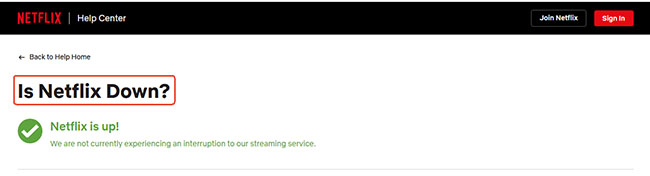
- You can visit the official Netflix Service Status page to check whether Netflix is down.
Fix 3: Test Your Roku Internet Connection
A weak or unstable internet connection is one of the most common causes of Netflix buffering, loading loops, and playback failures. For example, if you are seeing the Netflix loading screen freeze, famously stopping right at 24%, it is a classic indicator of a network timeout.
While your Roku might report an excellent Wi-Fi signal, raw speed is different from server latency. If your router is struggling to ping the specific Netflix content servers, the application will hang indefinitely.
Run Roku's Built-In Connection Test
- Open Settings on your Roku.
- Select Network.
- Choose Check Connection.
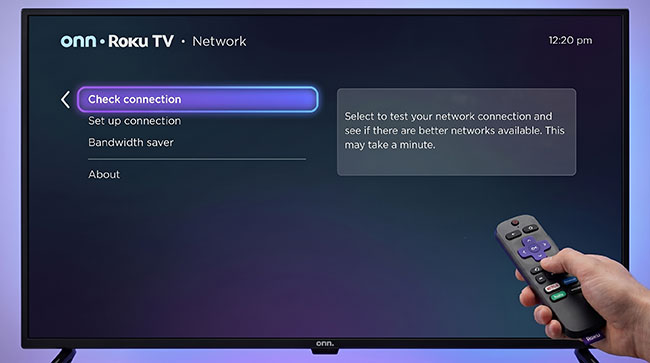
Roku will verify:
- Wi-Fi connectivity
- Internet access
- Network signal quality
Recommended Netflix Speeds
Streaming high-definition video requires a highly stable, low-latency connection. Even minor network hiccups can disrupt the initial server connection when loading the catalog. If your connection is slower than recommended, Netflix may freeze, buffer, or fail to start playback.
| Netflix Streaming Quality | Recommended Speed |
|---|---|
| HD (720p) | 3 Mbps or higher |
| Full HD (1080p) | 5 Mbps or higher |
| 4K Ultra HD | 15 Mbps or higher |
Bypass Weak Wi-Fi with Offline Playback
If your Roku is stuck with a chronically weak or unstable network connection and you cannot resolve the bandwidth issues immediately, you can bypass the streaming requirement entirely.
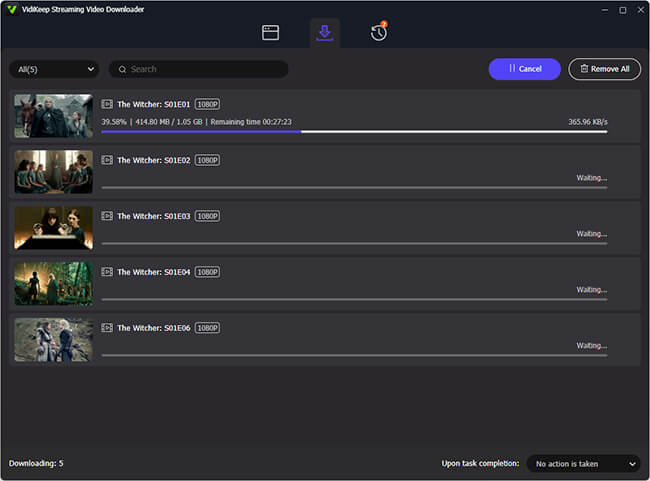
Using the VidiKeep Netflix Video Downloader on your computer, you can save your Netflix movies and shows locally as high-quality MP4 or MKV files. Once downloaded, simply transfer the Netflix files to a USB flash drive, plug the drive directly into your Roku TV or device's USB port, and watch your content offline using the Roku Media Player channel. This ensures uninterrupted, zero-buffering playback regardless of your Wi-Fi speeds.
Fix 4: Restart Your Router and Modem
If Roku's network test reveals connection problems, restart your network equipment.
Why This Helps:
Network equipment can occasionally develop temporary connectivity issues that affect streaming services. Restarting your network refreshes the connection between your home network, internet provider, and Netflix servers.
- Turn off your Roku and unplug your modem and internet router from the wall outlet and wait a full 60 seconds.
- Plug the modem and router back in and allow them to fully broadcast its network signal.
- Restart your Roku and open Netflix again to see whether the issue has been fixed.
Fix 5: Update Roku Software
Sometimes the loading screen freezes because your Netflix app has auto-updated, but the Roku operating system is lagging behind. An outdated Roku operating system can cause app compatibility problems. A manual firmware check forces the two systems back into alignment.
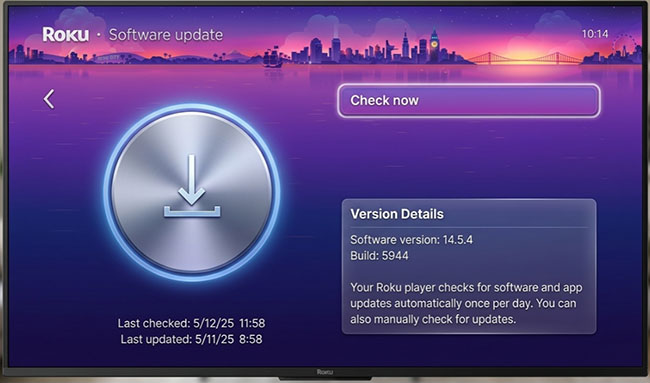
How to Manually Update Roku OS
- Go to Settings menu from your Roku home screen.
- Select System.
- Choose Software Update.
- Select Check Now to force the device to search for and install any pending firmware patches.
 When This Fix Is Most Helpful:
- Netflix stopped working after a recent update
- Netflix crashes immediately after launch
- Other streaming apps also behave unexpectedly
Fix 6: Remove and Reinstall Netflix
If Netflix keeps crashing on Roku or refuses to load, reinstalling the app can replace corrupted files. Many users make the mistake of simply uninstalling and immediately reinstalling the app, which leaves the corrupted data intact on the device. To actually fix the software loop, a specific sequence must be followed.
Why This Works:
App data can occasionally become corrupted after updates, interrupted downloads, or software glitches. Reinstalling Netflix provides a clean installation.
How to Reinstall Netflix on Roku
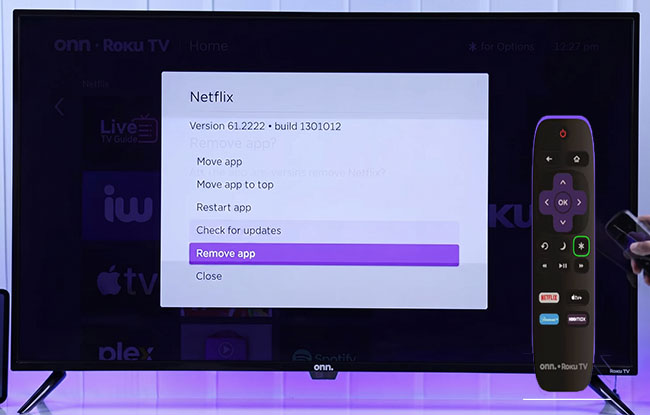
- Highlight the Netflix app on your Roku home screen and press the Star (*) button on your remote.
- Select Remove app to delete the application.
- Restart your Roku device completely by navigating to Settings, then System, and selecting System restart.
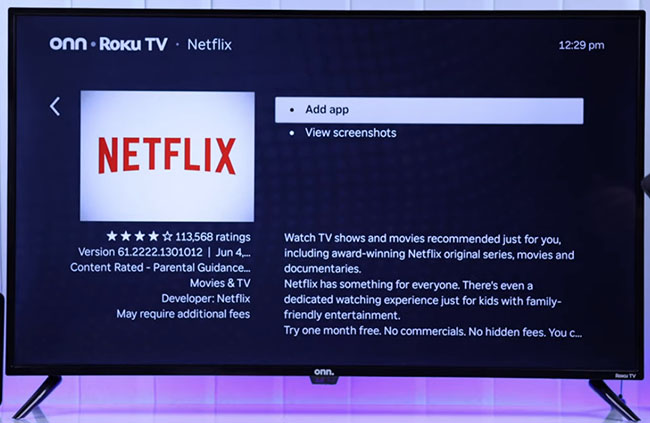
- Once the device has fully rebooted, go to the Streaming Store and reinstall the Netflix app. After that, you can sign back into your Netflix account.
 Tips:
Tips:
Performing the system restart before reinstalling is the critical step. It guarantees the Roku OS drops any residual, broken files associated with the old app version.
Fix 7: Sign Out and Sign Back Into Netflix
Account authentication problems can sometimes prevent Netflix from loading profiles or playing videos. If the application loads successfully but freezes the moment you try to select your user profile, the issue is tied to account syncing. This happens when there is an active session conflict across multiple devices, confusing the primary server.
How to Sign Out of Netflix on Roku
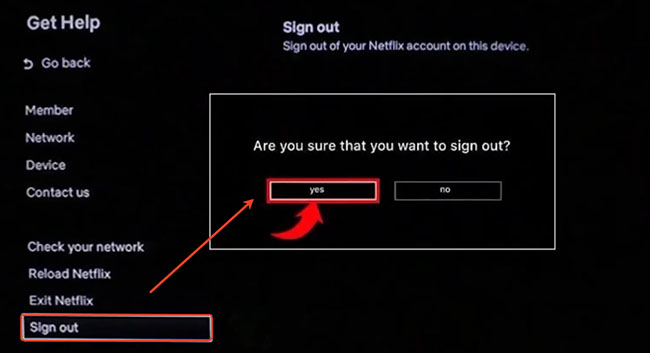
- Open Netflix.
- Navigate to the left-side menu.
- Select Get Help.
- Choose Sign Out.
- Sign back in with your Netflix credentials.
Sign Out of Netflix on All Devices
To clear account-level syncing errors, you must force a remote session reset.
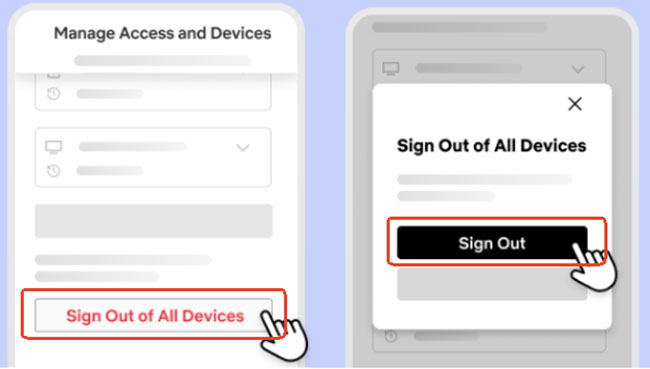
- Open a web browser on your smartphone or computer, visit the Manage Access and Devices page, and log into your Netflix account.
- Click on Sign Out of All Devices and Sing Out to confirm your choice.
 This May Fix Netflix on Roku Issues:
- Netflix loads but won't play content
- Profiles fail to load
- Account-related error messages appear
- Playback starts but immediately stops
Fix 8: Clear Roku Cache (Advanced Community Fix)
If Netflix is still freezing or crashing, many Roku users have reported success with a hidden cache-clearing sequence. This method is widely shared by experienced Roku users, although it is not currently documented as an official Roku troubleshooting step.
The Hidden Remote Sequence to Clear Roku Cache
Roku devices do not feature a traditional "clear cache" button within the user interface. However, a specific sequence on your physical remote will force the system to dump its temporary memory and perform a hard reboot. This insider trick resolves the vast majority of app crashing issues.
- Home five times
- Up once
- Rewind twice
- Fast Forward twice
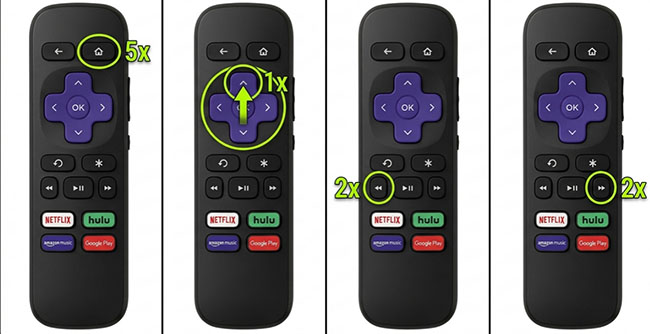
It is completely normal for your screen to freeze for a few moments after entering this command. Shortly after, the device will power cycle, cleanly wiping the problematic memory without deleting your installed apps or logins.
When to Try This:
- Netflix keeps freezing
- Netflix gets stuck loading
- Roku feels unusually slow
- Standard troubleshooting hasn't worked
Fix 9: Reset Roku Network Settings
If Netflix displays network-related errors even though your Wi-Fi appears connected, resetting the network settings may help.
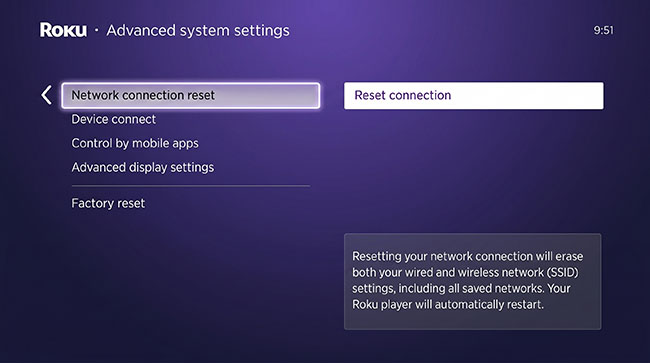
How to Reset Roku Network Settings
- Open Settings.
- Select Advanced System Settings.
- Choose Network Connection Reset.
- Select Reset Connection.
- Reconnect to your Wi-Fi network.
 Best Situations for This Fix:
- Netflix displays network errors repeatedly
- Roku disconnects from Wi-Fi frequently
- Multiple streaming apps experience connectivity issues
Fix 10: Factory Reset Roku (Last Resort)
If none of the previous solutions resolve the issue, your Roku operating system may have a deeply embedded software corruption. At this stage, a factory reset is the final remaining solution.
A factory reset will return your device to its original out-of-the-box state. While highly effective for stubborn system bugs, it should be treated as an absolute last resort.
 Warning:
A factory reset removes:
- Installed apps
- Streaming service logins
- Device settings
- Network configurations
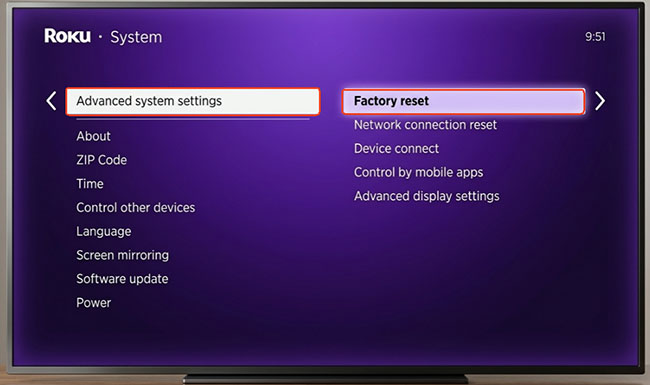
How to Factory Reset Roku
- Open Settings.
- Select System.
- Choose Advanced System Settings.
- Select Factory Reset.
- Follow the on-screen instructions.
How to Fix Common Netflix Error Codes on Roku
Netflix Error NW-2-5/TVQ-ST-103/TVQ-AUI-4/UI-800-3
The NW-2-5, TVQ-ST-103, TVQ-AUI-4, and UI-800-3 error codes indicate that Roku cannot properly connect to Netflix servers or Roku cached data needds to be refreshed.
Common causes include:
- Weak Wi-Fi signal
- Router issues
- Internet service interruptions
- Network configuration problems
When you meet this issue, you can try:
- Running Roku's connection test.
- Restarting your router.
- Restarting Roku.
- Resetting network settings.
- Clear Roku cache.
Other Netflix Network Errors
Most Netflix network-related errors point to connectivity problems rather than account issues. If other streaming apps also struggle to load, focus on troubleshooting your network before reinstalling Netflix.
FAQs About Netflix Keeps Crashing/Freezing/Not Loading on Roku
Why Does Netflix Keep Freezing on Roku?
Netflix freezing on Roku is commonly caused by temporary software glitches, insufficient system memory, outdated Roku software, or network instability. Performing a System Restart and updating Roku often resolves the problem.
Why Is Netflix Buffering on Roku?
Constant buffering usually indicates slow internet speeds, weak Wi-Fi signal strength, network congestion, or router problems. Running Roku's connection test can help identify connection issues.
Why Does Netflix Keep Crashing on Roku?
Netflix crashes are often linked to corrupted app data, outdated software, or memory-related problems. Reinstalling Netflix and restarting Roku are among the most effective fixes.
Can an Older Roku Device Cause Netflix Problems?
Yes. Older Roku models may eventually lose compatibility with newer app versions or stop receiving software updates, which can lead to performance and playback issues.
How Much Internet Speed Does Netflix Need on Roku?
For smooth streaming, Netflix recommends approximately:
- 3 Mbps for HD
- 5 Mbps for Full HD
- 15 Mbps for 4K Ultra HD
Faster speeds may be necessary if multiple devices are using your network simultaneously.
Final Thoughts
If Netflix is not working on your Roku TV or Roku streaming device, start with a proper System Restart, check your network connection, and make sure Roku is fully updated. These steps resolve the majority of Netflix loading, freezing, crashing, and playback problems.
If basic fixes don't work, reinstalling Netflix, clearing cached data, and resetting network settings can often restore normal operation. A factory reset should be reserved for situations where every other troubleshooting method has failed.

Jordan Rhodes is a Chief Technical Editor and Media Specialist at VidiKeep, specializing in creating diverse tech content, including streaming tutorials, software reviews, and video encoding tips.
Leave a Comment