Why Are There Horizontal Lines on My Netflix? Fixed!
Seeing horizontal lines across your screen while watching Netflix, whether as thin flickering stripes, static, or screen tearing, can ruin your viewing experience. Before assuming your TV or monitor is broken, keep in mind: horizontal lines are often caused by video cable issues, refresh rate mismatches, or temporary playback glitches, rather than hardware failure. Use this step-by-step guide to quickly pinpoint the root cause and fix horizontal lines on Netflix.
 30-Second Quick Diagnostic Card:
- Lines appear on TV menus / Home screen: Your TV display panel or internal T-Con board is likely damaged. (Hardware issue)
- Lines appear on Netflix, but YouTube/Other apps look fine: It's an app glitch, browser rendering error, or HDR setting issue.
- Lines appear only through an external box (Roku, Fire Stick, Apple TV): Bad HDMI cable, faulty HDMI port, or AV receiver interference.
- Lines appear only on a PC/Mac external monitor: Display refresh rate mismatch, multi-monitor configuration error, or GPU driver issue.
Start Here: Check Where the Netflix Horizontal Lines Appear (Expert Tip)
Before dismantling your entertainment center, figure out exactly where the horizontal lines on Netflix appear. Technicians frequently use a simple menu check and test different content to isolate the issue immediately, preventing hours of wasted troubleshooting.
1. Check the TV's Native Menu or Picture Test
Step 1. Grab your television's original remote and press the native "Menu" or "Home" button.
Step 2. Observe the screen carefully to see if the horizontal lines appear over the top of the TV's built-in interface.
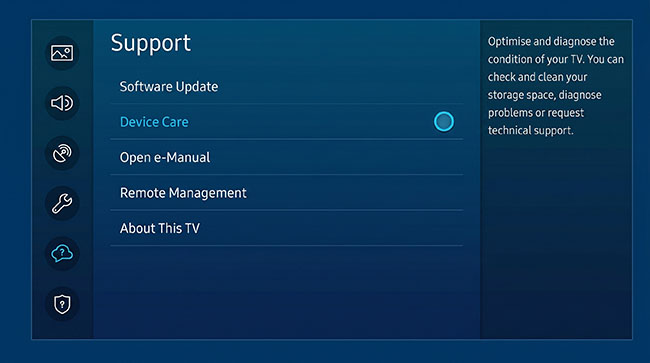
- If lines persist on the TV menu: The issue is hardware-related (TV panel or display board). Run your TV's built-in Picture Test / Self-Diagnosis (Samsung: Settings > Support > Device Care; LG: Settings > Support > Screen Self-Diagnosis). If lines show up during the test, contact manufacturer support.
- If the TV menu is completely clean: Your TV screen is fine! The issue lies in the Netflix app, HDMI cable, streaming box, or PC settings.
2. Compare Different Netflix Titles & Apps
- Test another show on Netflix: If lines only occur on a single movie or scene, it's a temporary encoding artifact. Report the title via Netflix Viewing Activity.
- Test another app (YouTube, Prime Video): If other apps play smoothly, focus your troubleshooting on the Netflix app, browser settings, or HDR output. If the horizontal lines also appear in other apps, you can focus on the TV, monitor, video cable, or connected hardware rather than repeatedly reinstalling Netflix.
How to Fix Horizontal Lines on Netflix on Smart TVs & Streaming Devices
If Netflix shows horizontal lines on your Smart TV (Samsung, LG, Hisense) or external streaming box (Roku, Fire TV Stick, Apple TV), the issue is usually related to video signal transmission, refresh rate mismatches, the app cache, or incorrect picture settings, not a damaged display. Follow these quick steps to isolate and resolve the problem.
1. Inspect and Reseat Your HDMI Cables
A faulty or loose HDMI connection is the most common culprit for horizontal lines, static, or screen flickering.
- Reseat the Cable: Unplug the HDMI cable from both your TV and your streaming device, then plug it back in firmly.
- Try a Different Port: Move the streaming device to a different HDMI input on your TV (e.g., from HDMI 1 to HDMI 2) to rule out a defective port.
- Replace the Cable: If you are streaming Netflix in 4K HDR, ensure you are using a high-speed HDMI 2.0 or 2.1 cable. Older or damaged cables may struggle to process high-resolution video bandwidth, resulting in visual artifacts.
2. Perform a Hard Power Cycle (Soft Reset)
A simple restart can clear temporary glitches in the device's memory that might be causing the horizontal lines to appear.
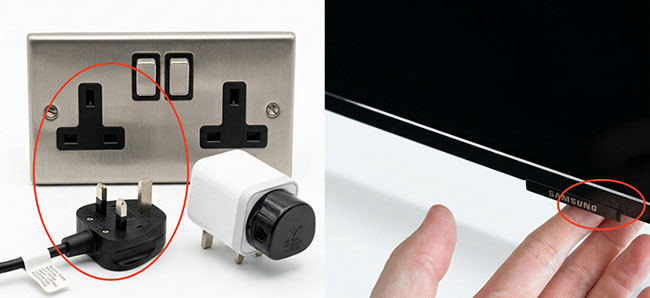
- Turn off your Smart TV and streaming device.
- Unplug them directly from the wall outlet (do not just use the remote).
- Wait for at least 60 seconds to allow the residual power to drain completely.
- Plug everything back in, turn the devices on, and launch Netflix to see if the issue persists.
3. Adjust Your TV's Picture and Motion Settings
Sometimes, built-in TV enhancement features conflict with the Netflix app's frame rate, creating horizontal tearing or lines.
- Disable Motion Smoothing: Navigate to your TV's picture settings and turn off "Motion Smoothing," "Auto Motion Plus," or "TruMotion" (the name varies by TV brand).
- Turn Off Energy Saving Modes: Eco-modes can sometimes dim the backlight unevenly or limit processing power, causing screen flickering.
- Reset Picture Settings: If you're unsure which setting caused the issue, find the "Reset Picture" option in your TV menu to restore the display to its factory defaults.
4. Update the Netflix App and Device Firmware
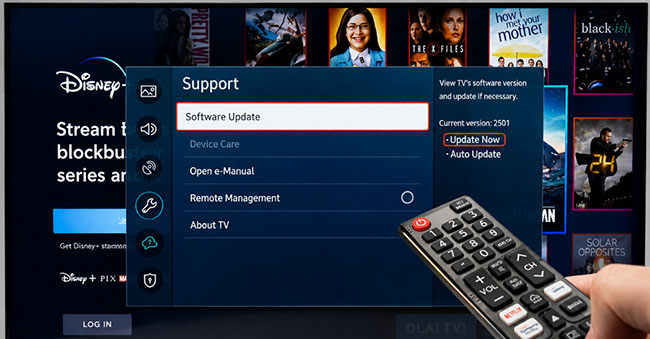
Netflix and device manufacturers regularly release updates to patch known bugs and compatibility issues. An outdated app or operating system can easily cause rendering errors.
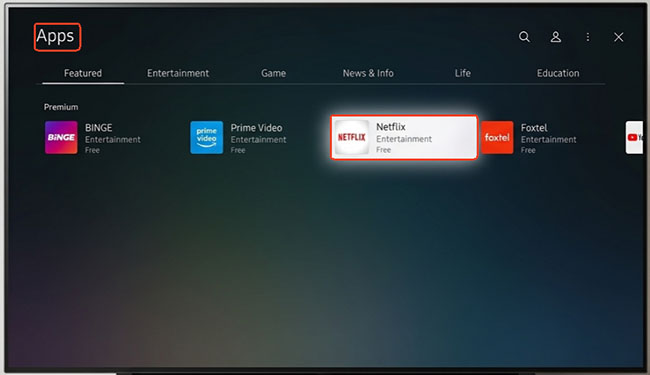
- Update Netflix: Go to your device's App Store (Google Play Store, Roku Channel Store, or Apple App Store), search for Netflix, and hit "Update" if available.
- Update Device OS: Navigate to your TV or streaming device's Settings > System > System Update and download the latest firmware.
5. Clear the Netflix App Cache or Reinstall
If the horizontal lines only appear when you are inside the Netflix app (and not on your TV's main menu or other apps like YouTube), the app's temporary data might be corrupted.
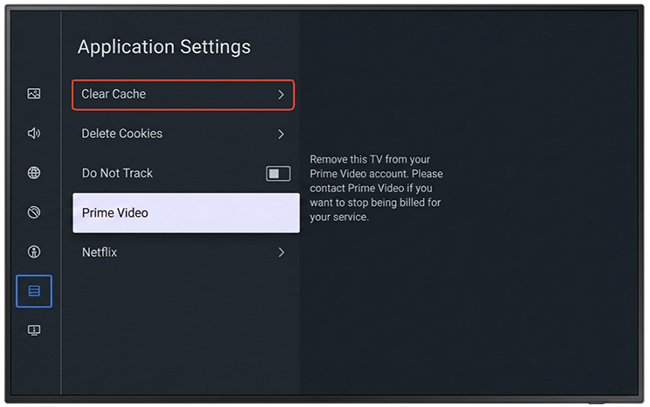
- Clear Cache (Android TV / Fire TV): Go to Settings > Applications > Manage Installed Applications > Netflix, and select Clear Cache.
- Reinstall the App: If clearing the cache doesn't work, completely uninstall the Netflix app, restart your device, and reinstall it from the app store.
6. Check Your Internet Connection and Resolution
A weak internet connection can cause Netflix to dynamically drop your video resolution, which sometimes manifests as heavy pixelation or blocky horizontal lines.
- Run a network speed test on your device. Netflix requires at least 5 Mbps for HD and 15 Mbps for 4K Ultra HD.
- Restart your Wi-Fi router if your speeds are unusually slow.
Tips: Alternative Workaround
If your network is permanently unstable, consider using VidiKeep Netflix Video Downloader to download Netflix videos as MP4 or MKV for offline playback to bypass streaming artifacts entirely.
How to Fix Horizontal Lines on Netflix on Windows PC & Mac
Fortunately, whether you are streaming on a Windows PC or a Mac, this horizontal line issue (often known as screen tearing or artifacting) is rarely a hardware failure. It is caused by conflicting browser settings, variable refresh rates, outdated graphics drivers, or hardware acceleration glitches. Below are the most effective step-by-step solutions to restore crystal-clear playback.
1. Disable Hardware Acceleration (Windows & Mac)
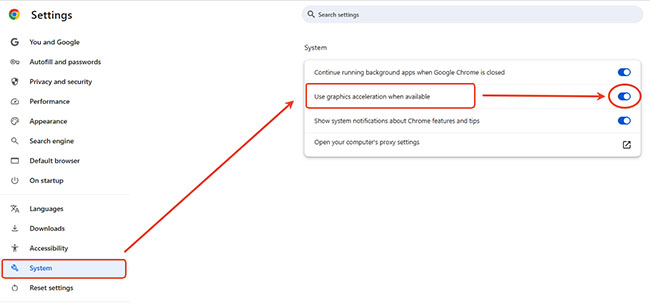
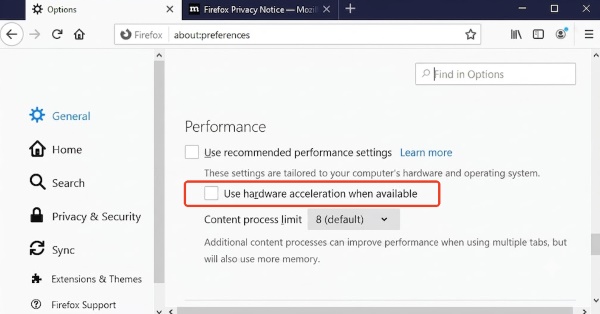
Hardware acceleration forces your browser to use your computer's GPU to render video. While intended to improve performance, it frequently causes horizontal lines during video playback.
- Google Chrome / Microsoft Edge: Click the three-dot menu > Settings > System (or System and performance). Toggle off Use graphics acceleration when available, then click Relaunch.
- Firefox: Click the three-line menu > Settings > General. Scroll down to Performance, uncheck Use recommended performance settings, and uncheck Use hardware acceleration when available.
2. Update Your Graphics Drivers (Windows)
Outdated or corrupted GPU drivers are a leading cause of screen tearing on PCs.
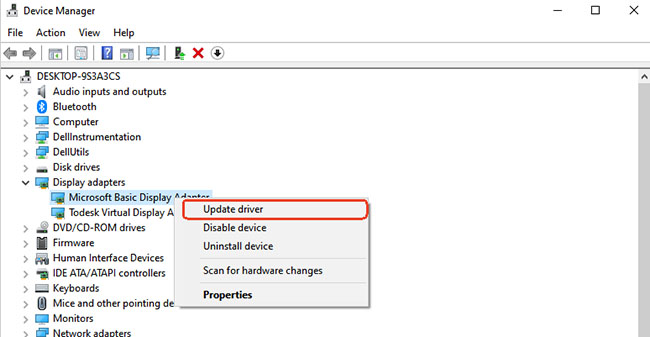
- Right-click the Start button and select Device Manager.
- Expand the Display adapters category.
- Right-click your graphics card (e.g., NVIDIA, AMD, or Intel) and select Update driver.
- Choose Search automatically for drivers and restart your PC once the installation is complete.
3. Update macOS System Software (Mac)
Apple bundles its display and graphics drivers directly into macOS system updates. Keeping your Mac updated ensures optimal display compatibility.
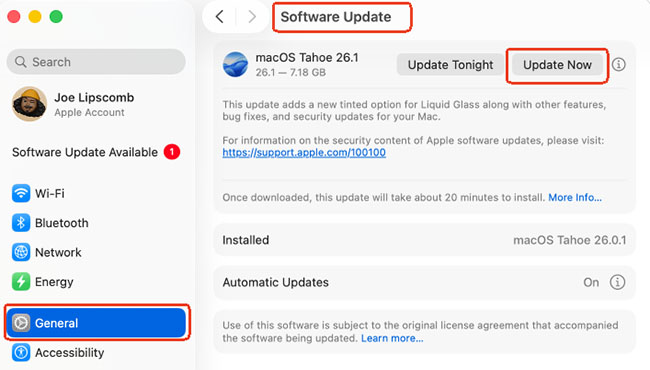
- Click the Apple logo in the top left corner and select System Settings.
- Navigate to General > Software Update.
- If an update is available, click Update Now and allow your Mac to restart.
4. Check Your Monitor's Refresh Rate (Windows & Mac)
A mismatch between the video frame rate and your monitor's refresh rate can cause horizontal lines to appear during fast-moving scenes.
- Mac: Open System Settings > Displays. Check the Refresh Rate dropdown and ensure it matches your display's recommended specifications.
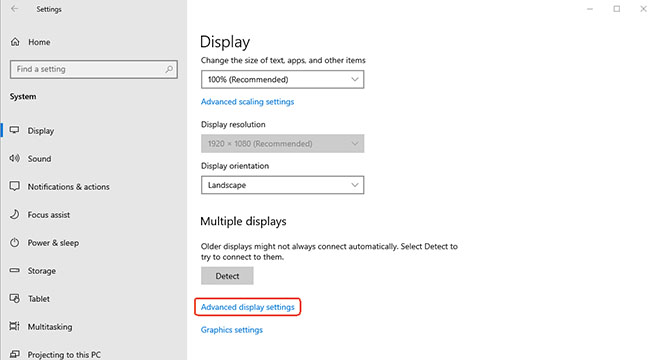
- Windows: Go to Settings > System > Display > Advanced display. Ensure the refresh rate is set to your monitor's native frequency (usually 60Hz).
 Pro Tip:
Netflix officially recommends testing refresh rates at 120 Hz or below when troubleshooting display lines and flickering on Windows.
What to Do When Netflix Shows Horizontal Lines Due to a Hardware Problem
Discovering that the distortion overlays your TV's native interface points toward internal component failure. This requires a different approach, as software resets generally won't fix physical degradation.
1. The T-Con Board vs. Panel Degradation
The Timing Control (T-Con) board translates the video signal into the images you see on the screen. If this internal component overheats or begins to fail, it frequently causes uniform colored bands across the display.
Alternatively, the LCD or OLED panel itself might be degrading due to age, physical impact, or micro-fractures in the internal ribbon cables. While a T-Con board is a relatively affordable part that a technician might replace, a failed panel generally means it is time to shop for a new television.
2. Environmental Factors and Interference
Modern televisions pack a lot of sensitive electronics into incredibly thin chassis. Keeping them cramped in unventilated entertainment centers can lead to thermal throttling, which sometimes manifests as visual artifacts as the internal boards overheat.
Additionally, unshielded speakers or high-powered electronics placed too close to the screen may introduce magnetic interference. Moving external devices a few feet away from the television could potentially clear up minor visual noise.
Pro Tips: Do Not Disassemble Your Display
Do not attempt to open the TV or monitor casing yourself. Internal components carry severe high-voltage electrocution risks, and panel ribbon cables are extremely fragile. Contact a qualified repair technician.
FAQs About Netflix Horizontal Lines
Why does Netflix have a green line at the bottom of the screen?
Green lines indicate a resolution mismatch or an overscan issue between the streaming device and the television. Adjusting the aspect ratio or "screen fit" settings in your display menu can often push the artifact off-screen.
Can a bad HDMI cable cause horizontal line distortion?
Yes. A damaged, low-quality, or loosely connected HDMI cable causes digital signal dropouts, presenting as static, flickering horizontal lines, or momentary screen tearing.
How do I know if Netflix or my TV is causing the horizontal lines?
Check the TV's own interface or Picture Test. If the lines disappear outside Netflix and the built-in picture test looks normal, investigate Netflix and the connected playback equipment. If the lines remain on the TV's own diagnostic screen, the display itself may require service.
Should I reset my TV if Netflix has horizontal lines?
A TV reset can be useful in some situations, but it shouldn't be the first step. Start with less disruptive tests such as checking another title, restarting the device, testing another HDMI cable or port, and running the TV's picture test. A factory reset can also erase personalized picture, network, and app settings.
Final Thoughts
When Netflix displays horizontal lines, always diagnose the source before paying for hardware repairs or replacing cables:
- Check the TV Menu first; if it's clean, your TV hardware is safe.
- Check HDMI cables & power cycles for streaming boxes.
- Adjust refresh rates (60Hz/120Hz), HDR, and hardware acceleration for PCs.

Jordan Rhodes is a Chief Technical Editor and Media Specialist at VidiKeep, specializing in creating diverse tech content, including streaming tutorials, software reviews, and video encoding tips.
Leave a Comment