Fix Netflix Not Working on Samsung TV: [Won't Load/Open/Frozen]
Netflix not working on a Samsung TV is a frustrating problem, especially when the app was working normally before and suddenly refuses to load. For example, the Netflix app stops opening, freezes in the Netflix logo with the red loading circle, gets stuck loading, shows a black screen, won't sign in, or displays an error code.
In most cases, the problem is not caused by Netflix itself. Samsung TV users usually encounter this issue because of temporary Smart TV software glitches, outdated firmware, unstable internet connections, corrupted Netflix app data, account-related errors, or older TV compatibility limitations.
Fortunately, you can fix Netflix not working in your Samsung TV without replacing the device. This guide walks through the most effective solutions to watch Netflix on Samsung TV, starting with simple fixes and moving to more advanced troubleshooting steps.
 Netflix App Not Working on Samsung TV: Quick Fix Checklist
- Check whether Netflix works on another device.
- Restart your Samsung TV completely.
- Restart your internet router.
- Clear Netflix cache/data.
- Update Samsung TV software.
- Reinstall Netflix.
- Sign out and sign back into Netflix.
- Reset Smart Hub.
- Use a streaming device or USB playback if your Samsung TV is no longer supported.
Netflix Not Working on Samsung TV: Quick Diagnosis Table
Before changing settings, check the symptom you are experiencing. Different Netflix problems usually point to different causes. Now, go through this quick checklist:
| Netflix Problems on Samsung TV | Most Likely Cause | Try This First |
|---|---|---|
| Netflix app won't open | Temporary app or TV glitch | Perform a Samsung TV cold boot |
| Netflix stuck on loading screen | Network issue or corrupted app data | Restart TV and router |
| Netflix black screen | Playback or software problem | Update TV software and restart Netflix |
| Netflix keeps buffering/not loading | Weak or unstable internet connection | Check network status |
| Netflix error UI-800-3 | Stored Netflix data problem | Sign out and reset Netflix |
| Netflix error NW-2-5 | TV cannot connect properly to Netflix | Check Samsung TV network settings |
| Netflix disappeared from Samsung TV | Compatibility or software issue | Check TV updates and model support |
If one fix does not work, continue to the next step. Avoid jumping directly to a factory reset because it removes many personal settings.
Problem 1: Netflix App Won't Open on Samsung TV
Possible Causes of Netflix Not Opening
When Netflix will not launch on a Samsung Smart TV, the problem is usually related to the TV software environment rather than your Netflix account. Common causes include:
- Temporary Samsung TV memory issues
- Netflix app freezing
- Smart Hub errors
- Outdated TV software
Samsung TVs often remain in standby mode when powered off normally. Over time, temporary system data can affect how apps perform, causing Netflix to freeze or fail to load.
Fix: Restart Your Samsung TV
A simple restart is often the fastest solution when Netflix is frozen, stuck loading, or suddenly stops working. Restarting can clear temporary memory issues and refresh the connection between the TV system and Netflix app.
Step 1. Turn on your Samsung TV.
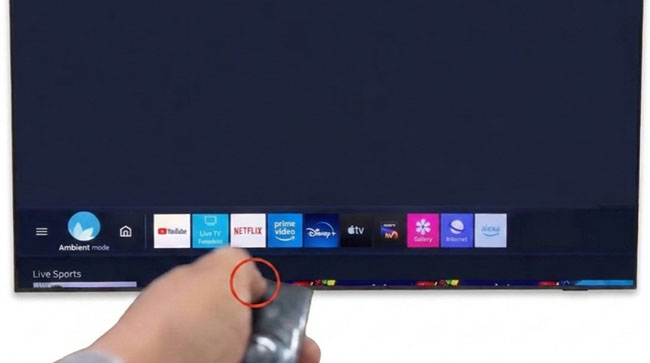
Step 2. Hold the Power button on the Samsung remote.
Step 3. Keep holding until the TV turns off and restarts.
If this does not work, you can perform a power cycle on your Samsung TV by following these steps:
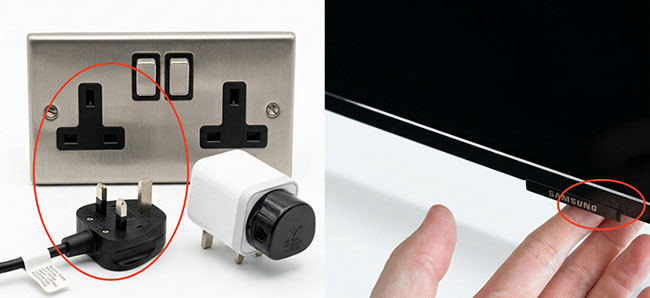
Step 1. Turn off your Samsung TV and unplug it from the power outlet.
Step 2. Wait around one minute and plug it back in.
Step 3. Turn the Samsung TV on and open Netflix again.
A cold boot is usually the first fix worth trying because it does not remove apps, accounts, or settings.
Problem 2: Netflix Is Stuck Loading on Samsung TV
Possible Causes of Netflix Loading Problems
If Netflix opens but stays on the loading screen, such as endlessly spinning a red loading wheel, the issue is often related to communication between your Samsung TV and Netflix servers. Possible causes include:
- Unstable Wi-Fi connection
- Router problems
- Netflix app data issues
- Temporary account authentication problems
A common mistake is assuming that a fast internet plan automatically means reliable streaming. Netflix also depends on connection stability, signal strength, and network performance.
Fix: Restart Your Network Connection
A weak or unstable internet connection is one of the most common reasons Netflix does not work properly on Samsung TVs. You can reset your network connection by restarting your router:
Step 1. Turn off your modem and router and wait about 30 seconds.
Step 2. Turn them back on and wait until your internet connection returns.
Step 3. Open Netflix again.
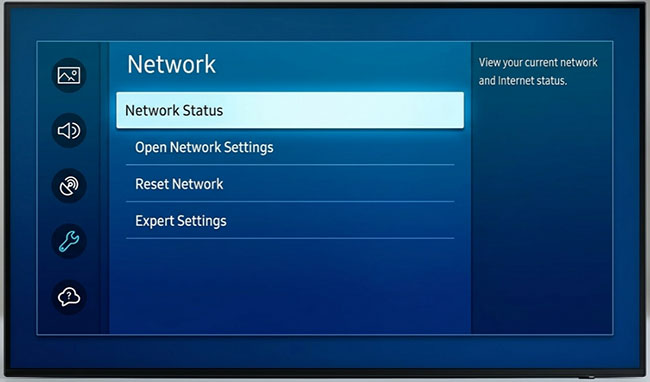
You can also check your Samsung TV network status: Settings → General → Network → Network Status
If your Samsung TV supports it, test Netflix using an Ethernet connection. A wired connection can help determine whether Wi-Fi instability is causing the problem.
Fix: Clear Netflix Cache/Data
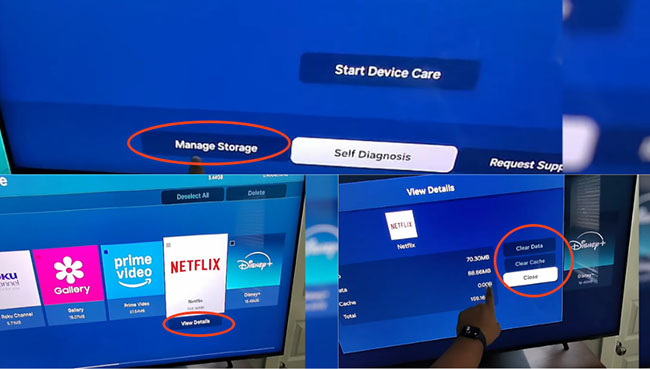
On supported Samsung Smart TVs, you can refresh Netflix by clearing its cache or app data directly from the TV settings. Clearing cache is a safer first step because it removes temporary files without deleting app settings. Clearing data performs a deeper reset and may remove stored Netflix information, requiring you to log in again. Follow these steps:
Step 1. Open Settings on your Samsung TV and go to Support.
Step 2. Select Device Care and then choose Manage Storage.
Step 3. Select Netflix from the app list and click View Details.
Step 4. Choose Clear Cache to remove temporary files. If the problem continues, select Clear Data to reset Netflix app information.
Problem 3: Netflix Not Loading/Keeps Buffering on Samsung TV
Possible Causes of Netflix Buffering
Netflix on Samsung TV not loading or buffering is usually caused by inconsistent network performance. Common reasons include:
- Weak Wi-Fi signal
- Too many devices using bandwidth
- Router limitations
- Network interference
- VPN or custom network settings
Netflix recommends approximately:
| Streaming Quality | Recommended Speed |
|---|---|
| Standard Definition | 3 Mbps or higher |
| HD | 5 Mbps or higher |
| 4K Ultra HD | 15 Mbps or higher |
However, a connection that frequently drops or fluctuates can still cause buffering even with sufficient speed.
Fix: Improve Your Samsung TV Streaming Connection
- Move your router closer to the TV.
- Restart your router.
- Disconnect unused devices from your network.
- Use Ethernet instead of Wi-Fi when possible.
- Disable VPN or proxy connections.
If other apps on your Samsung TV also have problems, the issue is more likely related to your network rather than Netflix.
Problem 4: Netflix Shows a Black Screen on Samsung TV
Possible Causes of Netflix Black Screen
A black screen usually means Netflix launches but cannot properly start playback. Possible causes include:
- Temporary app failure
- Outdated Samsung firmware
- HDMI or playback-related issues with connected devices
- Smart Hub problems
Fix: Restart and Update Your Samsung TV
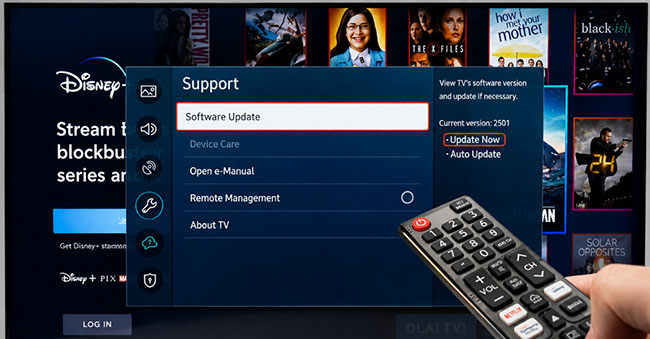
First of all, you can try to restart your Samsung TV to see whether this issue could be fixed. If the problem continues, you can check for software updates:
Step 1. Open Settings and select All Settings.
Step 2. Choose Support and select Software Update.
Step 3. Choose Update Now option to update your Samsung TV. Samsung firmware updates can improve app compatibility and fix software-related problems.
Problem 5: Netflix Error Codes on Samsung TV
When the app fails to connect properly, it usually provides a specific error code to help narrow down the problem. Two of the most common codes on Samsung televisions are NW-2-5 and UI-800-3. Addressing these specifically can quickly get you past the roadblock.
Fix Network Error NW-2-5 on Samsung TV
The NW-2-5 error explicitly indicates a network connection issue that is preventing your TV from reaching the streaming servers. This usually means your Wi-Fi signal has dropped, or your router needs a quick refresh.
Step 1. Restart your home Wi-Fi router by unplugging it for 30 seconds and plugging it back in.
Step 2. Check your Samsung TV's network settings to ensure the DNS configuration is set to "Automatic."
Resolve Corrupted Data Error UI-800-3
If you encounter the UI-800-3 code, it means the cached data stored on your Samsung TV has become corrupted and needs to be refreshed. The most effective way to handle this is to sign out of your account completely to wipe the localized session data.
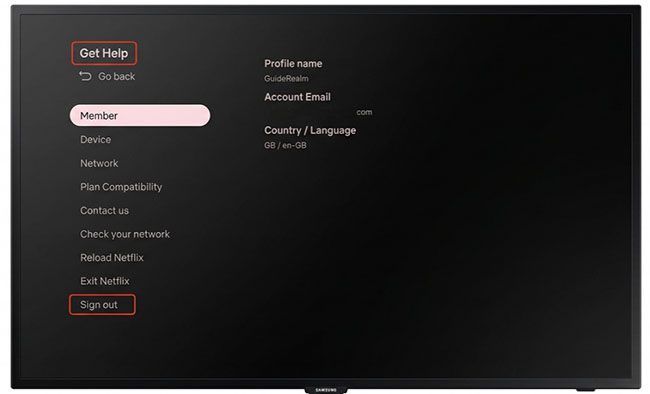
Sign Out of Netflix on Samsung TV:
Step 1. Open the hidden menu in the app by pressing the back button, navigate to Get Help.
Step 2. Select Sign Out option to log out of Netflix on Samsung TV.
Step 3. Restart your Samsung Smart TV and sign back in.
Reinstall Netflix App on Samsung Smart TV
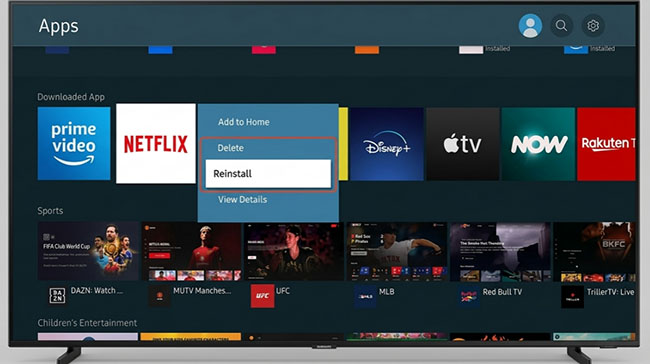
A damaged app installation can cause Netflix to stop working correctly. Reinstalling Netflix gives your TV a fresh version of the application.
Step 1. Open the Samsung Apps section and find Netflix.
Step 2. Remove Netflix from Samsung TV by clicking the Delete option and then download the app again or directly click the Reinstall option.
 Note:
Note:
Some older Samsung TVs have limited app management options. If Netflix cannot be deleted, restarting and updating the TV may be the better approach.
Reset Samsung Smart Hub
If the error continues, resetting Samsung Smart Hub may refresh the Netflix app environment. Here is how to:
Step 1. Navigate to your Samsung TV's Settings menu.
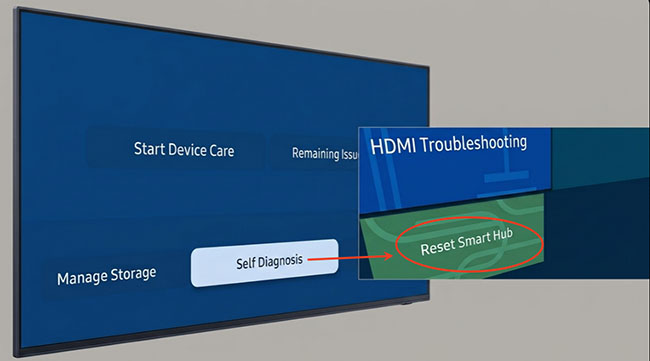
Step 2. Select Support, Device Care, then Self Diagnosis, and finally choose Reset Smart Hub.
Step 3. Enter your PIN (the default is usually 0000) and wait for the system to restore itself.
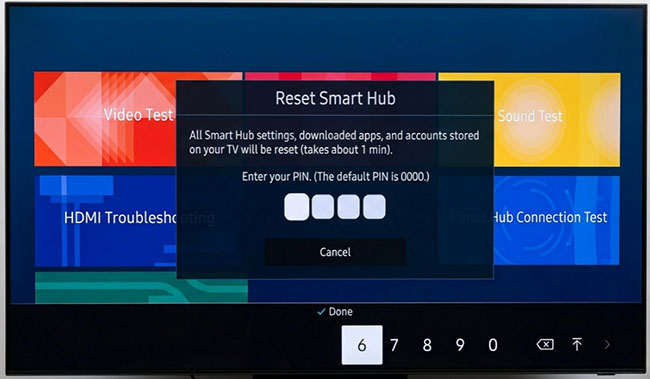
Once you have your Smart Hub reset, simply download the app again and sign in.
Note:
It will wipe all of your downloaded apps and erase your login data across the entire television. Use this option after simpler fixes have failed.
Problem 6: Netflix Sign-In Problems on Samsung TV
Sometimes Netflix itself works, but you cannot access your account. Common login problems include:
- Incorrect password
- Account not loading
- Activation problems
- Netflix repeatedly asking you to sign in
You can try to sign out and back in your Netflix account. If you cannot access the app normally, reinstalling Netflix can also refresh the login process.
Besides, you can try signing in through a phone or computer to check your Netflix account. If your account does not work elsewhere, the problem is likely related to your Netflix account rather than the Samsung TV.
Problem 7: Netflix App Not Working on Older Samsung TV
You have to verify if your television is still officially compatible with the platform. Netflix officially ceased support for a wave of older-generation smart TVs due to outdated security and digital rights management protocols. If you are using a Samsung TV from 2014 or earlier, the native app will simply no longer open.
Fix: Use An External Streaming Device
If Netflix continues not working because your Samsung TV is too old or no longer supports updates, an external streaming device can provide another solution. Popular options include:
| Device | Suitable For |
|---|---|
| Roku | Simple streaming setup |
| Amazon Fire TV Stick | Affordable upgrade |
| Chromecast with Google TV | Google ecosystem users |
| Apple TV | Premium streaming experience |
A streaming device runs Netflix independently, which means you do not rely on the Samsung TV's built-in software. For older Samsung TVs, this is often more practical than replacing the entire television.
Fix: Playback from Samsung TV's USB Port
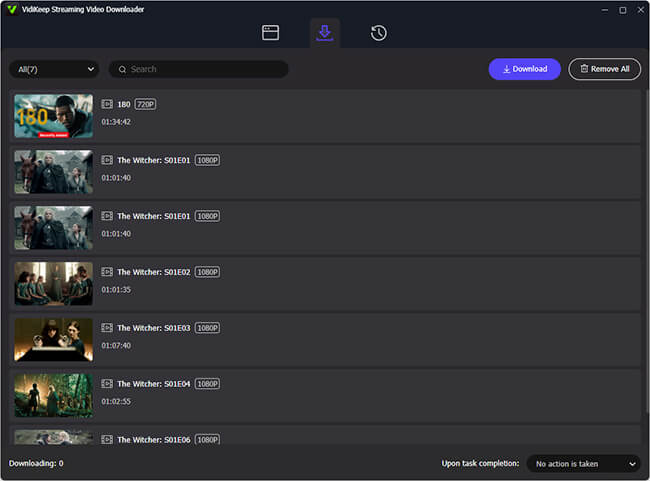
The alternative solution is to use the TV's USB media playback feature. You can save Netflix videos as MP4 or MKV files using VidiKeep Netflix Video Downloader, transfer the downloaded files to a USB flash drive, and then play them directly through the Samsung TV's USB port.
This method can be useful for older TVs that still support USB video playback but can no longer run the latest Netflix app. Before using this approach, check your TV's supported video formats and make sure your downloads comply with applicable terms and laws.
Step 1. Download favorite Netflix video files and save them as MP4 or MKV.
Step 2. Copy the Netflix files to a USB flash drive.
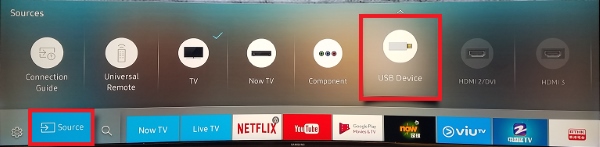
Step 3. Connect the USB drive to your Samsung TV.
Step 4. Open the TV's Media Player and play the video.
 Tips:
Tips:
If Netflix has disappeared from your compatible Samsung TV or cannot be found in Samsung Apps, you can check whether Samsung provides firmware updates.
FAQs About Samsung TV Not Working With Netflix
Why is Netflix not working on my Samsung Smart TV?
Netflix may stop working because of a temporary TV software problem, outdated firmware, network issues, Smart Hub errors, or compatibility limitations. Restarting the TV and checking the network usually solves many common problems.
How do I reset Netflix on my Samsung TV?
You can usually reset Netflix by signing out, restarting the TV, or reinstalling the app. Some Samsung TVs also allow Smart Hub resets.
Why did Netflix stop working on my old Samsung TV?
Older Samsung TVs may lose Netflix support because of outdated software, hardware limitations, or compatibility changes.
Final Thoughts
When Netflix app on Samsung TV is not working, from black screens to frozen loading wheels, are caused by minor software bugs, corrupted cache files, or temporary network hiccups. In the vast majority of cases, a simple cold boot, a router restart, or reinstalling the app will get your streaming back on track within a few minutes.
If you have tried all the standard fixes and the app still refuses to load, double-check your TV's age. For older models that no longer receive official firmware updates, picking up an inexpensive external streaming stick or utilizing USB media playback is usually the most practical, budget-friendly way to keep enjoying your favorite shows without buying a brand-new television.

Jordan Rhodes is a Chief Technical Editor and Media Specialist at VidiKeep, specializing in creating diverse tech content, including streaming tutorials, software reviews, and video encoding tips.
Leave a Comment