How to Watch Netflix on Apple CarPlay without Jailbreak
Can we actually watch Netflix on CarPlay while parked with the new iOS video playback feature? I saw that iOS 26 will allow "video in the car" through CarPlay as long as the vehicle is parked. It apparently works for Apple TV and Safari and brings AirPlay video playback to CarPlay screens on iOS 26.4/26.5 beta, but will it work for the Netflix app yet? Or is Netflix blocking it because of DRM? Looking to see if it's worth trying or if I still need a third-party adapter. Thanks!
Unfortunately, Netflix does not support AirPlay video casting due to strict DRM (Digital Rights Management) restrictions. If you attempt to use Apple's new CarPlay video feature with Netflix in in the iOS 26 beta, you will be greeted by a frustrating black screen with audio-only playback. The good news is that there are still several working methods that can help you watch Netflix on your car screen. Some are simple and beginner-friendly, while others require additional hardware or advanced setup.
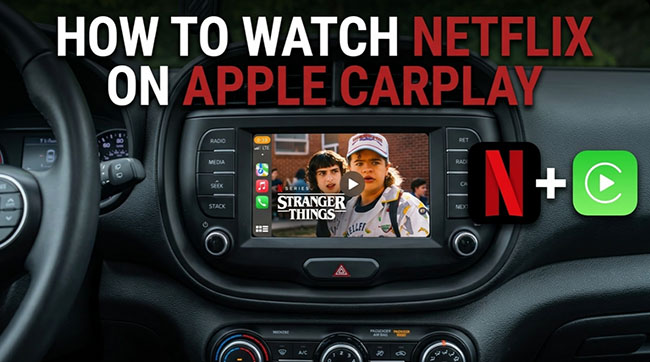
 SAFETY FIRST: Rules for In-Car Streaming
Bypassing screen restrictions to play Netflix video content carries severe risks. Distracted driving is a leading cause of severe accidents and is strictly illegal in almost all jurisdictions. Please adhere to these non-negotiable safety rules:
- Parked Only: Never, under any circumstances, stream Netflix while the vehicle is in motion.
- Safely Stationary: Only launch Netflix when your vehicle is securely shifted into Park, the parking brake is engaged, and you are safely off the main roadway (e.g., at an EV charging station or rest stop).
- Passenger Rule: Even if a passenger is watching, a moving video screen in the front console inevitably pulls the driver's eyes off the road. Keep the screen off while driving.
Can You Watch Netflix Natively on CarPlay?
No, you cannot natively stream Netflix, YouTube, or Hulu through a standard, factory-level Apple CarPlay connection. Apple explicitly bars video streaming applications from appearing on the native dashboard interface. This is a deliberate, hard-coded software limitation designed to prevent distracted driving and ensure compliance with strict international road safety regulations. Your safety, and the safety of everyone else on the road, must always come first.
Why Apple CarPlay's Video in Car Feature Fails for Netflix
Any attempt to force video playback through standard CarPlay frameworks results in a black screen or a prompt error message. Even under Apple's testing environments, like the upcoming "video in the car" framework in the current iOS 26 betas, the system is strictly limited to an AirPlay-style casting protocol while parked. While this works beautifully for the native Apple TV app or open-source web videos via Safari, third-party premium streaming apps are a different story.
The DRM Blockade:
Netflix, Disney+, and various premium platforms deliberately disable AirPlay streaming to unverified external displays to prevent piracy and unauthorized screen recording. Because your car's dashboard isn't recognized as a secure HDCP (High-bandwidth Digital Content Protection) monitor, the native Netflix app actively blocks the video handshake.
Way 1. How to Watch Netflix on Apple CarPlay without Jailbreak via CarPlay AI Boxes
Since Apple's native AirPlay architecture cannot bypass Netflix's security flags, investing in a CarPlay AI Box is currently the absolute best solution. It provides a seamless and high-quality Netflix viewing experience.
Also known as a wireless CarPlay adapter with multimedia capabilities, these small devices plug directly into your car's existing data USB port. Instead of merely mirroring your iPhone, an AI Box runs a completely independent Android operating system right on your dashboard screen. They come pre-loaded with the Google Play Store, allowing you to download native streaming apps, including Netflix. This means you get full HD Netflix video, no audio lag, and the ability to download episodes for offline viewing.
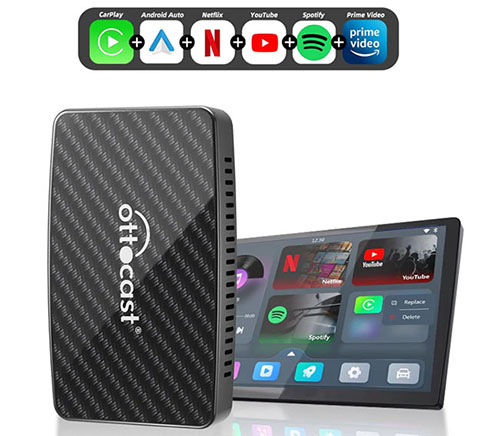
Best Wireless Apple CarPlay Netflix Adapters You Can Choose
The popular Apple CarPlay adapters with Netflix is currently led by three major standalone brands: Ottocast, The Magic Box, and Carlinkit. The following technical breakdown highlights their differences in processing power, ecosystem openness, and distinct hardware features to help you select the best fit for your infotainment system.
| Feature / Spec | Ottocast Play2Video Pro | The Magic Box Series 2 | Carlinkit Tbox Max (Ambient) |
|---|---|---|---|
| System Architecture | Closed Android System (Optimized for stability) | Open Android 10 (Full Google Play Store) | Open Android 13 (Full Google Play Store) |
| Processor (CPU) | Dual-core ARM Cortex-A72 | 8-Core MediaTek MTK6765 (up to 2.3GHz) | 8-Core Qualcomm Snapdragon 6225 (6nm process) |
| Graphics (GPU) | Integrated ARM | Adreno 610 | Adreno 610 (Smooth UI rendering) |
| Memory (RAM) | 2GB DDR4 | 4GB DDR4 | 4GB or 8GB LPDDR4 |
| Storage (ROM) | 16GB eMMC | 64GB eMMC | 64GB or 128GB UFS |
| Expandable Storage | USB Drive Slot (External media) | MicroSD Slot (Up to 256GB) | TF/MicroSD Slot (Up to 256GB) |
| App Ecosystem | Pre-installed Only (Netflix, YouTube, IPTV, Spotify, Disney+) | Unlimited (Download any app from Google Play Store) | Unlimited (Download any app from Google Play Store) |
| Internet Connectivity | Connects to phone Hotspot / Car Wi-Fi | Hotspot / Car Wi-Fi / 4G SIM Card Slot | Hotspot / Car Wi-Fi / 4G SIM Card Slot |
| Wireless Car Interconnection | Wireless CarPlay & Wireless Android Auto | Wireless CarPlay & Wireless Android Auto | Wireless CarPlay & Wireless Android Auto |
| Built-in GPS / Navigation | No (Relies on connected phone) | Yes (Internal SoC GPS) | Yes (Triple System: GPS + Glonass + Beidou) |
| Hardware Ports | USB-C (Power/Data), USB-A (Media) | USB-C, Micro HDMI Out, MicroSD, SIM | USB-C, TF Card, SIM |
| Unique Hardware Feature | Closed ecosystem avoids crashes & malware | Micro HDMI port lets you output video to rear headrest screens | Customizable RGB LED Ambient Light Ring around the casing |
| Split-Screen Mode | No | Limited (Performance bottlenecks) | Yes (e.g., Google Maps + Spotify side-by-side) |
| Pricing | $69.99 | $175.00 | $299.00 |
How to Use Apple CarPlay Adapter to Watch Netflix
Setting up one of these multimedia adapters is surprisingly straightforward and requires no technical expertise.
Step 1. Connect the Adapter: Plug the AI box into your vehicle's primary data USB or USB-C port and wait for the new Android interface to boot up on your dashboard.
Step 2. Link to Internet: Connect the device to the internet by turning on your iPhone's Wi-Fi hotspot and pairing it within the AI Box's settings menu.
Step 3. Launch Netflix: Open the pre-installed Netflix app, log into your account, and select your favorite show to begin watching.
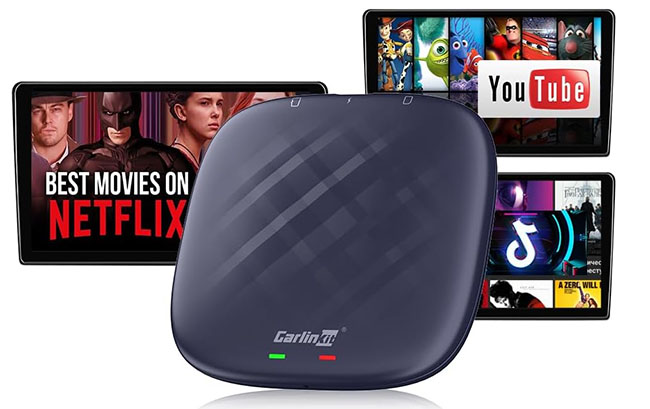
 Key Takeaways for Your Decision:
- Choose Ottocast Play2Video Pro: Best for a hassle-free, "plug-and-play" experience. It uses a closed, stable system that boots fast and has Netflix and YouTube perfectly pre-loaded.
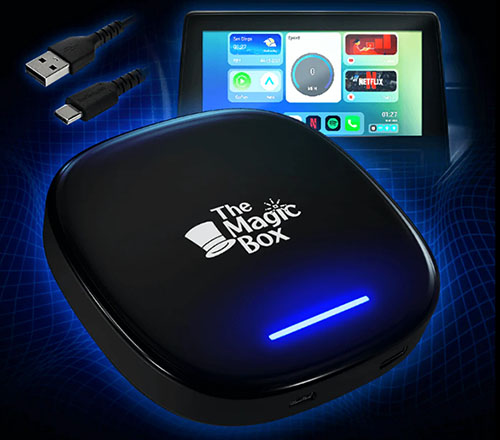
- Choose The Magic Box Series 2: Best for family road trips. Its unique Micro HDMI Out port lets you mirror Netflix from the dashboard directly onto rear-seat screens.
- Choose Carlinkit Tbox Max: Best for raw performance. Packed with a snappy Qualcomm Snapdragon chip and up to 8GB of RAM, it handles split-screen multitasking (like Maps and streaming) without lagging.
Way 2. How to Play Netflix on Apple CarPlay via HDMI-to-CarPlay Multimedia Adapters
If you do not want an entirely separate Android operating system running on your dashboard (like an AI Box), using a dedicated physical connection via an HDMI-to-CarPlay Multimedia Adapter is an incredibly reliable hardware alternative.
The Technical Logic: Why HDMI Bypasses the Netflix Black Screen
Standard wireless screen mirroring or casting applications fail because Netflix uses strict Digital Rights Management (DRM) and lacks HDCP (High-bandwidth Digital Content Protection) handshakes over basic mobile apps. HDMI-to-CarPlay adapters (such as the CarlinKit HD2CP Pro or Ottocast Car TV Mate) solve this completely.
They act as a physical hardware bridge. When plugged into your vehicle's factory-wired CarPlay USB port, they trick the car's head unit into acting as a dummy high-definition video monitor. Because you plug a certified, HDCP-compliant video source, like an Amazon Fire TV Stick, Google TV, Apple TV, or even a laptop, directly into the adapter's HDMI input port, Netflix decodes natively and flawlessly without throwing a DRM black screen.
How to Get Netflix on Apple CarPlay via HDMI Adapters
This method essentially transforms your vehicle's dashboard into a smart television screen using an external streaming stick and a smartphone data hotspot.
Step 1. Connect the HDMI-to-CarPlay Adapter: Plug the adapter (e.g., CarlinKit HD2CP Pro) directly into your car's primary USB or USB-C data port - the exact one used to boot factory wired CarPlay.
Step 2. Access the Adapter Main Menu: Turn on your car's ignition. On the factory screen interface, tap the standard CarPlay icon. Instead of your iPhone app grid, the screen will switch to the adapter's proprietary menu, revealing an active HDMI input source display.
Step 3. Plug in the Streaming Stick & Power It: Insert your streaming device (Amazon Fire TV Stick, Chromecast, etc.) directly into the adapter's HDMI Input port. Connect the streaming stick's power cable to a secondary USB charging port in your car (or a cigarette lighter adapter) to boot it up.
Step 4. Activate Personal Hotspot: On your iPhone, go to Settings > Personal Hotspot and turn it on. Using the remote control that came with your streaming stick, navigate to its network settings on the car dashboard and connect to your phone's hotspot.
Step 5. Open Netflix and Play: Using the streaming stick's remote, select the native Netflix app from the screen, log into your profile, and start streaming your favorite media with full audio-to-video synchronization.
Way 3. How to Get Netflix on Apple CarPlay with Jailbreak (Not Recommended)
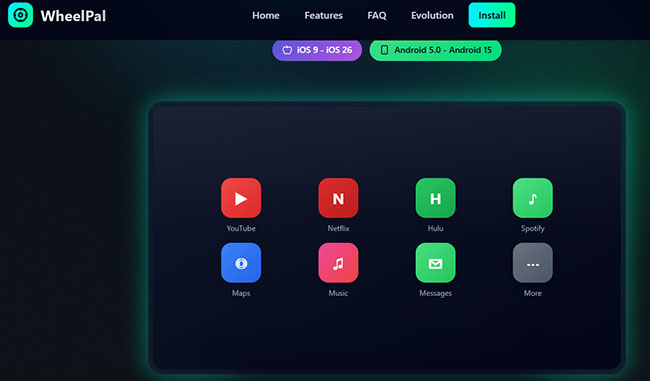
Historically, jailbreaking an iPhone was the go-to method for bypass-heavy automotive tech enthusiasts. By modifications to the iOS system filesystem, users could install third-party jailbreak tweaks like CarBridge or WheelPal to force unsupported apps, including Netflix, directly onto the dashboard display. However, this method is highly discouraged due to severe software limitations, device vulnerabilities, and strict safety risks.
Why You Should Avoid the Jailbreak Method
- iOS Version Limitations: Modern software environments like iOS 17, 18, and newer have introduced advanced security protocols that make stable jailbreaks incredibly difficult, if not completely impossible, for mainstream devices. Tweaks like CarBridge generally do not support modern iOS iterations.
- Security & Stability Risks: Rooting your iPhone instantly strips away its core sandboxing protections, leaving your sensitive data exposed to malware. Furthermore, you risk "bricking" (permanently disabling) a premium smartphone just to watch a video.
- Warranty Voidance: Modifying your iOS system filesystem instantly voids Apple's hardware warranty and cuts off official technical support channels.
- DRM Issues: Netflix enforces strict Digital Rights Management (DRM) and HDCP encryption parameters. Even on older jailbroken firmwares, video playback frequently suffers from decryption errors, audio-only bugs, or severe lag.
 Safety Warning:
Attempting to force native video streaming apps onto your car's head unit via system modifications poses serious hardware risks.
Alternative Way: How to Watch Netflix on Car Screen via USB Drive (Offline)
For drivers facing long EV charging stops, endless waits in the school pickup line, or road trips through areas with spotty cellular service, the USB drive method is a fantastic, budget-friendly alternative for uninterrupted entertainment.
Why Choose the USB Method?
While you lose the convenience of browsing a massive live streaming library on the road, you gain perfect Netflix playback stability via USB. Besides, it is an incredibly reliable, zero-buffer option for keeping children entertained during long road trips.
How to Download and Put Netflix Videos onto Your USB Drive
Because Netflix applies strict encryption to its streams, standard downloads cannot be transferred to a flash drive. To watch your favorite shows on your car screen, you need a dedicated tool to convert them into standard, universally playable files. This is where VidiKeep Netflix Video Downloader comes in. It allows you to download Netflix movies and TV shows directly to your computer as permanent, high-definition MP4 or MKV files.
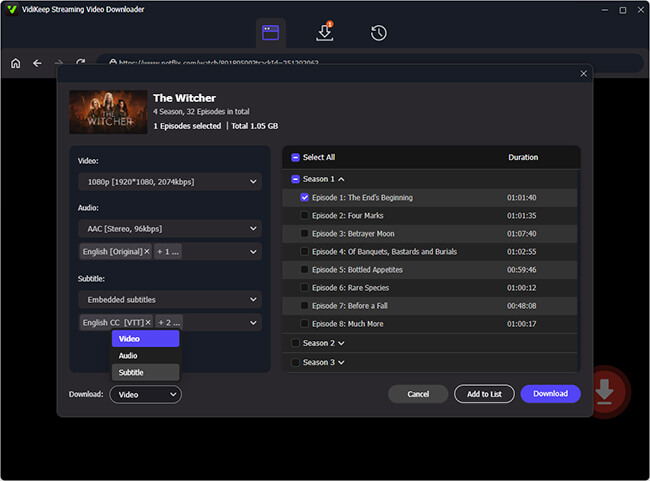
Step 1. Open VidiKeep and Download Netflix Videos: On your Windows or Mac PC, launch VidiKeep and tap the Netflix icon to see the built-in web browser. Log into your Netflix account using the built-in browser, and search for the videos you want. Select your preferred language for audio and subtitles, then download Netflix videos directly in high-quality 1080p MP4 format.
Step 2. Format the USB Drive: Plug your USB flash drive into your computer. Check its file system; most car infotainment systems require the drive to be formatted to FAT32 or exFAT to properly recognize video files.
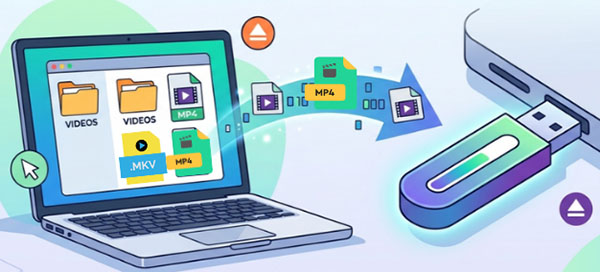
Step 3. Transfer Netflix MP4 Files: Copy the downloaded Netflix MP4 files from your local computer storage and paste them directly into the root folder or a dedicated "Movies" folder on your formatted USB drive.
Step 4. Plug and Play Netflix in the Car: Insert the USB stick into your vehicle's media port. Open the car's built-in media player app from the dashboard menu, select your video file, and enjoy seamless, buffer-free playback.
FAQs About Adding Netflix to Apple CarPlay
Does Netflix officially support Apple CarPlay?
No. Netflix does not currently offer an official Apple CarPlay app for video playback.
Can passengers watch Netflix while driving?
In some regions, passengers may legally watch content depending on the vehicle setup and local laws. However, the driver should never watch videos while operating the vehicle.
Can I use Screen Mirroring adapters to stream Netflix on AirPlay?
No, screen mirroring apps, like ApowerMirror and LetsView often fails for Netflix. When it tries to capture a copyrighted Netflix stream, the app actively blocks the video handshake. This results in the infamous "Netflix black screen with audio only" error, the sound plays perfectly, but the movie remains hidden.
Conclusion & Essential Safety Reminder
Figuring out how to watch Netflix on Apple CarPlay used to require risky software hacks, but modern hardware has solved the problem beautifully. A dedicated CarPlay AI Box or VidiKeep provide the safest, highest-quality entertainment experience while keeping your smartphone secure.
It is strictly illegal in most jurisdictions to have video content playing within the driver's line of sight while the vehicle is in motion. Always reserve dashboard video streaming for when you are safely parked, charging your electric vehicle, or waiting for a passenger. By prioritizing safety and choosing the right hardware, you can transform your vehicle's cabin into a comfortable private theater.

Jordan Rhodes is a Chief Technical Editor and Media Specialist at VidiKeep, specializing in creating diverse tech content, including streaming tutorials, software reviews, and video encoding tips.
Leave a Comment