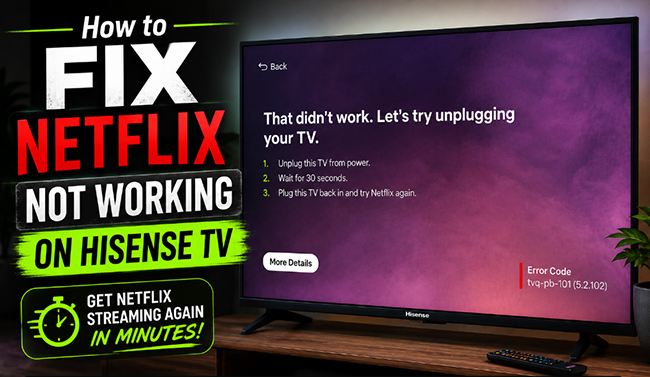
How to Fix Netflix Not Working on Hisense TV
Netflix will no longer work from the apps on my Hisense TV. It will work if I go to Netflix through an Amazon fire stick. I've tried all of the troubleshooting Netflix suggests (restarting the app, unplugging TV for over an hour)... Now they say to contact the TV manufacturer. It's super frustrating.
-- Reddit UserWhen Netflix is not working on a Hisense TV, the problem can look very different from one case to another. Apart from Hisense TV not connecting to Netflix as this user discovered, Netflix may refuse to open, freeze on the loading screen, crash back to the home screen, show a black screen, freeze during playback, or lose sound. In some cases, the Hisense Smart TV itself may restart or turn off while you are watching Netflix.
Because Hisense televisions use several different operating systems, including VIDAA, Android TV/Google TV, and Roku, finding the right solution often depends on your specific model. The good news is that you usually do not need to factory-reset the TV straight away. Start by identifying what Netflix is actually doing, then work through the least disruptive fixes first.
Netflix Not Working on Hisense TV: Find Your Problem
Use this diagnostic table to match your exact Netflix issue on your Hisense Smart TV with the most effective immediate action:
| Netflix Problem on Hisense TV | What to Try First |
|---|---|
| Netflix won't open | Restart the TV and force-stop Netflix if available |
| Netflix is stuck loading screen | Test another streaming app and check the network connectivity |
| Netflix keeps crashing | Restart the TV, then sign out and back in the Netflix account |
| Netflix keeps freezing | Restart the TV and home network |
| Netflix keeps kicking you out | Sign out of your Netflix account and sign back in |
| Netflix black screen (No sound) | Restart the TV completely and check for an app update |
| Netflix black screen (With sound) | Check HDMI connections (if using a streaming stick) |
| No audio (Video plays) | Check the TV's audio output and external audio devices |
| Netflix won't connect | Test another streaming app and restart the router |
| Netflix won't play videos | Check the app, network, and TV software |
| Hisense TV turns off during Netflix | Determine whether the TV is shutting down or Netflix is closing |
Hisense has used several smart-TV platforms, including Google TV/Android TV, Roku TV, and VIDAA. Because their menus can differ, an option mentioned below may not appear under exactly the same name on your particular model.
Quick Fixes for Netflix Not Working on Hisense TV
Before changing Netflix or Hisense Smart TV settings, try these basic checks. They take only a few minutes and can resolve temporary app, memory, or network problems.
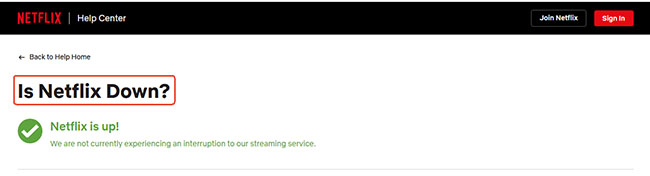
Check Whether Netflix Is Experiencing an Outage
If Netflix itself is having a service interruption, changing settings on your Hisense TV is unlikely to help. Check the official Netflix service status page on your smartphone or computer before altering your TV settings. If Netflix is operating normally, continue with the TV and network checks below.
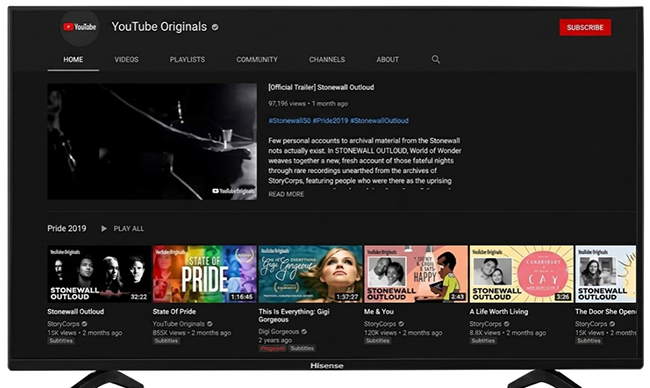
Test Another Streaming App on Hisense TV
Open YouTube or another internet-based streaming app on your Hisense TV. If another streaming service also cannot connect, the problem may be with the TV's internet connection or your home network. If other apps work normally but Netflix does not, concentrate on Netflix and the TV's Netflix-related software. This is one of the quickest ways to separate a network problem from a Netflix-specific problem on Hisense TV.
Completely Restart Your Hisense TV
Before diving into complex menus, it often helps to perform a true power cycle on your television. Most of the time, pressing the power button on your remote merely puts the TV into standby mode, which leaves underlying software glitches running in the background. A cold boot completely drains the TV's internal capacitors, forcing the operating system and the Netflix app to load entirely fresh.
Step 1. Locate the physical power button on the TV itself (usually under the bottom bezel) and hold it down for at least 60 seconds.
Step 2. Keep tapping down and select the Power Off option.
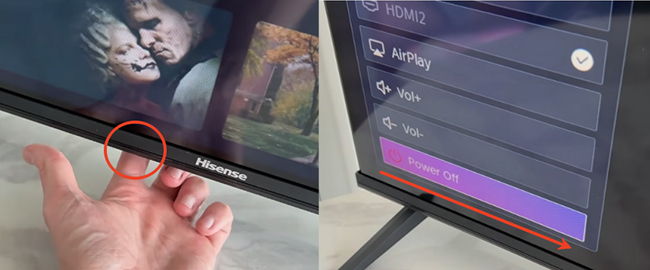
Step 3. Unplug your Hisense TV directly from the wall outlet. And then, plug the television back into the outlet and turn it on to test Netflix again.
Restart Your Router and Modem
If Netflix cannot connect or videos will not start, refresh the home network as well. Turn off or unplug the modem and router, wait around 30 seconds, reconnect them, and give the network roughly a minute to come back online. Then restart Netflix on the Hisense TV.
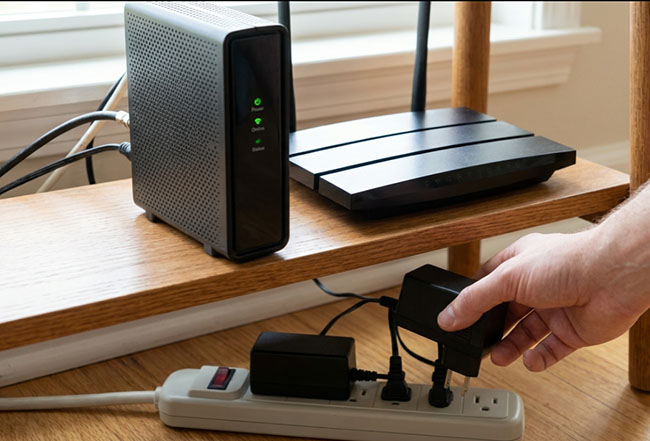
If the TV is connected by Wi-Fi and the problem continues, testing a wired Ethernet connection, if your setup supports it, can also help determine whether Wi-Fi is involved.
 Pro Tips: Advanced Network Fix:
If your problem is strictly network-related, changing your Domain Name System (DNS) is a powerful workaround. Internet Service Providers sometimes use default DNS servers that struggle to route Netflix traffic efficiently.
- Go to your TV's Network Settings and select Advanced Settings or IP Settings.
- Switch the DNS configuration from Automatic to Manual.
- Enter 8.8.8.8 for the Primary DNS and 8.8.4.4 for the Secondary DNS to route through Google's stable servers.
How to Fix Netflix App Problems on Hisense TV
If your Wi-Fi is stable and Netflix is the only app behaving strangely, the next step is to refresh the Netflix app rather than immediately resetting the entire Hisense television.
Force Stop Netflix
On compatible Hisense Google TV or Android TV models, you can navigate to Settings > Apps > See all apps > Netflix. Select Force stop. After force-stopping Netflix, open the app again.
Clear Netflix App Data by Operating System
Corrupted local data on Netflix might be preventing the stream from launching. Since Hisense manufactures TVs across multiple software platforms, generic instructions usually fall short. You need to use the specific navigation path designed for your user interface.
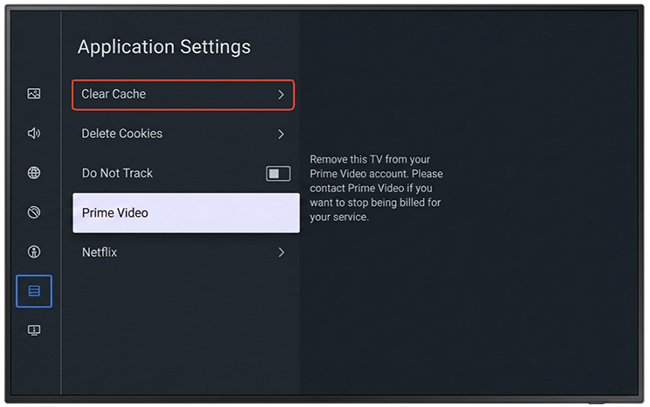
Clear Netflix Cache on VIDAA OS
VIDAA is Hisense's proprietary operating system and handles background memory a bit differently than Android-based units. Clearing out residual files can frequently clear up strange buffering behaviors.
Step 1. Press the Home button and navigate to Settings, then System.
Step 2. Select Application Settings, find Netflix, and choose Clear Cache.
Reset Netflix on Google TV and Android TV
Google and Android versions give you deeper control over app behaviors, allowing you to force a misbehaving app to close before dumping its memory.
Step 1. Go to Settings, then Apps, and click See All Apps to locate Netflix.
Step 2. Select Force Stop to halt the program completely.
Step 3. Click Clear Cache, and if that fails, return to this menu and choose Clear Data for a deeper reset.
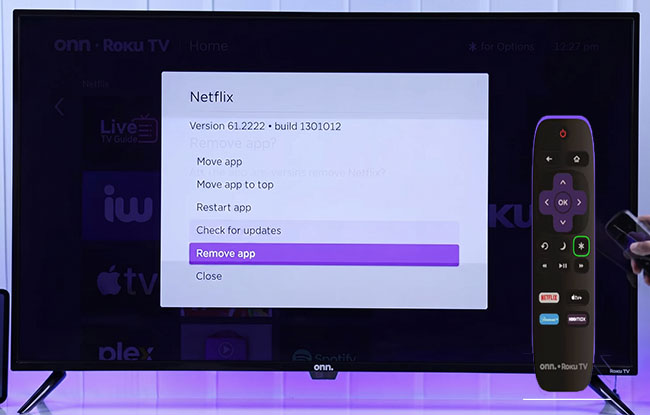
Reinstall the Channel on Roku TV
Roku handles memory management internally, meaning there isn't a traditional button to empty the cache. Instead, the most reliable approach is removing the channel entirely and forcing a fresh installation from the Roku servers.
Step 1. Highlight the Netflix tile on your home screen and press the asterisk (*) button on your remote.
Step 2. Choose Remove App and allow the system to restart.
Step 3. Visit the Roku Channel Store to download and reinstall the Netflix app.
Sign Out of Netflix and Sign Back In
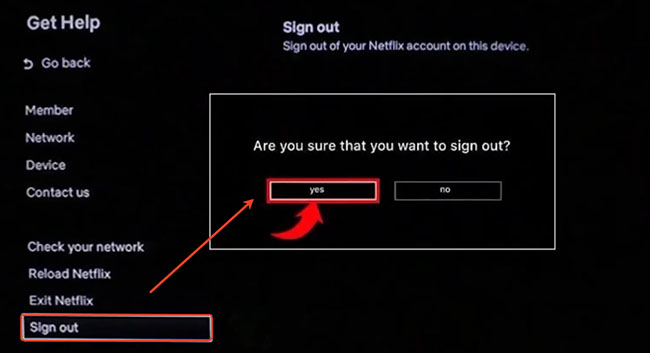
If Netflix repeatedly crashes, returns you to the home screen, or keeps asking you to sign in, refreshing the Netflix session may help. From the Netflix app, look for Get Help or the account/sign-out option and choose Sign out. Then sign back in with your Netflix account.
 Pro Tips: The Secret Diagnostic Remote Code
Netflix also provides a remote-control sequence that can open its troubleshooting menu:
Up, Up, Down, Down, Left, Right, Left, Right, Up, Up, Up, Up
Depending on the device, this menu can provide options such as signing out, resetting, or deactivating Netflix.
Update Netflix and Hisense TV Software
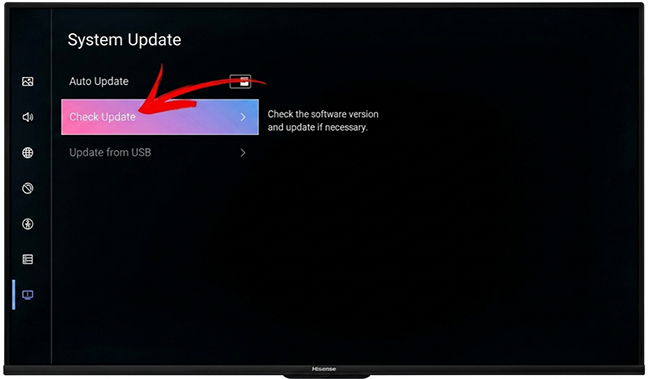
An outdated app or TV software can sometimes cause compatibility or playback problems. Check whether Netflix has an available app update, and check the Hisense TV for a system or firmware update.
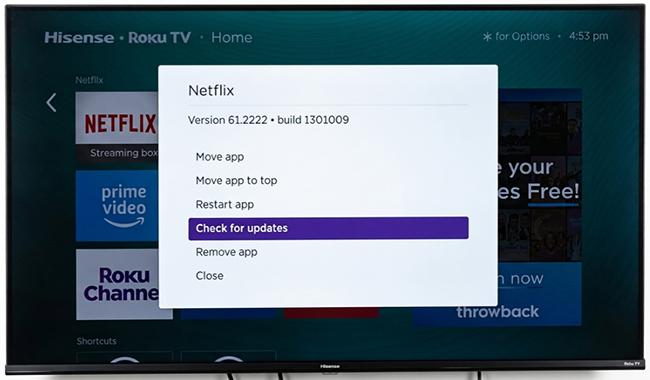
You can navigate to your TV's settings, find the System or Device Preferences menu, and check for a system update. Hisense also provides firmware support for compatible products, where you can look up available updates using the relevant product information. If Netflix stopped working after previously working normally, checking for a pending TV software update is particularly worthwhile.
 Note:
Note:
Some older Hisense models (manufactured before 2015) are no longer supported by Netflix's modern infrastructure. If you are using an unsupported model, you can use VidiKeep Netflix Video Downloader as a workaround.
It allows you to download Netflix movies and TV shows directly to universally compatible MP4 or MKV formats. Once downloaded, simply transfer the video files to a USB flash drive and connect it to your Hisense Smart TV's USB port for seamless playback.
Solutions for Specific Hisense TV Netflix Glitches
Generic restarting doesn't always fix specific issues like a black screen, missing audio, or error codes. Use these targeted solutions to resolve exact symptoms on your Hisense TV without unnecessary troubleshooting steps.
Fix Netflix Black Screen on Hisense TV
Your approach depends entirely on the audio. If you have a black screen with no sound, treat it as a standard app crash: power cycle the TV and network, and force-stop the app. If you have a black screen but can still hear the movie, the video signal is failing. If you use an external device (like a Roku or Apple TV plugged into the Hisense), swap the HDMI cable or try a different port.
Fix No Sound on Netflix on Hisense TV
If an Netflix video plays silently, test another app. If the whole TV is muted, check your TV's audio output settings and verify that your soundbar or AV receiver is properly connected. If only Netflix lacks sound, try playing a different title on Netflix. Sometimes, switching a title's audio track from "5.1 Surround" to "Original (Stereo)" within the Netflix playback menu immediately restores audio.
Fix Hisense TV Turns Off or Freezes While Watching Netflix
There is a massive difference between the Netflix app closing and the Hisense TV powering down. If the entire TV completely shuts off or the remote stops working across all menus, the TV's operating system or hardware is struggling. Monitor the TV while using other apps; if it continues shutting down, you likely have a firmware issue or a failing power board, requiring Hisense support.
Decode Specific Netflix Error Codes on Hisense
Identifying the specific Netflix error code points you directly toward the most probable failure point, saving you time.
- NW-2-5 and NW-3-6: These signify a network breakdown. Focus on the DNS changes mentioned above, or try physically moving your router closer to the TV.
- UI-800-3 and tvq-pm-100: These codes indicate severe local data corruption. The secret diagnostic remote sequence or clearing the app data will usually resolve them.
- M7111-5059: This points to a regional block, which generally happens if a VPN or proxy service is running on your network.
Factory Reset Your Hisense TV Only as a Last Resort
A factory reset can be useful when the TV has persistent software issues, but it should not be among the first Netflix troubleshooting steps. A reset can wipe all custom picture settings, delete installed apps, and remove your Wi-Fi credentials. You can navigate to Settings > System > Reset to Factory Default to restore the Hisense TV to its out-of-the-box state.
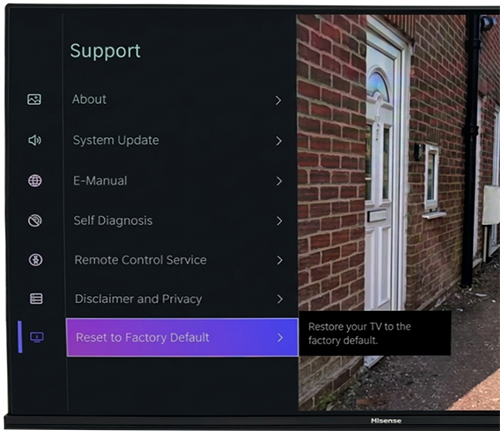
If a full reset fails and the issue remains strictly isolated to Netflix on a modern Hisense TV, document your exact TV model, firmware version, and any specific Netflix error codes displayed on the screen to provide to Netflix customer support for advanced account-level troubleshooting.
FAQs About Netflix on Hisense TV
Why is Netflix not working on my Hisense TV?
Several issues can produce the same symptom, including temporary app problems, network connectivity, outdated TV software, corrupted app data, or compatibility limitations on older models. Start by restarting the TV, testing another streaming app, and restarting your home network.
Does Netflix still work on older Hisense TVs?
It depends on the model and software. Netflix notes that some TVs and streaming devices manufactured before 2015 may no longer support the service, so checking the specific Hisense model is worthwhile if the usual troubleshooting steps fail.
Final Takeaway
Resolving Netflix not working on a Hisense TV rarely requires a drastic factory reset. By systematically working through basic network checks, complete power cycles, and OS-specific app resets, you can eliminate the vast majority of software and connectivity conflicts. For older, unsupported televisions where native app functionality can no longer be restored, leveraging a dedicated offline tool like VidiKeep ensures you maintain seamless access to your streaming library via USB playback.

Jordan Rhodes is a Chief Technical Editor and Media Specialist at VidiKeep, specializing in creating diverse tech content, including streaming tutorials, software reviews, and video encoding tips.
Leave a Comment