How to Fix Netflix Not Working on LG Smart TV
When Netflix is not working on an LG TV, the cause usually falls into one of five areas: a Netflix service issue, stored app data, the home network, webOS, or account and device compatibility. The quickest fix may be a complete restart, but repeatedly unplugging devices without identifying the symptom can waste time.
This guide is specifically for an LG TV where Netflix is already installed but will not open, load, or play normally. Check the step-by-step diagnostic process to get Netflix running on your LG Smart TV again.
Why Is Netflix Not Working on LG TV?
The symptom often provides the best clue about where to start.
| What you see on LG TV | Check first | Best first action |
|---|---|---|
| Netflix will not open | Temporary webOS or app issue | Fully restart the TV |
| Netflix is stuck on its logo | App data or network connection | Restart the TV and run a network test |
| Black screen with sound | Mirroring, adapter, or video connection | Stop mirroring or test the built-in app |
| Netflix keeps buffering | Wi-Fi speed or stability | Run Netflix's network test |
| Netflix keeps crashing | Memory, app data, or outdated software | Update the TV and free memory |
| Unable to connect to Netflix | Network or stored device data | Restart the network and reset Netflix |
| Error NW-2-5 | TV or home network connection | Test the connection and restart the router |
| Error NW-4-8 | Device data, network, or support status | Restart, update, and check compatibility |
| Netflix Household message | Household verification | Verify or update the Netflix Household |
| Device can't stream Netflix with ads | Plan and device compatibility | Check Plan Compatibility |
| All LG TV apps fail | TV network or webOS | Test another network |
| Netflix is missing entirely | Installation or availability | Use the installation guide |
Start with the least disruptive fixes. Reinstalling Netflix and factory resetting the television should come later.
 Tips:
Tips:
If Netflix has never appeared on the TV, it indicates an installation, regional availability, or device compatibility problem rather than an app-performance issue. You can use a separate guide on how to get Netflix on LG TV.
Fix 1. Check Whether Netflix Is Down
Before changing any settings on the LG television, check whether Netflix is experiencing a wider service interruption. Its service-status page is updated when the streaming platform has a known outage. You should also test Netflix on another device.
For a more useful comparison, perform two tests:
- Open Netflix on a phone or computer connected to the same Wi-Fi as the LG TV.
- Turn off Wi-Fi on the phone and test Netflix again using mobile data.
Use the results to narrow down the cause:
| Test result | Likely cause |
|---|---|
| Netflix fails only on the LG TV | TV software, memory, or Netflix app data |
| Netflix fails on every device using home Wi-Fi | Router, modem, or internet provider |
| Netflix works on mobile data but not home Wi-Fi | Home network or internet provider |
| Netflix fails on Wi-Fi and mobile data | Netflix service or account issue |
| Other LG TV apps also fail | TV network connection or webOS |
| Other LG TV apps work normally | Netflix-specific issue |
This comparison is more informative than immediately deleting the app or restoring the television to factory settings.
Fix 2. Fully Restart the LG TV
Pressing the Power button does not always shut down an LG TV completely. Depending on the model and its settings, the television may enter standby mode instead. A full power cycle clears temporary processes and forces webOS and Netflix to start again from a fresh state.
- Turn off the LG TV.
- Unplug the power cable.
- Leave it disconnected for at least 15 seconds.
- Plug the TV back in.
- Turn it on.
- Open Netflix again.
Netflix troubleshooting instructions specify that the device should be completely off rather than sleeping or in standby before it is restarted.
If Netflix keeps crashing or the TV displays a memory-related message, leave the television unplugged for longer. LG recommends turning off Quick Start+ and disconnecting power for up to 10 minutes when a temporary memory shortage prevents an app from running.
Do not repeatedly unplug the television if it is actively installing a webOS update.
Fix 3. Test the LG TV's Network Connection
Netflix may open normally but fail when loading profiles, thumbnails, or video streams. Begin with the network test built into the Netflix TV app.
Run Netflix's Built-In Network Test
- Open Netflix.
- Press the Back button to open the Netflix menu.
- Select Get Help.
- Select Check Your Network.
- Wait for the connection and speed tests to finish.
If the Netflix menu appears across the top of the screen, move left to the profile icon before selecting Get Help. If Get Help is unavailable, look for Settings instead. The test checks whether the TV can connect to the internet, reach Netflix, and maintain a suitable connection speed.
Check the Network Status in webOS
The exact path depends on the TV's webOS generation.
| LG TV generation | Common network path |
|---|---|
| webOS 6.0 and later | Settings > All Settings > General > Network |
| webOS 5.0 | Settings > All Settings > Connection > Network Connection Settings |
| webOS 4.5 | Settings > All Settings > Connection |
| webOS 4.0 and earlier | Settings > All Settings > Network |
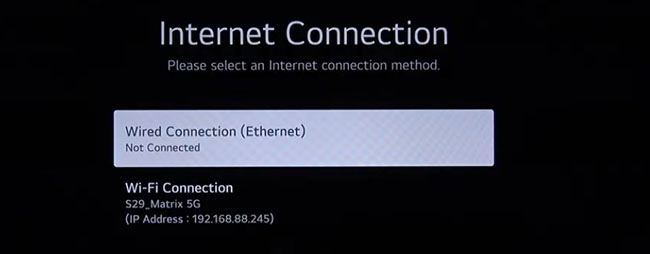
Select either Wi-Fi Connection or Wired Connection (Ethernet) and confirm that the television shows an active internet connection.
Restart the Modem and Router
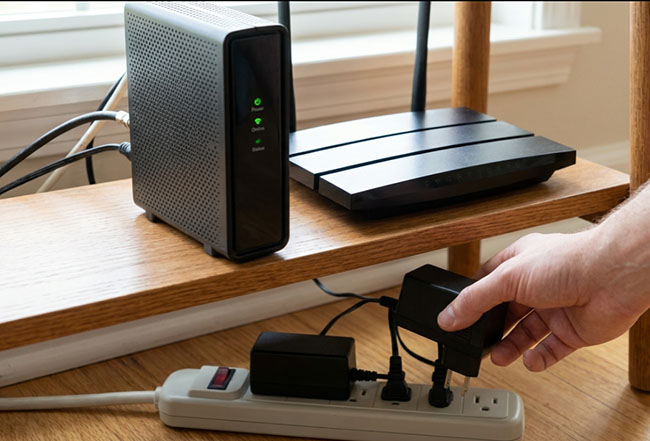
If the network test fails or Netflix reports a connection error:
- Turn off the LG TV.
- Unplug the modem and router.
- Wait approximately 30 seconds.
- Reconnect the modem first.
- Reconnect the router if it is a separate device.
- Wait until the network is fully online.
- Turn on the TV and test Netflix again.
Allow at least a minute for the router to reconnect before opening Netflix.
Compare Wi-Fi, Ethernet, and Another Network
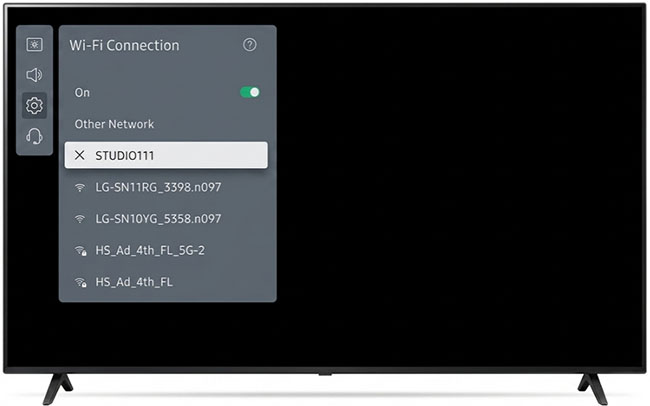
Connect the LG TV directly to the router with Ethernet when possible. If Netflix works over Ethernet but not Wi-Fi, the app is probably functioning correctly and the wireless connection needs attention.
You can also test the TV using a mobile hotspot. LG recommends trying another network when an app freezes, crashes, or refuses to load.
A successful hotspot test suggests a problem with the original router, Wi-Fi signal, DNS settings, or internet provider. Remember that mobile hotspots may be slower or less stable than a normal home connection, so use the hotspot primarily as a diagnostic test.
Check Whether the Connection Is Fast Enough
Netflix recommends a stable connection of at least:
- 3 Mbps for 720p HD
- 5 Mbps for 1080p Full HD
- 15 Mbps for 4K Ultra HD
These are recommended minimums for each resolution. Speed is only part of the picture. A Wi-Fi connection that frequently drops can cause more buffering than a slower but stable Ethernet connection.
Fix 4. Sign Out or Reset Netflix on LG TV
Netflix can sometimes open while using outdated or corrupted account data. Signing out refreshes the account connection without deleting the entire app. From the Netflix home screen:
- Press the Back button to open the menu.
- Select Get Help.
- Select Sign Out.
- Confirm the action.
- Sign in again.
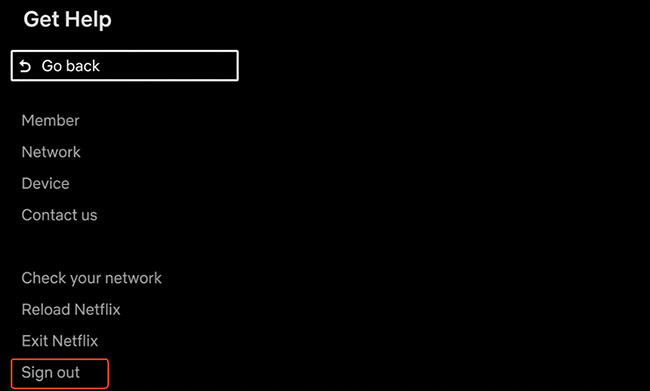
If you cannot reach the Netflix menu, open the app and enter this sequence using the remote: Up, Up, Down, Down, Left, Right, Left, Right, Up, Up, Up, Up
A diagnostic menu may appear. Depending on the app version, it may contain options such as:
- Sign Out
- Reset
- Deactivate
- Start Over
Select Sign Out or Reset, then sign back in and test Netflix. This remote sequence remains part of Netflix's troubleshooting process for televisions and streaming devices. Resetting or deactivating Netflix signs the TV out. It does not cancel the Netflix membership or delete the profiles stored in the account.
Fix 5. Update the LG TV Software and the Netflix App
Outdated television software can prevent apps from opening, cause crashes after launch, or create compatibility problems with current streaming features.
Update webOS 5.0 and Later
Go to: Settings > All Settings > Support > Software Update > Check for Updates
If an update is available, select Download and Install.
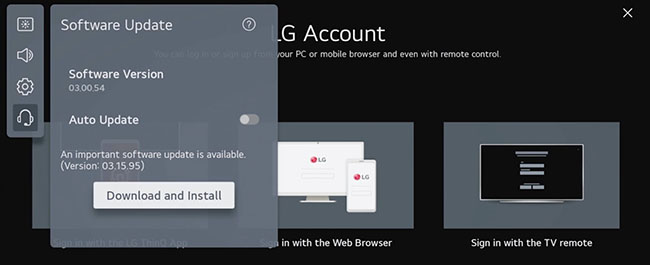
Update webOS 4.5 and Earlier
Go to: Settings > All Settings > General > About This TV > Check for Updates
After the download is complete, turn the TV off for approximately 10 seconds and turn it back on so the update can finish.
Tips:
Do not disconnect the television from power while firmware is actively installing.
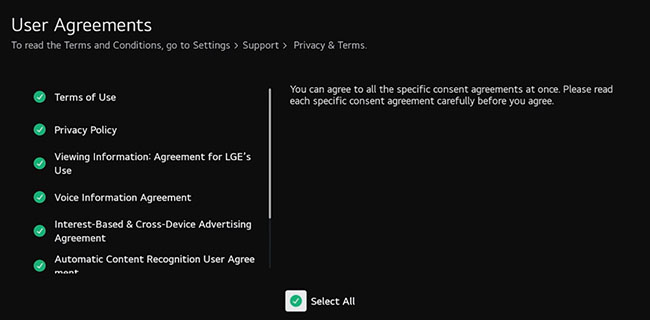
Accept LG User Agreements
There is a notorious issue where LG updates its firmware but requires you to agree to new Terms of Service. If you don't accept them, the TV silently blocks third-party apps from accessing the internet. To fix this:
- Go to Settings > All Settings.
- Navigate to Support > Privacy & Terms (or User Agreements).
- Ensure all the necessary boxes are checked and agree to the terms.
Check for a Netflix App Update
Open Apps or LG Content Store, search for Netflix, and check whether an Update button appears. LG TVs may also update apps automatically, so the store may show only Launch when the latest available version is already installed.
If webOS and Netflix are both current but only Netflix continues to fail, reinstall the app.
Fix 6. Delete and Reinstall Netflix on LG TV
Reinstalling Netflix removes its local app installation and downloads a clean copy. You will normally need to sign in again afterward. The removal process varies by webOS generation.
Delete Netflix on webOS 24/25 LG TV
- Press Home.
- Highlight Netflix.
- Press and hold the Wheel (OK) button for about three seconds.
- Select the trash icon.
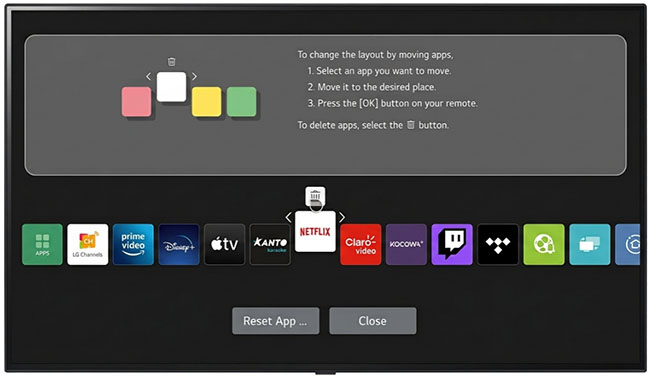
Delete Netflix on webOS 22/23 LG TV
- Press the Home button.
- Select Edit App List, or press and hold the Netflix icon.
- Select the trash icon above Netflix.
- Confirm that you want to delete it.
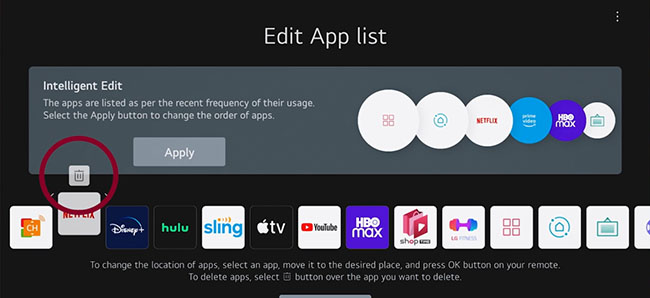
Delete Netflix on webOS 5.0 or Earlier LG TV
- Press Home.
- Highlight Netflix and hold Wheel (OK) for about three seconds.
- Select the X icon above the app and confirm deletion.
Some preinstalled apps cannot be removed on certain models. If no delete or X icon appears, return to the sign-out and reset options instead.
Fix 7. Free Up Memory and Turn Off Quick Start+
Limited available memory can cause Netflix to close unexpectedly, restart, freeze, or display a message such as: This app will restart for more efficient memory use.
Start by deleting LG TV apps you no longer use. Then turn off Quick Start+ and perform a longer power cycle.
| LG TV generation | Quick Start+ path |
|---|---|
| webOS 24/25 | General > System > Additional Settings > Quick Start+ |
| webOS 22/23 | General > Devices > TV Management > Quick Start+ |
| webOS 5.0 and earlier versions | General > Additional Settings > Quick Start+ |
Menu names can vary slightly by model and region. After turning the feature off, unplug the TV for approximately 10 minutes, reconnect it, and test Netflix again.
 Note:
Note:
A USB drive is mainly intended for storing or playing media. Do not assume that connecting one will expand the internal storage available to Netflix or other webOS apps.
Fix 8. Fix a Netflix Black Screen on LG TV
A black screen can mean several different things, so first check whether Netflix audio is still playing.
Black Screen With No Sound
Try the following in this order:
- Fully restart the television.
- Restart the modem and router.
- Update webOS.
- Sign out or reset Netflix.
- Reinstall the app.
Test another movie or show as well. If only one title fails, the problem may be limited to that title rather than the television. If the entire TV interface is black, not only Netflix, run the LG picture or screen self-diagnosis tool. Its location varies by model, but it is commonly found in the Support or Picture area.
A black television interface, failed picture test, or picture problem outside Netflix points to an LG TV display issue rather than a Netflix app issue.
Black Screen With Sound
When Netflix audio continues but the picture is black, check whether you are using:
- AirPlay
- Screen Mirroring
- A mobile-device mirroring app
- An HDMI adapter
- An AV receiver
- An HDMI switch
- An external streaming player
Netflix no longer supports AirPlay or Screen Mirroring. If you are mirroring an iPhone, iPad, or computer to the LG TV, stop mirroring and open Netflix directly on the TV instead.
When an external device is involved, try another HDMI port and connect the player directly to the TV instead of passing it through an older receiver or HDMI switch.
When the built-in LG Netflix app produces the black screen, return to the power-cycle, software-update, and reinstall steps.
Fix 9. Fix Netflix Buffering, Freezing, and Connection Errors on LG TV
A brief drop in picture quality at the beginning of playback can be normal while Netflix evaluates the available connection. Continuous buffering, repeated freezes, or a title that never starts indicate a problem. Try these steps:
- Pause large downloads and other video streams.
- Move the router closer to the television.
- Use Ethernet when possible.
- Restart the router.
- Run Netflix's Check Your Network test.
- Test the television on another network.
- Restore custom network settings to their automatic defaults.
- Contact the internet provider if multiple devices are affected.
Weak or unstable internet connections are a common cause of slow loading and repeated buffering.
Temporarily Lower Netflix Playback Quality
Playback quality is generally adjusted through a web browser rather than the LG TV's picture settings.
- Sign in to the Netflix account in a browser.
- Open the profile settings.
- Find the playback or data usage setting.
- Temporarily select a lower setting.
- Test the LG TV again.
This can reduce buffering on a slow connection, although it will not repair an unstable Wi-Fi signal. Netflix allows different data usage settings to be applied to individual profiles.
Fix "Unable to Connect to Netflix"
Use this order:
- Test another app on the LG TV.
- Run Netflix's network test.
- Fully restart the television.
- Restart the modem and router.
- Test another network.
- Sign out or reset Netflix.
- Update webOS.
- Reinstall Netflix.
If another LG app also displays a network error, focus on the television's connection rather than the Netflix installation.
Netflix Error NW-2-5
Error NW-2-5 means the device took too long to connect to Netflix. It usually points to a connection problem on the television or home network. Pay particular attention to:
- Weak or unstable Wi-Fi
- Router connection problems
- Internet service outages
- Restricted hotel, school, or office networks
- Custom DNS or network settings
- A TV that is not fully connected to the router
If NW-2-5 continues after testing Ethernet and another network, contact the internet provider or LG for further diagnosis.
Netflix Error NW-4-8
Error NW-4-8 can be caused by stored device data, the network connection, or a device that is no longer supported. Restart and update the TV first. Then sign out or reset Netflix.
If the LG TV is old and no webOS or Netflix update is available, check whether that model can still run the current Netflix app. An external HDMI streaming player may be the most practical solution for an otherwise functional television.
Fix 10. Resolve Netflix Household Verification
Netflix may work normally but then display: This device isn't part of your Netflix Household. That message is not an LG TV failure. Netflix Household is associated with devices connected to the internet at the main place where the account is used. Depending on the options shown, you may be able to:
- Update the Netflix Household
- Confirm the television by email or text
- Select Watch Temporarily
- Request a temporary access code
Temporary codes expire after 15 minutes, so request a new code if the previous one no longer works. When moving house or changing internet providers, the account owner may need to update the Netflix Household from a television connected to the new main network.
Fix 11. Check Netflix Plan and Device Compatibility
Some older LG TVs can open Netflix but cannot support every current plan or playback feature.
Check Compatibility With an Ad-Supported Experience
From the Netflix TV app:
- Open the Netflix menu.
- Select Get Help.
- Select Plan Compatibility.
If the Netflix menu appears at the top, move left to the profile icon before selecting Get Help.
If Plan Compatibility does not appear, the device cannot be used with an ad-supported Netflix experience. This can happen when the Netflix app or the television's operating system cannot be updated to a compatible version.
If the television displays: This device can't stream Netflix with ads, you can update webOS and Netflix first. If the message remains, use a compatible external streaming player or review the plan options available for the account.
Check Whether the LG TV Is Still Supported
An older television may stop receiving webOS and app updates even though the display itself still works correctly. Signs of a compatibility problem include:
- No Netflix updates are available.
- The app opens but displays a support message.
- NW-4-8 continues after network and reset steps.
- Netflix cannot support the account's current plan.
- The app disappeared after a software or regional change.
A modern HDMI streaming device can easily restore Netflix access, saving you the cost of upgrading to a new television. Alternatively, you can use VidiKeep Netflix Video Downloader to save your favorite shows and movies to MP4 or MKV files. From there, simply transfer the downloads to a USB flash drive for seamless, offline playback directly on your LG Smart TV.
Account Is Already in Use
This message does not mean the LG TV is faulty. It normally means the account has reached the simultaneous streaming limit for its plan. Stop playback on another device, wait briefly, and try the LG TV again.
Fix 12. Factory Reset the LG TV as a Last Resort
A factory reset should be the final troubleshooting step because it removes personalized information and settings, including:
- Saved Wi-Fi connections
- Downloaded apps
- LG account information
- Streaming-service logins
- Picture adjustments
- Sound settings
- Channel and device preferences
Consider a factory reset only after confirming that:
- Netflix is not experiencing an outage.
- The home network works.
- The TV is running the latest available software.
- Netflix has been signed out, reset, or reinstalled.
- The TV still supports Netflix and the selected plan.
- Other LG troubleshooting steps have failed.
The menu location varies by webOS generation. Look for Reset to Initial Settings in the General or System section.
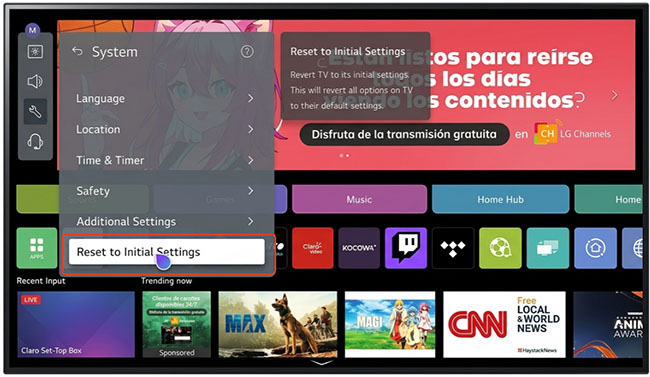
Before proceeding, record any customized picture, sound, accessibility, network, or device settings that you may want to restore later. After the reset:
- Complete the full LG TV setup process.
- Connect the television to the internet.
- Install any available webOS updates.
- Reinstall or open Netflix.
- Sign in and test playback.
If Netflix still fails after the reset while other apps work normally, contact Netflix. If multiple apps or television functions fail, contact LG.
FAQs About Netflix App on LG TV Not Working
Can You Clear the Netflix Cache on an LG TV?
Many LG TVs do not provide a separate Clear Cache button for individual webOS apps. The practical alternatives are:
- Fully restart the television.
- Turn off Quick Start+ and perform a longer power cycle.
- Sign out or reset Netflix.
- Delete and reinstall the app.
These actions refresh the temporary app state without requiring a factory reset.
Why Won't Netflix Open on My LG Smart TV?
The most common causes are temporary app data, outdated webOS software, insufficient available memory, or an unstable network. Fully restart the television first, then test the network and check for updates.
Why Does Netflix Have Sound but No Picture?
AirPlay and Screen Mirroring are no longer supported by Netflix and can cause a black picture. HDMI adapters, receivers, switches, or external streaming devices can also interfere with video playback. Stop mirroring, test another HDMI port, or open Netflix directly on the LG TV.
Why Can't I Delete Netflix From My LG TV?
Netflix may be a protected or preinstalled app on some LG TV models. When no trash or X icon appears, use the Netflix sign-out or reset menu instead. You should also update webOS, restart the television, and check whether the app can be updated without being removed.
Should I Factory Reset My LG TV to Fix Netflix?
Only as a last resort. Restarting the TV, testing the network, updating software, resetting Netflix, reinstalling the app, and freeing memory are less disruptive and solve many app-specific problems.
Conclusion
When Netflix is not working on an LG TV, begin by identifying whether the failure affects Netflix alone, every app on the television, or every device on the network. That simple comparison determines whether to focus on the app, webOS, or the router.
A complete TV restart, network refresh, and software update should come first. Reinstalling or resetting Netflix is appropriate when the problem affects only that app, while memory errors may require disabling Quick Start+ and deleting unused applications. Factory-resetting the television should remain the last resort.

Jordan Rhodes is a Chief Technical Editor and Media Specialist at VidiKeep, specializing in creating diverse tech content, including streaming tutorials, software reviews, and video encoding tips.
Leave a Comment