Why Does Netflix Keep Kicking Me Out? Causes & Quick Fixes
"Netflix keeps kicking me out on my living room TV after about a minute. I've already tried logging out and back in, but it still happens. Does anyone know how to fix it?" —Facebook
This kind of interruption is more common than it may seem, and it can happen for several different reasons. If you're wondering "Why does Netflix keep kicking me out?", the issue often comes down to your device, stored app data, network connection, or account permissions. Below, we break down the likely causes and the most effective ways to get Netflix working normally again.
Part 1. Why Does My Netflix Keep Kicking Me Out?
If Netflix keeps kicking you out, the cause depends on what actually happens on your screen. An app that suddenly closes usually points to a device, app data, or network issue, while repeated sign-in or Household messages are more closely related to account verification.
- Corrupted App Data & Outdated App: As you browse and stream, temporary cache files build up on your device. Over time, damaged cache data or an outdated app version can destabilize the platform and cause unexpected crashes.
- Netflix Household Verification: Netflix enforces household sharing policies. If your smart TV connects from a network not recognized as your residence, the system will block playback or force a sign-out.
- VPN Blocks & Network Glitches: Active VPNs and proxy tools often trigger Netflix's automated security filters. Additionally, an unstable Wi-Fi signal or router hiccup can disrupt the live server verification needed for continuous streaming.
- Simultaneous Streaming Limits: Standard subscription tiers only permit two to four simultaneous screens. If another family member begins streaming and exceeds your plan's cap, your current playback may be cut off.
| What Netflix Does | Where to Start |
|---|---|
| Closes and returns to your TV home screen | Restart the app and device |
| Plays for a minute, then exits | Device, app data, or network |
| Keeps asking you to sign in | Account session or stored login data |
| Says your device isn't part of the Household | Netflix Household settings |
| Works until you enable a VPN | VPN/network configuration |
| Only fails on one Roku or Smart TV | App/device troubleshooting |
| Shows unfamiliar account activity | Sign out devices and secure the account |
Part 2. Quick Fixes When Netflix Keeps Kicking You Out
If you are looking for simple ways to stop Netflix from kicking you out, start with these quick steps that can rule out temporary issues with the app, device, or connection. These basic steps are worth trying first to address Netflix keeps kicking you out.
| Quick Fix | Action Steps | What It Resolves |
|---|---|---|
| Restart TV / Device | Power down your device, unplug it from the wall for 60 seconds, and plug it back in. | Clears volatile RAM and stops lingering background software conflicts. |
| Restart Router | Unplug your modem and router for 30 seconds before reconnecting. | Resolves intermittent packet loss and refreshes your local IP address. |
| Sign Out & Back In | Go to Get Help or profile settings, sign out, and re-enter your login credentials. | Renews expired authentication tokens and refreshes profile permissions. |
| Update App & Device | Check your app store for Netflix updates and install pending TV firmware updates. | Patches compatibility bugs and updates required security certificates. |
 Editor's Note:
If Netflix works normally on your other devices, the problem is more likely isolated to the affected TV or streaming device. If several devices start having the same issue at once, look more closely at the network or account side instead.
Part 3. Netflix Still Kicking You Out? Try These Fixes
If basic restarts failed to solve the issue, you are likely dealing with household restrictions, deep cache corruption, or account security conflicts. These advanced fixes will help you stabilize your app and eliminate persistent streaming errors.
Fix 1. Check Netflix Household
If you are streaming on a smart TV or connected streaming player, Netflix associates TVs and connected streaming devices with the internet connection used at the main place where you watch Netflix. Connecting through a guest Wi-Fi or a secondary mesh node often triggers an automatic block.
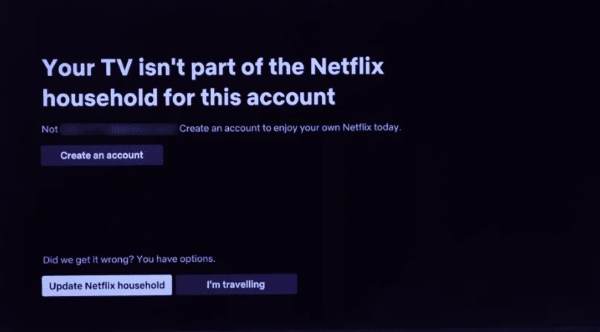
Step 1. Open Netflix on your TV, open the left-side menu, and select Get Help.
Step 2. Select Manage Netflix Household from the menu options.
Step 3. Choose Update Netflix Household and confirm the verification link sent via email or text.
 How long before Netflix kicks you out of a household?
Portable devices such as phones and laptops can stream away from your primary residence for up to 31 days before being flagged. To prevent being locked out, simply connect the device to your primary home Wi-Fi and open the Netflix app at least once a month. For smart TVs outside your main home, access is restricted immediately unless you request a temporary 7-day travel code or purchase an Extra Member slot.
Fix 2. Disable VPNs and Reset Network Connections
Using an active VPN or custom DNS service will frequently trigger automated anti-proxy filters, causing active streams to terminate abruptly. Turn off any proxy tools or third-party DNS configurations on your device and router. For the most stable playback, switch your TV from a crowded 2.4 GHz Wi-Fi band to a 5 GHz connection, or use a direct Ethernet cable.
Fix 3. Clear the App Cache and Data
Accumulated cache files or outdated browser cookies can become corrupted over time, leading to unexpected force-closes or random sign-outs when loading video buffers. Clearing this local data wipes these damaged files without altering your subscription or viewing history.
For Smart TVs and Mobile Devices:
If you frequently find out "why does Roku TV keep kicking me off Netflix" or dealing with identical crashes on an Android or Hisense TV, a bloated cache is often the hidden culprit. Because televisions and streaming sticks have very limited internal memory, wiping out this temporary data gives the operating system the clean slate it needs to run heavy media apps smoothly.
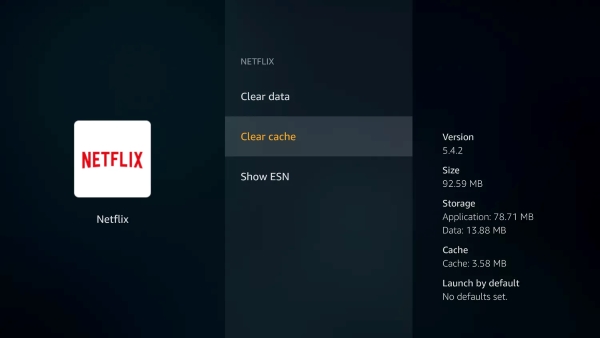
Step 1. Navigate to your device's primary Settings menu and select Apps or Application Manager.
Step 2. Locate and select Netflix from the installed application list.
Step 3. Select Clear Cache, then click Clear Data, and relaunch the application.
For Web Browsers (Chrome, Safari, Edge):
If you stream on a computer, wiping the specific site data from your browser is often the fastest way to clear out corrupted cookies without affecting your other saved logins. Here is how to do it in Google Chrome:
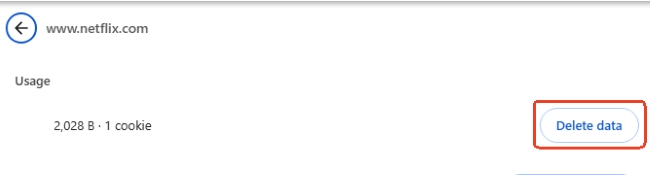
Step 1. Open Google Chrome and navigate to the Netflix homepage. Click the settings slider or lock icon located on the far left side of the address bar, right next to the URL.
Step 2. Select Site settings from the drop-down menu that appears. Locate the Usage section on the new page and click the Delete data button to wipe the stored files.
Step 3. Return to your Netflix tab, refresh the page, and sign back into your account to start a fresh session.
 Editor's Tip:
If you are watching on a computer and want a faster fix, simply type netflix.com/clearcookies into your browser's address bar and hit Enter. This official shortcut automatically wipes your Netflix-specific site data, signs you out, and drops you back at the clean login screen.
Fix 4. Reinstall the Streaming App
When clearing the cache is not enough, core installation files may be damaged. Completely deleting the Netflix app from your smart TV or streaming stick wipes out corrupted dependencies. After uninstalling, restart your device once and download a fresh copy directly from your official app store.
Fix 5. Sign Out of Netflix on All Devices
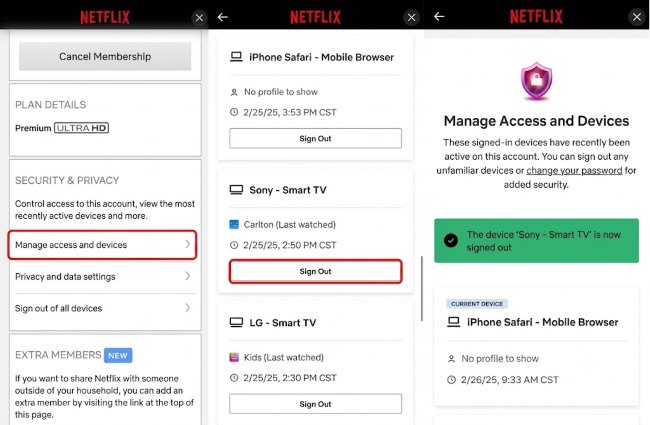
If friends or unauthorized users are still streaming on your Netflix account, they may be using up your available simultaneous streams. To remove unwanted access or kick someone out of your Netflix account, open Manage Access and Devices in your Netflix account settings and sign out of any devices you don't recognize. You can also choose Sign Out of All Devices to end active sessions across the account, then sign back in on the devices you want to keep using.
Fix 6. Change Your Password to Restrict Access
After removing all connected hardware, updating your credentials prevents others from logging back in and interrupting your stream.
Step 1. Access your account dashboard via a web browser and select Change Password.
Step 2. Enter your current password and create a strong, unique new one.
Step 3. Check the box that requires all devices to sign in again with the new credentials before saving.
Part 4. Bonus Tip: Watch Netflix Without App Interruptions
If Netflix keeps kicking you out even after you've tried the methods above, an offline copy can be a practical fallback for titles you plan to watch later. Instead of relying on the Netflix app to stay connected and stable during playback, you can play a local file directly on a compatible device.
That's where VidiKeep Netflix Video Downloader can help. It functions as an all-in-one media downloader, allowing you to save Netflix movies and episodes as local video files, giving you a more flexible way to watch when one TV, Roku, or streaming app continues to crash, sign out, or interrupt playback.
- Avoid app interruptions: Play downloaded videos locally without relying on the Netflix app.
- Watch offline: Keep viewing even when Wi-Fi or network stability is an issue.
- Play on more devices: Save as MP4 or MKV and transfer files to compatible TVs, USB drives, or media players.
- Keep available audio tracks and subtitles: Preserve the language options you need for offline viewing.

Save Netflix movies and shows as MP4 or MKV files to avoid repeated app interruptions and watch them offline on compatible Smart TVs and media players.
 Secure Download
Step 1. Download and install the VidiKeep application on your PC or Mac. Launch the program and choose the Netflix service from the built-in streaming library.
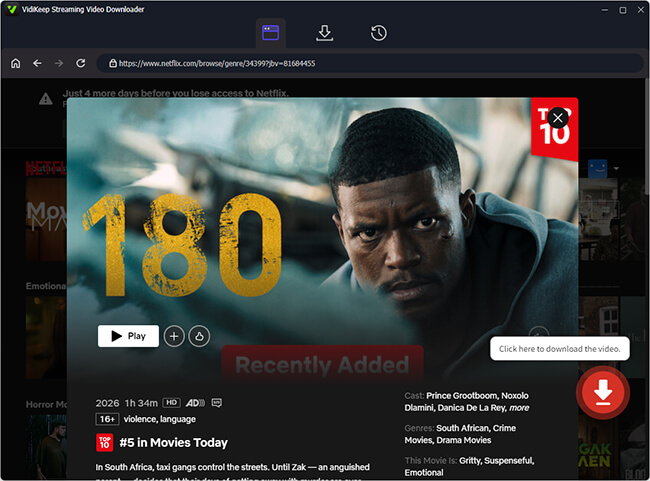
Step 2. Sign in to your account through the integrated browser and find the movie or episode you wish to save. Then click the "Download" button to add it to the queue.
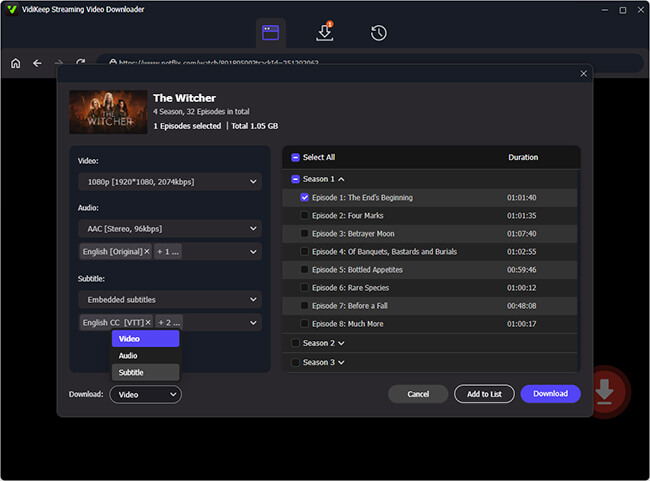
Step 3. Select your preferred output parameters, including video quality, audio tracks, subtitle language, and output format.
Step 4. Click the "Download" button to store the video file. Once downloaded, you can watch it directly on your computer or move it to a USB drive for your smart TV. This is the perfect workaround if your Roku TV keeps kicking me out of Netflix right in the middle of a movie.
Part 5. FAQs on Netflix Keeps Kicking Me Out
Why does my Roku TV or Smart TV keep kicking me out of Netflix?
Smart TVs and Roku devices often have limited internal memory. When background apps pile up or the system cache gets too full, the TV will force-close heavy apps like Netflix to avoid a complete freeze. Unplugging your TV for 60 seconds to clear the RAM usually fixes this issue instantly.
Why does Netflix keep kicking me out of my household?
Netflix defines a "household" based on your primary internet connection. If your TV connects to a different Wi-Fi network, a mobile hotspot, or a VPN, it looks like an unauthorized location. Updating your household settings from the app's help menu syncs your device to the correct network.
Can an expired credit card or billing issue cause Netflix to kick me out?
Yes. If your automatic subscription renewal fails due to an expired card or insufficient funds, Netflix enters a brief grace period. Once that ends, the system immediately pauses your privileges and forces a sign-out on all devices until you update your payment details on the account page.

Jordan Rhodes is a Chief Technical Editor and Media Specialist at VidiKeep, specializing in creating diverse tech content, including streaming tutorials, software reviews, and video encoding tips.
Leave a Comment