Why Does Apple TV Keep Buffering? Causes & Fixes That Work
"I'm using the latest Apple TV 4K, but the Apple TV app occasionally becomes unusable. Videos buffer every few minutes, and the quality can drop to around 360p, while Netflix and Prime Video stream in 4K without issues. Restarting the router, Apple TV, and app didn't help. What could be causing this problem?" —Reddit
You sit down to watch a movie, but your Apple TV keeps buffering every few minutes, interrupting playback and turning you crazy. If you are wondering why Apple TV is buffering so much, the cause may be an unstable network connection, software glitches, or app-related issues. This guide walks you through the common causes and practical fixes to help you enjoy smoother streaming on Apple TV again.
Part 1. Why Does Apple TV Keep Buffering?
Apple TV buffering is not always caused by a slow internet connection. Even with a fast connection, playback interruptions can happen because of software issues or problems on certain devices. Understanding the possible causes can help you find the right troubleshooting steps.
Network Connection Problems
A weak Wi-Fi signal, unstable connection speed, or router problems can all cause Apple TV buffering. Distance, interference, outdated equipment, or network congestion may interrupt playback, especially when streaming 4K content.
4K HDR Requires More Bandwidth
4K HDR and Dolby Vision content require a stable, high-speed connection. When bandwidth fluctuates, Apple TV may pause playback or lower video quality to maintain streaming.
Outdated tvOS or Apps
Older versions of tvOS or streaming apps may contain bugs that affect playback performance. Updating your Apple TV and apps can help improve compatibility and stability.
Apple TV App Issues on Smart TVs, Roku, and Fire TV
If buffering only happens in the Apple TV app on Roku devices, Samsung TVs or Fire TV, the problem may be related to the app itself, device software, or platform compatibility rather than your internet connection.
Part 2. How to Fix Apple TV Buffering Constantly
Quick Fixes for Apple TV Buffering
Fix 1. Restart Apple TV and Router
Restarting your Apple TV and router is a good first step when buffering appears suddenly. It can clear temporary system glitches and rebuild the network connection between your devices.
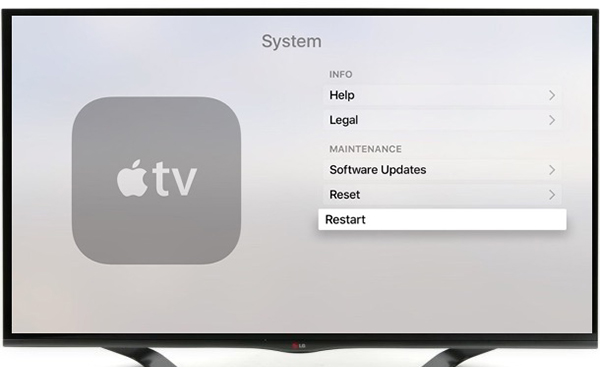
To restart your Apple TV, go to Settings > System > Restart. For your router, unplug the power cable from the wall, wait about 30 seconds, and reconnect it. Wait until the internet connection is fully restored before testing Apple TV playback again.
Fix 2. Check Apple TV Service Status
If only the Apple TV app is buffering while other streaming services like Netflix or Prime Video work normally, the issue may not be your internet connection.
Before changing network settings, check whether Apple TV services are experiencing an outage or temporary interruption. Service-side problems can sometimes affect playback, loading speed, or video quality even when your home network is working properly.
Fix 3. Test Internet Speed Directly on Apple TV
A fast internet connection on your phone or computer does not always mean your Apple TV has the same network performance. The device's Wi-Fi signal strength, connection stability, and network congestion can affect streaming quality. Install a speed test app such as Speedtest from the App Store and check the connection directly on your Apple TV.
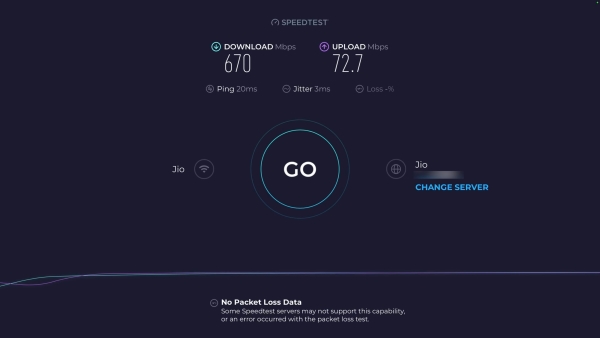
- 4K streaming: Apple recommends at least 25 Mbps.
- HD streaming: A connection of around 8 Mbps or higher is usually recommended.
If the test results look normal but Apple TV keeps buffering, the problem may be related to Wi-Fi stability, app issues, or device settings rather than raw internet speed.
Fix Apple TV Wi-Fi and Connection Problems
Fix 4. Improve Wi-Fi Signal Stability
Weak or unstable Wi-Fi is one of the most common reasons for Apple TV buffering, especially when streaming 4K HDR content. Try these adjustments:
- Move your router closer to the Apple TV if possible.
- Remove obstacles such as walls, cabinets, or large electronic devices between them.
- Pause large downloads, cloud backups, or other high-bandwidth activities on the same network.
If your Apple TV works normally after reducing network usage, your connection may have been affected by network congestion rather than insufficient internet speed.
Fix 5. Use an Ethernet Connection
If your Apple TV model supports Ethernet, a wired connection can provide a more stable network experience than Wi-Fi. It is less affected by wireless interference and can help reduce buffering caused by unstable signals. Connect your Apple TV directly to your router with an Ethernet cable and test streaming again. This is especially useful for Apple TV 4K streaming or homes with crowded Wi-Fi networks.
Fix 6. Check Apple TV Video Settings
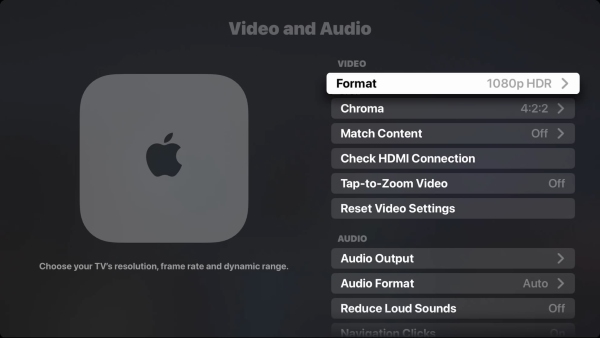
If buffering happens mainly with 4K HDR content, check whether your video settings match your TV and HDMI setup.
Go to Settings > Video and Audio > Format. You can test a different output format, such as switching from a 4K HDR format to an SDR format, to see whether playback becomes more stable.
 Note:
Note:
Keep in mind that changing the output format does not directly control the streaming bitrate used by every app. It is mainly useful for identifying whether playback problems are related to video format compatibility, HDR processing, or display settings.
Advanced Fixes for Apple TV Buffering Issues
Fix 7. Update tvOS and Streaming Apps
Outdated software can sometimes cause playback problems, app crashes, or compatibility issues. You should also make sure your streaming apps are updated through the App Store, especially if buffering happens only inside one specific app.
To check for tvOS updates:
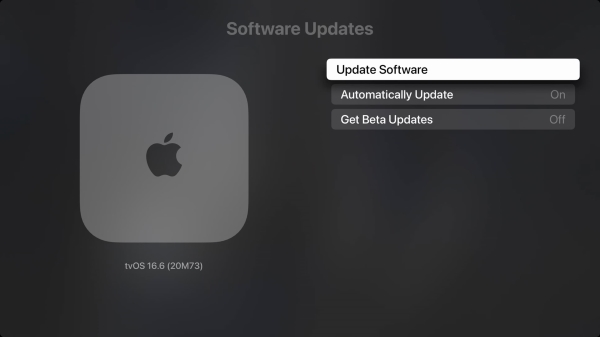
- Go to Settings > System > Software Updates.
- Select Update Software. If an update is available, choose Download and Install.
Fix 8. Try Changing DNS Settings
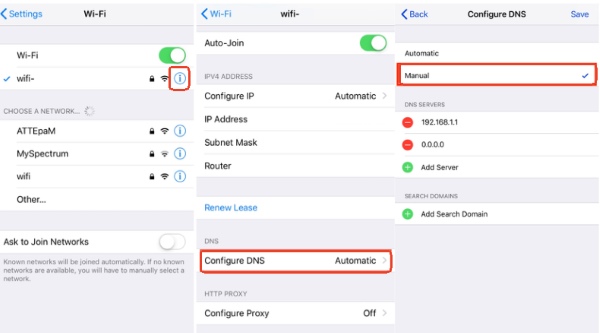
If your Apple TV connection speed is normal but videos still load slowly or buffer repeatedly, changing DNS settings can be used as an advanced troubleshooting step. DNS changes do not increase your internet bandwidth, but they may help in some situations where connection routing or domain resolution affects streaming performance. To change DNS, please follow the steps below:
- Open Settings, go to Network.
- Select your active Wi-Fi or Ethernet connection.
- Choose Configure DNS.
- Change the setting from Automatic to Manual.
- Enter a public DNS address, such as Google Public DNS (8.8.8.8).
- Select Done to save the changes.
If Apple TV buffering continues after changing DNS, switch back to Automatic and try other troubleshooting steps instead.
Fix 9. Reset Apple TV
Resetting Apple TV should be considered a final troubleshooting step after other solutions fail. A reset removes installed apps, saved accounts, and personal settings, returning the device to its default state.
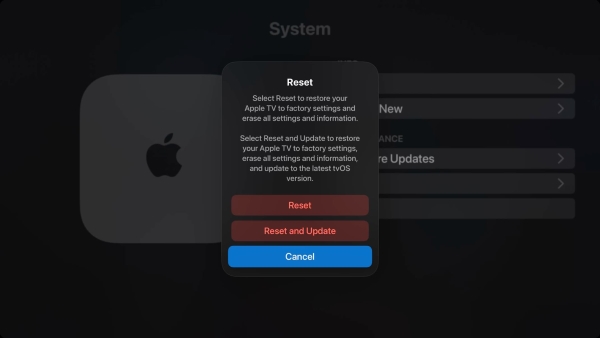
Go to Settings > System > Reset, and you will see two options:
- Reset: Quickly erases Apple TV and restores factory settings.
- Reset and Update: Erases the device and installs the latest available tvOS version.
Before resetting, make sure you know your Apple ID details so you can sign in again afterward. Keep the Apple TV connected to power until the reset process is complete.
Part 3. Bonus Tips: How to Prevent Apple TV Buffering
Maintain a Stable Network and System Environment
Keeping your Apple TV and home network in good condition can help reduce common Apple TV buffering issues. Check for tvOS updates regularly, as newer versions may include performance improvements and bug fixes that improve streaming stability. It is also worth updating your router firmware and restarting your network equipment occasionally to clear temporary connection problems and maintain a more reliable streaming experience.
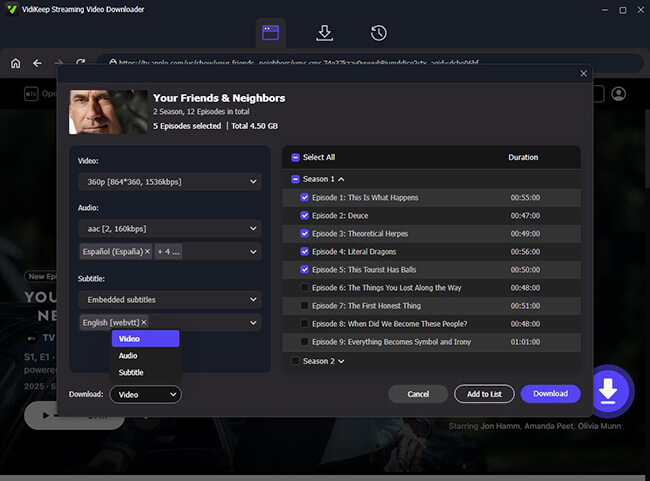
Download Apple TV Content for Offline Viewing with VidiKeep
If your Apple TV keeps buffering because of unstable Wi-Fi, network congestion, or limited bandwidth, downloading content for offline viewing can be a practical alternative. Tools like VidiKeep Streaming Video Downloader allow you to save Apple TV movies and shows locally on your computer, so you can watch them without relying on a constant internet connection.
After downloading, you can transfer the videos to compatible devices or use AirPlay for local playback on your Apple TV, helping you avoid interruptions caused by network-related buffering.

Download your favorite Apple movies and shows to MP4 or MKV with zero quality loss for offline viewing anywhere.
Part 4. FAQs About Apple TV Buffering
Apple TV keeps buffering even though the internet is fine?
This usually points to a local network bottleneck, app-specific glitches, or server-side issues rather than your raw internet speed. Even with fast internet, Wi-Fi interference from other devices or physical obstacles can disrupt the steady stream of data required for video. Sometimes, switching to a wired Ethernet connection will instantly resolve these invisible wireless hurdles.
Does a full Apple TV storage affect streaming performance?
Low storage space is unlikely to directly cause Apple TV buffering, as tvOS manages temporary files automatically. However, a nearly full device may affect overall performance. Remove unused apps and games to free up space and keep your Apple TV running smoothly.
Can I clear the cache on my Apple TV to stop it from lagging?
Apple TV does not offer a manual cache-clearing option for individual apps. The system manages temporary files automatically. If an app is lagging or buffering, restart your Apple TV or delete and reinstall the problematic app to refresh its data.
Part 5. Conclusion
Apple TV buffering does not always mean you need a faster internet plan or a new device. In many cases, checking your connection, updating software, or adjusting settings can restore a better streaming experience. By identifying what is causing your Apple TV keeps buffering problem, you can choose the right solution for seamless playback of your Apple TV movies and shows.

Jordan Rhodes is a Chief Technical Editor and Media Specialist at VidiKeep, specializing in creating diverse tech content, including streaming tutorials, software reviews, and video encoding tips.
Leave a Comment