


Part 1. How to Setup VidiKeep Streaming Video Downloader
Step 1 Download and Install VidiKeep Streaming Video Downloader
Directly click the "Download Free" button below for your operating system (Windows or macOS). Once the installer file is downloaded, double-click to launch the installation wizard. Follow the on-screen prompts to complete the installation. Once finished, launch VidiKeep Streaming Video Downloader from your desktop or Applications folder.
Step 2 Register and Activate VidiKeep Streaming Video Downloader
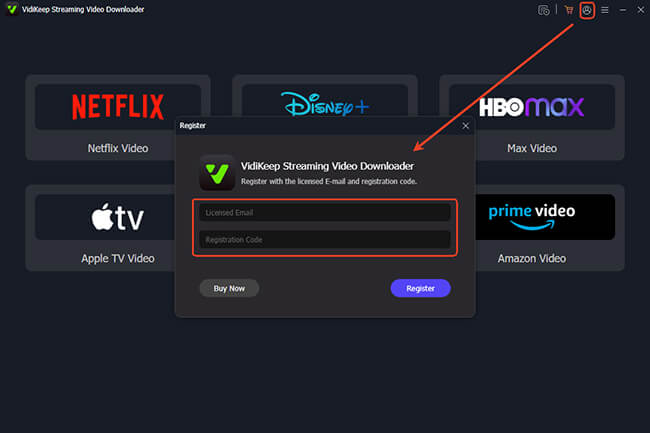
The free trial of VidiKeep Steaming Video Downloader has a 3-minute length conversion limit per video. You can upgrade to the full version to unlock unlimited downloads. After payment, you will receive a license key via email. Follow these steps to register:
- Click the "User" icon or the "Menu" button in the top-right corner of the interface and select the "Register" option.
- Enter the "Email Address" and "Registration Code" provided in your purchase confirmation email.
- Click the "Register" button to activate it. You now have full access to all premium features.
Registration Tip: To ensure a successful activation, please copy and paste your license key exactly as it appears. Avoid adding extra spaces at the beginning or end of the code.
Part 2. How to Download Streaming Video from Any Site
VidiKeep features a built-in web player, so you don't need to switch between your browser and the software. Even if you are on an ad-supported plan of streaming video sites, VidiKeep will automatically strip ads during the Analyzing phase. No extra steps are required!
Step 1 Choose Your Streaming Video Service
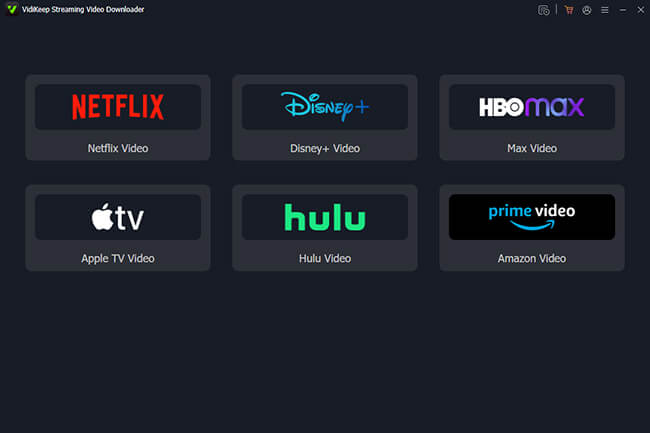
Go back to the main interface of VidiKeep Streaming Video Downloader, and you will see icons for supported services like Netflix, Amazon Prime, Disney+, Hulu, HBO Max, and Apple TV. Click on the service you wish to use.
Step 2 Log In to Your Streaming Video Account
It will show the built-in web player for the target streaming video platform you selected before. Use the built-in secure browser to log in to your streaming account.
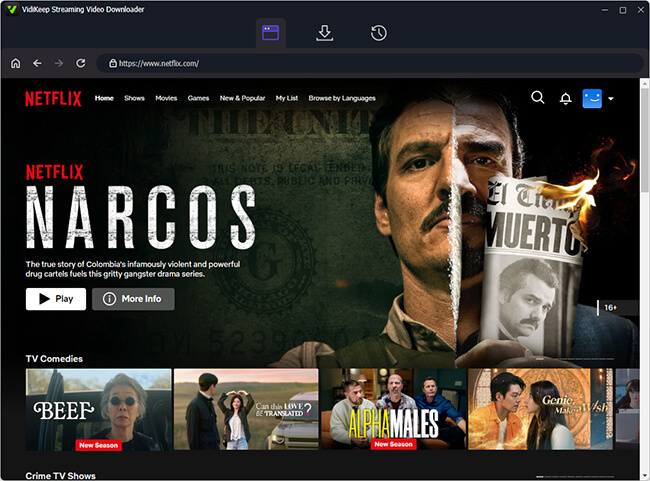
Note: VidiKeep does not store your login credentials. This step is only to allow the software to access the library you already subscribe to.
Step 3 Search and Analyze the Streaming Video
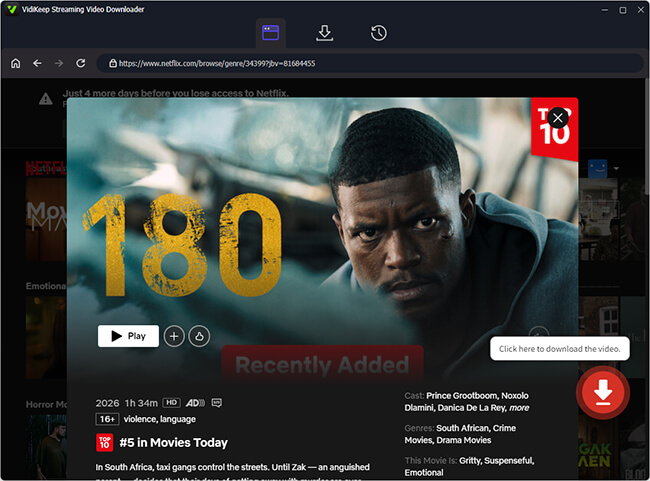
Browse the library or use the search bar to find the movie or TV show you want to download. Go to the item's detailed page and click the "Download" icon to load and analyze it.
Step 4 Customize Streaming Video Output Settings
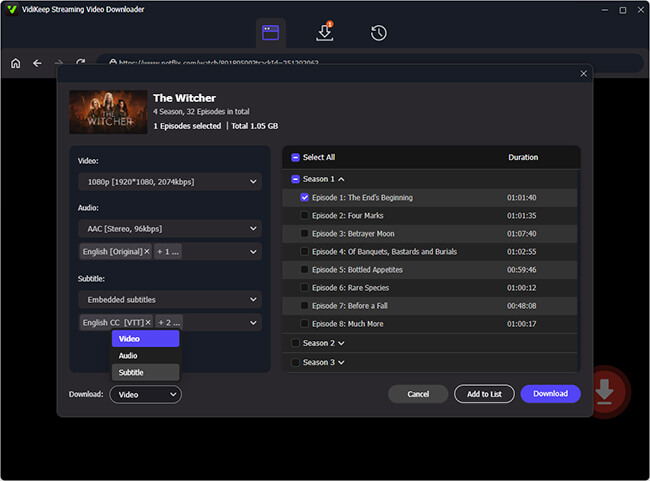
A new window will pop up. Here, you can select:
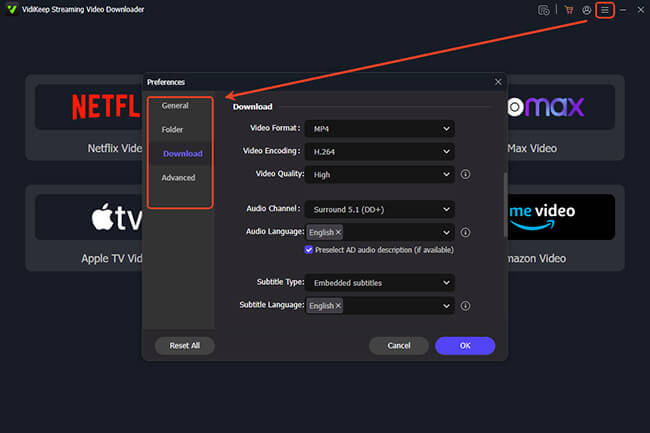
- Video Quality: Choose from SD to Stunning 1080P.
- Video Format: Select MP4 or MKV.
- Audio & Subtitles: Select your preferred languages. Choose between Embedded (built into the video) or Independent (separate SRT files) subtitles.
- Audio Quality: Opt for EAC3 5.1 or Dolby Atmos for a cinematic soundstage.
Tip: You can also tap "Menu" on a Windows computer or "VidiKeep Streaming Video Downloader" on Mac, then choose "Preferences" to open the settings window.
Step 5 Download Streaming Video to Your Local Computer
After adjusting all settings, you can start the download process. VidiKeep displays a list of all episodes in the season. You can click the "Download" button immediately or unselect the unwanted seasons or series, then click the "Download" button to download movies and TV shows on your computer.
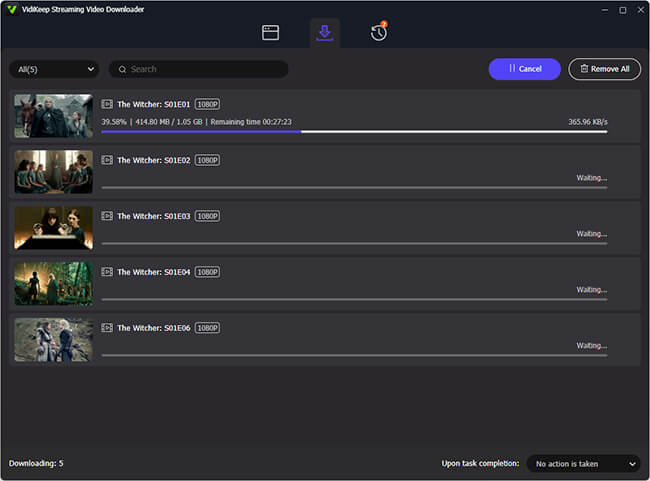
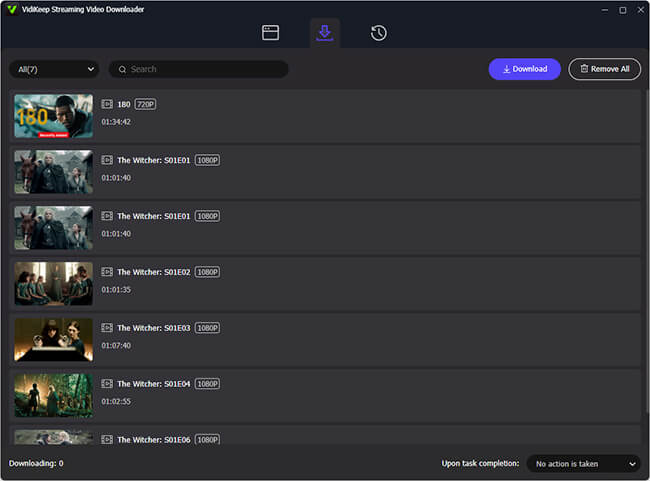
Tip: You can also click the "Add to List" button to load all videos into the download queue and add more different shows and movies to download. After that, go to the "Download List" section and tap the "Download" button to start the conversion.
Part 3. How to Manage Your Streaming Video Library
1 Batch Queue Management
Navigate to the "Download List" tab to see your active progress. You can:
- Pause/Resume: Stop the entire batch if you need to save bandwidth and resume later.
- Prioritize: Move specific movies to the top of the list for faster access.
2 Organize with Metadata
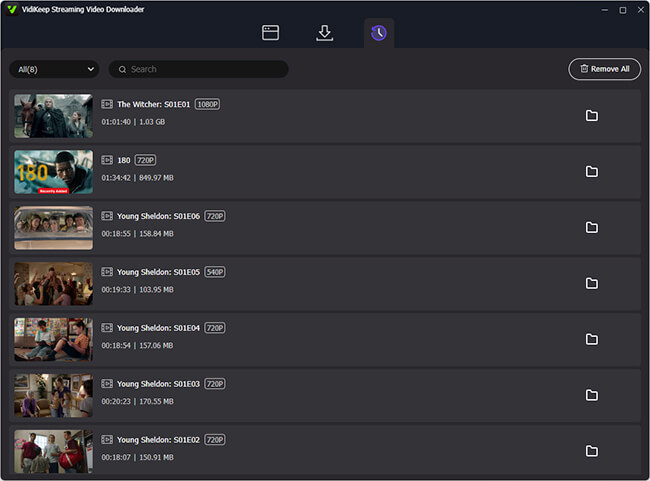
Once the download is complete, switch to the "History" tab. VidiKeep automatically labels your files with:
- Movie/Episode Titles
- Cast & Crew Information
- High-Resolution Cover Art
- Season and Episode Numbers
- Video Quality
- Movie Runtime
3 Transfer Video Downloads to Other Devices
Your streaming video downloads are saved in a standard local folder on your Mac or PC. You can now:
- PC/Mac: Play directly using VLC or QuickTime.
- Mobile: Connect your iPhone, iPad, or Android via USB and drag-and-drop the files.
- Media Servers: Move files to your Plex or Jellyfin library for home-wide streaming.
Part 4. Video Guide of Using VidiKeep Streaming Video Downloader
Follow our comprehensive video tutorial to master VidiKeep Streaming Video Downloader. Learn how to effortlessly save your favorite streaming content to high-quality MP4 or MKV formats in just a few simple steps.