How to Convert Netflix to MP4 via 2 Ways
I have a show that's deeply nostalgic to me, leaving Netflix soon. I know the official app has a download feature, but those files are encrypted and disappear once the show is delisted. I'm looking for a way to download these Netflix episodes to MP4 on my computer for long-term personal archiving. Any suggestions?
Finding a reliable way to convert Netflix to MP4 has become a top priority for many binge-watchers. However, there is no official offline download feature for both Mac and PC users, let alone MP4 option. Even on mobile devices where Netflix downloads are still permitted, content suddenly disappeared, strict viewing limits, and 48-hour expiration timers can easily disrupt your viewing experience. In this article, we'll walk you through the best methods to downloading Netflix movies and TV shows to MP4 in high quality, ensuring permanent, unrestricted access to your personal Netflix library across any device.
 Editor's Top Pick:
- Best for Speed & Quality: VidiKeep (1080p, 7X speed, batch download entire seasons).
- Best for Short Clips: Apowersoft (Free, browser-based, no install, 1-hour limit).
- Best for Tech-Savvy Users: OBS Studio (Open-source, free, no time limits, requires setup).
Comparison: Official App vs. VidiKeep vs Online Free Netflix to MP4 Converter
To help you decide on the best approach for saving your favorite Netflix shows as MP4, here is a detailed comparison of the official Netflix app, professional software like VidiKeep, and free online screen recording methods.
| Feature | Netflix Official App | VidiKeep Downloader | Online Screen Recorder |
|---|---|---|---|
| Output Format | Encrypted Proprietary Files | Universal MP4 / MKV | Universal MP4 |
| Permanent Access | No (Expires when show is delisted) | Yes (Forever on your PC) | Yes (Forever on your PC) |
| Download Speed | Standard (Real-time or faster) | Super Fast (up to 7X speed) | Real-time (1:1 duration) |
| Batch Downloading | Manual (One by one) | Automatic (Entire Seasons) | No (Manual per session) |
| Viewing Limits | 15–100 titles per month | Unlimited | Unlimited |
| Ads (Basic Plan) | Forced Interruptions | Automatically Removed | Must be recorded & edited out |
| Audio/Subtitles | Limited to App selection | Multilingual & SRT Support | Captures "Burned-in" only |
| Device Freedom | Only on Netflix-supported apps | Any Player (VLC, TV, Phone) | Any Player (VLC, TV, Phone) |
| Difficulty Level | Very Easy | Easy / User-Friendly | Medium (Requires DRM bypass) |
| Success Rate | 100% | 99.5% | 80% | Rating | ⭐⭐⭐⭐ | ⭐⭐⭐⭐⭐ | ⭐⭐⭐ |
Why You Cannot Directly Convert Netflix Downloads to MP4
Before looking for software solutions, it is crucial to understand how the streaming giant protects its media. When you save an episode or series on your smartphone or tablet using the official app, it is stored locally as an NFV cache file. This proprietary format is heavily encrypted with Digital Rights Management (DRM) technology. Renaming the downloaded Netflix file extension to MP4 will simply result in a corrupted, unplayable file.
Standard video converters cannot process these encrypted chunks of data because they require server-side authorization to decode. To successfully get a universal Netflix MP4 video file, you must either use specialized software that extracts and download MP4 from Netflix video stream directly from the platform or capture the playback actively running on your screen.
Method 1. How to Download Netflix to MP4 via Dedicated Software
The most efficient way to download Netflix videos to MP4 and build your offline library is by utilizing a professional Netflix video downloader. VidiKeep Netflix Video Downloader is designed specifically to bypass the restrictive offline ecosystem of the official Netflix app and standard recording limitations. Instead of capturing your screen, it accesses the backend video stream through a built-in browser interface.
You can preserve 1080p high-definition resolution in MP4 or MKV format, retain true 5.1 surround sound, and extract subtitles in multiple languages simultaneously. VidiKeep's 7X speed is fully optimized for processors like the Apple M4 and Intel Core Ultra, ensuring minimal CPU load during batch tasks. With it, Netflix MP4 files are permanent and never expire, even if your subscription lapses or Netflix removes the title from their library.
How to Download Netflix Movies to MP4
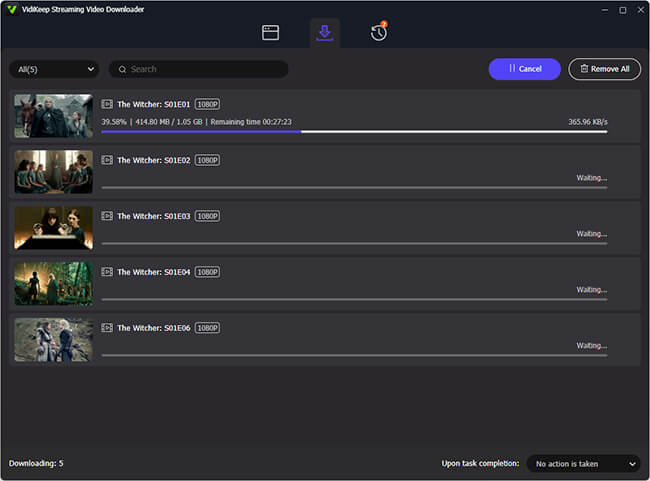
During a recent real-world performance test, I put the software's batch-queue capabilities to the task, successfully archiving three complete comedy seasons. The process was seamless, delivering Netflix MP4 files with zero frame drops or bitrate fluctuations. To help you get these same high-fidelity results, I've outlined the standard workflow for converting Netflix movies and TV shows into permanent MP4 files for your personal collection.
 Note:
Note:
Please ensure that your use of these tools complies with Netflix's Terms of Service and the copyright regulations in your specific region.
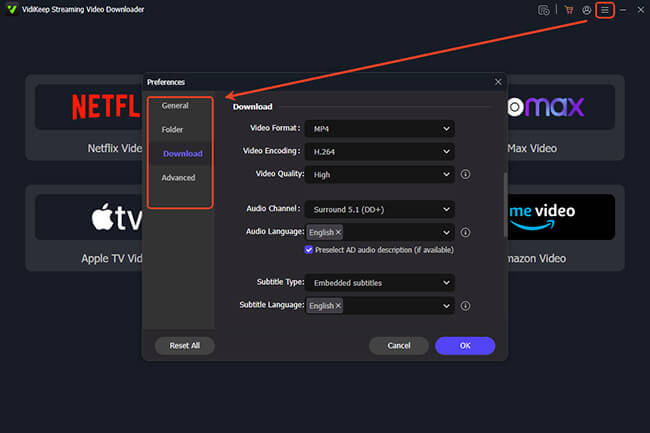
Step 1. Download and launch the VidiKeep Netflix Video Downloader, tap the "Menu" icon and choose the "Preferences" > "Download" to customize the Netflix output format as MP4. In this window, you can also customize the video quality, preferred languages and decide whether you want subtitles hardcoded into the video or saved as separate SRT files.
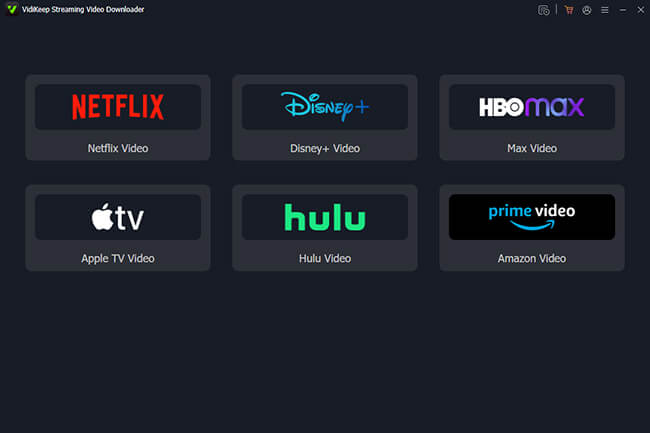
Step 2. Click the "Netflix" icon to access the built-in Netflix Web Player, and sign into your Netflix account by clicking the "Sign In" button. Your login is used solely to access video metadata for downloading purposes. VidiKeep does not record, store, or share any of your personal account information.
Step 3. Paste the URL of the specific movie or series into the search bar, or use the internal search function to find the title you wish to download to MP4. Touch the "Download" to load the Netflix list. For TV series, simply select the "Select All" checkbox.
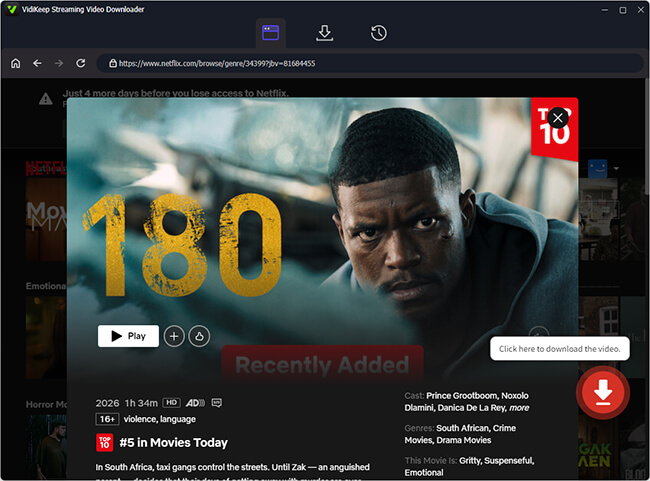
Step 4. You can directly click the "Download" button to begin to download Netflix link to MP4. It can often process these files at accelerated 7X download speeds, allowing you to build an offline library quickly.
 Pros:
Pros:
- High Speed: Downloads are 7X faster than real-time playback.
- Batch Downloading: You can save an entire season of a show to MP4 with a single click.
- Original Quality: Extracts the actual stream, preserving 1080p video and 5.1 Surround Sound.
- Language Control: Allows you to save multiple audio tracks and subtitle files (SRT) separately.
- Multiple Formats: Support not only MP4 but also MKV format for exporting Netflix files.
- Support Multiple Platforms: Download MP4 from Netflix, Disney Plus, Amazon Prime Video, Hulu, Apple TV, and HBOMax.
 Cons:
Cons:
- Account Required: You must log in to your Netflix account within the software's browser.
- Software Install: Requires downloading and installing a third-party application on your PC.
Method 2: How to Screen Record Netflix to MP4 Online Free
If you only need to save a short clip or prefer a completely free workaround, screen recording is a highly viable alternative. Apowersoft Free Online Screen Recorder is a popular web-based tool that captures your desktop and exports an MP4 file instantly, no software installation required. Once your capture is finished, the tool provides built-in features to trim your footage, extract audio, and even generate AI-powered subtitles.
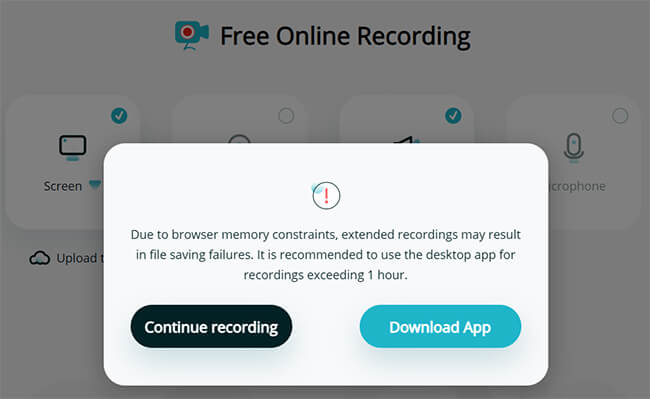
However, keep in mind that recording occurs in real time, so a two-hour movie will take about two hours to capture. Although the online recorder currently has no fixed recording time limit, it is generally better to keep each session to around one hour or less for greater browser stability and to reduce the risk of interruptions, crashes, or lost recordings. For longer Netflix movies, you may want to split the recording into shorter sessions or use a desktop tool for a more stable experience.
How to Record Netflix Movies and Convert to MP4
Below is the step-by-step process to record your screen playing Netflix videos and download them as MP4 files.
Tips to Avoid a Black Screen Before Recording:
Attempting to record a protected streaming service usually results in a completely black screen with only the audio playing in the background. This happens because modern web browsers use hardware acceleration to enforce copyright protection. To successfully capture your screen, you must first disable this specific browser setting:
- Open your web browser and go to "Settings" > "System".
- Locate "Use hardware acceleration when available" and toggle it "OFF".
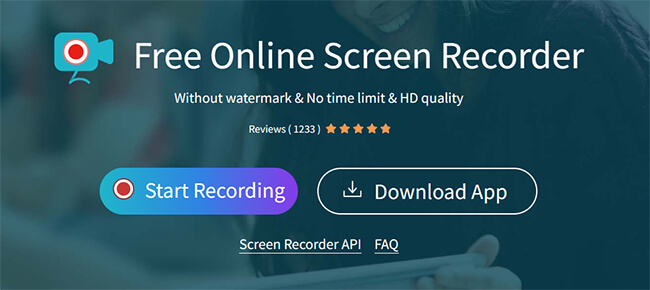
Step 1. Visit the Apowersoft Free Online Screen Recorder website and tap the "Start Recording" button.
 Note:
Note:
If it is your first time using it, you may be prompted to download a small "Launcher" file to bridge the web tool with your system.
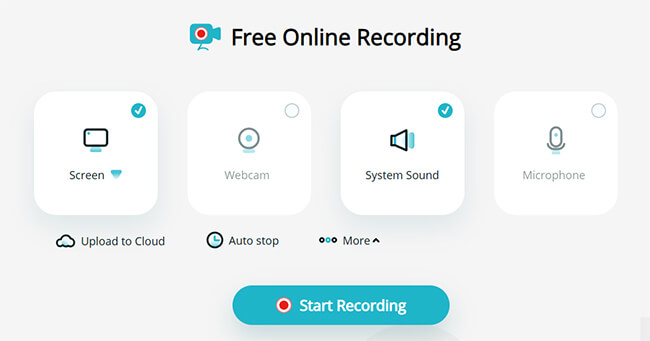
Step 2. Once the control bar appears on your screen, you are ready to configure the capture. You can choose the "Screen" and "System Sound" options and then tap the "Start Recording" button.
Step 3. Open the Netflix movie in a window. On the Apowersoft bar, click "Continue Recording" button and select the Chrome Tab section to choose the Netflix video player option. This ensures your taskbar and browser tabs aren't included in the recording.
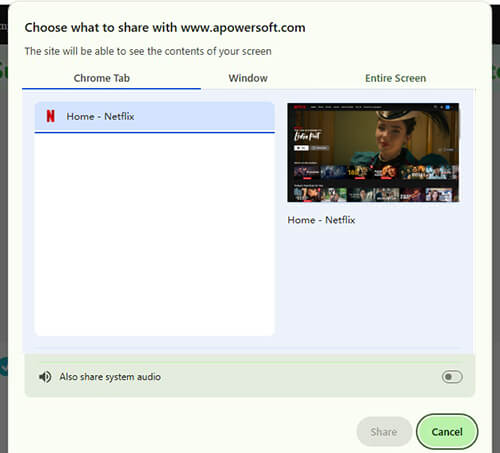
Step 4. Touch the "Share" button and start to play the Netflix movie or TV show that you'd like to export to MP4. Apowersoft will automatically start the recording process.
 Tips:
Tips:
Since recording happens in real-time, avoid moving your mouse or opening other applications, as this may cause the recording to stutter or capture unwanted overlays.
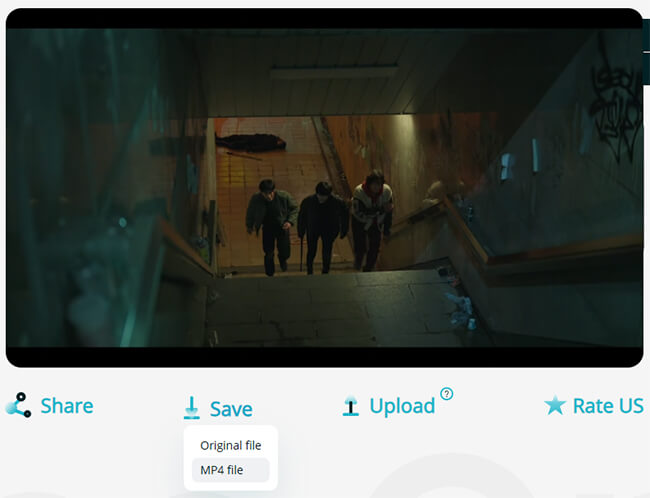
Step 5. When the movie or clip finishes, you can tap the "Stop" button to end this task. A preview window will appear. You can use the basic trimming tools at the bottom to cut out the beginning or end of the video where you were setting up. After that, tap the "Save" > "MP4 file" option, and your movie is now permanently stored on your device!
 Tips:
Tips:
If you need to bypass recording length limitations, OBS Studio is the industry standard. It is a completely free, open-source desktop application with no licensing costs, subscriptions, or hidden fees, allowing you to record full-length Netflix movies to MP4 in high-definition without interruption.
Pros:
- Zero Installation: Works directly in your web browser via a small launcher.
- Completely Free: No upfront costs for basic recording tasks.
- Basic Editing: Usually includes built-in tools to trim the start and end of your video.
- Universal: Can record anything you can see on your screen, not just Netflix.
- Cross Platforms: Works on not only Windows and Mac, but also iPhone and Android
Cons:
- Real-Time Capture: A two-hour movie takes exactly two hours to record.
- Resource Heavy: You cannot use your computer for other tasks while recording without risking lag.
- Manual Setup: Requires disabling "Hardware Acceleration" to avoid the black-screen DRM issue.
FAQs about Converting Netflix Movies to MP4
Can I convert my official Netflix offline downloads to MP4?
Directly converting official Netflix "Offline Downloads" to MP4 is not possible. These files are saved in a proprietary app-managed protected downloads that is heavily encrypted with Digital Rights Management (DRM) protection. To get an MP4, you must use third-party downloading software or screen recording tools to capture the video stream directly, rather than trying to convert the cached app files.
Why convert Netflix downloads to MP4 files?
Converting Netflix content to MP4 provides ultimate flexibility and permanent offline access. The official app enforces strict viewing limits, such as 48-hour expiration timers and device caps, which can easily disrupt your viewing experience. An MP4 file is universally compatible, allowing you to transfer and watch your favorite shows on any device without an internet connection or fear of the content expiring.
Is there a free online Netflix to MP4 converter?
No. We have rigorously tested various online platforms that claim to offer this service, including SafeConverter, ConverterFactory, and Free Netflix Downloader, and none of them were functional. To save yourself time and protect your device from potential security risks, we recommend sticking to verified VidiKeep or Apowersoft.
Is it legal to convert Netflix content to MP4?
Bypassing DRM to download Netflix content technically violates the streaming platform's Terms of Service. However, utilizing these methods strictly for personal, private offline viewing often falls into a legal gray area known as fair use in many regions. It is entirely illegal to share, upload, or distribute these downloaded Netflix files, as that constitutes digital piracy.
Does converting Netflix clips to MP4 lose quality?
The final video quality depends entirely on the method you choose to download the content. VidiKeep can extract the direct video stream, preserving high-definition 1080p resolution and original surround sound. However, screen recording software often results in slight visual quality degradation due to active re-encoding.
How to transfer Netflix MP4 downloads to iPhone and Android?
To transfer Netflix MP4 downloads to iPhone or Android, you can use a USB cable or cloud services.
- For iPhone, connect it to your computer via iTunes (or Finder on macOS) and sync the MP4 file to the device. Alternatively, upload the MP4 to a cloud service like Google Drive or iCloud, then download it to your iPhone.
- For Android, connect your device to the computer via USB and transfer the MP4 to the "Movies" or "Videos" folder, or use a cloud service to upload and download the file. Once transferred, open the file with any video player app on both devices.
Disclaimer:
This guide is intended for personal, non-commercial use only. We do not condone or encourage the distribution, sale, or public broadcast of copyrighted material. Users are responsible for ensuring their actions comply with Netflix's Terms of Service and the copyright laws within their specific jurisdiction.
In Conclusion
Downloading Netflix movies and TV shows to MP4 is essential for those who want to preserve their favorite shows and movies beyond Netflix's restrictive download feature. While the official app does not provide an MP4 option, third-party tools like VidiKeep and screen recording software offer reliable methods for converting Netflix content in a universally accessible format.
For those who value efficiency and original quality, VidiKeep Netflix Video Downloader is the best option. Its ability to bypass ads, preserve multi-language subtitles, and download entire seasons in a single batch makes it a powerful asset for building a permanent media collection.

Jordan Rhodes is a Chief Technical Editor and Media Specialist at VidiKeep, specializing in creating diverse tech content, including streaming tutorials, software reviews, and video encoding tips.
Leave a Comment