Netflix No Sound? 7 Easy Fixes for TV& PC
"My Netflix has no sound, but all my other apps are working fine. I've already tried uninstalling and reinstalling the app, but that didn't help. The video plays normally, just with no audio, and my TV isn't muted. My subscription is also active and up to date. Has anyone else had this issue? If so, how did you fix it?"
You start a movie on Netflix with picture plays normally, but there's no audio, even though other streaming apps still sound fine. If you're dealing with Netflix no sound, the cause may be anything from the audio track output to the external speaker setup. After testing the most common fixes myself, I put together this guide around practical steps that can help restore sound on Netflix.
Part 1. Why Does Netflix Have No Sound?
When Netflix plays video normally but stays silent, the problem usually comes down to an audio-format mismatch, a connection issue, or a temporary software conflict. Looking at where the sound is being lost on Netflix can help you choose the right fix instead of changing random settings.
| Cause | What Goes Wrong | Commonly Affected Setup |
|---|---|---|
| 5.1 Audio Mismatch | The selected 5.1 track isn't handled correctly by the TV, streaming device, or audio system. | TVs, soundbars, AV receivers |
| Wrong Audio Output | Netflix audio is being sent to the wrong speaker, HDMI device, headphones, or other output. | TVs, PCs, Bluetooth devices |
| HDMI / ARC Connection Issue | HDMI, ARC/eARC, or receiver connections don't pass the audio signal correctly. | Soundbars, AV receivers, streaming sticks |
| Temporary App or Device Glitch | A temporary Netflix or system error interrupts audio while the video continues normally. | Firestick, Roku, Smart TVs |
| Outdated Software | Older app, browser, or device software may cause playback or compatibility problems. | Smart TVs, computers |
| Soundbar Audio Format Issue | The TV sends an audio format that the connected soundbar or receiver doesn't handle correctly. | HDMI ARC/eARC, optical audio |
 Editor's note:
If everything except Netflix sounds normal, avoid changing several TV settings at once. Change one setting, replay the same scene, and see whether it makes a difference. That makes the actual cause much easier to identify.
Part 2. How to Fix Netflix No Sound: 7 Universal Fixes
If you have no sound on Netflix, you'd start with the quick checks before changing deeper TV or audio settings. Follow these troubleshooting steps below to fix the most common audio issues, regardless of your TV brand or streaming device.
Fix 1. Check the Volume and Audio Output
Start with the basic audio path. Netflix may appear silent simply because the player is muted or the sound is being sent to the wrong device. On a computer, also check the browser tab and confirm that Windows or macOS is sending audio to the correct output device.
Step 1. Check the volume on Netflix or any connected soundbar or receiver, and make sure none of them are muted. Confirm that the correct audio output device is selected, especially on a computer where sound may be routed to a Bluetooth headset, HDMI monitor, or another device.
Step 2. If you're still unsure, temporarily disconnect headphones, soundbars, or external speakers and test Netflix through the device's built-in speakers.
Fix 2. Try Another Netflix Movie or Episode
Before changing system settings, play a different Netflix title. If the second movie has sound, the issue may be limited to the original title or audio track. Go back to the affected video, and try another available language or audio option.
Fix 3. Restart Netflix and Power-Cycle the Device
Simply closing Netflix sometimes works, but I've had better results with a full restart. Turn off the TV, Roku, Firestick, or other streaming device completely. If possible, unplug it for about a minute, reconnect it, and then reopen Netflix. This can clear temporary audio glitches that survive a normal app restart.
Fix 4. Change Netflix 5.1 Audio to Stereo
This is one of the first settings I would test if Netflix has video but no sound, especially when a soundbar or receiver is involved.
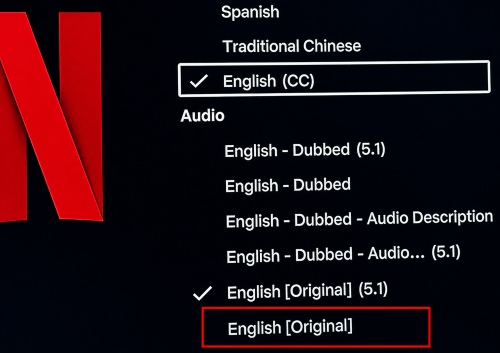
Step 1. Start the affected Netflix movie or show, and open "Audio & Subtitles" from the playback controls. Check whether the selected track includes 5.1, and choose the same language without the 5.1 option.
Step 2. Then resume playback and check whether there is no sound on Netflix. If the sound immediately returns, the problem likely involves surround-sound compatibility somewhere in your setup.
Fix 5. Test Without the Soundbar or Receiver
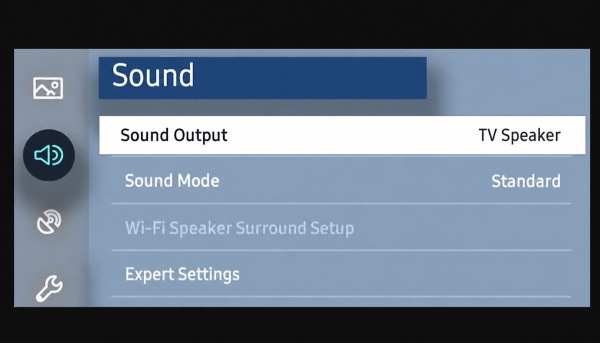
If you normally hear Netflix through a soundbar or AV receiver, temporarily switch back to the TV speakers. If Netflix works there, focus on the HDMI ARC/eARC connection, selected soundbar input, and audio format. This simple test is much faster than resetting the entire TV.
Fix 6. Update Netflix and Your Device
Check whether updates are available for the Netflix app, your TV or streaming device, and your browser if you watch on a computer. Older software can sometimes cause compatibility or playback issues. Keeping both Netflix and your device firmware up to date may resolve known bugs and improve overall streaming stability.
Fix 7. Reset or Reinstall Netflix
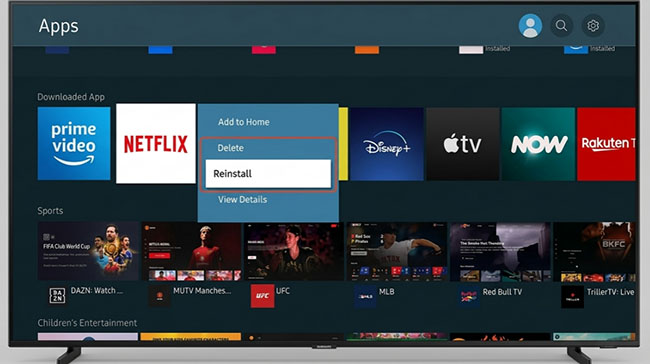
Save reinstalling Netflix for one of the last steps. Start by signing out and back in, then clear the app data or cache. Cached or corrupted app files can occasionally interfere with normal playback, including audio. If the problem continues, reinstalling Netflix gives the app a fresh set of files and settings, which may clear software-related sound issues.
Part 3. How to Fix Netflix No Sound on Specific Devices
When the universal tricks fail to restore your audio, it is time to look at your specific streaming hardware. Different tech ecosystems handle audio routing in their own unique ways, which means the solution for audio issues across TVs, streaming devices, and computers differs.
Roku
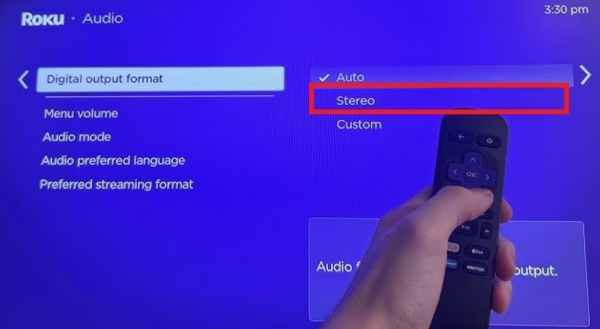
Roku devices are fantastic, but they occasionally struggle to handshake properly with older televisions or complex surround sound setups. If you experience no sound on Roku Netflix, the best approach is to manually restrict the audio output format.
Step 1. Navigate to the main Settings menu from your Roku home screen and select "Audio". Find the "Digital Output Format" setting.
Step 2. Change this option from "Auto" to "Stereo" to ensure your television can process the audio signal.
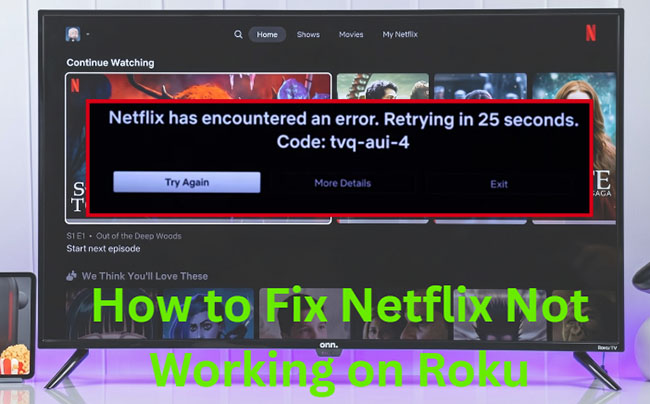
Netflix not working on Roku? Learn quick fixes for Netflix keeps crashing, freezing, loading issues, buffering, and playback errors on Roku TV.
Amazon Firestick
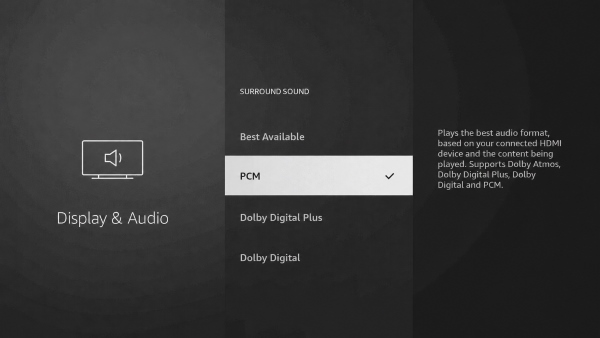
Amazon Fire Stick devices are prone to retaining corrupted cache data, which can heavily impact media playback. When an Amazon fire stick has no sound on Netflix, a combination of system tweaks and cache clearing usually gets the job done.
Step 1. Open the Fire TV Stick Settings, select "Display & Sounds", and then choose "Audio". Under the "Surround Sound" options, switch the setting from "Best Available" to "PCM".
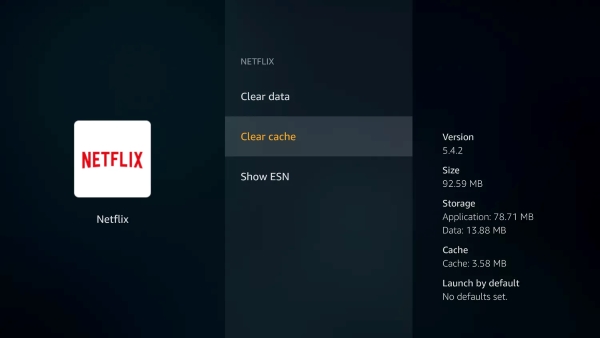
Step 2. If the audio remains silent, go to "Settings > Applications > Manage" Installed Applications, select Netflix, and click "Clear Cache".
Computer
Watching via a web browser or desktop app introduces the complexities of your computer's audio environment. A frequent cause for Netflix no sound on laptop setups is an incorrect audio sample rate in your operating system.
Step 1. Right-click the speaker icon on your Windows taskbar, select "Sounds", and open the "Playback" tab.
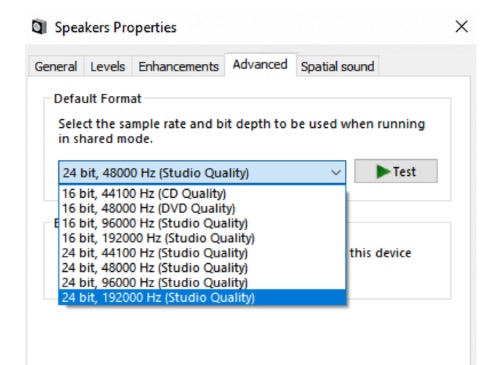
Step 2. Right-click your active default audio device, choose "Properties", and navigate to the "Advanced" tab.
Step 3. Change the default format to "24 bit, 192000 Hz (Studio Quality)" and click "OK" to apply the changes.
Part 4. Watch Netflix Offline Without App Playback Issues
The fixes above are meant to restore normal Netflix playback. But there's another scenario: Netflix has no sound in a particular browser or app, while local videos on the same computer play without any problem. In that case, switching to local offline playback can be a practical alternative rather than another round of troubleshooting.
For users who want a regular video file for desktop playback, VidiKeep Streaming Video Downloader offers another option. It can save Netflix videos as MP4 or MKV on Windows and Mac, with support for up to 1080p quality as well as selectable audio and subtitle languages. Once the video is stored locally, playback no longer depends on the same browser or live internet connection, which can help avoid issues such as audio dropouts, unstable Wi-Fi, or buffering during Netflix streaming.

7X download Netflix movies and TV shows on Windows or Mac computer to MP4 or MKV for offline playback anywhere with zero video quality or audio loss.
 Secure Download
Step 1. Install VidiKeep on your Windows PC or Mac, launch the program, select Netflix, and sign in to your Netflix account through the built-in web player.
Step 2. Search for a Netflix title inside VidiKeep, or paste the Netflix video URL into the search bar. This makes it easy to locate a specific movie or series on Netflix.
Step 3. Choose the output format and video quality you prefer. VidiKeep also lets you preserve different audio and subtitle languages.
Step 4. Click "Download" to save the selected content from Netflix to your computer. For TV series, you can select individual episodes or process multiple episodes together. Once finished, the video can be played smoothly without audio problems.
YouTube Video: How to Download Netflix Movies and Shows
Part 5. FAQs About Netflix No Sound
Why does Netflix audio work through TV speakers but not a soundbar?
If you get sound from your TV but your external soundbar is completely silent, the television is likely failing to pass the correct digital audio format through the HDMI ARC or optical port. Many standard soundbars cannot decode complex Dolby Digital signals. To fix this, open your television's expert audio settings and change the digital output format from "Auto" or "Bitstream" to "PCM".
Can browser extensions interfere with Netflix audio?
Yes. Third-party browser plugins are a frequent cause of media playback issues on computers. Extensions like volume boosters or ad blockers for Netflix can easily break the audio stream. Opening the streaming site in a private or Incognito window will quickly tell you if an extension is causing the interference.
Will using a VPN cause the audio to stop working?
A VPN can sometimes impact your audio, primarily by introducing network latency. If the VPN server you are connected to is severely congested, the resulting packet loss might cause the app to drop the audio track entirely in an attempt to keep the video buffering smoothly. You can try pausing the VPN temporarily to test if network routing is the root of the problem.

Jordan Rhodes is a Chief Technical Editor and Media Specialist at VidiKeep, specializing in creating diverse tech content, including streaming tutorials, software reviews, and video encoding tips.
Leave a Comment