Fix Netflix Error Code M7361: Step-by-Step Guide
"Netflix shows error M7361-1253 whenever I click on a title. Netflix says it's caused by an outdated version of Chrome, but my browser is already up to date. I've tried clearing the cache and restarting both my PC and Chrome multiple times, but nothing has worked."—Allinsider Forum
If your Netflix stream suddenly halts with the M7361 or M7361-1253 error code, your browser's media engine has hit a roadblock decoding the video. While the most common internet advice is simply to "update Chrome", that rarely solves the problem for users who already keep their software current. When basic software updates fail to clear this error, it means the video stream is actively colliding with your local hardware environment. Instead of blindly resetting your operating system, you can use the diagnostic guide below to pinpoint what is blocking your Netflix stream and apply the targeted fix.

What Does Netflix Error Code M7361 Mean?
At its core, the M7361 error indicates that your browser's media engine is struggling to communicate properly with your network connection or your device's hardware. The platform detects a broken link in how the video is being received or decoded, prompting the security mechanism to halt playback. And M7361-1253 and M7361-1254 strongly suggest that you are dealing with an outdated browser version or corrupted local site data.
Quick Fix Guide for Netflix Error Code M7361
If you already know your specific error suffix and want to skip the detailed explanations, you can use this diagnostic matrix. It matches common symptoms with the most effective next steps to help you save time.
| Symptom | Try this first |
|---|---|
| Error M7361-1253 or M7361-1254 | Update Chrome and restart your computer. |
| The error persists after updating Chrome | Clear Netflix site data and sign in again. |
| Netflix works in another browser | Check the original browser's settings, extensions, and stored data. |
| The error appears only with an external display | Disconnect the display and test playback on your computer's built-in screen. |
| Netflix still fails after these checks | Record the full error code and contact Netflix Support. |
Phase 1: Quick Network and Device Checks
Before inspecting your operating system settings, it helps to eliminate the most common physical and network-level interruptions. These steps ensure your local environment is clear of temporary software glitches.
Before inspecting your operating system settings, it helps to eliminate the most common physical and network-level interruptions. These steps ensure your local environment is clear of temporary software glitches.
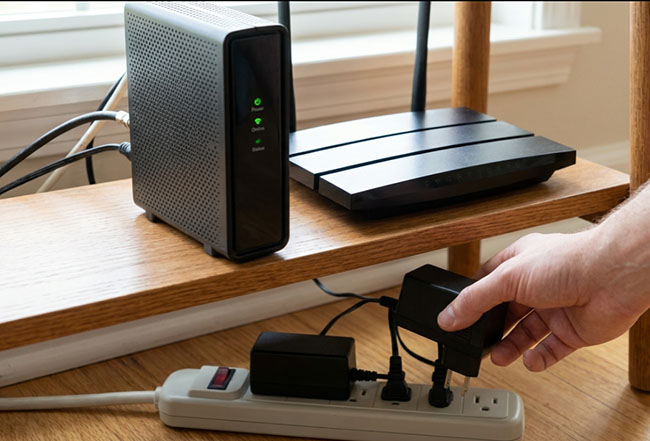
Step 1 Power Cycle Your Router and Computer
Start by shutting down your computer and unplugging your router. Waiting just one to five minutes before plugging the router back in ensures your network connection fully resets. Once your Wi-Fi is back online, power up your computer and try loading the video again.
Step 2 Temporarily Disable Your VPN or Proxy
Frequent IP node switching or unstable proxy connections often trigger the strict security mechanisms Netflix uses to protect its content. Pausing any active VPN software routes your traffic through a direct, standard network connection, allowing you to quickly test if an artificial network block is causing the error.

In my troubleshooting experience, even when a VPN server is located in your home country, Netflix may still identify its IP address as belonging to a VPN or proxy service. So if you use a VPN browser extension, make sure it is disabled in your browser's extension manager. Simply clicking "disconnect" in the plugin sometimes leaves background proxy scripts running that Netflix will still flag.
Phase 2: Browser Diagnostics and Settings
If your network connection appears stable, the next step is to focus on the browser itself. Since Netflix relies on the browser to handle video playback, outdated software, stored site data, or certain browser settings may contribute to playback problems. It's better to test Netflix after each change so you can identify what makes a difference.
Step 1 Update Google Chrome
When you're seeing error M7361-1253, start by checking whether Chrome is up to date. Netflix specifically recommends checking for browser updates for this error, so it's worth ruling out before moving on to more advanced troubleshooting.
Click the three-dot menu in the upper-right corner of Chrome, then go to Help > About Google Chrome. Allow any available update to install, and click Relaunch if prompted. Once Chrome restarts, open Netflix and try playing the same title again.

Step 2 Clear Netflix-Specific Site Data
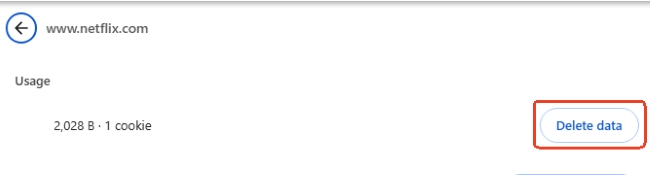
Browser updates won't necessarily resolve problems caused by outdated or corrupted site data. In this case, you can try clearing the cookies and site data associated with Netflix.
After clearing the data, reopen Netflix and sign in again. This gives the site a fresh session and may resolve playback issues related to stored browser data. If the error remains, test Netflix in another browser to see whether the problem is limited to your usual setup.
- Open a new tab in your browser and type netflix.com/clearcookies into the address bar, then press Enter.
- This link will automatically wipe your corrupted local Netflix data and sign you out of your account.
- Navigate back to the Netflix homepage, sign in again, and attempt to play your video.
Step 3 Test Netflix in Another Browser
Trying another supported browser is a simple way to narrow down the source of the problem. Open Netflix in Microsoft Edge or Firefox and try playing the same title. For a cleaner comparison, use a browser profile without additional extensions enabled, or temporarily disable extensions that might affect playback.
 Editor's Experience with Browser Extensions:
When isolating browser issues, ad-blockers are the usual suspects. In my troubleshooting experience, extensions that modify audio levels, screen recording Netflix tools, or third-party picture-in-picture plugins frequently trigger Netflix's anti-piracy alarms. The DRM system interprets these extensions as an attempt to capture the stream, instantly throwing an M7361 error. You may restore playback by disabling these specific add-ons.

Tired of the Netflix Ads? Learn how to block ads on Netflix using the best ad blocker tools from top-rated browser extensions to video downloaders.
Step 4 Toggle Hardware Acceleration
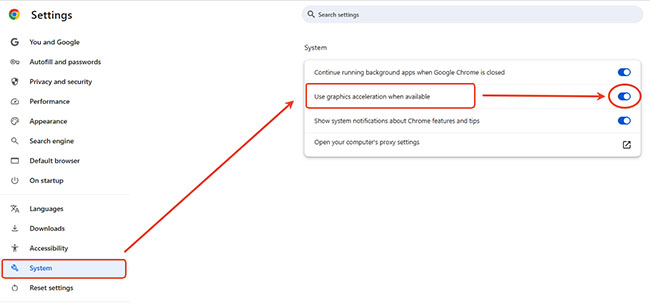
Modern browsers rely on hardware acceleration to improve video rendering quality, but this feature can sometimes clash with older graphics drivers. You can test if this is the cause in Chrome by going to your system settings and turning off "Use graphics acceleration when available", then restarting the browser. If the error continues after disabling this, you can safely turn it back on later.
Phase 3: Advanced Checks for Persistent Playback Errors
When standard browser updates and network resets don't clear the M7361 code, the communication breakdown is usually happening at the hardware level. Netflix's anti-piracy systems (DRM) strictly monitor how your computer outputs video and audio. If your cables, monitors, or even your security software fail this digital handshake, the media engine will instantly crash the stream.
Step 1. Test Netflix Without An External Display
If the M7361 error triggered right after you connected a second monitor or TV, a High-bandwidth Digital Content Protection (HDCP) handshake failure is the likely culprit. You can rule this out by disconnecting all external screens and attempting to play the video using only your laptop's built-in display. If playback resumes normally, the conflict lies in your display connection.
Step 2. Disable Audio Enhancements
If the playback failure is accompanied by audio glitches, a mismatch in media processing might be halting the video player. To clear up these specific synchronization conflicts, you can adjust how Windows handles audio processing directly:
- Open Windows Sound settings by pressing Win + R, type mmsys.cpl, and press Enter to open the Sound Control Panel directly. Then select your active playback device and click Properties.
- Open the Enhancements tab and check Disable all enhancements. If this option isn't available, look for a similar setting under Audio Enhancements.
- Click Apply and OK, then test Netflix playback again. If the issue persists, check for available sound card driver updates.

Step 3. Review Network Filtering and Security Restrictions
Overzealous third-party antivirus suites or firewalls can sometimes misinterpret Netflix's DRM requests as malicious traffic. Temporarily pause your third-party security software to see if your own computer's defenses are mistakenly severing the connection.
What to Do If Netflix Error M7361 Persists
If you have walked through the network resets, isolated your browser settings, and checked your display environment without success, you might be dealing with a highly specific system fault or a rare server-side issue. At this stage, your best option is to contact Netflix Customer Support directly.
 Tips:
Tips:
Pro-Tip for Dealing with Support: When you initiate the chat or call, immediately provide them with your exact error code suffix (e.g., M7361-1253) and paste a brief list of the diagnostic steps you have already completed. This allows the support agent to skip the basic troubleshooting scripts and escalate your ticket to technical support much faster.
How to Keep Netflix Error Code M7361 From Happening Again
Once you get your video running, you likely want to avoid running through a diagnostic checklist before every movie night. A few proactive adjustments to your setup can help keep this Netflix M7361 playback error from returning.
Maintain Automatic Browser Updates
Because the M7361 code is heavily tied to background DRM modules falling out of sync with Netflix servers, keeping your browser current is your best defense. You can prevent version conflicts by leaving automatic updates enabled in Chrome or Edge.
Since the M7361 error often triggers when your browser's security modules fall out of sync with Netflix, it also helps to fully close and restart your browser at least once a week rather than leaving tabs suspended for days.
Create a Clean Browser Profile Just For Streaming
Browser extensions are notoriously unpredictable. A volume booster or ad-blocker that worked fine yesterday might update quietly in the background and suddenly trip Netflix's anti-piracy alarms today. To avoid this entirely, I highly recommend setting up a secondary, extension-free user profile in your browser. Switching to this "clean" profile when you log into Netflix ensures your everyday productivity tools won't accidentally sever your media connection.
Download your Netflix Shows Offline to Avoid Browser Errors
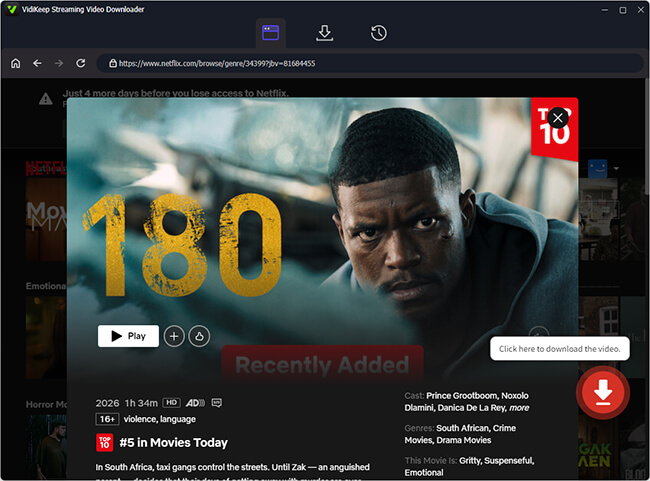
If you want a backup plan, the most reliable way to dodge streaming errors is to bypass the online web playback altogether. Using a dedicated downloader like Vidikeep Netflix Video Downloader lets you save Netflix episodes and movies to your local drive. It effortlessly batch-downloads entire Netflix seasons into compatible MP4 or MKV formats, preserving the original 1080p video quality and multilingual audio tracks. By converting the stream into a permanent, ad-free local file, you sidestep the factors that trigger an M7361 crash in the first place. It's a practical fallback to keep on your desktop so you can always enjoy smooth playback for Netflix movies and shows.

Download your Netflix favorites to MP4 or MKV with zero quality loss for uninterrupted offline viewing anywhere.
Final Thought
Netflix error M7361 doesn't always require advanced troubleshooting. Start with basic updates and system restarts, then check your site data, browser settings, and display connections if the error persists. If none of these web-based fixes work, consider taking your content offline using a dedicated desktop downloader. This lets you watch your favorite Netflix titles locally, completely bypassing the browser and its real-time streaming constraints.

Jordan Rhodes is a Chief Technical Editor and Media Specialist at VidiKeep, specializing in creating diverse tech content, including streaming tutorials, software reviews, and video encoding tips.
Leave a Comment