How to Fix a Netflix Black Screen (With or Without Sound)
Encountering a black screen with Netflix is incredibly frustrating, especially when the app opens normally but the video refuses to appear. Some users see a completely black picture while audio continues playing, while others encounter a blank screen before playback even starts.
Because this issue can stem from various sources, ranging from faulty HDMI connections and browser conflicts to digital rights management (DRM) restrictions, the right fix depends entirely on identifying the symptom. This comprehensive guide will help you diagnose the root cause and walk you through the most effective solutions to fix Netflix black screen issues across Smart TVs, streaming devices, computers, and mobile devices.
Quick Diagnosis: Causes and Solutions to Netflix Black Screen
Before diving into complex settings to resolve the black screen on Netflix, let's narrow down the scope of troubleshooting. Please identify the specific symptoms you are experiencing using the information below to determine the most likely cause of the problem and try quick fixes.
| Netflix Black Screen Symptom | Most Likely Cause | First Step to Try |
|---|---|---|
| Netflix screen goes black but audio works | HDMI failure, display output issue, or HDCP (Digital Rights) error. | Reseat your HDMI cable or swap ports. |
| Total black screen with Netflix no sound or menus | App crash, corrupted cache, or device system freeze. | Restart Netflix and perform a hard reboot on your device. |
| Menus load, but video turns black | Browser hardware acceleration or outdated graphics drivers. | Disable hardware acceleration in browser settings. |
| Black screen during screen sharing (Discord/Zoom) | DRM (Digital Rights Management) anti-piracy protections blocking capture. | Turn off hardware acceleration or use a supported viewing party app. |
| Issue isolated to only one specific device | Corrupted app installation or outdated firmware on that specific hardware. | Update or reinstall the Netflix app. |
Why Is My Netflix Screen Black? Core Causes!
Netflix black screen problems usually happen when the video playback process is interrupted somewhere between the Netflix app, your device, and your display. Here are the key reasons why Netflix is just black screen.
1. HDMI Connection or HDCP Problems
If you can hear the show but can't see it because of black screen, you are likely experiencing an HDCP (High-bandwidth Digital Content Protection) error. Netflix uses HDCP to prevent piracy. The connection between your streaming device and display needs to communicate correctly. If your HDMI cable is loose, faulty, or plugged into an incompatible port, the security check fails, and Netflix will cut the video feed while allowing the audio to continue.
2. Browser Hardware Acceleration Conflicts
When watching Netflix on a PC or Mac via Chrome, Edge, or Safari, your browser often offloads video decoding to your computer's Graphics Processing Unit (GPU) to improve performance. This is called Hardware Acceleration. However, if your graphics drivers are outdated or incompatible with Netflix's DRM player, the GPU will render a black box instead of the Netflix video.
3. Corrupted App Data or System Glitches
Smart TVs, gaming consoles, and streaming sticks are essentially mini-computers. Over time, their memory (RAM) fills up, and temporary cache files can become corrupted. A memory leak or a background process crash can prevent the Netflix app from successfully pulling the video stream from its servers.
4. DRM Blocks During Screen Mirroring/Sharing
Many users experience a sudden black screen when trying to stream a Netflix movie to friends over Discord, Zoom, or Skype. This is not a bug; it is an intentional feature. Streaming services block screen-capture software to prevent unauthorized recording and distribution of their copyrighted content.
5. VPNs, Proxies, and Network Routing Interference
Netflix strictly blocks VPNs and proxy servers to enforce regional licensing. While this usually triggers a specific error code, an unstable VPN connection can cause the video player to time out, leaving you stuck on a black screen.
Additionally, custom DNS settings, strict firewalls, or network-level ad blockers (like Pi-hole) can inadvertently block the specific servers Netflix uses to deliver video. When this happens, the Netflix menu loads perfectly, but the actual video payload gets trapped by your network filter.
How to Fix Netflix Black Screen: Step-by-Step Solutions
Now that we've explored the potential reasons behind your Netflix playback issues, it's time to resolve them. To save you time and frustration, we've organized the following troubleshooting steps logically, starting with the quickest, most common fixes and progressing toward more specific hardware adjustments. Work your way down this list to systematically eliminate the black screen problem and get your stream back up and running.
Fix 1. Restart Netflix and Perform a Hard Power Cycle
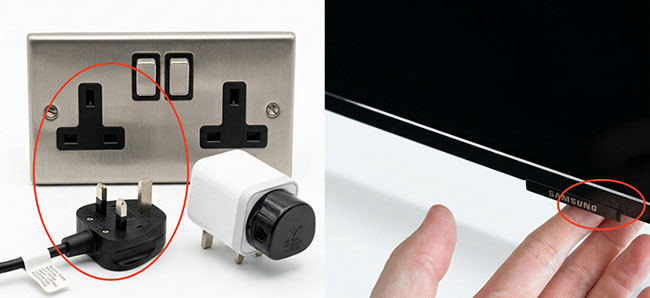
Start with the simplest troubleshooting step. Close Netflix completely, then restart your device. Don't just put your device to sleep, you have to perform a cold reboot to clear out the system memory.
- For Smart TVs and Streaming Boxes (Roku, Apple TV, Fire Stick): Unplug the device directly from the wall outlet. Wait a full 60 seconds. Plug it back in and turn it on.
- For Mobile/Computers: Completely power down the device (don't just lock the screen) and reboot.
Fix 2. Check Your HDMI Cable and Display Connection
If you experience a Netflix Black Screen but still hear audio on an external monitor or TV, the connection is the culprit. You can troubleshoot your video connection as below.
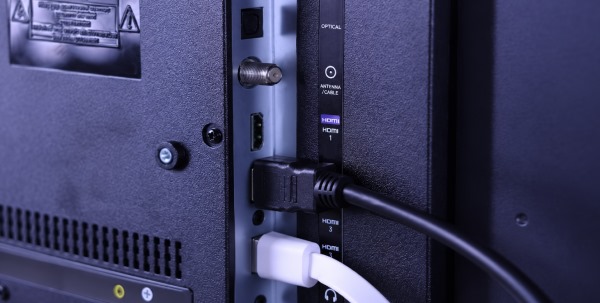
- Reseat the cables: Unplug the HDMI cable from both ends and plug it back in firmly.
- Swap the port: Move the cable to a different HDMI port on your TV.
- Bypass receivers: If your streaming device runs through a soundbar or A/V receiver, plug it directly into the TV to see if the receiver is blocking the video signal.
- Replace the cable: Older HDMI cables might not support the bandwidth or HDCP requirements of modern 4K Netflix streaming. You can test another HDMI cable if available.
Fix 3. Restart Your Internet Connection
Although internet problems usually cause Netflix buffering rather than a pure black screen, restarting your network can help when playback authentication or device communication fails.
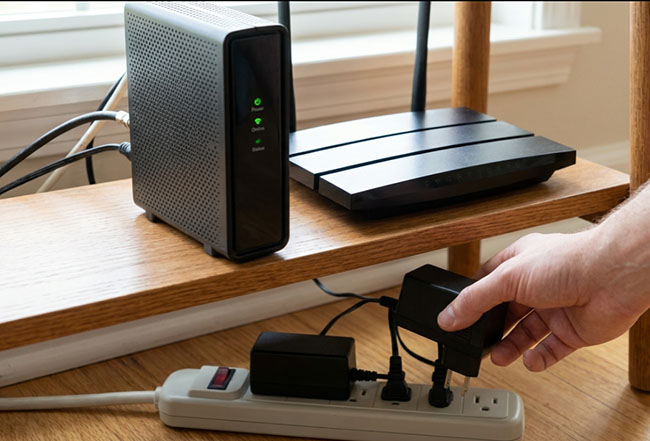
To properly restart your network, bypass the simple reset button on your router. Instead, completely unplug both your router and modem from the power outlet. Leave them disconnected for a full 60 seconds to allow the internal memory and temporary cache to completely clear. Afterward, plug everything back in, wait for the network indicator lights to stabilize, and relaunch Netflix.
 Diagnostic Tip:
If you reboot your network and find that other apps (like YouTube or Hulu) stream perfectly fine while Netflix remains stuck on a black screen, you can safely rule out your internet connection as the culprit and move on to the app-level fixes below.
Fix 4. Disable Browser Hardware Acceleration (PC/Mac)
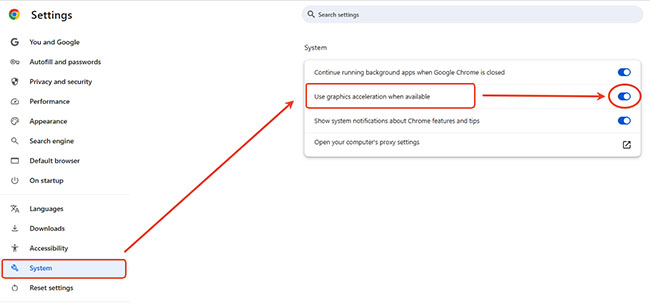
If Netflix plays audio but shows a black screen on Chrome, Edge, or Firefox, disabling hardware acceleration almost always fixes it:
- Google Chrome: Go to Settings > System > Toggle off "Use graphics acceleration when available" > Click Relaunch.
- Microsoft Edge: Go to Settings > System and performance > Toggle off "Use hardware acceleration when available" > Click Restart.
 Alternative Workaround:
If tweaking browser settings doesn't work, or you frequently host remote watch parties, the most reliable method is to download the movie locally. Tools like VidiKeep Netflix Video Downloader allow you to download Netflix shows as standard MP4 or MKV files. Once downloaded, you can play the video via VLC or your default media player and share your screen on Discord or Zoom with zero DRM black-screen restrictions.
Fix 5. Log Out and Clear App Data
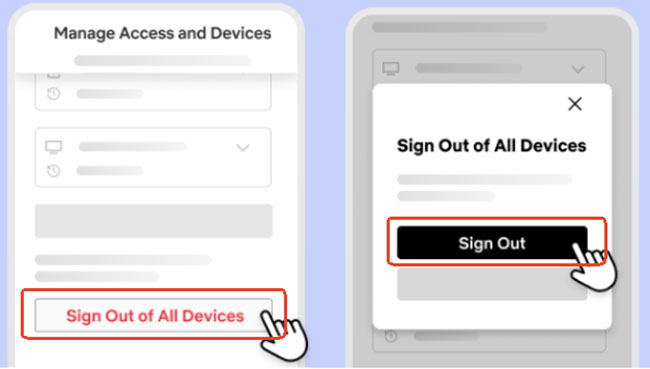
Sometimes, the digital handshake between your account and the Netflix servers gets out of sync. You can try to sign out of your Netflix account and clear the app data:
Step 1. Open Netflix and navigate to your account settings.
Step 2. Select Sign out of all devices (or sign out locally).
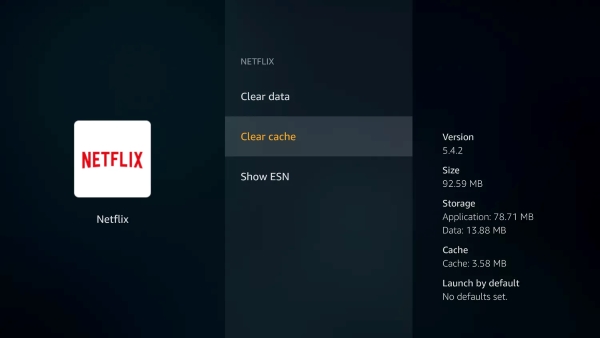
Step 3. If you are on an Android device or Fire TV, go into your device's Settings > Apps > Netflix and select Clear Cache.
Step 4. Now, you can log back in and attempt playback.
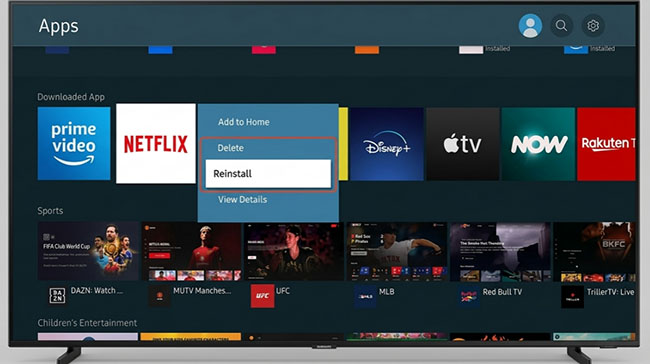
Fix 6. Reinstall the Netflix App and Update Firmware
An outdated app or operating system can cause severe playback issues, including Netflix black screen. You can do the following steps to fix it.
- Delete the Netflix app entirely from your device.
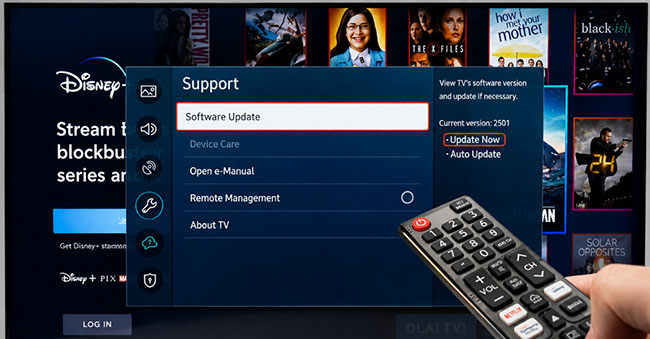
- Go to your device's system settings and check for any OS firmware updates (especially important for Smart TVs like Samsung and LG, which have custom operating systems).
- Go to your App Store and download a fresh copy of Netflix.
- Updates often include playback compatibility improvements and bug fixes.
How to Fix Netflix Black Screen on Different Devices
Depending on what you are using to watch Netflix, you may need a specialized approach to solve the Netflix playing black screen problem:
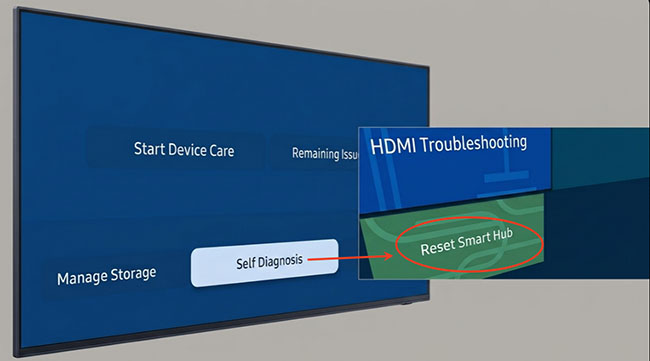
- Smart TVs (Samsung, LG, Sony, Vizio): TVs are notorious for holding onto corrupted cache data. If unplugging the TV doesn't work, look for a "Restart" option deep within the TV's system settings menu, or try resetting the Smart Hub/Network settings.
- Streaming Sticks (Roku, Fire TV, Chromecast): Ensure the device is drawing enough power. If your streaming stick is plugged into the TV's USB port for power, move it to a dedicated wall outlet using the provided power adapter. Under-powered sticks often fail to render video.
- Computers (Windows PC & Mac): Beyond disabling hardware acceleration, make sure your external monitor supports HDCP. Also, check for Windows Updates or visit your GPU manufacturer's website (Nvidia/AMD/Intel) to install the latest graphics drivers.
- Smartphones (iPhone & Android): If you only get a black screen when trying to cast to a TV or connect via a lightning-to-HDMI adapter, the issue lies in the adapter's DRM compatibility. Always use official Apple or certified Google accessories for screen mirroring.
My Troubleshooting Experience: Identifying the Cause of Netflix Black Screen
After troubleshooting countless streaming environments, the most valuable lesson I've learned is this: don't just guess and apply random fixes. The fastest way to a solution is identifying exactly where the video signal breaks down.
From a user's perspective, a black screen always looks the same. Under the hood, however, a browser rendering crash requires a completely different fix than an HDMI handshake failure on a Smart TV. Here is the diagnostic framework I use to isolate the root cause before changing any system settings:
| Troubleshooting Target | What I Specifically Check | What It Reveals |
|---|---|---|
| Browser Rendering | Does the Netflix menu load normally, but the video player turns black? | Flags hardware acceleration conflicts or outdated graphics drivers. |
| External Displays | Does the screen only go black when connecting an HDMI cable or external monitor? | Points to physical cable damage, port failures, or HDCP (protected video) issues. |
| App vs. System | Does restarting, updating, or reinstalling the app change the playback behavior? | Differentiates corrupted app cache from broader device firmware bugs. |
| Cross-Device Testing | Does Netflix play normally on my phone, but fail on the TV on the same Wi-Fi? | Isolates local hardware environment issues and rules out account bans. |
The Golden Rule of Netflix Playback Troubleshooting:
One pattern that consistently stands out is that a black screen with sound requires a fundamentally different approach than a total playback failure. If you can hear the audio, the stream has successfully reached your device. In these cases, focus your energy entirely on the display path: Testing HDMI cables, tweaking browser settings, or checking external monitors, rather than wasting time reinstalling the app.
The ultimate goal isn't to test every fix on the internet; it is to find the exact bottleneck and apply a targeted solution.
FAQs About Black Screen with Netflix
Why can I hear Netflix but can't see it?
This almost always indicates a digital rights protection (HDCP) failure or a display output error. The app is successfully receiving the stream (hence the audio), but your hardware or cables are failing to authorize the visual output. Checking your HDMI connection or disabling hardware acceleration in your browser usually resolves this.
How do I stop Netflix from going black on Discord?
Netflix intentionally blocks video during screen sharing to prevent piracy. If you are on a PC, you can often bypass this by using a browser (like Chrome or Firefox) instead of the Windows Netflix app, and making sure to disable "Hardware Acceleration" in that browser's settings before sharing your screen. Then you can stream Netflix on Discord without black screen.
Is my VPN causing the black screen with Netflix?
Yes. While VPNs usually trigger a specific proxy error code (like M7111-5059) rather than a pure black screen, a slow or improperly configured VPN can cause the video player to time out. Try disabling your VPN or proxy to see if standard playback resumes.
In Conclusion
A Netflix black screen can interrupt your movie night, but it is rarely a permanent problem. As we've explored, the most effective troubleshooting approach is to isolate the issue first. Whether it means swapping out a faulty HDMI cable, disabling browser hardware acceleration, or simply power cycling your smart TV, the solution is usually just a few clicks away.
Which fix finally got your video playing again? Let us know in the comments below to help out other readers facing the same issue!

Jordan Rhodes is a Chief Technical Editor and Media Specialist at VidiKeep, specializing in creating diverse tech content, including streaming tutorials, software reviews, and video encoding tips.
Leave a Comment