How to Download Netflix Movies to a USB for TV/Cars
Many users want to download Netflix movies to a USB stick so they can watch them offline on a Smart TV, a laptop, or even a car screen without relying on an internet connection. Besides, it can free up personal device storage space. However, the official Netflix app doesn't allow users to transfer Netflix movies from phone to USB.
To successfully move a playable Netflix movie file onto a portable USB drive, you have to use a specific workaround. This guide will explain exactly why standard transfers fail and walk you through the working method to get high-quality, playable Netflix videos onto your flash drive.
Part 1. What You Need to Save Netflix Movies to a USB Flash Stick
Before you begin, it is important to understand why a direct download to a USB drive isn't supported by the standard Netflix app and what tools you need to bypass these limitations.
Why You Can't Download Movies from Netflix to USB
When you use the native download feature on a mobile device or tablet, Netflix does not give you a standard video file. Instead, the platform downloads highly fragmented, encrypted files that are locked by strict Digital Rights Management.
These encrypted files are bound directly to the device and the Netflix app that downloaded them. If you locate the hidden storage folders and move these raw files to a USB stick, your Smart TV or computer will simply show an "unsupported format" or "corrupted file" error. Furthermore, Netflix recently updated its Windows desktop app to a web-based version, completely removing the native offline download feature for PC users.
The Solution: Best Netflix to USB Converter
Since official downloads are locked in a proprietary format, the only way to move Netflix movie to a USB drive is to save it as a universally recognized file type. This is where VidiKeep Netflix Video Downloader comes into play. It can bypass the proprietary app limitations by accessing the Netflix web player and directly recording and downloading the Netflix video stream to MP4 or MKV.
It can preserve the high-definition video quality, 5.1 surround sound, and multiple language subtitles. Once the Netflix video is saved as a standard MP4 on your hard drive, moving it to a flash drive is as simple as a quick copy and paste.
- A USB Stick with Sufficient Storage: Choose a USB stick with at least 16GB, or more depending on the size of the movies. And ensure your stick is formatted to a compatible file system: FAT32: Works on most devices but supports files up to 4GB. exFAT or NTFS: Recommended for large files exceeding 4GB.
- A Computer (Windows or Mac): You'll need a computer to download Netflix content and transfer it to the USB stick.
- An Active Netflix Subscription: You must be able to sign in to your account to access the library for the download process.
Part 2. How to Download Netflix Movies to USB Stick (Step by Step)
To get started, ensure you have a computer, a valid Netflix subscription, your USB stick, and the VidiKeep software installed on your machine. Follow these steps to download your favorite content on Netflix for offline viewing on any USB-compatible device, such as smart TVs, gaming consoles, or projectors.
How to Download Netflix Movies for USB Stick
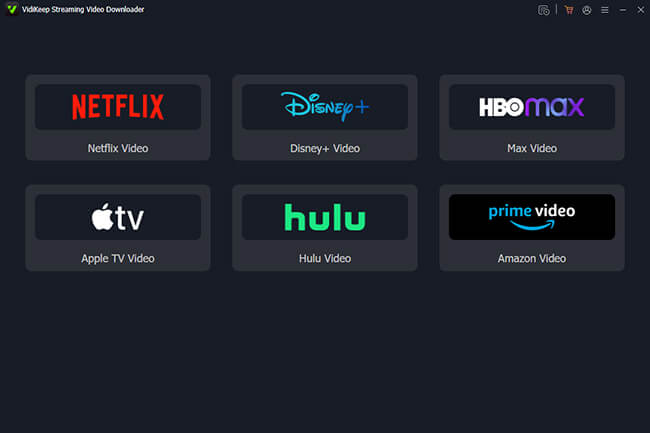
Step 1. Open VidiKeep on your computer and tap the Netflix option to launch the built-in Netflix video downloader. Here, you can sign in to your active Netflix account using the built-in web browser. This allows the software to access the library available under your specific subscription plan.
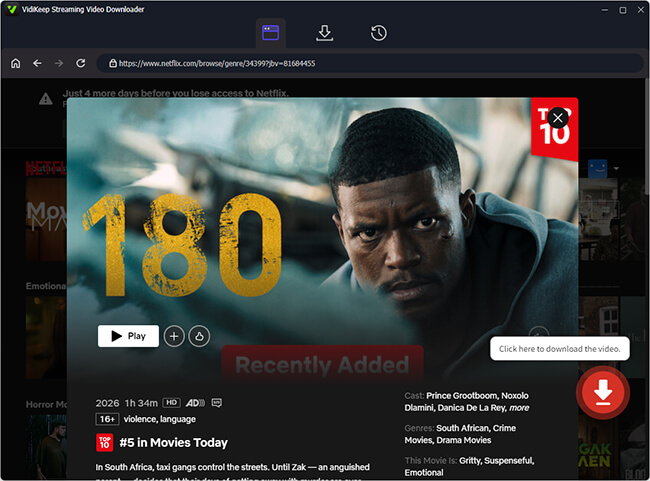
Step 2. Browse the Netflix interface or use the search bar to find the specific movie or TV show you wish to save to USB. Once you locate the video, click on it to open its details page and tap the 'Download' button. VidiKeep will automatically analyze the video link for downloading.
Step 3. Here, you can customize the video quality and select your preferred language tracks and subtitle formats. You can choose 1080p for the video quality to ensure it looks great on a large TV.
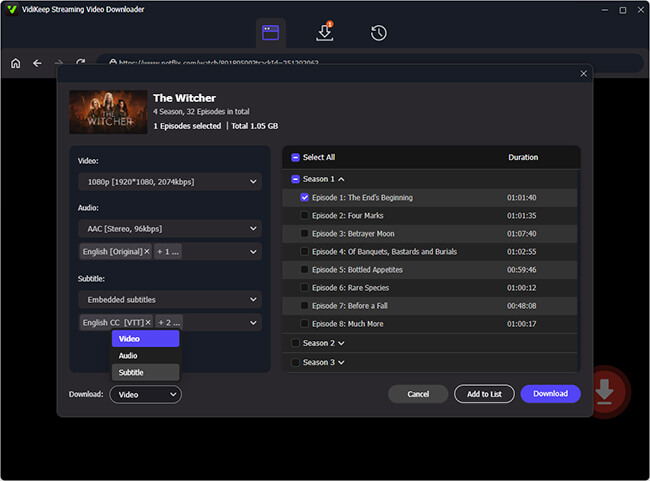
Step 4. Click the 'Download' button to start the download process. If you are saving a TV series, you can select individual episodes or the entire season at once. The files will be saved to your computer's local drive first to ensure a stable and fast encoding process.
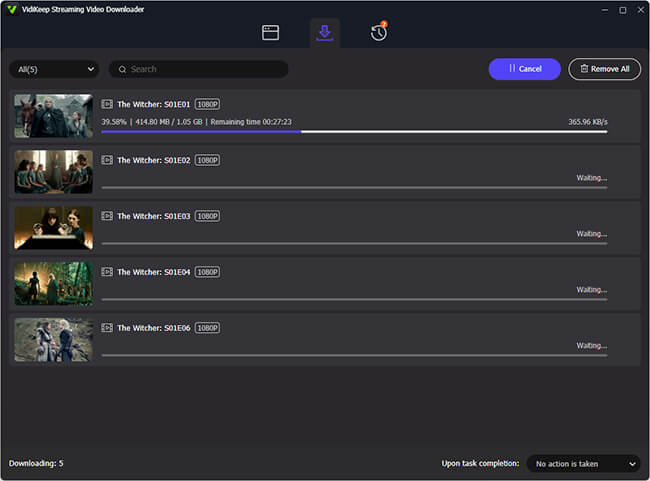
How to Transfer Netflix Downloads to USB
Once the download is complete, you can refer to the following steps to downloaded movies from Netflix to USB:
Step 1. Plug your USB stick into your computer's USB port.
Step 2. Locate the downloaded Netflix files in the VidiKeep 'History' library or your local output folder.
Step 3. Right-click the new Netflix video file, copy it, and paste it directly into your USB drive folder.
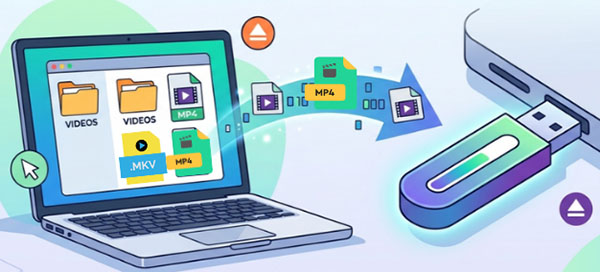
 Pro Tip: Download Netflix Movies Directly to Your USB Drive
To save time, you can set your USB flash drive as the default storage location before you begin. This eliminates the need to manually move Netflix files after the download is finished.
- Plug your USB stick into your computer before launching the software.
- Go to the 'Menu' > 'Preferences' option and locate the 'Output Folder section.
- Browse and select your USB drive as the destination folder.
Once configured, all downloaded Netflix movies will be saved directly to the USB stick, making your content immediately portable and ready for offline use.
Part 3. How to Watch Netflix through USB on TV / Car / Projector
Once you have successfully put downloaded your favorite Netflix movies onto your USB drive, the hard part is over. You can now play your Netflix content on larger screens or during long road trips without worrying about Wi-Fi or cellular data. Follow these instructions to get your mobile cinema running.
Watch Netflix on a Smart TV or Projector via USB
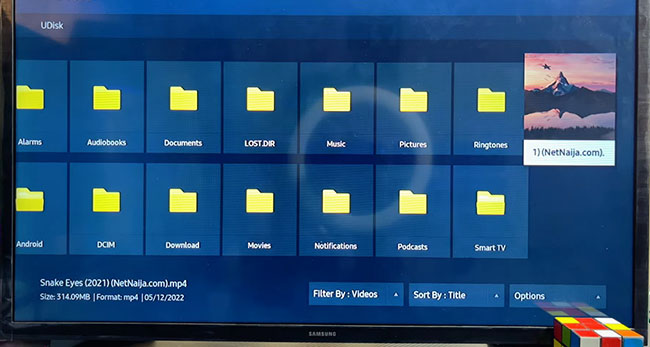
Most modern TVs and projectors come equipped with built-in media players that can read downloaded Netflix files directly from external storage, including USB flash drive.
Step 1. Plug your flash drive into the USB Type-A port on the back or side of your TV or projector.
Step 2. Use your remote to press the 'Source' or 'Input' button and select 'USB'.
Step 3. Many TVs will automatically prompt you to 'Browse Files'. If not, open the pre-installed Media Player, Photos & Videos, or File Manager app.
Step 4. Navigate to the folder where your Netflix videos are stored, select the file, and press 'Play'.
Play Netflix in Your Car (Infotainment System) via USB
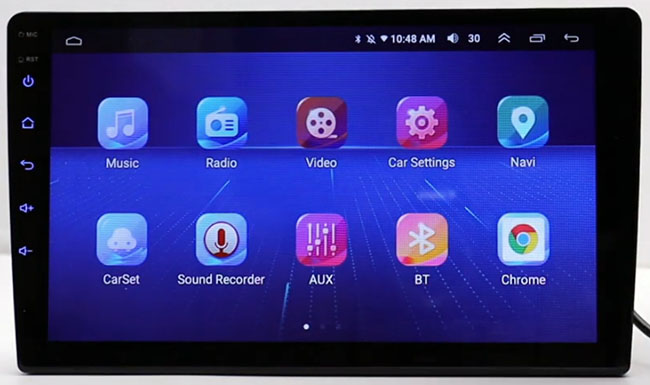
Watching Netflix in the car is a great way to keep passengers entertained. Most modern vehicles with a display screen support video playback via USB.
 Note:
Note:
Car systems are often more restrictive than TVs. Ensure your Netflix video is in MP4 format and the resolution does not exceed the screen's native capability (usually 720p or 1080p).
Step 1. Insert the USB stick into the car's USB port. On your car's touchscreen, navigate to the 'Media' or 'Source' menu and select 'USB'.
Step 2. Select the downloaded Netflix video file from the list and view it on your car.
 Safety Note:
Most car systems include a "Parking Brake Lock" that prevents video playback while the vehicle is in motion. For safety reasons, video is only available when the car is in Park (P).
Disclaimer:
Downloading a Netflix movie you legally have access to to watch it offline on your own TV falls into a gray area often viewed as "Fair Use" in many jurisdictions. However, distributing, sharing, uploading, or selling these downloaded files is strictly illegal and violates global copyright laws. Always keep your Netflix downloads strictly for personal use.
Part 4. FAQs about Downloading Netflix on a USB Stick
Can I stream Netflix from phone to TV with a USB port?
Yes, but you need a USB adapter. You can connect your phone's charging port (USB-C or Lightning) to a USB-to-HDMI adapter, and plug the HDMI end into your TV. This mirrors your phone screen to the TV.
Can I watch these USB files on my Smart TV?
Yes, as long as you downloaded the Netflix video as an MP4 file. The MP4 format is universally recognized by almost every modern Smart TV, media player, and gaming console. Simply plug the USB stick into the back of your television, open the TV's native media player app, and select the file to begin playback.
Can I transfer Netflix downloads from my phone to a USB?
No, not for playback. The official Netflix mobile app encrypts downloaded files to prevent piracy. If you connect a USB drive to your phone (via an OTG adapter) and copy the hidden Netflix cache files over, they will be unplayable on any other device or TV.
Can I download Netflix movies to a USB stick?
Not officially. The Netflix app does not allow direct downloads to external USB drives in a standard video format. The only way to achieve this is by using VidiKeep on a computer to record the stream as a unprotected MP4 file, which can then be transferred to a USB stick.
Part 5. In Conclusion
Downloading Netflix movies to a USB flash drive is a simple and effective way to gain true offline freedom. While the official Netflix app imposes strict limitations on where you can store and view your content, using a dedicated tool like VidiKeep allows you to bypass these restrictions easily.
By following the steps outlined in this guide, you can convert your favorite shows and films into universal, high-quality files. Whether you are heading on a long flight, a remote camping trip, or a cross-country drive, your entertainment library is now portable, permanent, and ready to play on any USB-compatible device, anytime, anywhere.

Jordan Rhodes is a Chief Technical Editor and Media Specialist at VidiKeep, specializing in creating diverse tech content, including streaming tutorials, software reviews, and video encoding tips.
Leave a Comment