Netflix Not Working on Vizio TV? Try These Fixes
Netflix works on your phone with Wi-Fi fine, yet the Netflix app on your Vizio TV keeps loading or refuses to play anything. When Netflix is not working on a Vizio TV, the fix depends on where it fails. A connection error calls for different troubleshooting than a Netflix app won't load. This guide identifying the symptom, so you can narrow down the issue and get Netflix working again on Vizio smart TV with specific troubleshooting.
Part 1. Why Is Netflix Not Working on My Vizio TV?
Netflix problems on a Vizio TV usually fall into a few categories: the TV cannot reach Netflix, the app cannot finish loading, Netflix opens but a title will not play, stored app data has become stuck, or the TV itself is no longer supported.
Netflix's own TV troubleshooting separates common failures in a similar way, including connection problems, black screens, freezing, unresponsive apps, and videos that freeze during playback.
Quick Diagnosis: Find Your Netflix Problem on Vizio Smart TV
| What Happens on Vizio TV | Likely Problem | Best First Action |
|---|---|---|
| Netflix can't connect | Network or Netflix service | Check Netflix status and test the TV's internet connection |
| Netflix won't open | App or Vizio system issue | Restart Netflix and power cycle the Vizio TV |
| Netflix won't load | App is stuck or frozen | Exit Netflix, restart the TV, and reopen the app |
| Netflix opens but won't play | Playback or streaming issue | Try another movie or show |
| Netflix shows an error code | Network, app data, or playback issue | Note the full error code and check its specific fix |
| Netflix says it is no longer supported | Older Vizio compatibility | Check whether your Vizio model still supports Netflix |
Why Does Netflix Work on Other Devices but Not My Vizio TV?
If Netflix works on your phone, computer, or game console but not on your Vizio TV, the problem is more likely specific to the TV rather than your Netflix account or home internet. The issue may come from the Vizio TV's network connection, the Netflix app or the TV's compatibility with the current Netflix app.
Smart TVs use app versions built specifically for their hardware and operating system, so Netflix can sometimes fail on one TV even when it works normally elsewhere. A temporary app glitch, outdated TV software, or corrupted stored data can prevent Netflix from loading or connecting properly on the Vizio TV while the rest of your devices remain unaffected.
Part 2. Fix Netflix Not Connecting to Vizio TV
Check If Netflix Is Down
Sometimes the issue has nothing to do with your Vizio TV. Open a browser on your phone and check a service-status tracker to see if Netflix is experiencing a global outage. If their servers are down, your only option is to wait for them to recover.
Check the Vizio TV Internet Connection
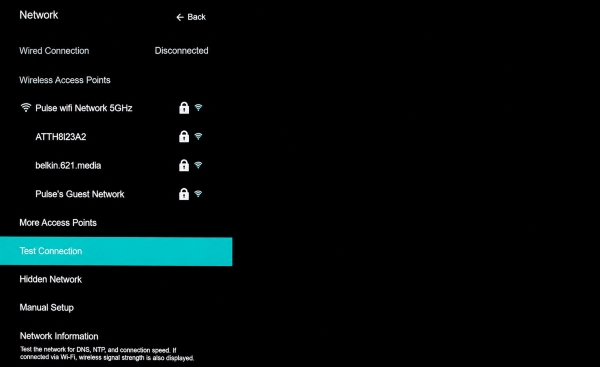
On supported Vizio interfaces, the "Network" menu includes a "Test Connection" function that can help confirm whether the TV is actually online. If your TV shows it is connected to your local Wi-Fi but lacks internet access, your gateway needs attention.
Restart Router / Reconnect Wi-Fi
A router can remain online while a particular device or connection session becomes unstable. For a fuller network restart, please follow the steps below:
Step 1. Unplug your home router and modem from the wall outlet.
Step 2. Wait for 60 seconds to completely flush the network memory.
Step 3. Plug the equipment back in, wait for the connection lights to stabilize, and reconnect your Vizio TV to the Wi-Fi network.
 Tips:
Tips:
You can also forget the Wi-Fi network on the TV and reconnect with the password. If Netflix works after connecting the TV temporarily to another network or phone hotspot, that points more strongly toward the original home network rather than the Netflix app itself.
Part 3. Fix Netflix Not Loading on Vizio TV
"It doesn't happen every time, but when I open Netflix from VIZIO Home, it will refuse to load all the way and stay stuck on the screen pictured above. No other streaming service does this. When I watch Netflix through my PS5, it doesn't do this. It's so bizarre, and I can't figure it out! Casting from my phone doesn't fix the issue either." — Reddit
A different problem occurs when Netflix appears to launch but never gets far enough to be usable. You may see the red Netflix logo indefinitely, return to VIZIO Home after opening it, or find that the interface stops responding. To resolve persistent loading failures or Netflix app won't open, you can apply several targeted troubleshooting measures.
Fix 1. Exit Netflix and Open It Again
Return to VIZIO Home and launch Netflix again rather than repeatedly pressing buttons while the loading screen is frozen. If Netflix eventually opens on the second attempt, you are probably dealing with a temporary app-session problem. If it gets stuck at roughly the same point every time, continue below.
Fix 2. Power Cycle the Vizio TV
A restart can clear a temporary VIZIO Home or Netflix glitch without changing your settings. On supported Vizio models, try the built-in reboot option first:
- Press the Menu button on the remote.
- Go to Admin & Privacy and select Reboot TV.
- Wait for the TV to restart, then open Netflix again.
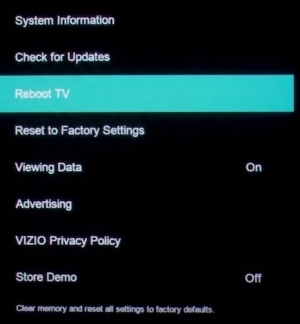
If Netflix is completely frozen or you cannot reach the settings menu, perform a manual power cycle instead: turn off the TV, unplug it for about 60 seconds, reconnect it, and try Netflix again.
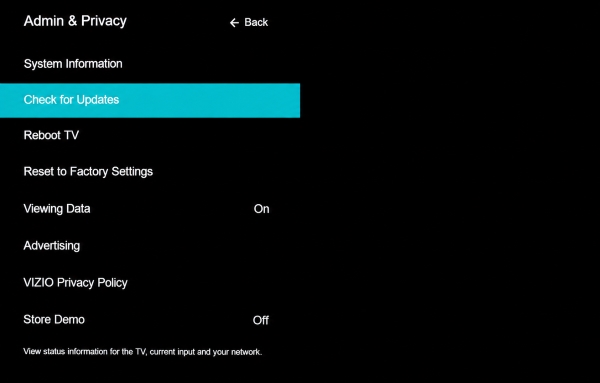
Fix 3. Check for a Vizio System Update
On many current Vizio interfaces, built-in streaming apps are tied closely to the TV software. That makes checking the TV firmware more useful than hunting for a separate mobile-style "Update Netflix" button.
If your SmartCast environment is running an outdated software version, apps like Netflix will frequently crash during initialization. Navigate to Settings > System > Check for Updates to pull down the newest patches from Vizio.
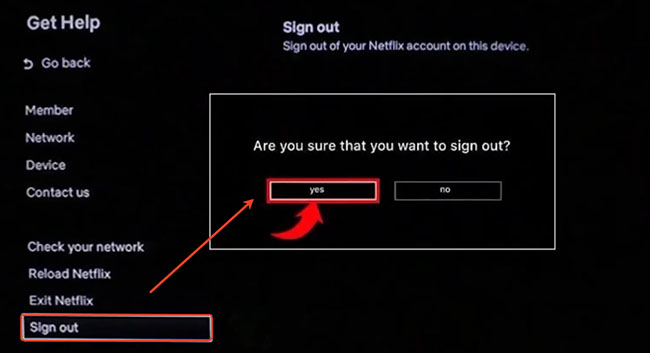
Fix 4. Sign Out of Netflix and Sign Back In
Sometimes, the issue isn't your internet or a frozen system cache, but rather a corrupted user session. If the app manages to open its menus but immediately freezes, refreshing your account token can often clear out the glitch.
Step 1. Launch the Netflix app on your Vizio TV and navigate to the main menu.
Step 2. Look for an option labeled Get Help. Then select Sign Out and confirm your choice when prompted.
Step 3. Once signed out, restart your Vizio TV, log back into your Netflix account with your credentials, and check if the loading issue is resolved.
Fix 5. Switch from Quick Start to Eco Mode
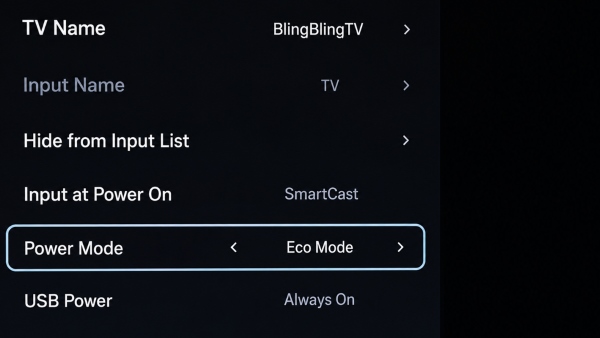
If Netflix keeps getting stuck when it opens, try switching your Vizio TV from Quick Start to Eco Mode. Many Vizio TVs use a default "Quick Start" power setting that keeps background processes active even when the screen is turned off. While this makes the TV turn on faster, it often traps corrupted cache files in memory. Disabling Quick Start forces your TV to execute a full cold boot each time you turn it on, clearing out cached junk and freeing up critical processing power for Netflix.
Step 1. Press the Menu button on your Vizio remote, then go to System > Power Mode.
Step 2. Switch the power setting from Quick Start to Eco Mode.
Step 3. Turn the TV off, wait a few seconds, then turn it back on and reopen Netflix to see if the issue is resolved.
Fix 6. Reset the TV Only as a Last Resort
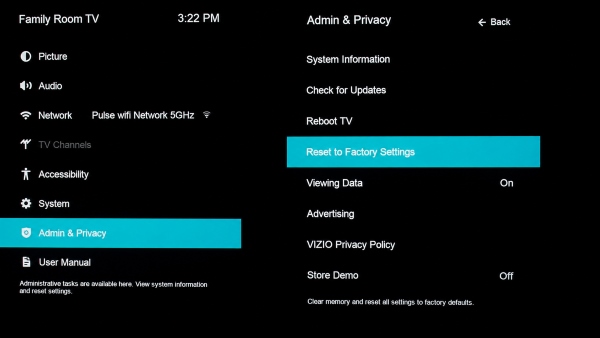
If Netflix continues to fail after power cycling, updating your firmware, and refreshing your account session—and VIZIO Home itself is acting sluggish or abnormal—a factory reset may be your final option. However, a factory reset wipes all your personalized configurations and downloaded apps, requiring you to set up the entire television from scratch.
Step 1. Press the Menu button on your Vizio remote control.
Step 2. Navigate to All Settings and select Admin & Privacy.
Step 3. Choose Reset to Factory Settings and confirm your decision.
Part 4. Fix Netflix Not Playing on Vizio TV
Sometimes Netflix opens perfectly. You can select a profile, browse the catalog, and see movie artwork—but pressing Play is where the problem begins. That is a playback problem, and it is worth troubleshooting differently from an app that never opens.
Netflix Loads but Won't Play a Movie or Show
Begin your troubleshooting by simply selecting a different movie or episode. If only one specific title refuses to start while others stream perfectly, the issue is likely a temporary server glitch for that exact file. However, if every title fails to play or constantly buffers, you need to test your overall network and app stability.
Step 1. Return to the Netflix home screen, exit the application entirely, and relaunch it to refresh your viewing session.
Step 2. Open a completely different streaming service on your Vizio TV to verify if video playback is broken across the entire television.
Step 3. Check your TV's network settings to confirm your connection strength, as a weak signal often causes endless buffering even if menus load fine.
If Netflix itself also starts freezing or stops responding to remote input, go back to the loading fixes in Part 3.
Netflix Shows a Black Screen on Vizio TV
"Netflix not working on my TV. I recently bought a new Vizio TV and I set it up with no problem but I cannot open Netflix from the SmartCast menu. When I press the Netflix button on the remote I just get the letters then a black screen that doesn't change."
You may encounter a pure black screen right after the Netflix logo appears or exactly when you hit play. This typically happens when the television's hardware and the application suffer a digital handshake failure, preventing the internal decoder from properly displaying the incoming video feed.
Fix 1. Refresh the Input Handshake
Sometimes the TV's internal display gets stuck switching between the SmartCast interface and the video player. You can often break this freeze by forcing the television to redraw the screen through a quick input change.
Step 1. While stuck on the black screen, press the Input button on your Vizio remote.
Step 2. Select a completely different source, such as HDMI 1 or Antenna, and wait a few seconds for the screen to register the change.
Step 3. Press the Input button again and switch back to the SmartCast/Smart TV input to refresh the display handshake.
Fix 2. Toggle the Picture Mode
Occasionally, the television struggles to switch correctly into HDR or Dolby Vision modes when a high-quality stream begins, resulting in a black screen failure. Temporarily changing the visual settings can force the video layer to render.
Step 1. >While on the black screen, press the Menu button on your remote control.
Step 2. Navigate to Picture settings and find the Picture Mode option.
Step 3. Change the current mode (such as Calibrated or Vivid) to Standard, then exit the menu to see if the video feed suddenly appears.
Part 5. Common Netflix Error Codes on Vizio TV
An error code is more useful than a generic "Netflix is not working" message because it can narrow the problem considerably.
| Netflix Error Code | Most Likely Area | What to Do |
|---|---|---|
| NW-2-5 | Internet/network connection | Check the TV connection → Part 2 |
| NW-3-6 | Network configuration | Reset network settings → Part 2 |
| UI-800-3 | Netflix app/stored data | Restart or refresh Netflix → Part 3 |
| tvq-pb-101 | Playback/stored app data | Try another title and refresh Netflix → Part 4 |
Part 6. Netflix Not Working on an Older Vizio TV
Is Netflix Still Supported?
If you own an older Vizio model, you may eventually reach a point where the Netflix app disappears or stops launching entirely. Streaming providers regularly update their security protocols and video codecs, which older TV hardware simply cannot process. When your hardware can no longer support modern updates, you have two great alternatives to avoid buying a brand-new television.
Option 1. Use a Streaming Device
The simplest fix for an aging Vizio TV is bypassing its native smart system entirely. By plugging an external streaming stick into one of the TV's HDMI ports, you hand over all the processing power to a modern device. Great options include:
- Roku Streaming Stick
- Amazon Fire TV Stick
- Google TV or Apple TV streaming boxes
Option 2. Download Netflix Videos for Offline Playback via USB
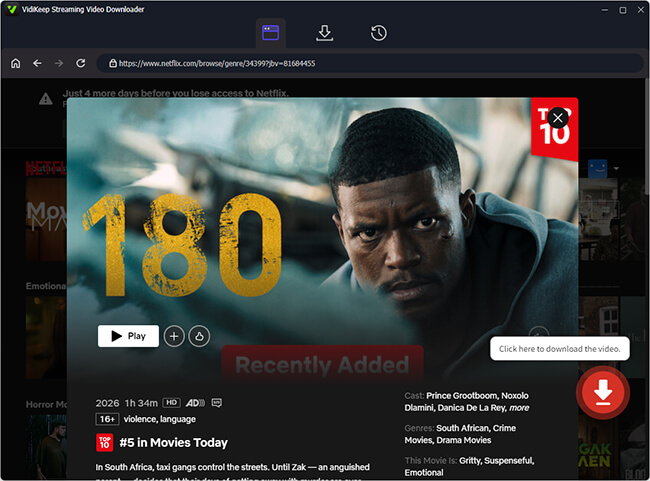
An external streaming device still depends on Netflix working online. There is another approach if the goal is local playback from a USB drive, particularly when internet access is unreliable or the built-in Netflix environment is no longer practical. VidiKeep Streaming Video Downloader is a desktop tool for Windows and macOS that supports Netflix and can save selected streaming videos as local MP4 or MKV files.

Download Netflix movies and shows in MP4 or MKV format with subtitles and enjoy offline viewing on your Smart TV.
 Secure Download
Step 1. Open the Vidikeep application on your computer and log into your Netflix account to locate the movies or episodes you want to watch.
Step 2. Download the selected titles from Netflix onto your computer storage in MP4 format. Because Vizio's USB video support varies by TV model and codec, MP4 is generally the safer format to try first.
Step 3. Transfer the downloaded video files onto a formatted USB flash drive.
Step 4. Plug the U-disk into the USB port on your Vizio TV and open the TV's built-in media player app to enjoy uninterrupted playback.
Part 7. Summary
When Netflix fails on your Vizio TV, the fix is usually simple. Most glitches can be resolved with a hard power cycle and checking your network to clear the SmartCast cache. For older, unsupported TVs, streaming sticks, or offline downloaders like Vidikeep offers perfect workarounds. You will enjoy your Netflix on your Vizio TV without interruptions.

Jordan Rhodes is a Chief Technical Editor and Media Specialist at VidiKeep, specializing in creating diverse tech content, including streaming tutorials, software reviews, and video encoding tips.
Leave a Comment