How to Get and Watch Netflix on Apple TV 4K/HD/2nd/3rd
Watching Netflix on an Apple TV requires an Apple TV HD (4th Gen) or any Apple TV 4K model. Older 2nd and 3rd generation models are no longer supported unless you use VidiKeep to download Netflix movies and TV shows to laptops or computers for offline playback. To get started, download Netflix from the tvOS App Store, sign in, and ensure your HDMI connections and subscription plan support your desired resolution, such as 4K HDR or Dolby Atmos.
Whether you are setting up a new Apple TV 4K or troubleshooting Netflix buffering and audio sync issues on Apple TV, this comprehensive guide covers everything you need to know to optimize your home theater experience.
Part 1. Which Apple TV Models Support Netflix?
Before setting up your home theater, you must verify that your streaming hardware is compatible with the current version of the Netflix app. In 2024, Netflix officially discontinued support for legacy hardware, leaving many users with older devices facing black screens or error prompts. Today, Netflix requires an Apple TV equipped with the modern tvOS App Store.
- Supported Models: You can seamlessly download and run the native Netflix app on the Apple TV HD (4th generation) and all generations of the Apple TV 4K (1st, 2nd, and 3rd generation).
- Unsupported Models: Older Apple TV 2nd and 3rd generation devices are no longer officially supported. To watch Netflix on these older units, you can no longer use a native app and will need to rely on hardware upgrades or third-party video workarounds like VidiKeep.
Apple TV & Netflix Compatibility Breakdown
Use the table below to quickly check your model's native compatibility, maximum streaming resolution, and supported audio features:
| Apple TV Model | Supports Native Netflix? | Max Resolution | Subtitles & Audio Capabilities |
|---|---|---|---|
| Apple TV HD (4th generation) | Yes | 1080p HD | Subtitles, alternate audio, 5.1 surround sound |
| Apple TV 4K (1st generation) | Yes | 4K (Ultra HD) | Subtitles, alternate audio, 5.1 surround sound, Dolby Atmos |
| Apple TV 4K (2nd generation) | Yes | 4K (Ultra HD) | Subtitles, alternate audio, 5.1 surround sound, Dolby Atmos |
| Apple TV 4K (3rd generation) | Yes | 4K (Ultra HD) | Subtitles, alternate audio, 5.1 surround sound, Dolby Atmos |
| Apple TV (2nd & 3rd generation) | No (Requires third-party tools like VidiKeep in Part 5) | 1080p HD | Subtitles, alternate audio, 5.1 surround sound |
How to Identify Your Apple TV Model
If you are unsure which hardware generation you own, you can easily find your model number directly within the tvOS interface. Follow this quick path:
- Navigate to the Settings app on your home screen.
- Select "General".
- Choose "About".
- Locate the Model identifier (e.g., A1625, A1842) and cross-reference it with Apple's official hardware list to confirm your generation.
Part 2. How to Install and Set Up Netflix on Apple TV 4th/4K
If you have a compatible device, getting the application onto your television is a straightforward process. Apple has designed the tvOS App Store to be highly intuitive.
How to Download and Log In Netflix on Apple TV
Step 1. Wake up your device and navigate to the App Store icon located on your main tvOS home screen. Access the search function and type "Netflix" using the on-screen keyboard, or simply hold the microphone button on your Siri Remote and say the name.
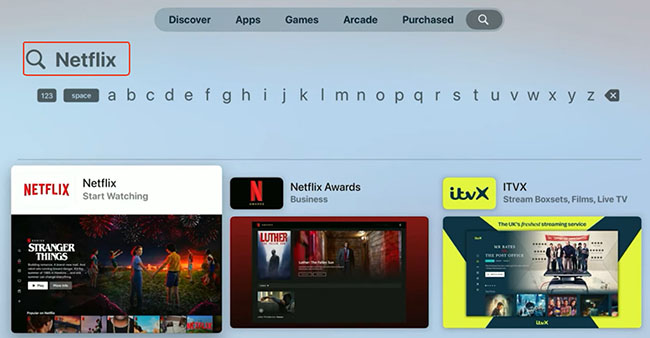
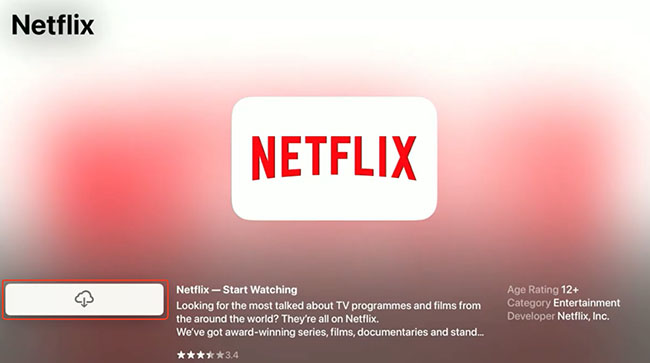
Step 2. Once you locate the official application, select the "Download" icon to add Netflix to Apple TV.
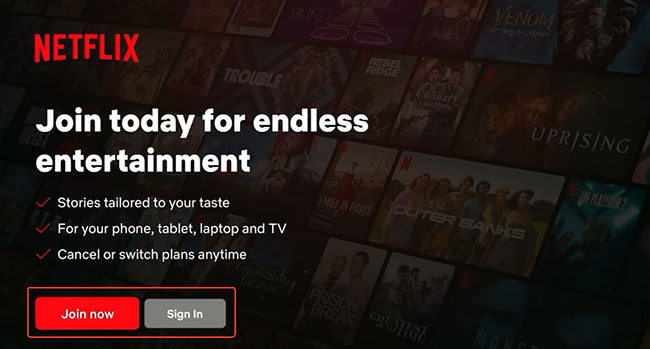
Step 3. Open the newly downloaded Netflix app to arrive at the login screen. You can use your remote to manually type in your email and password. After that, you can select your viewing profile to begin streaming.
 Tips:
Tips:
The fastest method is to connect Netflix to Apple TV is the mobile sign-in option. Scan the QR code that appears on your television screen with your smartphone camera to instantly authenticate your account without typing.
How to Sign Out of Netflix on Apple TV
Whether you need to switch to a different account, troubleshoot an app glitch, or log out of a device in a shared space, signing out of Netflix on Apple TV generation is easy.
Step 1. Open the Netflix app on your TV and press the "Back" button on your Siri Remote to open the left-side main menu.
Step 2. Navigate all the way to the bottom and select "Get Help".
Step 3. On the next screen, scroll down and click "Sign Out" and confirm your choice by selecting "Yes".
Part 3. How to Watch Netflix on Apple TV via New Netflix Custom Video Player
For years, the streaming giant utilized Apple's native tvOS video player, which provided a uniform experience across almost all apps on the device with the Siri Remote. However, in April 2026, they officially replaced this with their own custom Netflix video player interface.
Understanding these changes will save you a lot of frustration when trying to rewind or pause your favorite shows. Because of this update, familiar features no longer work exactly as they used to.
For example, the precise 10-second skip you could execute by clicking the edge of the Siri Remote clickpad might now feel slightly less responsive or behave differently within the new UI. Additionally, native Apple features like automatic subtitling upon rewind have been overridden by Netflix's proprietary settings menu. Here is how to manage basic playback controls within the updated application:
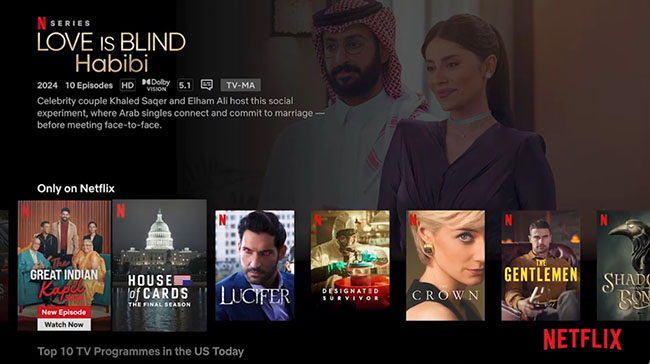
How to View Netflix on Apple TV
To Preview Frames: Lightly rest or tap your finger on the left or right edge of the remote's clickpad without physically clicking down.
To Execute a Skip: Click the left or right edge to pause the video and bring up the frame selector timeline. Swipe to navigate to your desired spot, and then physically click the center of the pad again to confirm your new timestamp and resume playback.
To Change Audio/Subtitles: You must now navigate through Netflix's proprietary on-screen menus rather than relying on the traditional tvOS swipe-down menu.
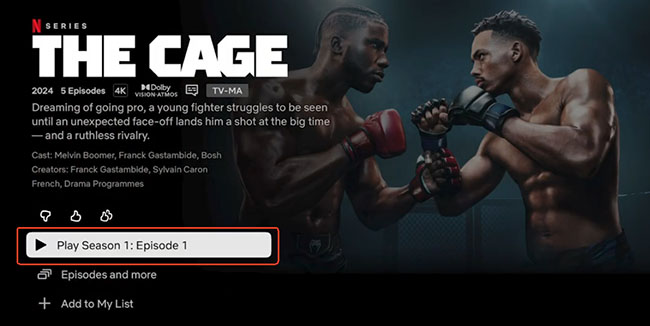
Part 4. How to Maximize Netflix A/V Quality on Apple TV
To truly utilize the power of your Apple TV 4K, you must ensure your system is properly configured to deliver Ultra HD resolution and immersive surround sound. Here is how to:
Meet the Requirements for 4K Ultra HD Streaming
Many users assume they are watching 4K simply because they own an Apple TV 4K. To actually stream in Ultra HD, you must meet all of the following criteria:
- An Apple TV 4K device.
- A 4K-compatible television with an HDMI port that supports HDCP 2.2 (High-bandwidth Digital Content Protection).
- A Netflix Premium Subscription Plan to unblock 4K and HDR content.
- A stable internet connection of at least 15 Mbps (Ethernet preferred).
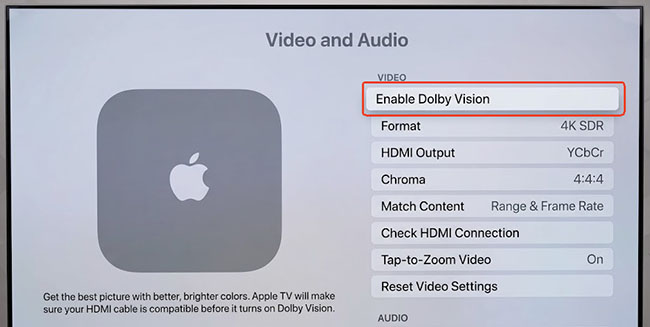
Enable HDR10 and Dolby Vision
Modern Apple TV 4K models will automatically detect your television's dynamic range capabilities.
- Go to Settings > Video and Audio.
- Ensure your format is set to 4K HDR or 4K Dolby Vision.
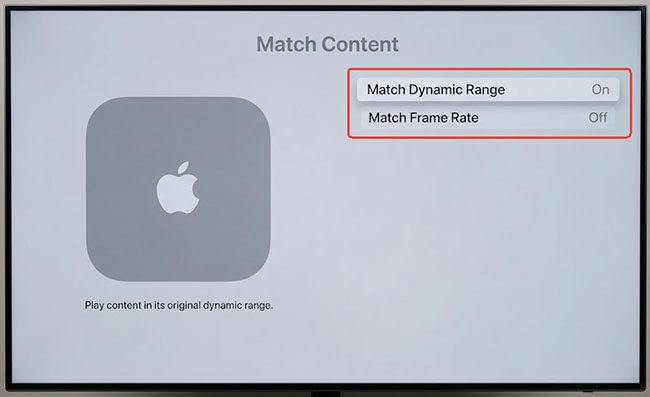
- Turn on Match Content (Match Dynamic Range and Match Frame Rate) to ensure Netflix automatically switches to the correct color profile intended by the filmmakers without artificial processing.
Configuring Dolby Atmos Surround Sound
For immersive spatial audio, Netflix supports Dolby Atmos on the Apple TV 4K.
- Ensure you have a Dolby Atmos-compatible AV receiver or soundbar.
- Connect your Apple TV 4K directly to the sound system, or ensure your TV supports HDMI eARC for high-bandwidth audio passthrough.
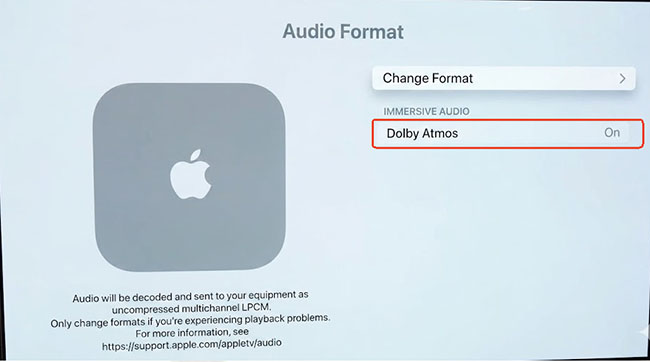
- Go to Settings > Video and Audio > Audio Format.
- Ensure Change Format is turned OFF and Dolby Atmos is toggled ON.
Part 5. How to Get Netflix on Apple TV 2nd/3rd Generation
If you own a legacy Apple TV (2nd or 3rd Generation), you cannot download the Netflix app from an App Store. However, you do not need to throw away your hardware. You can easily use a professional desktop tool like VidiKeep Netflix Video Downloader to download Netflix movies onto your computer, transfer them to other media players, and play them on your legacy setup.

Download Netflix movies and TV shows in MP4 or MKV format at 7X speed with zero quality loss, and enjoy offline viewing on any device, no Netflix subscription required.
 Secure Download
Why Use VidiKeep for Legacy Apple TV Netflix Playback?
VidiKeep is an advanced desktop media downloader that securely logs into your streaming account via a secure internal browser to decrypt and extract video data. It solves the legacy hardware problem by providing:
- Format Conversion: It converts restricted Netflix videos into MP4 or MKV files that older Apple TVs can easily parse.
- High-Fidelity Quality: It preserves full 1080p HD resolution, multilingual SRT subtitles, and 5.1 surround sound audio tracks.
- No App Dependency: The downloaded Netflix files are permanent assets. They do not expire, they are completely ad-free, and they do not require an active app interface on your TV.
How to Download Netflix Videos for Apple TV Playback
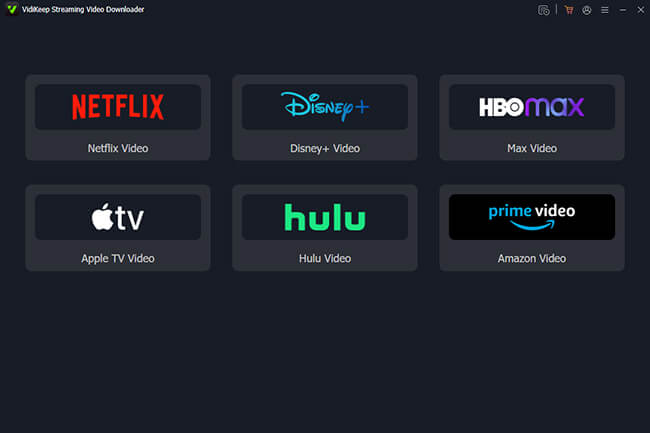
Step 1. Download and install VidiKeep on your Windows or Mac computer. Launch the application and select "Netflix" from the list of supported streaming platforms to open the Netflix video downloader.
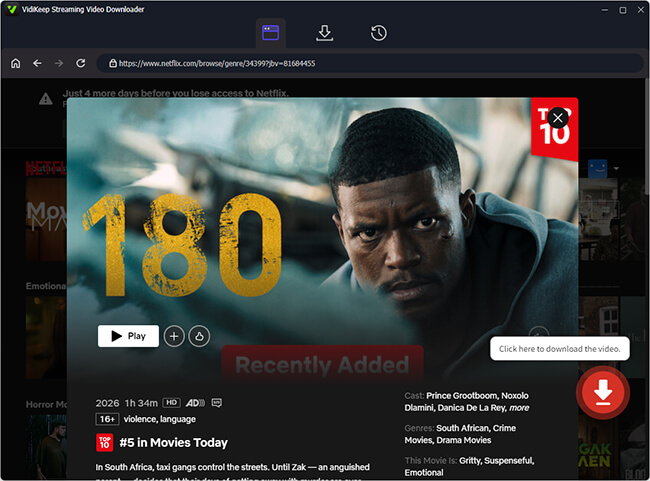
Step 2. Log into your active Netflix subscription using the secure embedded browser. Here, you can search for the movie or TV show you want to save. Click on the video title to open its detail page and then click the floating "Download" icon that appears on screen to load it.
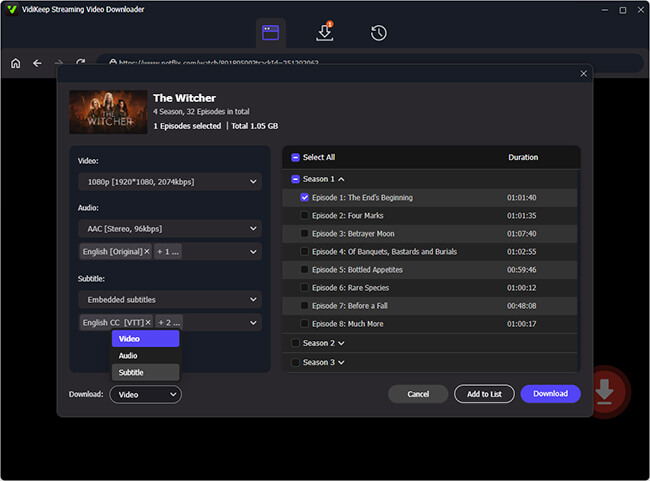
Step 3. In the new window, you can select your favorite shows, choose your desired video resolution (up to 1080p), select your preferred audio tracks, and choose whether to embed or save subtitles as independent SRT files.
Step 4. Click "Download" button to start saving the Netflix file to your local drive. It will run at 5X faster conversion speed and you can find all downloads by clicking the "History" section.
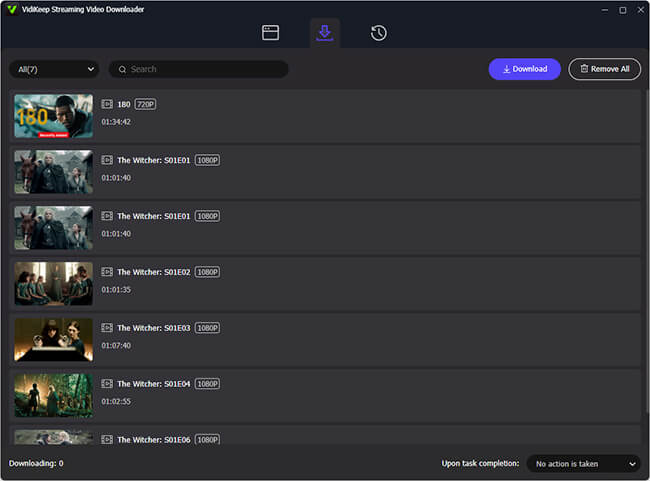
Play Netflix Video Files on Apple TV
Step 1. Open the Apple TV app on that computer, and import the MP4 files into your local library by clicking the "File" > "Import" option.
Step 2. Turn on "Home Sharing" on both your computer and your 2nd/3rd Gen Apple TV (ensuring both are on the same Wi-Fi network).
Step 3. On your Apple TV, go to the "Computers" app icon on the home screen to browse and play your downloaded Netflix library smoothly.
Part 6. Troubleshoot: Netflix Not Working on Apple TV
Even with a perfect setup, you might occasionally run into technical hurdles like Error 113, NSEZ-403 network connectivity issues, or an Netflix app that simply crashes back to the home screen. Here is how to diagnose and resolve the most frequent issues.
Problem: Netflix is Buffering or Freezing on Apple TV
The Fix: Buffering is almost strictly a network bandwidth issue.
- Check Speed: Use a network testing app on your Apple TV to ensure you are receiving at least 15 Mbps for 4K.
- Hardwire: Switch from Wi-Fi to a direct Ethernet connection to the Apple TV to eliminate wireless interference.
- Restart Router: Unplug your modem and router for 60 seconds to clear network cache.
Problem: Netflix App Crashes or Won't Open on Apple TV
The Fix: Corrupted app cache or outdated tvOS firmware is usually the culprit.
- Force Quit: Double-click the TV/Control Center button on the Siri Remote and swipe up on the Netflix app to force close it.
- Perform a Hard Restart: Turn off the Apple TV entirely and unplug it from the wall outlet for at least 15 seconds to clear the system memory.
- Update tvOS: Navigate to Settings > System > Software Updates and install the latest firmware.
- Reinstall App: Highlight the Netflix app on the home screen, press and hold the center of the clickpad until the app wiggles, press the Play/Pause button, and select Delete. Re-download from the App Store.
Problem: Netflix Video Is 4K, but Audio Is Out of Sync
The Fix: Netflix audio desynchronization often happens when the Apple TV or TV attempts to transcode audio formats on the fly.
- Go to Settings > Video and Audio > Audio Format and ensure "Change Format" is set to Off.
- If using a soundbar, use the Wireless Audio Sync calibration tool found in the Apple TV's Video and Audio settings to sync the output via your iPhone's microphone.
Part 7. FAQs about Netflix Apple TV Integration
Is Netflix on Apple TV?
Yes, Netflix is available on Apple TV, but your experience depends entirely on which hardware generation you own. Currently, it is fully supported by Apple TV HD & Apple TV 4K generations.
Can I use AirPlay to cast Netflix from my iPhone to my Apple TV?
No. While older tutorials may suggest this, Netflix officially discontinued AirPlay support for Apple TV due to technical limitations regarding video quality verification. You must use the native tvOS Netflix app.
Why are my Netflix interactive specials not working on Apple TV?
Apple TV does not currently support Netflix's interactive titles (like Black Mirror: Bandersnatch). You will receive an error message and must watch these specific titles on a compatible web browser, smart TV, or mobile device.
Can I download Netflix movies for offline viewing on Apple TV?
No. The offline download feature is exclusively reserved for Netflix's mobile applications (iOS, iPadOS, Android). Apple TV requires a continuous internet connection to stream content. Alternative, you can use the third-party tool, VidiKeep to download Netflix movies for offline playback on Apple TV.
Why Isn't Netflix in Apple's "Up Next" Queue?
This is not a bug or a setup error on your part. Netflix intentionally chooses not to integrate its viewing data with Apple's centralized aggregation feature. The company prefers to keep viewers strictly within its own application ecosystem to control the user experience and recommendations, rather than sharing that engagement with Apple.
Part 8. In Conclusion
Navigating Netflix on Apple TV delivers a premium home theater experience, provided you adapt to recent platform changes. With Netflix's custom video player update, adjusting to the new frame-selector gestures and interface overrides will ensure a frustration-free experience on modern Apple TV HD and 4K models.
By maintaining a fast internet connection, verifying your HDMI and audio settings, or using offline workarounds like VidiKeep for unsupported legacy boxes, you can easily maximize your streaming quality and quickly resolve any playback errors.

Jordan Rhodes is a Chief Technical Editor and Media Specialist at VidiKeep, specializing in creating diverse tech content, including streaming tutorials, software reviews, and video encoding tips.
Leave a Comment