Best Ways to Get Netflix on a Non-Smart TV
An older TV doesn't need to be replaced just because it cannot install Netflix. In most cases, you can watch Netflix on a non-smart TV by connecting another device that handles the Netflix app, internet connection, and video playback for you.
The easiest option is usually a streaming stick, but it is far from the only one. A laptop, game console, compatible phone adapter, or even a USB drive may make more sense depending on the ports your TV has and whether you want to stream online or watch offline. This guide walks through the practical ways to get Netflix on a non-smart TV, including several limitations that older tutorials often miss.
Quick Check: Which Netflix Setup Fits Your Non-Smart TV?
Before buying anything, check the back of your TV for an HDMI port and see what equipment you already have. Use this table to find the most practical setup before working through every method.
| Your Current Situation | Recommended Netflix Setup |
|---|---|
| TV has HDMI and you want easy daily access | Streaming stick or streaming box |
| You already own a laptop | Laptop + HDMI cable |
| You have PS4/PS5 or Xbox console | Native Netflix console app |
| You want to use your phone or tablet | Compatible phone-to-HDMI adapter |
| TV has a USB media player | Local video + USB playback |
| TV has no built-in Wi-Fi | Streaming device or laptop |
| TV only has RCA/composite inputs | HDMI-to-AV converter, with limitations |
| You want to watch without internet | USB/local playback or supported Netflix downloads |
 Tips:
Tips:
One useful rule is to check the devices you already own before buying a streaming stick. A PlayStation, Xbox, compatible Blu-ray player, or set-top box may already give the TV access to Netflix.
Method 1. Get Netflix on a Non-Smart TV with a Streaming Device
For a seamless, smart-TV-like experience, a streaming stick or box is the best choice to play Netflix on a non-smart TV. These compact devices plug directly into an open HDMI port and effectively give your television an instant brain transplant.
Popular options include the Amazon Fire TV Stick, Roku, Google TV Streamer, and Apple TV. They handle all the heavy lifting, providing physical remote controls and highly intuitive digital interfaces. The installation process is quite simple for most living room setups.
Setting Up Your Streaming Device
Step 1. Plug the streaming device directly into your TV's HDMI port and connect it to a reliable power source.
Step 2. Switch your TV to the corresponding HDMI input. Follow the on-screen instructions to connect the device to your home Wi-Fi.
Step 3. Open or download the Netflix app, sign in, and use the included remote to navigate.
From my experience setting up older entertainment centers, plugging the USB power cable directly into the wall outlet rather than relying on the TV's built-in USB port usually prevents unexpected reboots.
 Note:
Note:
Newer Google TV devices run the Netflix app natively. Avoid buying older Chromecasts specifically for Netflix, as phone-casting support has become highly limited.
Method 2. Watch Netflix on a Non-Smart TV by Connecting a Laptop with HDMI
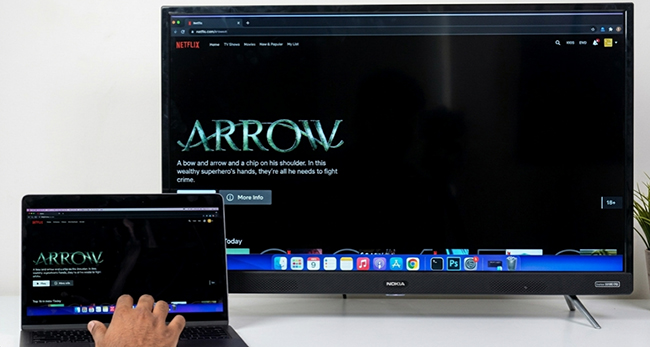
If you already own a Windows PC or Mac, an HDMI cable is the cheapest way to get Netflix on an old TV. Instead of installing anything on the television, you simply use the TV as an external monitor.
Connect a Windows Laptop/MacBook to a Non-Smart TV
Step 1. Connect one end of an HDMI cable to your laptop and the other end to the TV. (MacBook users may need a USB-C to HDMI adapter).
Step 2. Turn on the television and select the HDMI input you connected.
Step 3. On your laptop, open Netflix in your web browser or native app and sign in. You can then start your favorite movie and make it full-screen.
 Pro Tip:
- If the television does not automatically mirror your Windows laptop screen, press Windows + P and choose Duplicate or Second screen only.
- If you see the video but hear audio from your laptop, go to your computer's Sound Settings and change the Output to your TV.
Method 3. Watch Netflix on an Old TV Using PlayStation or Xbox
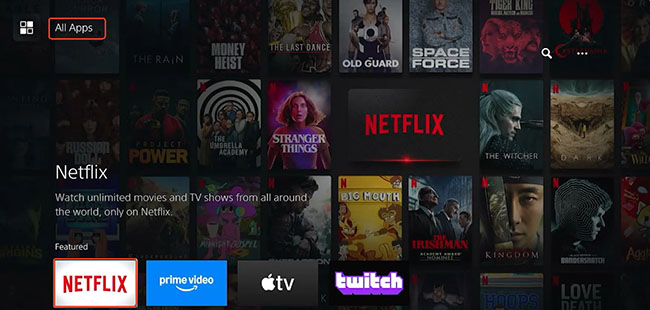
Before buying a streaming stick, check whether you already have a game console connected to the television. Current PlayStation and Xbox consoles can run Netflix directly, including commonly used models such as PS4, PS5, Xbox One, and Xbox Series S/X. The process is simple:
Step 1. Connect the PlayStation or Xbox to your non-smart TV with HDMI.
Step 2. Connect the console to the internet.
Step 3. Find Netflix in the console's app or media section. Install or open Netflix, sign in your account, and then stream movies or TV shows on non smart TV.
Method 4. Connect Netflix from a Phone to a Non-Smart TV
A phone or tablet can also send Netflix video to a television through a wired HDMI connection, but this method requires more compatibility checking. A USB-C port by itself does not guarantee that the phone can output video. Netflix also notes that unsupported video-output methods or certain plans can trigger a "connected display is not supported" error.
- iPhone/iPad: Use an Apple Lightning Digital AV Adapter (or a USB-C to HDMI adapter for newer models).
- Android: Ensure your phone supports video output (DisplayPort Alt Mode) and use a compatible USB-C to HDMI adapter.
 Warning:
Generic screen mirroring (or AirPlay) often results in a Netflix black screen with audio only. This is due to Netflix's HDCP (High-bandwidth Digital Content Protection). A direct wired connection using official or certified adapters is far more reliable.
Method 5. View Netflix on a Non-Smart TV via USB Playback with VidiKeep
There is another situation worth considering: your old TV has a USB media port, but you do not want to keep a laptop, streaming stick, or phone attached to it. In that case, local USB playback can be more convenient.
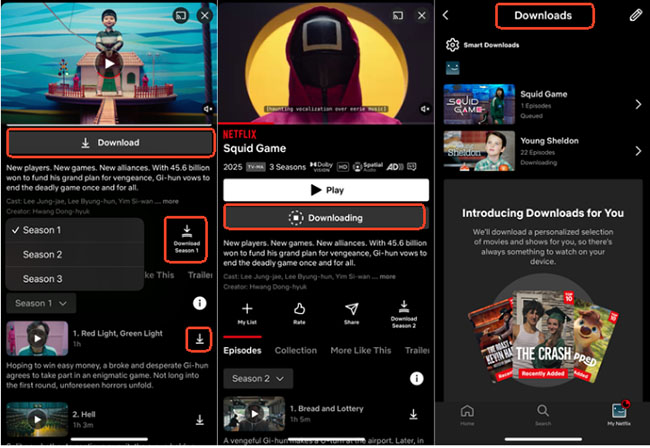
The limitation is that Netflix's official download feature does not provide ordinary MP4 or MKV video files that you can simply copy onto a USB drive. Official downloads are managed inside supported Netflix apps on devices such as Android phones/tablets, iPhone/iPad, Fire devices, and Chromebooks.
For users who need regular local video files for playback on their own compatible equipment, a third-party option such as VidiKeep Streaming Video Downloader provides a different workflow. VidiKeep includes a built-in interface for supported streaming services including Netflix. It can export Netflix downloads in MP4 or MKV, at up to 1080p, with support for choosing audio and subtitle options. That makes the second format more suitable for devices that rely on conventional USB media playback.
Disclaimer:
Use third-party download tools only where permitted by Netflix's terms and applicable copyright law. VidiKeep advises users to comply with Netflix's terms and local copyright rules.
How to Download and Put Netflix on Non-Smart TV for Playback
Step 1. Run VidiKeep Streaming Video Downloader on your Windows or Mac computer. Click the Menu and Preferences option to open the download preferences and select the video format you want.
Step 2. Choose Netflix from the supported services. The software opens Netflix through its integrated web interface. Log in with your active Netflix account inside the built-in player.
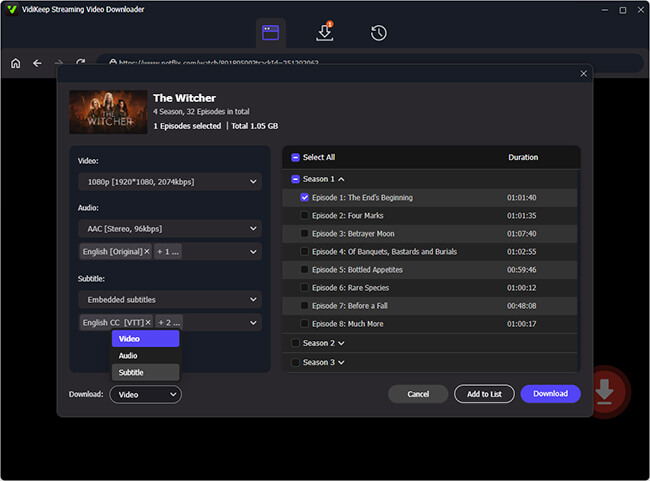
Step 3. Locate the title you want inside VidiKeep and select the movie or episodes to save. Click the Download button to start the download process. Once complete, the local video can be found in the selected output folder.
Step 4. Insert a USB flash drive into the computer and add and transfer the resulting MP4 or MKV file to it. Connect the USB drive to the TV, open its Media, Video, or USB player, and select the video. No Netflix app needs to run on the television during USB playback.
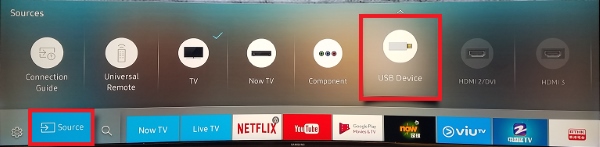 Pro Tips:
Before downloading a large library, transfer one short video first and test it on the television. The TV manual or manufacturer's support page is the most reliable place to confirm supported media formats.
Edge Cases: Use Netflix on Old TVs (Without HDMI or No Internet)
How to Watch Netflix on an Old TV Without HDMI
If your older TV only has composite AV ports (the red, white, and yellow RCA inputs), you will need an HDMI-to-AV converter.
- Setup: Streaming device → HDMI-to-AV Converter → RCA cables → Old TV.
Note:
- Because of HDCP constraints, cheap converters may result in a black screen, distorted aspect ratios, or poor standard-definition quality.
- If the old television also has a functional USB video player, the USB playback approach may be worth investigating before building a chain of HDMI and analog converters.
Watch Netflix on a Non-Smart TV Without Wi-Fi
If you have zero internet access, you cannot use a Roku or Apple TV. However, you can download Netflix shows onto a supported smartphone, tablet, or Chromebook while on Wi-Fi, and then connect that device to your TV via an HDMI adapter to watch offline.
Netflix on a Non-Smart TV Not Working? Try These Fixes
Even with the right setup, you might run into a few technical hiccups. If your non-smart TV setup isn't working as expected, here is how to fix the most common playback and connection issues:
- "No Signal" on TV: Double-check that your streaming device has power (don't just plug it into the TV's USB port; use a wall outlet). Ensure you are on the correct HDMI input channel.
- Black Screen (HDCP Error): This happens when your cable, adapter, or TV fails content protection checks. Try bypassing receivers/splitters and plugging the HDMI cable directly into the TV. If using a phone adapter, ensure it explicitly supports HDCP.
- Device Isn't Part of Your Household: This is a Netflix account restriction. Follow the on-screen prompts to verify your new streaming stick or console via email/SMS.
Which Netflix Setup Is Best for a Non-Smart TV?
There is no need to choose the most expensive method. The best setup is usually the one that fits the equipment you already own.
| Method | Internet Needed During Playback | Extra Hardware | Approx. Extra Cost (US) | Ease of Use | Best For |
|---|---|---|---|---|---|
| Streaming stick/box | Yes | Streaming device | $30–$200 | Very easy | Everyday streaming |
| Laptop + HDMI | Yes | HDMI cable | $6–$25 if laptop is owned | Easy | Low-cost setup |
| PlayStation/Xbox | Yes | None if owned | $0 if owned; ~$500–$900 if buying new | Easy | Console owners |
| Phone + HDMI | Yes* | Compatible adapter | $10–$70 | Moderate | Temporary use |
| VidiKeep + USB | No after files are prepared | VidiKeep + USB drive | About $70–$180 | Easy after setup | Offline/local playback |
| Older Chromecast | Yes | Compatible legacy Chromecast | $0 if owned; used prices vary | Moderate | Existing legacy hardware |
| HDMI-to-RCA | Usually yes | Converter + playback source | $10–$40 if source is owned | More difficult | Very old TVs |
Note:
Prices are approximate U.S. retail costs as of 2026 and may change with sales, device models, and the hardware you already own. A Netflix subscription is not included in these estimates.
FAQ About Connecting Netflix to Non-Smart TVs
Can I install Netflix directly on a non-smart TV?
No. Most non-smart TVs do not support Netflix installation because they lack an app system and internet features. You need a connected device, such as a streaming stick, game console, laptop, or compatible adapter.
What is the cheapest way to get Netflix on a non-smart TV?
The cheapest option is usually using a device you already own. If you have a laptop, connect it to your TV with an HDMI cable. A game console with the Netflix app can also work without buying extra hardware.
What is the easiest way to get Netflix on a non-smart TV?
A streaming device like a Roku, Fire TV Stick, Google TV Streamer, or Apple TV is usually the easiest solution. Simply connect it through HDMI, connect to Wi-Fi, install Netflix, and sign in.
Can I cast Netflix from my phone to a non-smart TV?
It depends on the device. Older Chromecast devices may support phone-based casting, but newer Google TV devices usually run Netflix directly through their own apps instead of relying on casting.
Can I use AirPlay to watch Netflix on a non-smart TV?
No. Netflix does not support AirPlay playback from iPhone or iPad as a standard way to stream content to a TV.
Can I turn a non-smart TV into a smart TV?
You cannot change the TV's built-in system, but a streaming device can add smart features such as Netflix, apps, voice controls, and online streaming.
Conclusion
You do not need a smart TV to watch Netflix. If your TV can connect to a Netflix-compatible device, you can still stream your favorite content. For most users, a streaming stick is the easiest solution, while a laptop with HDMI is the cheapest option if you already own one. Console owners can also use PlayStation or Xbox apps without buying extra hardware.
Older TVs without HDMI may require converters, but compatibility issues can occur. Before buying anything, check your TV ports and the devices you already have.

Jordan Rhodes is a Chief Technical Editor and Media Specialist at VidiKeep, specializing in creating diverse tech content, including streaming tutorials, software reviews, and video encoding tips.
Leave a Comment