How to Get Netflix on Samsung TV [New and Old]
Netflix is available on most modern Samsung Smart TVs made in 2015 or later, allowing users to watch movies, TV shows, documentaries, and other content directly through the built-in Netflix app. However, getting Netflix working on a Samsung TV is not always as straightforward as pressing a button. Some users cannot find the app, do not know how to install it, or are unsure whether their older Samsung TV supports Netflix.
If you are searching for how to get Netflix on Samsung TV, the process usually involves checking compatibility, installing the Netflix app through Samsung's Apps platform, and signing in with your Netflix account. For older Samsung TVs that no longer support Netflix, an external streaming device or USB playback may be the possible solutions. This guide explains how to watch Netflix on new and old Samsung TVs.
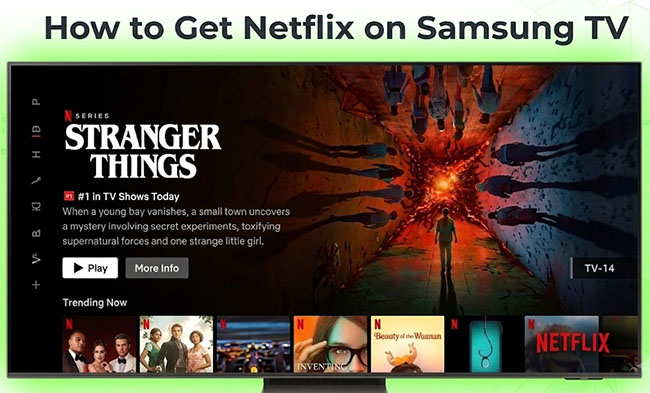

Check If Your Samsung TV Supports Netflix
Depending on your Samsung TV model, software version, and region, the Netflix app may already be installed, available through Samsung Apps, or unavailable due to compatibility limitations.
Before installing Netflix, the first thing to check is whether your Samsung TV supports the Netflix app. Most Samsung Smart TVs released in recent years include Netflix support, but availability depends on factors such as:
- Samsung TV model and manufacturing year
- Software version
- Region where the TV is sold
- Whether the TV still receives updates
| Evaluation Dimension | Directly Supported Criteria | Discontinued / Unsupported Criteria |
|---|---|---|
| Manufacturing Year | 2016 – Present | 2010 – 2015 (Gradually phased out due to security and hardware limitations) |
| Model Series Code | Letters K, M, N, R, T, A, B, C (2023), D (2024), F (2025), H (2026) positioned after the screen size | Letters C, D, E, F, H, J (e.g., UN50F5500) positioned after the screen size |
| Operating System | Tizen OS (Version 2.4 to 8.0+) | Orsay OS (Legacy proprietary platform used prior to 2015) |
| Regional Use | Global licensing (Available in all regions where Netflix operates) | Non-operational regions (e.g., Mainland China, Crimea, North Korea) |
| Software Status | Must be up to date; app execution requires the latest available firmware | Outdated firmware completely blocks communication with Netflix authentication servers |
Older Samsung Smart TVs may not support newer versions of Netflix because streaming apps periodically update their requirements. A TV that once supported Netflix may eventually lose access if its hardware or software can no longer support the latest app version. If you cannot find Netflix in the Samsung Apps store, compatibility should be the first thing you check.
How to Find Your Samsung TV Model Number
To check whether your TV supports Netflix, first find the exact model number. You can usually locate it in one of these places:
- A label on the back of the television
- The TV settings menu (Settings > Support > About This TV)
- The original product documentation
Once you know your model number, you can check whether Netflix is supported for your specific TV generation.
How to Install Netflix App on Samsung Smart TV
If your Samsung Smart TV supports Netflix, getting started is incredibly simple. Depending on your TV model, the app might already be waiting for you on your home screen, or you may just need to quickly download it from the app store. Below, we'll walk you through the exact methods to find and install Netflix.
 What You Need Before Installing Netflix on Your Samsung TV
- Stable Internet Connection: You need at least 5 Mbps for HD streaming or 15 Mbps for 4K Ultra HD to avoid Netflix buffering, low video quality, and playback interruptions.
- Active Netflix Account: You can use your existing login credentials to watch content on your Samsung TV or sign up for a new account.
- Samsung Account: Some TV models require you to log in to a Samsung account before you can download apps from Samsung's app store.
Check for Pre-installed Netflix on Your Samsung TV
Before you dive into the app store, it is worth checking if the service is already waiting for you. Most Samsung TVs manufactured from 2016 onward come with the Netflix app pre-loaded.
Step 1. Turn on your television and press the Home button on your remote control to bring up the main navigation bar at the bottom of the screen.
Step 2. Use the directional pad on your remote to scroll left or right through the pre-installed apps. If you see the familiar red "N" icon, simply select it and sign in with your credentials. You can start to select the favorite movies or shows you want to watch in Netflix.
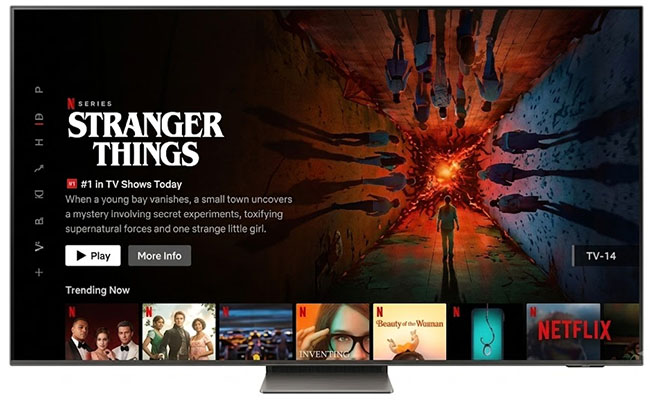
If you do not see the app immediately, do not worry. It may not be installed yet, or it could be hidden within your app library. Besides, some Samsung remotes also include a dedicated Netflix button that opens the app directly.
How to Download Netflix via the Samsung Smart Hub
If your TV does not have the app pre-installed, you can easily download it through the built-in app store. Please note that you will need a Samsung Account to download and manage apps on your device.
Step 1. Turn on your Samsung Smart TV and connect it to your home network. From the Home screen, navigate to the Apps icon located on the menu bar and select it.
Step 2. Once you are in the Apps section, look for the Search icon (usually a magnifying glass) in the top right corner of the screen.
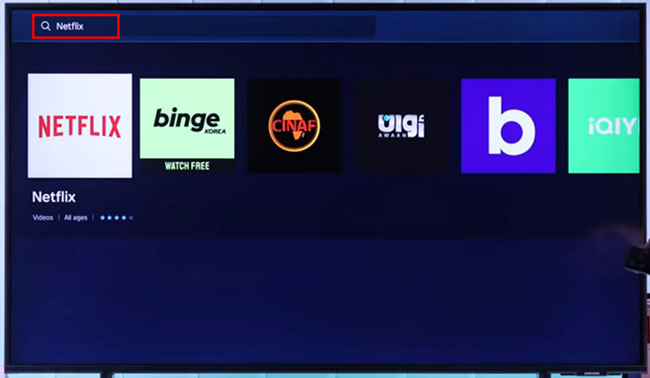
Step 3. Select the search bar and type in "Netflix". When the app appears in the results, select it to view the download page.
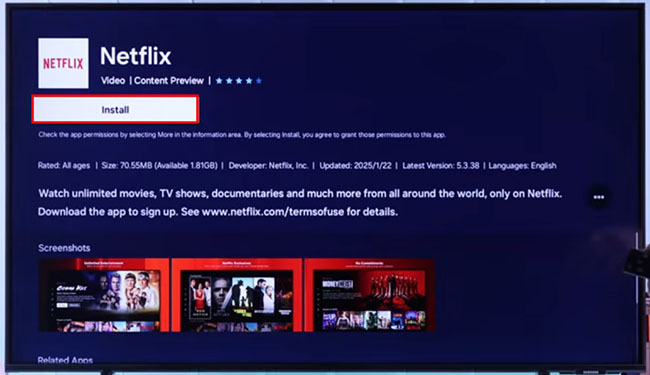
Step 4. Select Install to download Netflix to your Samsung TV. Once the download finishes, you can launch the app directly from this screen or find it on your main menu bar and sign in with your Netflix account.
 How to Add Netflix to Samsung TV Home Screen
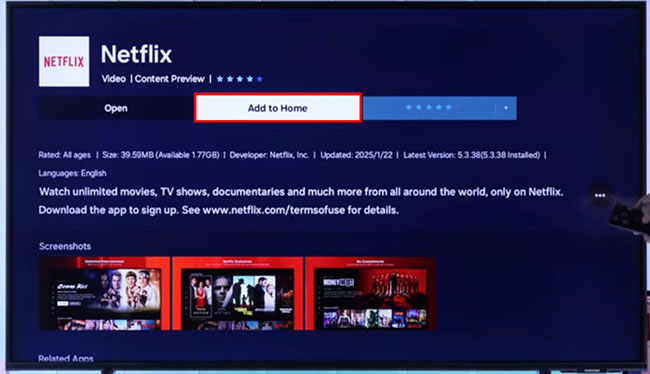
After downloading Netflix, you can click the Add to Home button to move Netflix to your Samsung TV Home screen for faster access.
How to Activate Netflix on Samsung Samsung TV
After getting Netflix on your Samsung TV, you need to connect the app to your Netflix account. There are two easy ways to sign in, depending on your Samsung TV model and app version.
Method 1: Sign In Using Your Remote
The traditional method involves entering your Netflix email address and password directly on your TV. While reliable and universally supported, typing with a TV remote can be slightly tedious.
- Open the Netflix app on your Samsung TV.
- Select Sign In button at the top-left corner.
- Click Use remote option and enter your account email address and password using the on-screen keyboard.
- Choose your Netflix profile to begin streaming.
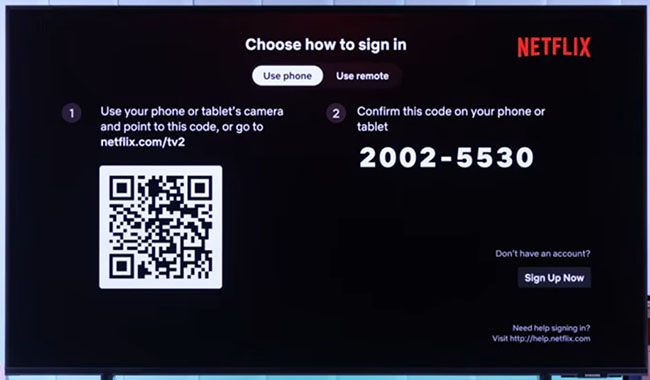
Method 2: Use QR Code Login
Many newer Netflix app versions offer a faster, mobile-friendly activation method. It allows you to connect Netflix to Samsung TV from phone quickly via scanning the QR code.
- Open Netflix on your Samsung TV and select the sign-in option.
- A QR code will appear on the screen under the Use phone section.
- Scan the QR code with your smartphone and confirm the displayed code through the Netflix activation process.
- Netflix will connect your TV automatically.
Can You Get Netflix on an Older Samsung TV?
If you own an older Samsung TV, the Netflix app may not appear in the app store or might no longer function properly. However, this does not mean you need to replace your television. Here are two reliable methods to continue watching your favorite Netflix shows and movies on Samsung TV.
Method 1: Connect an External Streaming Device
The most common workaround is to connect an external streaming media player via an HDMI port. Because these devices have their own independent operating systems and app stores, they completely bypass your older TV's software limitations and do not depend on Samsung's built-in software. Popular options include:
| Device | Best For |
|---|---|
| Roku Streaming Devices | Simple, user-friendly Netflix setup |
| Amazon Fire TV Stick | An affordable, feature-packed upgrade |
| Google TV / Chromecast | Users heavily invested in the Google ecosystem |
| Apple TV | A premium, high-performance streaming experience |
Method 2: Watch Netflix on Old Samsung TV via USB Using VidiKeep
If you prefer not to purchase additional hardware or deal with internet buffering, you can download your favorite Netflix videos to a USB flash drive and watch them locally on old Samsung Smart TV.
Using the VidiKeep Netflix Video Downloader, you can easily save Netflix content as high-quality MP4 or MKV files. All Netflix downloads can be transferred to an external hard drive, like USB flash drive for offline playback with the help of the Netflix app and Samsung account.
Step 1. Download your preferred Netflix videos as MP4 files using VidiKeep on your computer.
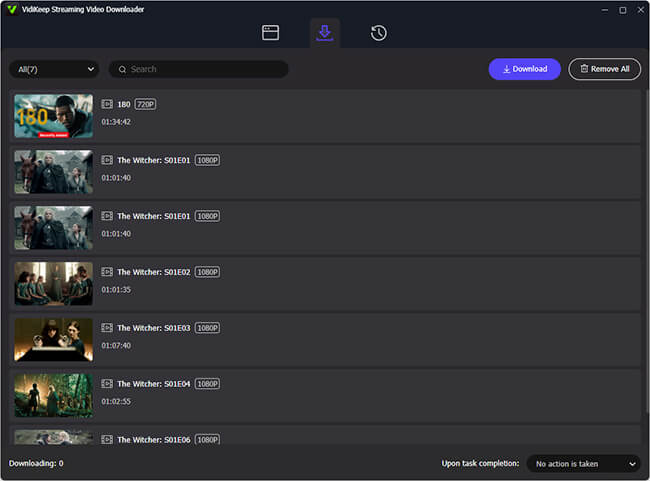
Step 2. Transfer the downloaded MP4 files to a compatible USB flash drive.
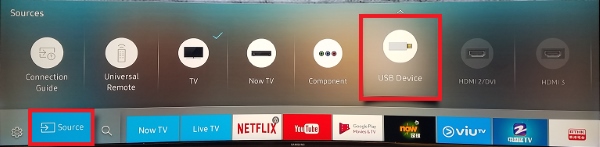
Step 3. Plug the USB drive directly into the port on your older Samsung TV.
Step 4. Access the TV's built-in media player to watch your videos seamlessly.
FAQs About Watching Netflix on Samsung TV
How do I download Netflix on Samsung Smart TV?
Open the Apps section on your Samsung TV, search for Netflix, and select Install. If Netflix is already installed, simply open the app and sign in.
Why can't I find Netflix on my Samsung TV?
Netflix may be missing because your Samsung TV is not compatible, the software is outdated, or the app is unavailable in your region.
Does every Samsung TV have Netflix?
No. Most newer Samsung Smart TVs support Netflix, but older models may not support current versions of the app.
Can I install Netflix on an old Samsung TV?
No. If your old Samsung TV does not support Netflix, you can connect a streaming device such as Roku, Fire TV Stick, Chromecast, or Apple TV to add Netflix support or use VidiKeep to play Netflix from the USB flash drive.
Do I need a Samsung account to use Netflix?
Not always. Some Samsung TVs require a Samsung account to download apps, while others allow direct access to installed apps.
How to sign out of Netflix on Samsung TV?
Open the Netflix app and press the Back button on your remote to open the main menu. Depending on your app version, follow these steps:
- If the menu is on the left: Scroll to the bottom and select Get Help (or Settings) > Sign out > Yes.
- If the menu is at the top: Scroll left to your profile icon and select Get Help > Sign out > Yes.
Final Thoughts
For most Samsung Smart TV owners, the easiest way to get Netflix is to open Samsung Apps, install the Netflix app, and sign in with an existing account. If Netflix is missing, check compatibility before spending time searching through the app store.
Older Samsung TVs may need a software update, an external streaming device, or VidiKeep to continue using Netflix. The best solution depends on your situation:
- New Samsung Smart TV: Install and use the built-in Netflix app.
- Netflix available but not installed: Download it through Samsung Apps.
- Older Samsung TV without Netflix support: Add Netflix with a streaming device or VidiKeep.
With the right setup, most Samsung TV users can quickly start watching Netflix without replacing their television.

Jordan Rhodes is a Chief Technical Editor and Media Specialist at VidiKeep, specializing in creating diverse tech content, including streaming tutorials, software reviews, and video encoding tips.
Leave a Comment