Stream Crunchyroll on Discord Without a Black Screen
You start a Discord voice call for anime night and your friends see a black screen even though the Crunchyroll episode is playing normally on your computer. In reality, the result often depends on your browser and Discord settings. Let's go through the methods worth trying to stream Crunchyroll properly on Discord.
Can You Stream Crunchyroll on Discord?
Yes, you can stream Crunchyroll on Discord, provided you run it through a compatible desktop browser with graphics acceleration turned off. Trying to share your screen from a phone, tablet, or the standalone Crunchyroll app almost always gives you a black screen because those platforms lock down screen capture at the operating system level.
Before diving into fixes, it helps to clear up one common mixup. Screen sharing lets your friends watch an episode with you in a voice channel. Linking your Crunchyroll account to Discord does not unlock streaming at all; it only turns on Rich Presence so your profile shows what you are watching.
How to Stream Crunchyroll on Discord Without a Black Screen (PC and Mac)
If you're planning to screen share Crunchyroll on Discord without a black screen on a PC or Mac, it's worth checking a few settings first. Otherwise, you might end up with a black screen or no sound when your friends join. I'll show you how to share your window with sound in Discord, and try an alternative method on Windows if the usual setup doesn't work.
Adjust Your Browser Settings for Crunchyroll Streaming
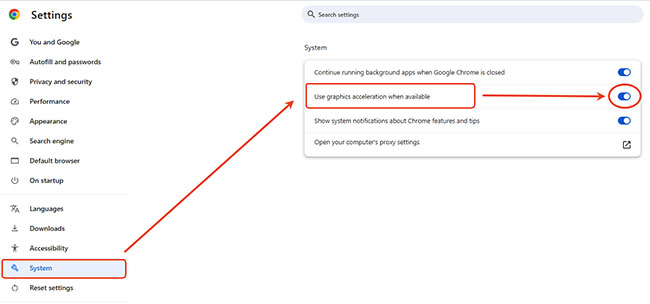
The key to fixing the black screen is switching your browser from hardware graphics to standard software rendering. Pick Chrome, Firefox, or Opera GX and adjust these settings before joining your call:
- Google Chrome: Open Settings and click System. Turn off Use graphics acceleration when available and Continue running background apps, then fully restart Chrome.
- Mozilla Firefox: In Settings, scroll to Performance, uncheck Use recommended performance settings and Use hardware acceleration when available, then restart Firefox.
- Opera GX: Open Settings, scroll down to Advanced, and find System. Toggle off Use graphics acceleration when available, then click Relaunch.
Set Up Discord Screen Sharing with Audio
With the browser settings sorted out, I also recommend checking a few Discord settings before starting your Crunchyroll stream. In my experience, getting the browser ready doesn't always solve everything. Discord can still have trouble capturing the video or picking up its audio, depending on how you share your screen. So, let's go through a few settings that are worth adjusting before you start watching anime from Crunchyroll on Discord with your friends.
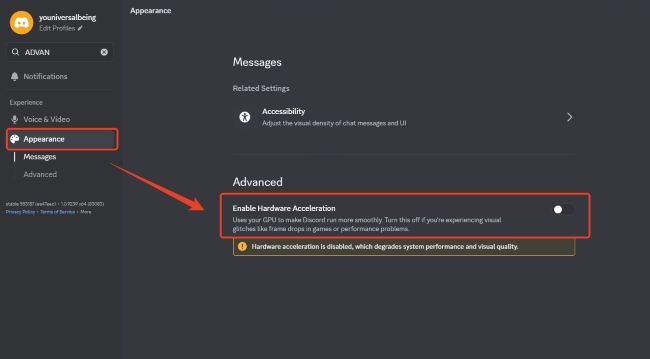
Step 1. Open the Discord desktop app and click the gear icon for User Settings. Head to Advanced, toggle off Hardware Acceleration, and let Discord restart so it does not conflict with your browser.
Step 2. Join your voice channel, click Share Your Screen at the bottom left, and select your Crunchyroll browser window under the Applications tab. Picking the single window instead of your entire screen helps prevent Windows from muting browser audio.
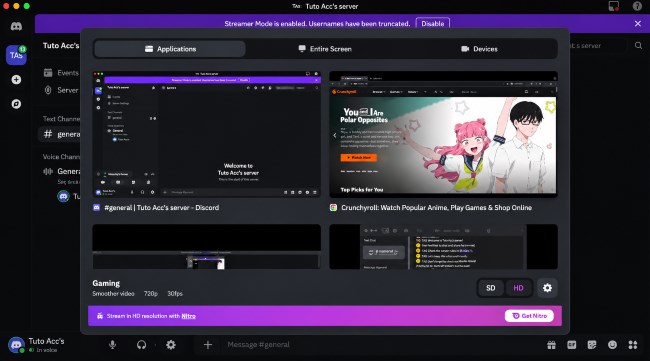
Step 3. Confirm that the sound toggle is switched on, choose your resolution and frame rate, and click Go Live. Glance at the tiny preview window inside Discord while the episode plays. If you can see the animation moving inside that little box, your friends can see it too.
Add Your Browser as a Game on Discord (Windows)
If you have already turned off graphics acceleration and the Applications tab still drops audio or shows a blank player on Windows, you can try adding your browser to Discord as a game. This prompts Discord to hook directly into the browser process, which often captures both video and sound more reliably. Note that this requires the Discord desktop app, as the web browser version does not display the Registered Games menu.
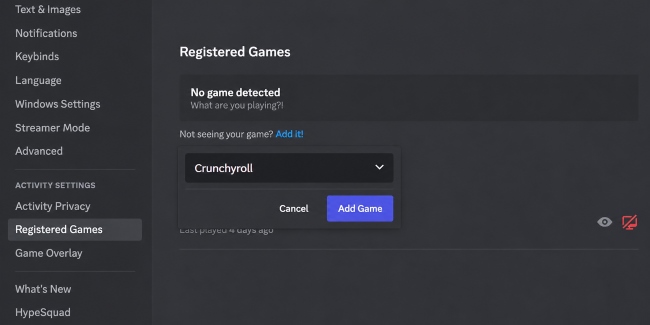
Step 1. Open the Discord desktop app, click the gear icon for User Settings, and scroll down to Registered Games under Games & Apps.
Step 2. Click Add it! near the top of the panel, select your open browser from the dropdown list, and click Add Game.
Step 3. Return to your voice channel and click the stream icon next to your browser's name above the voice controls. This forces Discord to use its game capture hook instead of basic window capture, which tends to grab both the picture and the audio track much more reliably.
Why Can't I Stream Crunchyroll on Discord
"I'm a premium member and found that I can't watch Crunchyroll on Discord with my friends anymore. I already turned off hardware acceleration for videos in Chrome, but it still doesn't work."—Reddit
Edge and Safari often keep video locked inside your graphics card, so Discord may still show a black screen even after you tweak settings. Chrome, Firefox, and Opera GX tend to be more flexible. Turning off graphics acceleration and fully restarting them usually lets Discord capture the video. Meanwhile, Crunchyroll apps on phones, consoles, and Windows generally block screen sharing, which helps explain why so many people online report issues.
Alternatives When Discord Screen Sharing Doesn't Work for Crunchyroll
Even when everything works, Discord compresses video pretty aggressively. Free accounts top out at 720p and 30 frames per second, which can leave thin anime subtitles looking a bit soft on bigger monitors unless you have Nitro or a boosted server. If your upload speed is tight or half your group is watching from phones, other tools make the night a lot smoother.
Try Watch Party Tools and Cloud Browsers
Instead of making one computer encode and upload video for the whole room, these tools keep everyone synced while you use Discord purely for voice chat.
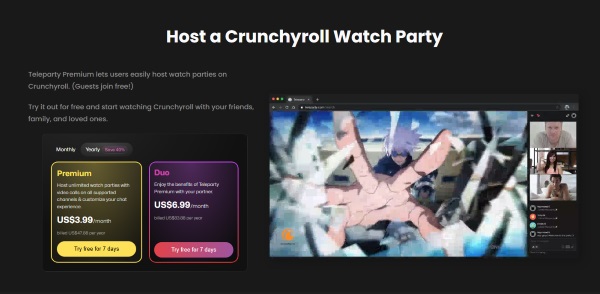
- Teleparty (Premium): Syncs playback across everyone's browser so each person loads crisp native 1080p video from their own Crunchyroll account. There are no black screens and zero upload strain on the host, though the host needs Teleparty Premium and everyone needs Crunchyroll access.
- AniDachi: A Chrome extension built specifically for anime watch rooms on Crunchyroll paired with Discord voice channels. Like Teleparty, everyone streams locally so the picture stays sharp.
- Hyperbeam: Spins up a shared virtual browser in the cloud that friends join with a link. Only one person needs to sign in to Crunchyroll and there are no local DRM settings to mess with, though the free tier puts caps on session time and resolution.
Prepare Crunchyroll Videos for Local Playback on Discord with VidiKeep
Even after tweaking your browser settings, trying to stream Crunchyroll on Discord live can still hit a snag if your internet dips, a new episode buffers nonstop, or browser DRM triggers another black screen. Switching to a local video file played through a standard media player sidesteps those web player blocks and connection drops completely.
VidiKeep Streaming Video Downloader is a desktop tool for Windows and Mac that lets you save Crunchyroll episodes from your active account as standard MP4 or MKV files at up to 1080p, complete with your preferred audio tracks and subtitles, making it a handy alternative when streaming directly through Discord isn't working well.
Step 1. Install and launch VidiKeep Streaming Video Downloader on your PC or Mac, pick Crunchyroll from the main screen, and sign in to your account.
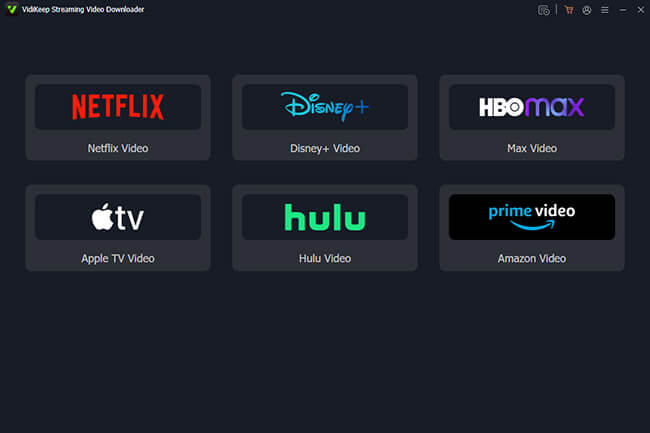
Step 2. Find the Crunchyroll episode you want to watch with friends, open it, and click the "Download" button. Select MP4 or MKV as the output format, choose your video quality, and set your preferred audio and subtitle tracks before saving it locally.
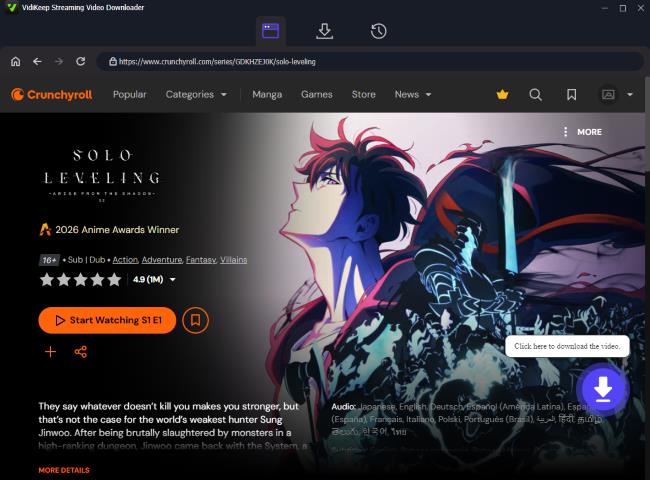
Step 3. Once the Crunchyroll video finishes downloading, open it in a local media player like VLC. Pause the episode at the start and leave the player window open on your desktop.
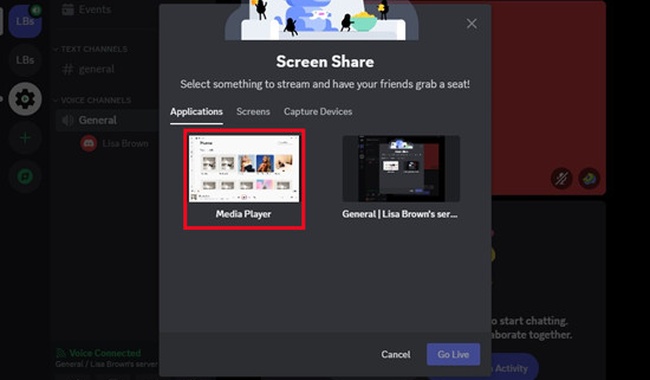
Step 4. Join your Discord voice channel, click Share Your Screen, and choose your media player window under the Applications tab. Make sure the sound toggle is switched on, click Go Live, and press play to stream Crunchyroll on Discord without a black screen or buffering.
 Note:
Keep in mind that this approach adds a quick download step before your watch night, requires an active Crunchyroll subscription, and sits outside official streaming terms. It works best as a reliable backup whenever live browser streaming gets too finicky.
How to Show Crunchyroll on Your Discord Status (Rich Presence)
Want your friends to know which anime you're watching without sharing your screen? Discord's Crunchyroll integration lets you display your current viewing activity directly on your profile through Rich Presence. Once connected, your Discord status can show what you're watching, so there's no need to start a voice call or stream a video.
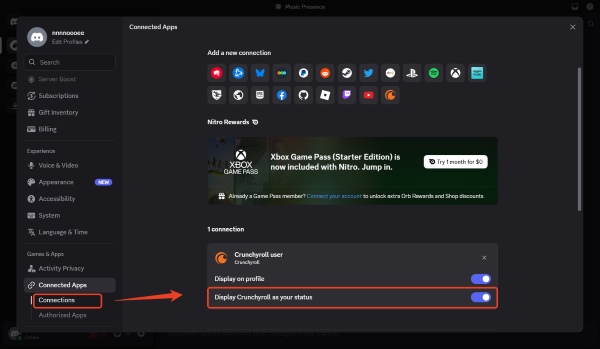
Step 1. Open Discord, go to User Settings > Connections, and click the Crunchyroll logo. Your browser will open Crunchyroll's Connected Apps page. Log in to your account if needed, then authorize Discord to access your Crunchyroll activity.
Step 2. Return to Connections and find Crunchyroll in your linked accounts. Turn on Display Crunchyroll as your status. Now, open Crunchyroll and start watching an anime. Your current viewing activity should appear on your Discord profile when Rich Presence is supported.
 Fixing Crunchyroll Status Not Showing on Discord
If your Crunchyroll activity isn't appearing on Discord or keeps showing an old episode, try these checks to get the status syncing again.
- Reconnect both accounts: Disconnect Discord from Crunchyroll's Connected Apps page, then remove Crunchyroll under Discord's Connections settings. Link them again afterward.
- Check your Crunchyroll profile: Make sure you're watching from the profile linked to Discord. If you use multiple profiles, switch to your main one and check whether the activity appears.
- Check background activity: Close any running Crunchyroll tabs or apps and restart Discord. Also check your Discord online status settings if your activity or Online indicator doesn't update as expected.
FAQs about Streaming Crunchyroll on Discord
Does Crunchyroll allow screen sharing?
Strictly speaking, no. Sharing copyrighted episodes over a call goes against both Crunchyroll's Terms of Service and Discord's rules on unauthorized broadcasting. While a private call with a couple of close friends rarely draws attention, streaming shows in large public servers carries a real risk of server warnings or account trouble.
Why won't Crunchyroll display on Discord?
If you are screen sharing and seeing a black box, your browser or app is triggering hardware DRM protection, or your browser's background process never actually restarted after you changed settings. If your profile status is missing, check that you are on your primary Crunchyroll profile and reset the connection from both ends.
Can you stream Crunchyroll on Discord mobile or iPad?
Direct screen sharing from the Crunchyroll app on iOS, Android, or iPad almost always produces a black screen because mobile operating systems block capture on protected video apps. Mobile viewers usually have a much better time joining a friend's desktop stream or hopping into a synced watch party while chatting on Discord.
Final Words
Once you get the settings right, you can stream Crunchyroll on Discord without a black screen getting in the way. Just remember to turn off graphics acceleration in both your browser and Discord, and make sure your browser fully restarts before you hit Go Live.
If your internet slows down or you want sharper subtitles than a free Discord stream allows, switching to a synced extension, a cloud browser, or a local playback backup will save your evening. Either way, you will be all set to watch Crunchyroll on Discord with your friends.

Jordan Rhodes is a Chief Technical Editor and Media Specialist at VidiKeep, specializing in creating diverse tech content, including streaming tutorials, software reviews, and video encoding tips.
Leave a Comment