The Truth About Bypassing Netflix DRM & How-to Guide
If you've ever tried saving a Netflix movie to an external hard drive so you could watch it on a long flight or a laptop without official app support, you already know the frustration. Netflix's built-in download button works fine until you realize those files are locked inside an encrypted sandbox, bound to strict expiration dates, and completely unplayable anywhere else.
A while back, right before pausing my Netflix subscription, I decided I wanted to back up a few favorite original series. Naturally, I thought I could work my way around the system. I ended up spending almost an entire weekend testing every "free hack" I could find online. First, I dug around in Windows' hidden AppData directories, hoping to grab raw video files. No luck, just an unreadable cluster of encrypted chunks. Next, I opened Chrome's Developer Tools to intercept network traffic and stitch the media segments together.
It didn't take long to realize that three-year-old YouTube tutorials promising a "quick browser trick" simply don't work anymore. Thankfully, after trial and error, I found a practical way to pull clean, DRM-free MP4 files from Netflix. Here is what actually happens under the hood and how you can do it yourself.
Why the Easy Tricks to Bypass Netflix DRM Don't Work Anymore?
When I was digging around in Developer Tools, I did actually find the video streams. But they were shattered into hundreds of encrypted pieces. Netflix doesn't just hide a standard video file behind a password. They use heavy-duty, platform-level encryption systems like Google's Widevine, Apple's FairPlay, and Microsoft's PlayReady. Here is what I learned during those failed experiments:
- Finding the cache does nothing: Even if you locate the hidden download folder on your phone, the files aren't MP4s; they are heavily encrypted fragments that only the official Netflix app has the decryption key to unlock.
- Changing your DNS won't strip DRM: Tweaking your DNS might help you bypass regional geo-blocks, but it does absolutely nothing to remove the encryption on the video itself.
- Screen recording is a total headache: I eventually got frustrated and fired up OBS to screen record my Netflix video. The player instantly turned pitch black due to hardware-level DRM protection (HDCP). Even after toggling off browser hardware acceleration to bypass the black screen, the output was choppy, with dropped frames, and required recording in real time; a painful process for a full-length movie.
The Working Solution: How to Remove DRM Protection from Netflix via VidiKeep
Realizing manual workarounds were a dead end, I started testing dedicated desktop download tools to see if any could handle decryption directly. During my testing, I found that VidiKeep Netflix Video Downloader delivered exactly what was needed.
Unlike screen recorders or passive browser sniffing tools, this software handles the DRM handshake directly with the media stream. When I logged in and queued up a title, it decrypted the incoming stream on the fly and saved it as a clean MP4 file (with MKV as an option).
How to Remove DRM from Netflix Downloads Step by Step
Since I wanted to see exactly how foolproof this was, I did a full test run. Here is exactly how the process looked on my end:
Step 1. I downloaded and installed VidiKeep on my laptop. The setup was fast and clean, taking under a minute on Windows without any bundled extra software.
Step 2. When I opened the app, it didn't ask me to paste in confusing video URLs. It actually has a built-in web browser. I just clicked the Netflix icon on the home screen and logged into my account, exactly like I would if I were using Chrome or Safari.
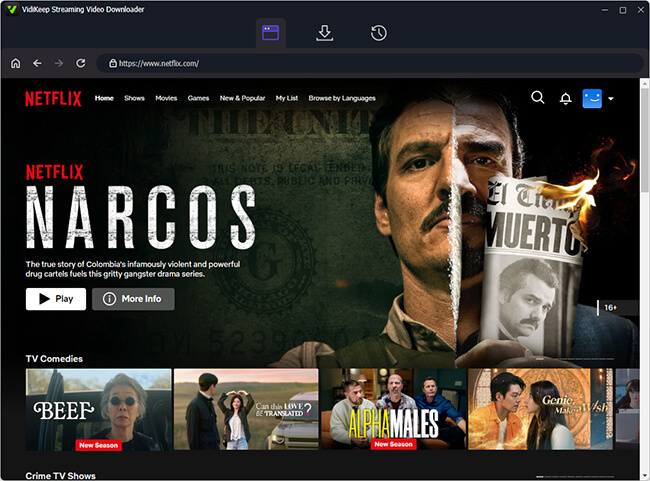
Step 3. I searched for the show I wanted to back up. As soon as I clicked on the title, the Download icon lit up in the corner. After clicking it, I could select wanted shows, choose the video quality to 1080p, and even select which specific audio tracks and subtitle languages I wanted to keep.
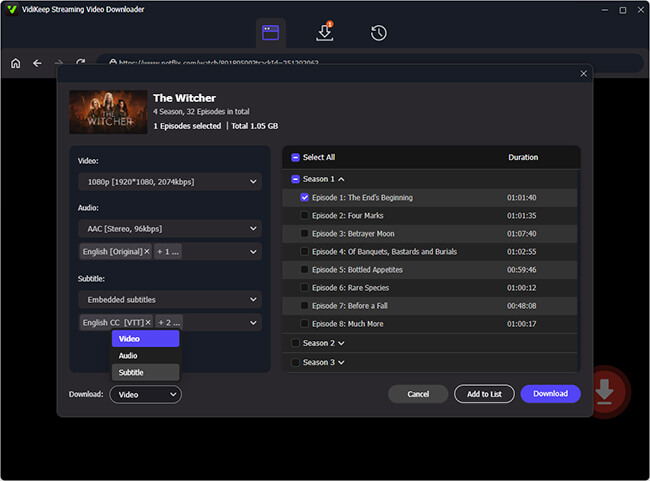
Step 4. I clicked Download and let it run. During my testing, I noticed that you don't need to leave the video playing on screen. I minimized the app, muted my audio, and kept working on other tasks. Over my home Wi-Fi connection, a standard two-hour feature film finished downloading in roughly 15 minutes.
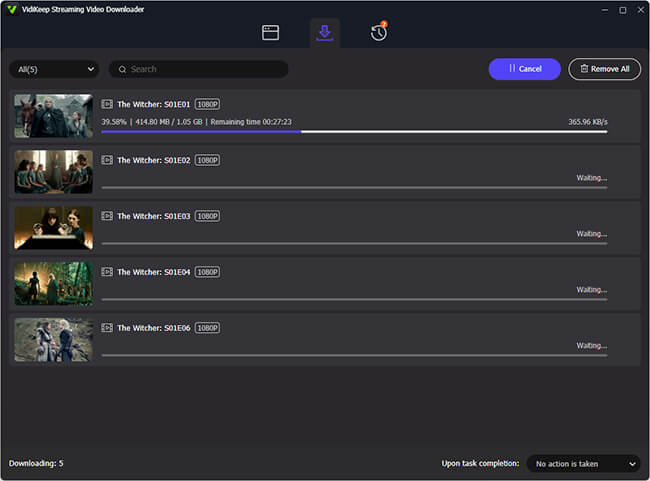
The result was an unrestricted, stand-alone MP4 file. I copied it to an external drive, loaded it into VLC, and played it across devices without any error messages. It completely bypasses official limitations like the monthly download caps on ad-supported tiers or the offline timers that lock you out after a few days.
FAQs About Netflix DRM
How Does Netflix DRM Work?
In short, DRM is the encryption wrapper Netflix puts around its video streams. When you stream a movie, your device continuously exchanges security tokens with Netflix servers. Without those authorized keys, intercepted video files remain unreadable noise.
Can You Get Around Netflix DRM Protection?
Yes. While Netflix's official app keeps downloads locked in an encrypted vault, you can bypass DRM using dedicated Netflix DRM removal software, like VidiKeep. It decrypts the stream and extracts clean, unprotected MP4 or MKV files that play on any media player or device without expiration limits.
Is It Legal to Remove DRM from Netflix?
Legality depends on your jurisdiction and usage. Stripping DRM violates Netflix's Terms of Service and anti-circumvention laws (such as DMCA Section 1201 in the US). However, backing up media strictly for private, offline viewing is generally viewed as fair personal use, provided the content is never shared, sold, or redistributed.
Final Thoughts
If you just need a quick episode for your morning commute, Netflix's official mobile app is still the most straightforward route. But if your true goal is to bypass the Netflix DRM to get a permanent, unprotected MP4 or MKV file that you can watch anywhere, the manual cache-hunting and browser tricks simply won't cut it anymore. Based on my hands-on testing, using a dedicated tool like VidiKeep is the most reliable way to actually get the job done.
 Disclaimer:
Just remember to respect copyright laws and keep your downloaded files strictly for personal, offline viewing!

Jordan Rhodes is a Chief Technical Editor and Media Specialist at VidiKeep, specializing in creating diverse tech content, including streaming tutorials, software reviews, and video encoding tips.
Leave a Comment