How to Record Netflix with OBS (Fix Black Screen)
Recording Netflix with OBS can be a little hard because protected video playback may cause a black screen. Adjusting OBS or browser settings may help with some capture issues, but DRM restrictions can prevent video from appearing altogether. This guide explains the common causes of OBS black screens, recording settings to try, and alternatives for managing multiple videos offline.

Why OBS Can't Record Netflix
Can OBS record Netflix? Yes. But that black screen will quickly stop you in your tracks. One possible cause is Netflix's DRM protection, which may prevent video from appearing in screen captures even when the audio works. Browser hardware acceleration can also affect how video is rendered and captured, while incorrect OBS sources, browser compatibility, or system permissions may cause similar issues. Next, let's look at how to adjust your browser and OBS recording settings to successfully screen record Netflix without triggering the black screen.
Step 1: Turn Off Hardware Acceleration on Your Browser
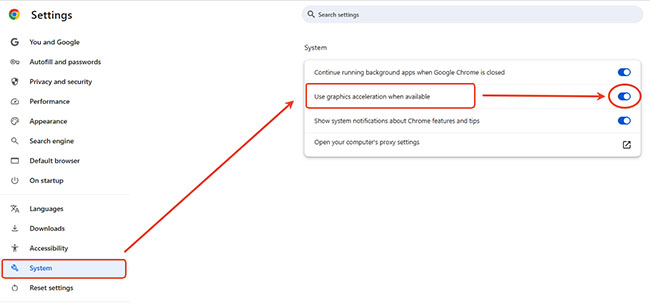
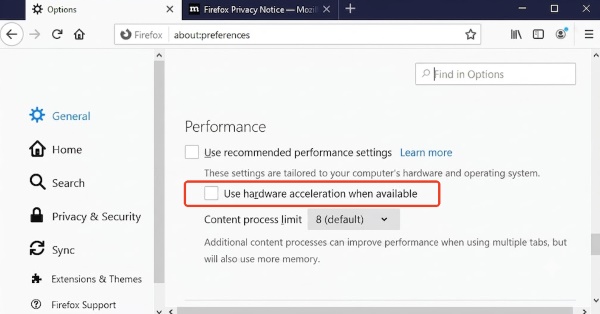
Browser hardware acceleration can sometimes interfere with how OBS captures video, making it worth checking when troubleshooting a Netflix black screen during recording. Disabling it changes how the browser processes graphics and video, which may help resolve certain capture compatibility issues. Follow the steps for your browser below, then restart the browser and test OBS again.
- Google Chrome: Click the three-dot menu in the upper right, open Settings, and select System from the left sidebar. Toggle off Use graphics acceleration when available and relaunch the browser.
- Firefox: Navigate to Settings > General. Scroll down to Performance, uncheck Use recommended performance settings, and then uncheck the hardware acceleration box that appears. Restart Firefox.
- Microsoft Edge: Type edge://settings/system into your address bar, toggle off hardware acceleration, and restart.

 A Quick Heads-Up for Mac Users:
If you are on a Mac, you might notice that Safari stubbornly resists screen capture. Because Apple integrates DRM directly into macOS at the system level, its native browser makes the video feed almost impossible to capture. You'll have a much easier time if you switch over to Chrome or Firefox before adjusting your settings.
Step 2: Configure Your Capture Sources on OBS Properly
Once you've checked your browser settings, it's time to configure OBS. Choosing the right capture source helps avoid common setup issues and keeps your recording focused on the content you want to capture.
Use Window Capture to Keep Your Recording Focused
I recommend starting with Window Capture rather than Display Capture. Recording your entire desktop can pick up messages or notifications you probably don't want in your video. With Window Capture, you can select your Chrome or Firefox window and avoid capturing unrelated desktop activity.
Step 1. In OBS, find the Sources panel at the bottom of the main window. Click "+" and choose Window Capture from the list, then enter a name for the source or keep the default one. Click OK to open its properties.

Step 2. In the Properties window, select a suitable Capture Method, then choose the Chrome or Firefox window where Netflix is playing. Click OK to save your settings.

Capture Internal Audio on macOS
Mac users may need to configure audio capture separately. On supported versions of macOS and OBS, the built-in macOS Screen Capture source can capture system audio without requiring a separate virtual audio device. Add the source, select the appropriate capture method and browser window, then enable Capture Audio if that option is available.

 Test:
Test:
You can play a test video and check the OBS audio mixer to confirm that audio levels are moving. And the options may vary by your macOS version and OBS capture configuration.
 Automatically Stop OBS Recording with the Output Timer:
To save time when recording a Netflix movie with OBS, go to Tools > Output Timer, enable the recording timer option if available, and set a duration that matches the movie's runtime. Click Start to begin. OBS will stop recording when the timer expires.

Step 3: Use Cinematic Settings for Netflix Recording
OBS is designed for both recording and live streaming, so you don't need to stick with its default settings when recording movies. A few adjustments can help balance video quality, file size, and recording reliability. Here's how to configure OBS for Netflix recording. Just go to File > Settings to get started.
Set the Resolution and FPS
Under Video, set both Base (Canvas) Resolution and Output (Scaled) Resolution to 1920 × 1080 for Full HD recording. Then choose 30 FPS under Common FPS Values.


These settings are suitable for many movies and drama series, although the best frame rate depends on the original content. Recording at 60 FPS won't add genuine detail to a 24 FPS source and may increase file size.
Choose MKV as Your Recording Format
Open Output and find the recording format setting. Select MKV instead of MP4. MKV is generally more resilient to interruptions because an unfinished recording is less likely to become entirely unusable if OBS or your computer crashes. Once recording is complete, you can convert the file without re-encoding by going to File > Remux Recordings in OBS and selecting the MKV file.

The Batch Downloaders Aternative to OBS
OBS is a useful option for recording a single video, but screen recording has significant limitations when it comes to saving multiple episodes or entire TV seasons. Because OBS captures video in real time, recording takes a lot of times. Your PC also remains occupied during the process, and heavy system loads can cause dropped frames. Wi-Fi buffering may interrupt the recording, while subtitles displayed on screen become permanently embedded in the video.
For users who want to save entire series or spend less time waiting, a dedicated tool like Vidikeep Netflix Video Downloader offers an alternative. Rather than recording what's displayed on your monitor, it uses a different approach to process video content.
- Background Batch Processing: Queue an entire TV season and let the software handle multiple episodes. The tool advertises download speeds of up to 7X, potentially reducing waiting time compared with real-time recording.
- No Recording Interruptions: Downloading avoids some problems associated with screen capture, such as dropped frames caused by recording performance.
- Soft Subtitles & Multi-Audio: It pulls subtitles as independent metadata tracks (softsubs). It also allows you to download multiple language audio tracks simultaneously.
OBS remains a solid free option for short recordings and general screen capture. For larger video libraries, batch-processing tools may offer a more convenient workflow, although their capabilities and compliance with streaming platform terms should be evaluated before use.
FAQs about Recording Netflix with OBS
Is it legal to record Netflix content?
Recording Netflix content may violate its Terms of Use or copyright law, depending on how it's done and where you live. Personal use isn't automatically exempt, and Fair Use may apply to limited clips used for criticism or commentary, but it isn't guaranteed.
Why is my OBS audio out of sync with the Netflix video?
Audio drift can result from sample-rate mismatches, dropped frames, or system load. Set OBS to 48 kHz under Settings > Audio, and check that your system audio settings use the same rate. If the problem persists, review OBS's recording and performance statistics.
Can OBS record Netflix in 4K?
Not reliably. The captured resolution depends on the playback source, browser, and capture method. Setting OBS to 4K won't improve lower-resolution footage, so 1080p is a practical starting point for troubleshooting and recording.

Jordan Rhodes is a Chief Technical Editor and Media Specialist at VidiKeep, specializing in creating diverse tech content, including streaming tutorials, software reviews, and video encoding tips.
Leave a Comment