How to Put a Sleep Timer on Netflix (Any Devices)
Falling asleep to a show is comforting until you wake up at 3 AM with your screen still burning bright. Fortunately, simple system workarounds can help. Below, we break down how to put a sleep timer on Netflix across iOS, Android, PC, Mac, and TVs, so you don't have to let your screen run all night.
Part 1. Does Netflix Have a Sleep Timer?
No, Netflix does not currently offer a built-in sleep timer across all devices. Netflix previously tested a sleep timer feature on some Android devices, adding a small stopwatch icon to the playback menu. However, the feature was only available for a short time and never became a standard option across Netflix apps.
To turn off Netflix automatically before you fall asleep, you'll need to use your device's built-in timer features or other workarounds.
Part 2. How to Set a Netflix Sleep Timer on Mobile (Android & iOS)
Since Netflix no longer offers an official, built-in sleep timer in its mobile apps, relying on the platform to shut itself off means your battery will drain for hours. Fortunately, both iOS and Android offer simple ways to cut off media playback manually, ensuring your screen goes dark the moment you fall asleep.
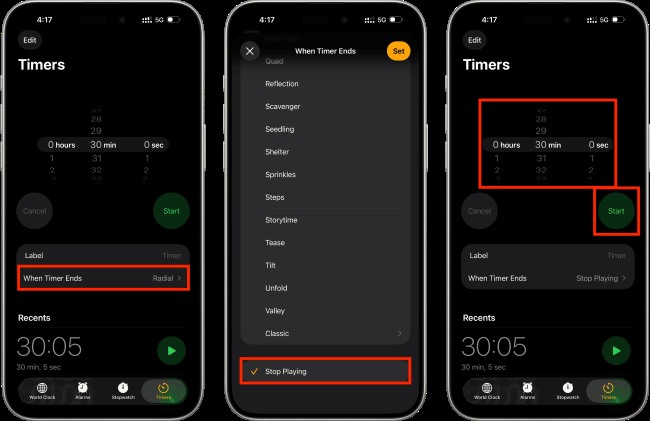
Method 1. Set a Netflix Sleep Timer on iPhone/iPad with "Stop Playing"
Apple devices do not have an in-app timer within Netflix, but the native iOS Clock app includes an unheralded media-cutoff feature that works across virtually every streaming application.
Step 1. Open the pre-installed Clock app on your iPhone or iPad, then select the Timer tab in the bottom right corner. Set your preferred duration.
Step 2. Tap When Timer Ends. Instead of choosing an alert tone, scroll past the ringtones to the very bottom of the list, select Stop Playing, and tap Set in the top right.
Step 3. Tap Start, then switch to your Netflix video. When the timer runs out, iOS immediately pauses the video stream and lets your iPhone or iPad lock its display based on your standard auto-lock settings.
Method 2. Put a Netflix Sleep Timer on Android with Third-Party Apps
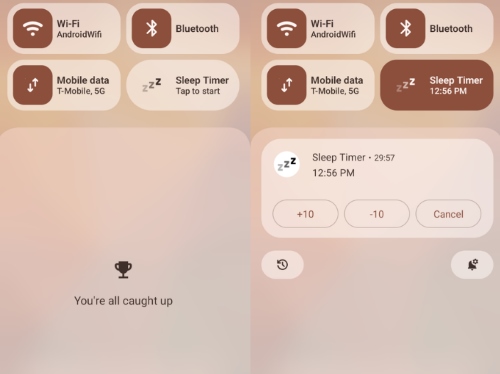
Because Android lacks a system-level "Stop Playing" clock feature like iOS, the cleanest workaround is downloading a lightweight utility app from the Google Play Store.
Step 1. Download a highly-rated automation app like Sleep Timer from the Google Play Store.
Step 2. Open the app and set your desired countdown time using the circular slider.
Step 3. Tap the three-dot menu, go to Settings, and ensure the "Go to Home Screen" or "Turn off screen" actions are checked for when the timer ends.
Step 4. Press Start on the timer, then open Netflix and begin your movie. Once the clock hits zero, the third-party app will force your phone back to the home screen and turn off the display, killing the active Netflix stream instantly without interfering with your morning alarms.
Part 3. How to Set a Sleep Timer on Smart TVs & Streaming Devices
Smart TV interfaces for Netflix lack custom sleep timers completely. Because streaming apps run within walled-garden TV operating systems, the most reliable strategy is setting the hardware timer on the television or streaming stick itself.
Smart TVs (Samsung, LG, Sony)
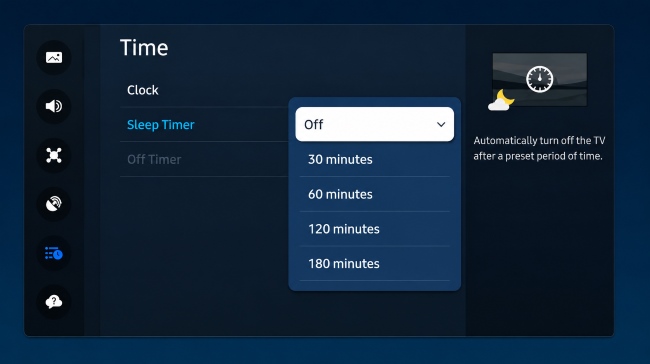
Most Smart TVs include their own built-in sleep timer, which works independently from the Netflix app. Instead of searching through Netflix settings, you can use your television's power management options to automatically turn off the screen after a selected period. This is usually the most direct way to stop late-night streaming when watching Netflix on a large screen.
- Samsung Smart TVs: Go to Settings > General & Privacy (or General) > System Manager > Time > Sleep Timer, then choose your preferred shut-off time.
- LG TVs (webOS): Press the Settings button on your Magic Remote and open All Settings > General > Timers > Sleep Timer.
- Sony & Google TVs: Check Quick Settings or go to Settings > System > Power & Energy > Sleep Timer.
Streaming Sticks & Boxes
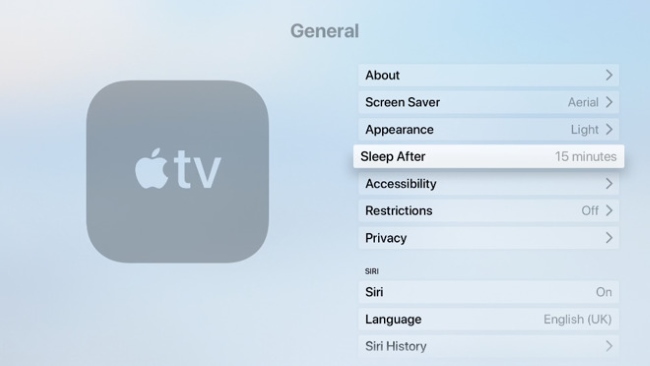
Streaming devices such as Fire TV, Apple TV, and Roku work differently from Smart TVs because they mainly control the streaming app rather than the television hardware itself. While some devices provide sleep or standby options, others require you to combine system settings, voice assistants, or your TV's built-in timer to create a similar sleep timer experience.
- Amazon Fire TV: Use your TV's sleep timer, Alexa routines, or compatible smart home controls to automate shutdown.
- Apple TV 4K: Go to Settings > General > Sleep After and select your preferred timeout.
- Roku Players: Standalone Roku devices do not offer a universal sleep countdown. Some Roku TVs include a Sleep Timer option from the Star (*) button menu.
Part 4. How to Set a Netflix Sleep Timer on PC and Mac
Watching on a laptop or desktop browser introduces a distinct problem: web browsers prevent computers from sleeping while video is actively decoding on-screen.
Option 1: Browser Extensions (Chrome & Edge)
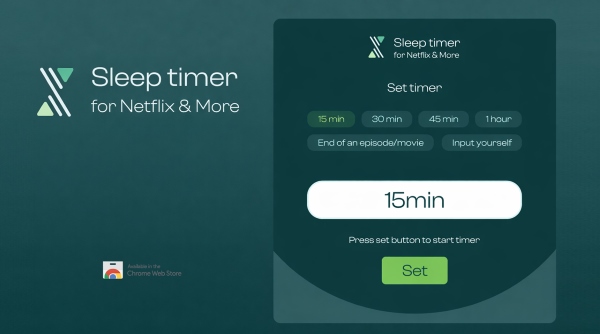
If you stream through Google Chrome, Brave, or Microsoft Edge, browser extensions can add a physical timer directly into the web player interface.
Extensions like Sleep timer for Netflix & More or Netflix Sleep Timer insert an interactive countdown button right next to the playback controls. You can configure them to pause the video or close the browser tab entirely once the countdown finishes. Once the tab closes or playback stops, your operating system's normal sleep mode can engage.
Option 2: Native Operating System Timers (Windows/Mac)
If you prefer not to install browser extensions, you can schedule an automated system sleep command:
- Windows Command: Press Windows Key + R, type shutdown -s -t 3600 (replacing 3600 with your preferred duration in seconds), and hit Enter. Windows will execute an automatic shutdown once the timer expires. To cancel it later, open the Run box again and enter shutdown -a.
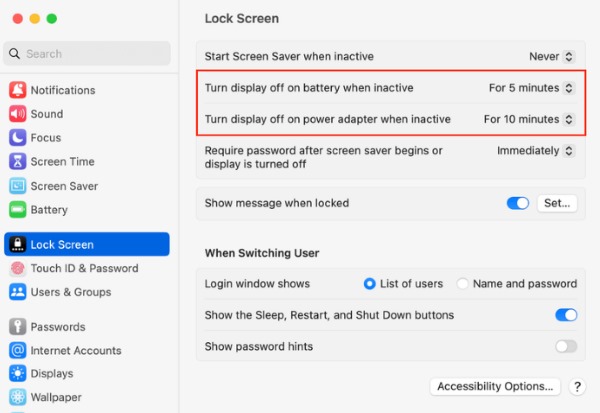
- Mac Display Sleep: On macOS, open System Settings > Lock Screen, and set "Turn display off on battery when inactive" to a short interval. Keep in mind that active browser playback often overrides this setting unless the video pauses first.

Part 5. How to Stop Netflix from Playing All Night Without Extra Timers
"I used to throw on a movie, knowing it'd be over in a couple of hours. Now every time a movie ends, it starts playing the trailer for King of Queens on an infinite loop. I'll wake up five hours later, and some random preview has been playing the whole fucking time. There is apparently no option to disable this."—Reddit
Turning off autoplay in your settings sounds like an easy fix, but many viewers report that Netflix bypasses this preference entirely, cueing up an endless loop of previews after the credits roll. That constant video stream keeps your screen awake all night, completely blocking your TV or computer from going to sleep naturally.
Download Netflix Episodes Locally for Natural Sleep
If you want a dependable way to fall asleep to a show without setting external timers or worrying about surprise trailer marathons, the cleanest solution is taking the stream offline with a dedicated tool like VidiKeep Netflix Downloader.
Instead of streaming through an open browser tab that forces your system to stay awake indefinitely, you can use VidiKeep to save specific episodes or films from Netflix as local, DRM-free files directly on your Windows PC or Mac.
Step 1. Launch VidiKeep on your computer, select the Netflix service from the available streaming options, and sign in to your Netflix account through the built-in browser.
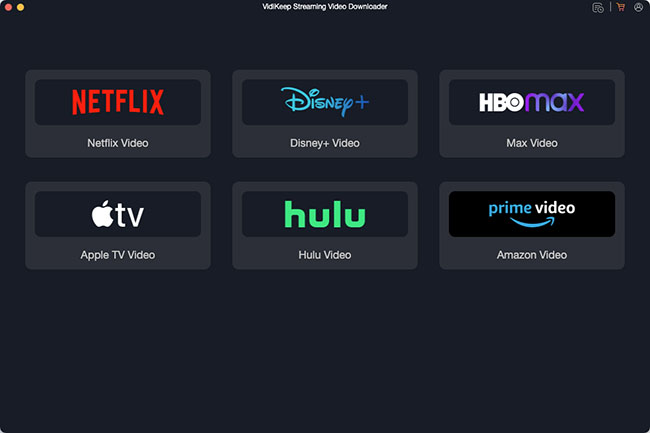
Step 2. Search for the movie, TV series, or documentary you plan to watch before going to sleep. VidiKeep lets you save the selected Netflix content as MP4 or MKV files locally for more controlled offline playback.
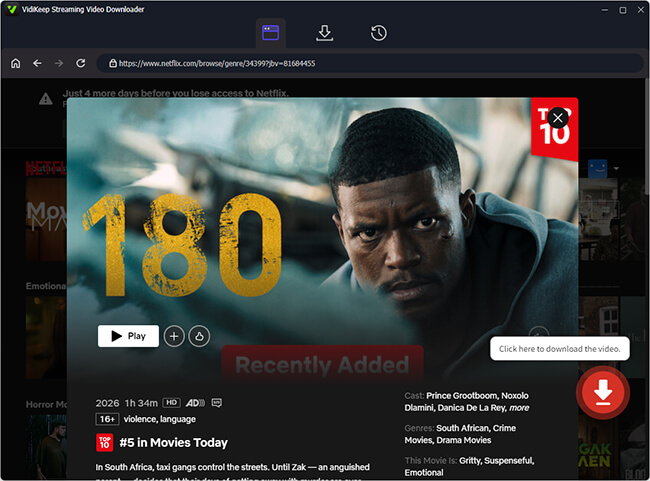
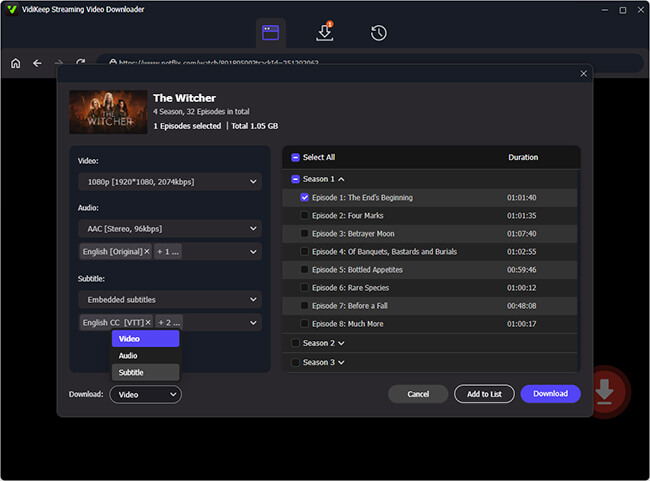
Step 3. Choose your preferred video quality, audio track, and subtitle options before starting the download. You can adjust these settings based on your viewing needs, then save the Netflix video to your computer and watch it later without relying on an active internet connection or continuous streaming.
Step 4. Once the download is complete, open the saved Netflix video in VLC Media Player or other standard media player. When the video reaches the end, playback stops automatically without triggering previews or additional episodes. Your computer's built-in sleep timer can then work normally, giving you a more controlled bedtime viewing experience.
Part 6. Best Netflix Sleep Timer Methods Compared
| Device | Recommended Sleep Timer Solution | Stops Playback / Turns Off Screen? |
|---|---|---|
| iPhone / iPad | iOS Clock Timer / Automation | Yes |
| Android | Sleep Timer App | Yes |
| Smart TV | Built-in TV Sleep Timer | Yes (Turns off TV) |
| Streaming Sticks | Device Sleep Settings / TV Timer / Voice Controls | Depends on Device |
| PC / Mac (Streaming) | Browser Extension / System Commands | Sometimes |
| PC / Mac (Local Playback) | VidiKeep + Media Player | Yes (System Sleep Settings Apply) |
Part 7. Summary
While Netflix still does not offer a universal sleep timer across all platforms, you can use your device's built-in features or practical workarounds to control playback. iPhone and iPad users can rely on the Clock app's feature, while Android users can try available sleep timer apps. Smart TVs and streaming devices can use their built-in sleep settings or voice controls, while PC and Mac users can choose between browser extensions for streaming playback or VidiKeep for local viewing. With the right method, you can prevent endless autoplay on Netflix and create a more comfortable bedtime streaming experience.

Jordan Rhodes is a Chief Technical Editor and Media Specialist at VidiKeep, specializing in creating diverse tech content, including streaming tutorials, software reviews, and video encoding tips.
Leave a Comment