How to Convert Netflix to MKV Without Losing Quality
Want to convert Netflix to MKV for offline viewing on portable devices, media server storage in Plex or Jellyfin, or long-term archiving? While Netflix allows subscribers to download certain movies and TV shows, those downloads are restricted to the Netflix app, expire after a set period, and cannot be freely transferred to other devices. To get MKV Netflix videos is to use a Netflix video downloader or recorder that supports MKV output. In this guide, you'll learn what MKV is, why many users prefer it over MP4, and how to download Netflix videos as MKV files.
Part 1. Can You Convert Netflix Downloads to MKV?
The short answer is that you cannot simply take a Netflix download file and convert it into an MKV file. Netflix employs highly sophisticated Digital Rights Management (DRM) to encrypt its media, ensuring the content only plays within their official ecosystem.
The platform saves files in proprietary formats, such as .NFV, which are strictly tied to the specific device and account that downloaded them. Traditional tools like HandBrake cannot read these files because they lack the necessary decryption keys to unlock the container.
 Important Netflix Update:
Official offline downloads are completely unavailable on computers, as the Windows app no longer supports the feature and macOS has never had a native app. While downloading remains supported on mobile devices (iOS and Android), they are broken into cached, hidden fragments rather than stored as standard video files.
Overcoming this technical hurdle requires more than a simple browser extension. You need specialized software designed to decode the secure stream, capture the raw data, and flawlessly rebuild it into a MKV container.
Part 2. How to Convert Netflix to MKV via Dedicated Netflix Downloader
Since Netflix downloads cannot be directly converted, the most practical way to use a professional desktop Netflix downloader with MKV output. The software market offers several robust solutions designed specifically for bypassing Netflix streaming restrictions safely. These tools utilize built-in browsers to access your account and download and save movies and TV shows from Netflix as MKV on your hard drive.
Top Best Netflix to MKV Downloader Comparison
| Feature | VidiKeep Netflix Downloader | StreamFab Netflix Downloader | Kigo Netflix Video Downloader |
|---|---|---|---|
| Core Architecture | Built-in web player browser streaming parser. | Comprehensive multi-service VIP browser module. | Search-bar query with internal embedded web-login mechanism. |
| Video Output Formats | MP4 / MKV | MP4 / MKV / AVI | MP4 / MKV |
| Max Resolution (Tested) | 1080p Full HD | 1080p Full HD (Widevine L1 Decryption) | 1080p Full HD |
| Conversion Speed | 7X | 5X | 10X |
| Supported Streaming Platforms | Netflix, Amazon Prime, Disney+, Apple TV, Hulu, and Max | Netflix Only | Netflix Only |
| Audio Retention | Multilingual tracks, Dolby Digital 5.1 | Multilingual, 5.1 Surround, Atmos-ready | Multilingual, EAC3 5.1, Dolby Atmos (768kbps) |
| Subtitle Integration | Soft, Hardcoded, External (.srt) | Soft, Hardcoded, External (.srt) + Metadata | Soft/Internal, Hardcoded, External (.srt/.vtt) |
| Ad-Skipping Engine | Automatic cleaning on basic plans. | Aggressive ad-wipe algorithm (2026 optimized). | Auto-filtering during stream rendering. |
| Hardware Acceleration | Intel / NVIDIA / AMD optimization. | Advanced Multi-threading engine. | Intel / NVIDIA / AMD up to 10X download speeds. |
| Platform Ecosystem | Independent, lean installer. | Part of the massive DVDFab multi-site launcher. | Standalone tool / upgradeable to Kigo Movie One. |
| OS Compatibility | Windows & macOS | Windows & macOS | Windows & macOS |
| Pricing | $49.95/month | $54.95/month | $129.90/lifetime (No monthly license) |
| Rating | ⭐️⭐️⭐️⭐️ | ⭐️⭐️⭐️ | ⭐️⭐️⭐️ |
Important Legal Disclaimer:
You should only utilize these conversion tools to create temporary backups for personal, offline viewing. Never distribute, upload, share, or attempt to monetize copyrighted material under any circumstances.
How to Download Netflix to MKV Files (Step-by-Step Guide)
Based on the technical data and pricing structure in the comparison matrix, VidiKeep Netflix Downloader emerges as the most efficient, cost-effective, and versatile tool for converting Netflix videos to MKV.
- VidiKeep offers the ultimate combination of high affordability and low barriers to entry. Unlike Kigo's expensive lifetime-only model or StreamFab's bloated multi-service launcher ecosystem, VidiKeep provides a lean, independent standalone application at a highly competitive entry price ($49.95).
- Its biggest competitive edge is multi-platform dominance; while the competing tools lock you exclusively into Netflix, VidiKeep acts as an all-in-one hub supporting Netflix, Amazon Prime, Disney+, Apple TV, Hulu, and Max.
- Despite being lighter and more budget-friendly, it maintains absolute premium feature parity, delivering full 1080p quality, 5.1 Dolby Digital sound, 7X hardware-accelerated batch speeds, and triple-mode subtitle tracking.
Step 1 Launch VidiKeep and Configure Netflix Output to MKV
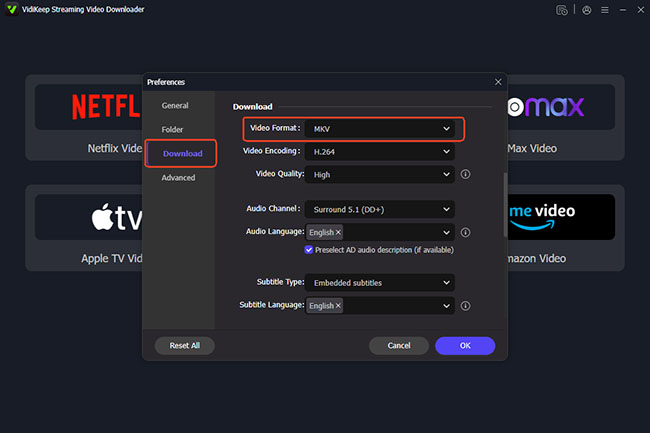
Download the official, lightweight VidiKeep installer for your Windows or macOS computer. Run the installer and open the application to view the clean, bloat-free main interface module. Click the Menu > Preferences > Download option to open the setup window, here you can customize:
- Output Format: Change the selection from MP4 to MKV.
- Video Quality: Pick High Resolution (1080p).
- Audio Tracks: Check the boxes for your preferred language audio streams (includes multi-channel Dolby 5.1 options).
- Subtitles: Select your required languages and toggle Soft Subtitles (embedded inside the MKV wrapper for toggling via Plex/VLC) or External Subtitles (.srt files).
Step 2 Sign In to Your Netflix Account
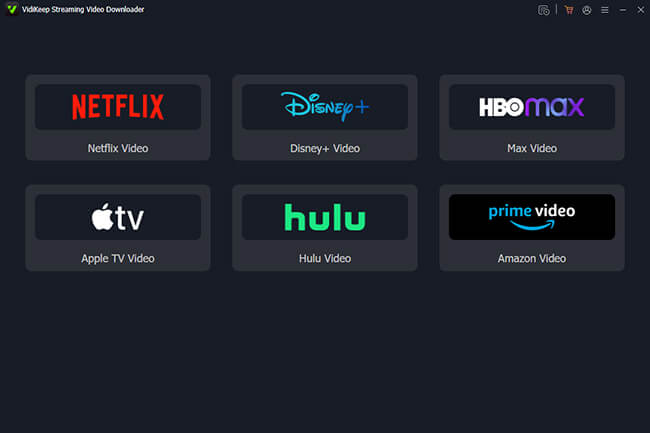
Click on the Netflix icon on the main dashboard. VidiKeep utilizes a secure, integrated web browser parser environment. Log into your active Netflix account to browse your subscription's personalized homepage natively within the software.
Step 3 Search and Add Netflix Files to Download
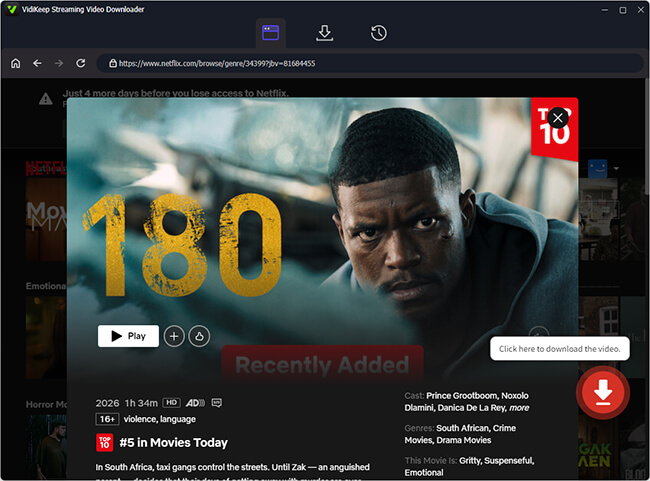
Locate the Netflix movie or TV show you intend to save. You can either browse categories naturally, type keywords directly into the internal search bar, or copy-paste the exact Netflix video URL into VidiKeep's address line. Tap the Download and Add to List button to load them into the download queue.
Tips:
If processing a TV series, you can select individual episodes or choose Select All to add the whole shows.
Step 4 7X Batch Convert and Save Netflix Movies to MKV
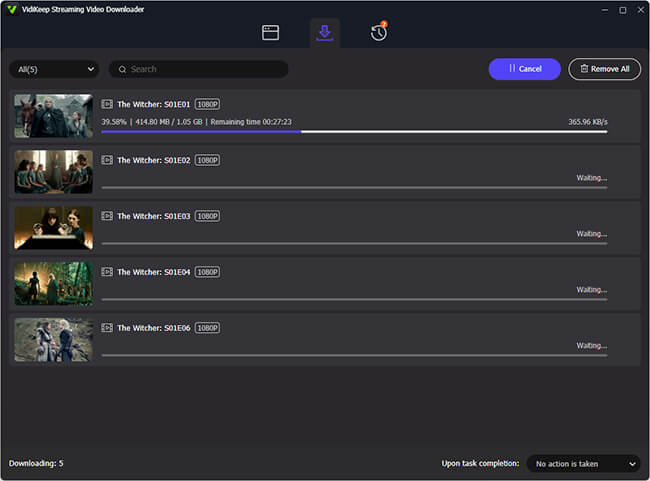
Click the Download button and wait for the process to complete. VidiKeep will deploy its hardware acceleration engine to strip the platform encryption and download the Netflix stream at up to 7X speeds, exporting unencrypted, permanent MKV files with subtitles directly to your local computer. You can find them by clicking the History section.
Part 3. How to Record Netflix as MKV via Video Recorder
If you prefer a completely free, open-source method and do not mind the time investment of real-time capturing, OBS (Open Broadcaster Software) Studio is the most robust screen recorder available.
However, recording streaming platforms manually introduces a major technical hurdle: The Black Screen DRM Protection. If you attempt to capture Netflix using default browser settings, the video feed will appear pitch black in OBS while the audio continues to play. This is caused by browser-level DRM protocols blocking external capture tools.
Here is the exact technical workflow to bypass the black screen block and successfully rip Netflix directly into an MKV container.
How to Rip Netflix to MKV (Step-by-Step Guide)
Step 1 Disable Browser Hardware Acceleration
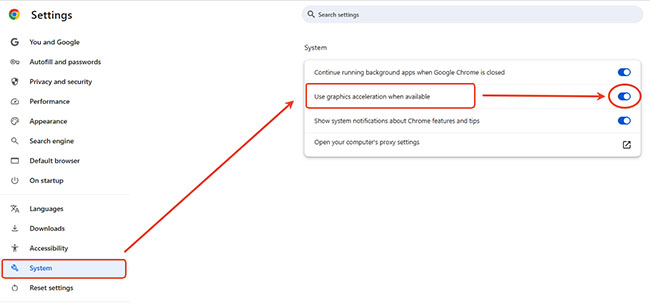
Open the web browser you plan to use for Netflix (e.g., Google Chrome or Microsoft Edge). Go to the browser's Settings, use the search bar to find Hardware Acceleration, and toggle off Use graphics acceleration when available. You must relaunch the browser for this to take effect.
Step 2 Set OBS Output Format to MKV
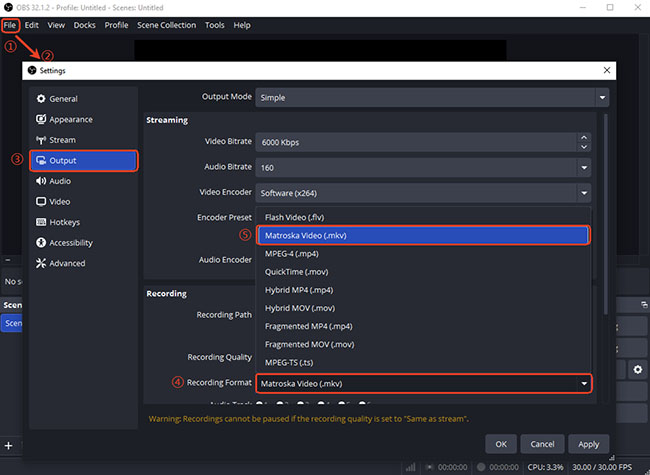
Launch OBS Studio. Navigate to File > Settings > Output. Under the Recording section, locate the Recording Format dropdown menu and change it to MKV. Apply the changes.
Tips:
To get better output video quality, you can also go to Video > Output Resolution and customize the output solution as 1920*1080.
Step 3 Create a Window Capture Source
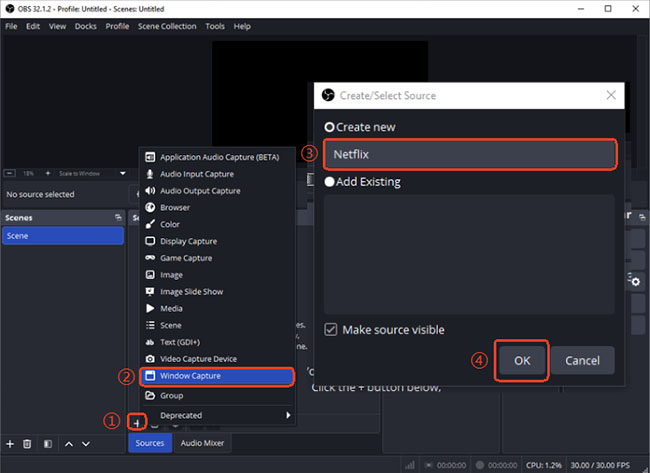
In the main OBS interface, look at the Sources panel at the bottom. Click the + (Add) icon and select Window Capture. Name the source "Netflix" and click OK.
Step 4 Choose Your Web Browser as Source
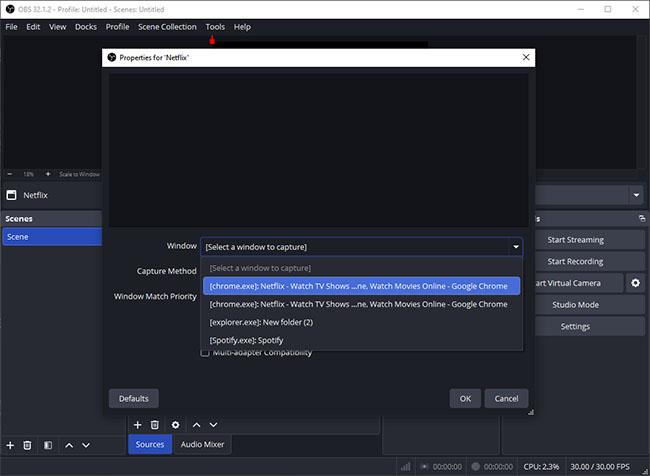
In the properties window, you can select your active browser, like Chrome as the capturing source from the Window dropdown menu and uncheck the mark next to the Capture Cursor option.
Editor's Pro-Tip: Troubleshooting Blank Dropdown Menus in OBS
If you open the Window Capture properties in OBS Studio and your target browser doesn't appear in the Window dropdown menu, don't panic. This is a common quirk usually caused by having the target application minimized to your taskbar.
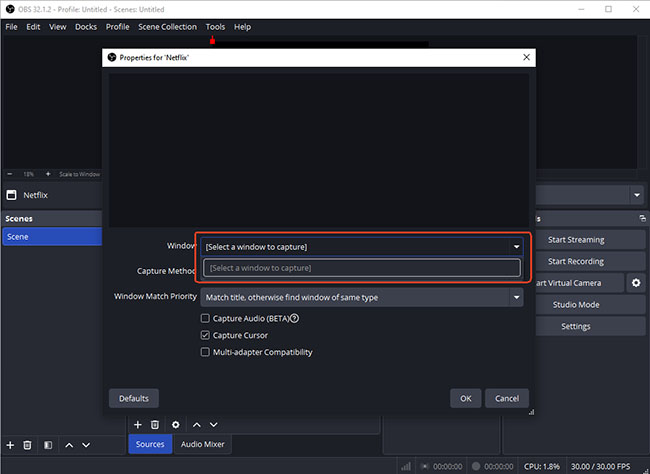
To fix this, simply restore or maximize the target window on your desktop before trying to select it in OBS. Once the window is active in the background, it will instantly show up in the selection list.
Step 5 Isolate System Audio
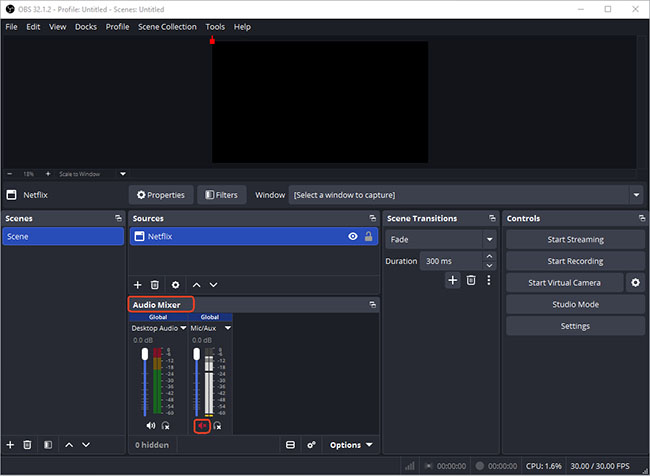
To ensure you only record the movie's audio, look at the Audio Mixer panel. Confirm that Desktop Audio is active (the green bar should move when audio plays). Mute your Mic/Aux channel to prevent your computer's microphone from recording room noise or your keyboard clicks over the movie.
Step 6 Play and Record Netflix MKV in Real-Time
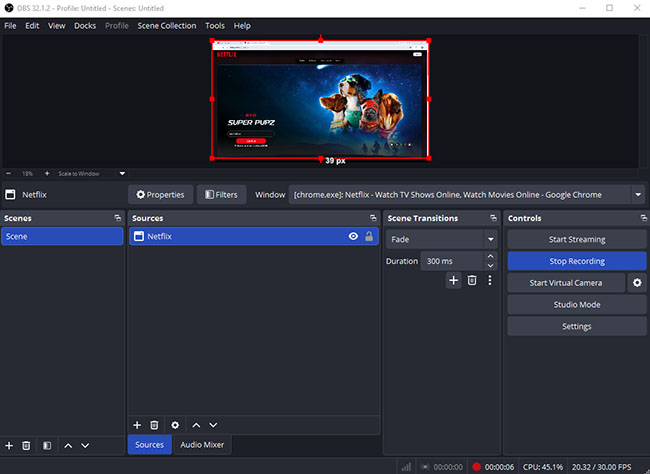
Open Netflix in your browser, select your movie, and maximize it to full screen. Switch back to OBS and click Start Recording. Because this is a screen capture, you must let the video play out entirely at 1X speed. Do not minimize the browser window. Click Stop Recording when the credits roll.
Editor's Real Check: OBS Studio Recording Quality Verdict via MediaInfo
Based on a technical analysis of real-world OBS Studio output files, we have audited the final capture quality of this open-source recording method. Instead of looking at generic settings, here is the exact technical verdict on how OBS performs when capturing streaming video.
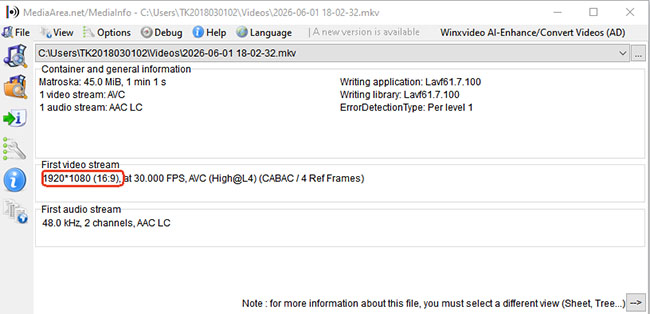
- Visual Quality (Meets Web-DL Standards): This benchmark perfectly matches the official 1080p Web-DL streaming quality delivered by platforms like Netflix.
- Audio Sacrifices (Flattened Stereo Sound): The audio stream is locked into a 48.0 kHz, 2-channel AAC LC configuration. While dialogue sounds perfectly clean and crisp on headphones or standard desktop speakers, the real-time system-sound capture completely strips away the original Dolby Digital 5.1 surround sound or Dolby Atmos audio tracks native to the source file. The audio is entirely flattened into basic stereo.
Editor's Bottom Line:
The quality check via MediaInfo confirms that OBS Studio yields a high-compatibility, visually crisp, but storage-heavy 1080p stereo video. It is an excellent, free solution for quick offline viewing or clipping. However, because it cannot preserve original multi-language soft subtitles or 5.1 home theater surround sound, it falls short as a definitive archiving strategy for serious media collectors.
The Trade-off: OBS Studio vs. Dedicated Downloaders
While OBS Studio is a fantastic zero-cost tool, it functions very differently from dedicated stream-parsers like VidiKeep, which impacts its viability for media archiving:
- Time Cost (1X Speed): Screen recording operates in real-time. Capturing a 10-episode season of Stranger Things will tie up your computer for 10 straight hours.
- Flattened Media (No Track Separation): OBS captures exactly what is visible and audible on your screen at that exact second. You cannot save multiple subtitle languages or discrete 5.1 Dolby audio tracks. Any subtitles active during the recording will be permanently hardcoded (burned) into the video and cannot be toggled off later.
Editor's Final Verdict
For casual, one-off clip recording, OBS is an excellent choice. However, for users looking to build a flexible, high-quality local media server (like Plex or Jellyfin), utilizing a tool that pulls the raw stream data is significantly more efficient.
Part 4. What Is MKV and Why Use It for Netflix Videos?
MKV (Matroska Video) is a multimedia container format capable of storing video, audio, subtitles, chapters, and metadata in a single file. This format is widely considered the gold standard for high-fidelity video archiving and home theater streaming.
Unlike common misconceptions, MKV does not automatically improve video quality. If your goal is to watch Netflix videos offline on any device, add them to Plex, or preserve multiple subtitles and audio tracks, MKV is often an excellent choice. The primary advantage of MKV is flexibility.
- Superior Subtitle Handling: Unlike Netflix MP4 files, which often struggle with complex subtitle formatting, MKV allows you to embed dozens of internal SRT or ASS subtitle tracks that can be easily toggled on or off.
- Multi-Language Audio Multiplexing: You can store original audio, dubbed tracks, and director commentaries in a single file without needing to encode separate videos.
- Lossless Meta-Data & Chapter Retention: MKV maintains exact chapter markings, making navigation across long films or episodes seamless.
- Native Media Server Compatibility: Platforms like Plex, Jellyfin, Kodi, Emby, and NAS storage systems read MKV containers natively, minimizing the need for heavy CPU-transcoding on your host server.
MKV vs MP4: Which Format Is Better for Netflix Videos?
While MKV is highly flexible, MP4 remains a powerful alternative. Use this breakdown to choose the right output container for your goals:
| Feature | MKV Container | MP4 Container |
|---|---|---|
| Video Quality | Same (Depends on codec/bitrate) | Same (Depends on codec/bitrate) |
| Subtitle Support | Excellent (Supports multiple internal tracks) | Good (Often limited to basic text formats) |
| Multiple Audio Tracks | Excellent (Flawless multi-channel storage) | Good (Can cause compatibility issues) |
| Chapter Support | Excellent | Limited |
| Plex / Jellyfin Performance | Excellent (Preferred for local servers) | Good |
| Device Compatibility | Good (Requires player apps on some mobile/smart TVs) | Excellent (Plays universally on almost anything) |
| Web Streaming/Casting | Good (May require on-the-fly transcoding) | Excellent (Native HTML5 support) |
| Media Archiving | Excellent (The industry archival standard) | Good |
Editor's Final Verdict:
If you are building a permanent home media library (Plex/NAS) and want all language/subtitle tracks preserved, choose MKV. If your primary goal is to throw the file onto an iPad, iPhone, or USB drive to watch during travel with minimal hassle, choose MP4.
Part 5. FAQs About Converting Netflix Files to MKV
Can I convert official Netflix downloads to MKV for free?
No. Because official downloads are heavily encrypted by DRM, free tools like HandBrake, VLC, or online web-converters cannot decrypt or convert them. You must use specialized downloading software to extract the video into a clean MKV container.
Does converting Netflix to MKV improve video quality?
No. MKV is a container format, not a quality enhancement format. Video quality depends on the source video and encoding settings.
Can I convert Netflix to MKV in 4K resolution?
Currently, most third-party Netflix to MKV converters max out at 1080p HD. This is due to the incredibly strict hardware-level DRM that streaming services apply specifically to their 4K content, making it exceptionally difficult to capture via a browser interface.
Will these MKV files play on my smart TV?
Yes, almost all modern smart TVs, gaming consoles, and media players (like VLC or Plex) natively support the MKV format. They will easily recognize the embedded audio tracks and subtitles you preserved during the download.
Is MKV better than MP4 for Netflix videos?
It depends on your needs. MKV is generally better for storing multiple subtitles and audio tracks, while MP4 offers broader device compatibility.
Will Plex stream MKV files without transcoding?
Yes, in most cases. Modern streaming clients (Apple TV, Nvidia Shield, Roku, etc.) running the Plex app support direct playback of MKV files natively, provided your home network bandwidth can handle the file's bitrate.
Can MKV files hold multiple subtitle languages?
Yes. One of MKV's biggest strengths is its ability to multiplex an unlimited number of soft subtitle tracks (such as English, Spanish, French, etc.) into a single file, allowing you to select them from your media player's menu just like a Blu-ray disc.
Are MKV files larger than MP4 files?
Not significantly. Since the container wrapper itself takes up minimal data, an MKV and an MP4 file containing the exact same video and audio streams will be nearly identical in size. The file size will only grow if you choose to embed additional audio tracks or high-fidelity surround sound formats.
Part 6. In Conclusion
Converting Netflix to MKV is not as simple as changing a file extension or converting an existing Netflix download. Because Netflix downloads are encrypted, users need dedicated software capable of saving Netflix videos directly as MKV files.
By selecting MKV as your default output, you unlock complete control over your media assets, allowing you to bundle diverse multi-language audio mixes, maintain deep subtitle configuration options, and build a permanent, highly organized offline digital archive.

Jordan Rhodes is a Chief Technical Editor and Media Specialist at VidiKeep, specializing in creating diverse tech content, including streaming tutorials, software reviews, and video encoding tips.
Leave a Comment