How to Get Netflix on LG TV [Troubleshooting]
Getting Netflix on an LG TV is usually simple: open the Apps section or LG Content Store, search for Netflix, install the app, and sign in. On many LG Smart TVs, Netflix is already installed and may appear directly on the Home screen or as a dedicated button on the remote.
However, not every setup goes that smoothly. Sometimes, the Netflix app is missing, the dedicated remote button is unavailable, the TV uses an older LG interface, or Netflix no longer supports the device. In those cases, checking the region settings and available external streaming options or USB playback can save a lot of unnecessary troubleshooting. This guide explains how to install Netflix on an LG Smart TV, sign in with your Netflix account, and watch on an older television.

Can You Get Netflix on an LG TV?
Netflix works on most modern LG Smart TVs, including many models running LG's webOS platform. Support is not universal, however. App availability can depend on the exact TV model, software version, country of purchase, and currently selected LG Services Country.
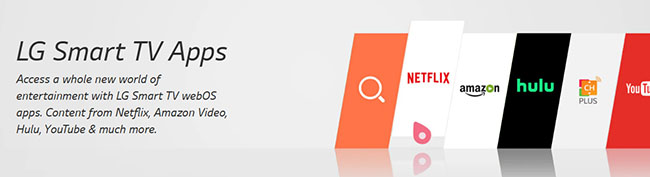
Some supported LG TVs come with Netflix preinstalled. Others allow you to download it from the TV's app store. Very old models may use earlier menu systems such as Premium, Internet TV, or NetCast instead of the current webOS Apps screen. Use this quick guide to identify the right setup method:
| Your LG TV situation | What to do |
|---|---|
| Netflix appears on the Home screen | Open it and sign in |
| Netflix appears in Apps or LG Content Store | Select Install |
| Netflix is missing on a new LG TV and the remote button is unavailable | Update webOS, verify LG Services Country, accept pending agreements, and fully power-cycle the TV |
| Netflix says the device is unsupported | Connect a newer streaming device through HDMI or conversion for USB playback |
A model year can provide a rough indication of compatibility, but it should not be treated as a guarantee. Two TVs released around the same time may have different app support depending on their hardware and sales region.
How to Install Netflix on an LG Smart TV
LG has changed the name and layout of its app store across different webOS generations. Recent models generally use an Apps menu, while older webOS TVs may display LG Content Store. However, the overall process is similar.
Before starting, connect the television to a stable Wi-Fi or Ethernet network. You may also need to accept LG's user agreements before the TV allows you to download apps.
Install Netflix on Newer LG webOS TVs
On many newer LG TVs, the app store is accessed through a menu labeled Apps.
Step 1. Press the Home button on the LG remote and select Apps from the Home screen.
Step 2. Choose the search icon, enter Netflix, and select the Netflix app from the results.
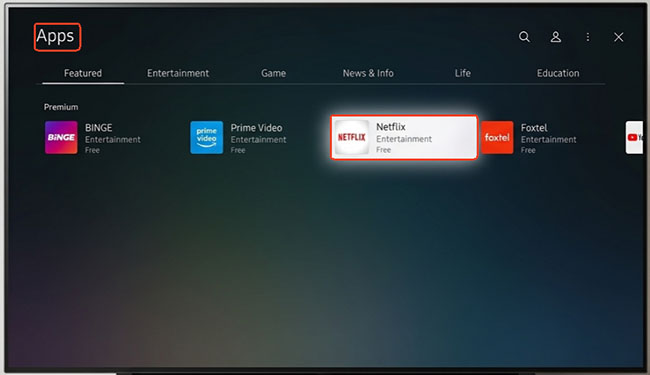
Step 3. Choose Install to download the Netflix app on your LG smart TV.
Step 4. When installation finishes, select Launch. The app should also appear in the row of applications on the Home screen. You can usually move it to a more convenient position by entering the TV's app-editing mode.
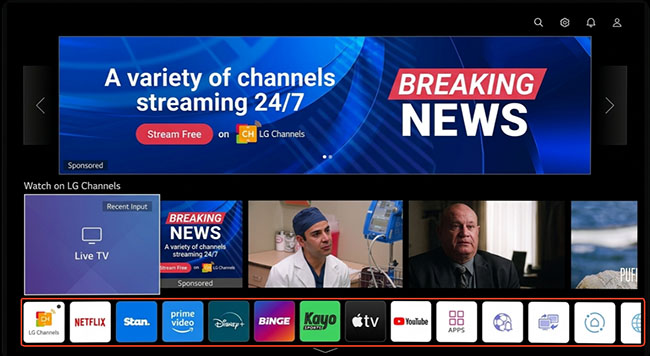
Install Netflix Through the LG Content Store
On LG TVs with older webOS interfaces, the app store may still be called LG Content Store.
Step 1. Press Home on the remote and open LG Content Store.
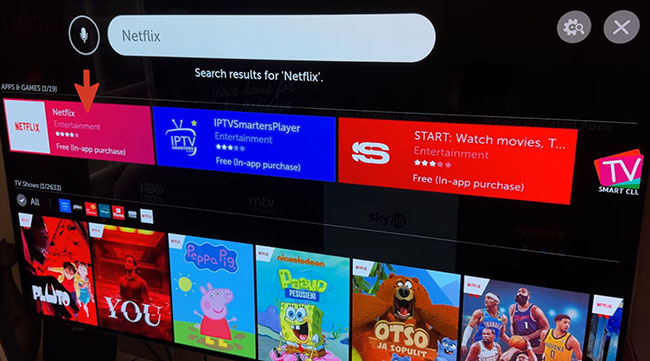
Step 2. Select the Apps category or search function and search for Netflix.
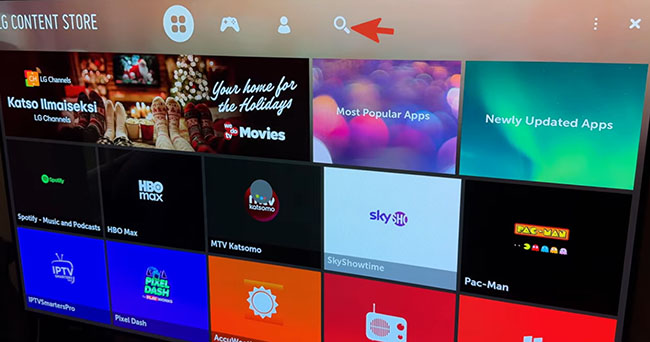
Step 3. Open the app page and select Install to add the Netflix app to your LG Smart TV. After installation, you can return to the Home screen and launch Netflix.
 Note:
Note:
If the app page shows Update instead of Install, Netflix is already on the television but a newer version is available.
Open a Preinstalled Netflix App on LG TV
Many LG TVs ship with Netflix already installed. Look for it in the Home menu before downloading anything.
Some LG remotes also have a dedicated Netflix button. Pressing it should open the app directly, although the button does not guarantee that Netflix is still supported on an older television. If the button does nothing, open the Apps list manually and check whether Netflix is present.
How to Sign In to Netflix on LG Smart TV
From the Home screen, open Netflix directly. On some older LG TVs, you may first need to select Internet TV, Premium, or NetCast, and then choose Netflix. After that, select Sign In.
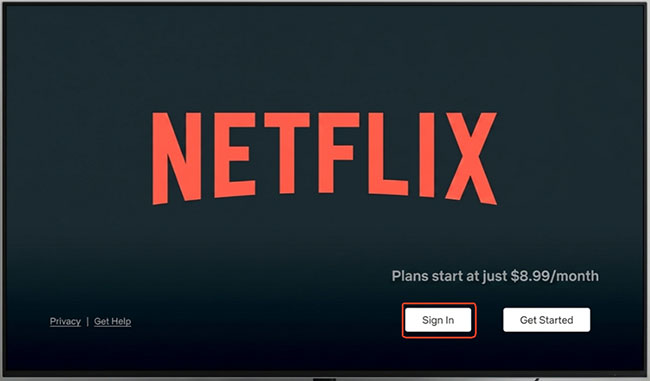
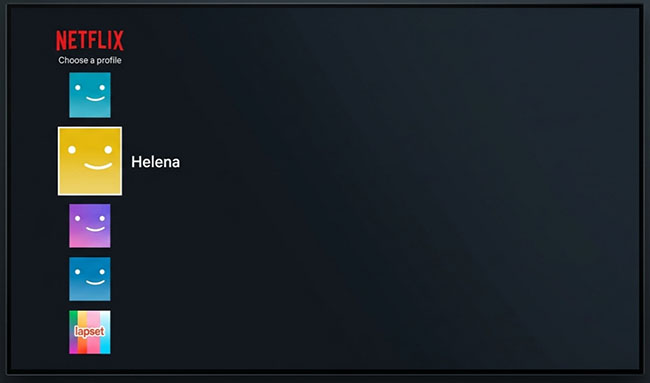
Now, you can enter your Netflix email address and password using the on-screen keyboard to log into your account and choose a profile to watch your favorite shows on the LG TV.
 Tips:
Tips:
If you don't see the Sign In button, you can select Yes on the Are you a member of Netflix? screen or set up your membership if you are not a subscriber.
What to Do If Netflix App Is Missing on LG TV
Some LG C3 owners, for example, have reported bringing the TV home only to find that Netflix is absent from both the Home screen and the app store. Pressing the dedicated Netflix button may simply return a "Button not available" message.
Often, users assume their television is defective or experiencing a software glitch, but the possible cause is usually a simple regional mismatch. This frequently happens if you bought a grey-market TV, recently moved to a different country, or if the initial setup somehow defaulted to the wrong region. To fix this missing app issue, you need to adjust your LG Services Country.
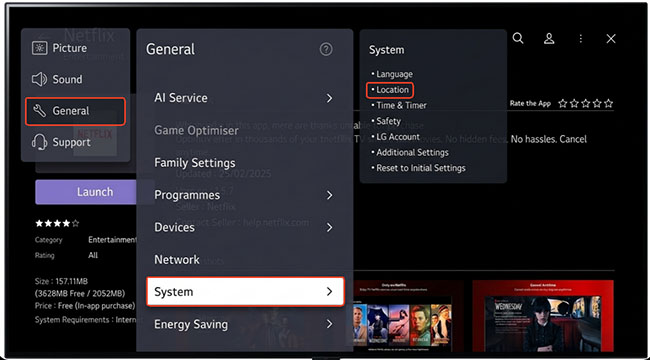
Step 1. Press the Settings button on your remote (the gear icon) and navigate down to All Settings.
Step 2. Go to the General tab, select System, and then choose Location.
 Note:
Note:
On older webOS versions, the Location menu may appear directly under General.
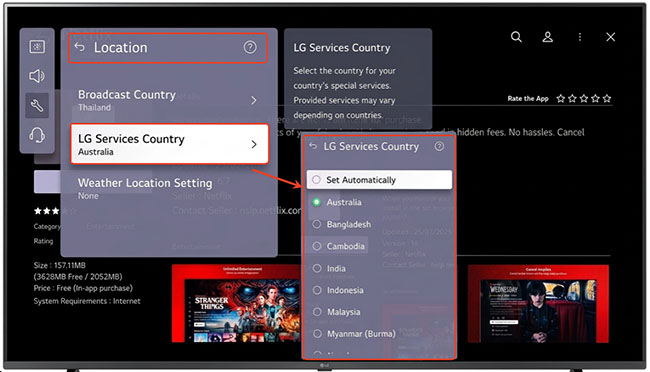
Step 3. Select LG Services Country, uncheck the "Set Automatically" box, and manually choose the country where you currently live.
 Quick Guide:
- On webOS 6.0 or above: Settings > All Settings > General > System > Location > LG Services Country
- On webOS 5.0 or below: Settings > All Settings > General > Location > LG Services Country
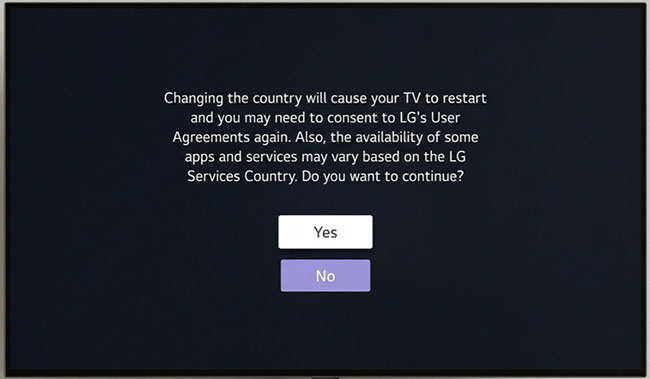
Step 4. The television may restart or ask you to accept updated agreements after the change.
 Tips:
Tips:
Select the country where the TV is actually being used. Choosing an unrelated country only to unlock an app may affect other local services.
How to Watch Netflix on an Older LG TV
On some older LG TVs, Netflix may display an error message stating that the device is no longer supported. As Netflix updates its app and device requirements, some older TVs may eventually lose access to the service.
An unsupported built-in app does not mean you need to replace a functional television. You can bypass your TV's outdated smart platform and continue watching Netflix using either of these two methods.
Method 1: Use an External Streaming Stick or Box
Connecting an external streaming player is the most convenient way to upgrade an older LG TV. Devices such as the Amazon Fire TV Stick, Roku Express, Chromecast with Google TV, or Apple TV receive independent software updates and run the latest version of the Netflix app smoothly.
Step 1. Plug the streaming stick or box into an available HDMI port on your LG TV and connect its power supply.
Step 2. Turn on the TV, press the Input or Source button on your LG remote, and switch to the corresponding HDMI channel.
Step 3. Connect the streaming device to your Wi-Fi network following its on-screen setup instructions.
Step 4. Open the device's app store, download Netflix, sign in with your account, and start streaming.
Note:
External streaming players process video independently, providing a significantly faster and more responsive interface than an aging TV interface.
Method 2: Download Netflix Videos to USB Using VidiKeep
If your TV lacks available HDMI ports, suffers from unstable Wi-Fi, or you want to watch content without relying on the TV's built-in internet features, you can download Netflix movies and shows to a USB drive using VidiKeep Netflix Video Downloader. VidiKeep converts Netflix titles into MP4 or MKV video files on your computer, allowing you to play them directly through your LG TV's local media player.
Step 1. Open VidiKeep Video Downloader on your PC or Mac, select Netflix, and log into your account using the built-in browser.
Step 2. Search for the title you wish to download, select your preferred video format (MP4 or MKV) and audio/subtitle tracks, then click Download.
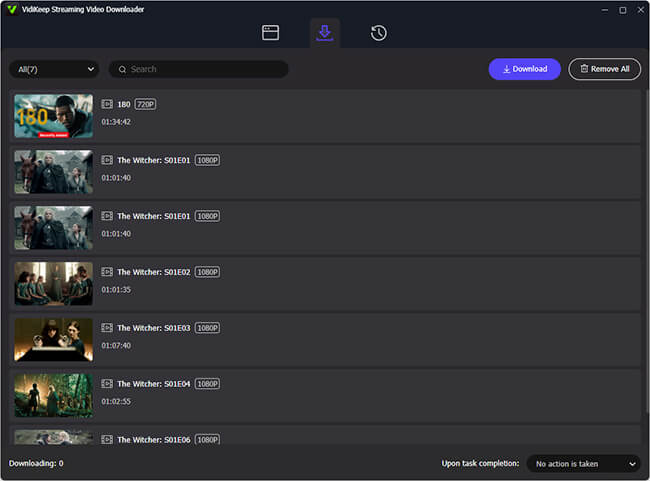
Step 3. Connect a USB flash drive to your computer and copy the downloaded video files onto the USB drive.
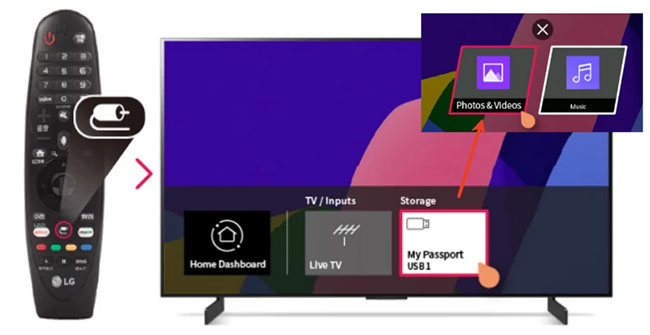
Step 4. Insert the USB flash drive into the USB port on your older LG TV. Press the Home or External Input button on your remote, launch the TV's Media Player, SmartShare, or Photo & Video app, select your USB device, and click the video file to play.
 Tips:
Tips:
Check the TV manual before formatting the drive. FAT32 is widely recognized but has a 4GB single-file limit, while NTFS support varies by model.
How to Watch Netflix in 4K/HDR on LG TV
Installing Netflix does not automatically mean every title will play in 4K on LG smart TV. Several requirements must be met at the same time. For Ultra HD or HDR playback, you generally need:
- An LG TV that supports 4K and, for HDR playback, the HDR format used by the selected title
- A Netflix Premium plan that includes 4K Ultra HD and HDR
- A stable connection of at least 15 Mbps
- Playback quality set to Auto or High
- A Netflix title available in 4K, HDR10, or Dolby Vision
- A TV or external device capable of the required video and audio format
Netflix recommends approximately 3 Mbps for 720p HD, 5 Mbps for 1080p Full HD, and 15 Mbps for 4K Ultra HD. These speeds should be stable rather than briefly reached during a speed test.
Search Netflix for terms such as 4K, UHD, HDR, Dolby Vision, or Dolby Atmos. Compatible titles usually display the relevant badge on their information page.
FAQs About Watching Netflix on LG TV
Is Netflix preinstalled on LG Smart TVs?
It is preinstalled on some LG TVs, while others require installation through Apps or LG Content Store. Availability varies by model and region.
Why is Netflix not in the LG Content Store?
The TV may have the wrong service country, outdated software, an incomplete initial setup, a network problem, or a model-specific availability limitation.
Why does my LG remote say "Netflix button not available"?
The TV cannot currently launch the Netflix app. This may happen when Netflix is not installed, unavailable in the current app catalog, or inaccessible because setup or regional services are incomplete.
Is the Netflix app free on LG TV?
The app can be downloaded without a separate app fee, but watching Netflix requires an eligible membership and internet connection.
Can I watch Netflix on an old non-smart LG TV?
Yes. Connect a supported streaming stick, streaming box, game console, or computer through HDMI. The external device runs Netflix independently of the TV's original smart platform.
How do I add Netflix to the LG Home screen?
After installation, Netflix normally appears in the Home app row. Enter Edit App List or press and hold the app icon to move it to a more convenient position.
Conclusion
Getting Netflix on an LG TV is usually a matter of a quick download or a region setting tweak. Even if your television is an older model that no longer receives official app updates, there is no need to buy a new TV. When an older LG TV is no longer supported, connecting a current streaming device through HDMI is usually the simplest and most reliable solution.

Jordan Rhodes is a Chief Technical Editor and Media Specialist at VidiKeep, specializing in creating diverse tech content, including streaming tutorials, software reviews, and video encoding tips.
Leave a Comment