Netflix on a Vizio TV: Setup, Sign Out & Fixes
Want to watch Netflix on a Vizio TV but aren't sure where to start? This guide explains how to get Netflix on Vizio TV, switch accounts, fix common loading issues, and keep watching your Netflix content even when the built-in app is no longer an option.
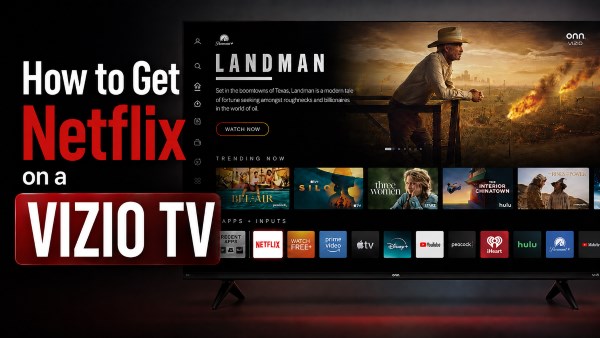
Part 1. Can You Get Netflix on a Vizio TV?
Yes. Netflix is available on most newer Vizio smart TVs and is typically built into the TV's app platform. Vizio SmartCast models introduced from 2016 onward generally provide direct access to Netflix from the Home screen or remote. Some older Vizio TVs, especially models from around 2015 or earlier, may no longer support Netflix due to hardware or software limitations.
Part 2. How to Get Netflix on a Vizio TV
Netflix access can look different across Vizio TV models and generations. You can check the table below to identify the setup that matches your TV and follow the corresponding steps.
| Your Vizio TV | Netflix Access | What to Do |
|---|---|---|
| Netflix button on remote | Built-in Netflix | Press Netflix and sign in |
| Netflix icon on Home | Vizio Home / built-in app | Open Netflix from Home |
| Large V button | Older Vizio Internet Apps interface | Open VIA apps → Netflix |
| No physical remote | Built-in Netflix still available | Use the Vizio Mobile App as a virtual remote |
| Cast-compatible Vizio | Google Cast setup | Check Netflix Cast compatibility, then cast from the Netflix mobile app |
Method 1. Press the Netflix Button or Open Netflix from Vizio Home
The easiest way to start streaming is by using the dedicated hotkey. Most modern Vizio remotes feature a clearly labeled Netflix button near the top. Pressing this button will instantly launch the app, even if you are currently watching cable or playing a video game.
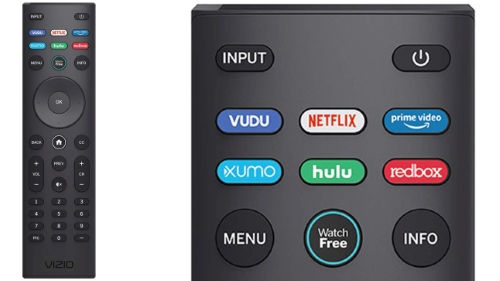
If your remote does not have this button, simply press the Home key. Navigate through the SmartCast app row using your directional pad until you find the Netflix icon, and press OK to open it.
Method 2. Open Netflix on an Older Vizio TV with the V Button
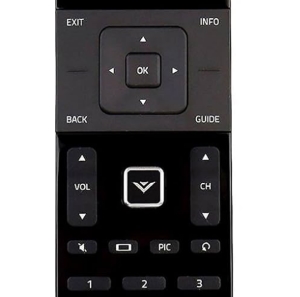
Older Vizio TVs operate on a slightly different system called Vizio Internet Apps (VIA). Instead of a modern SmartCast home screen, you use a specific button to pull up an app dock. First, you need locate the large V button in the center of your remote and press it. Wait for the app bar to appear on your screen. Then highlight the Netflix app, and press OK to launch it.
Method 3. Get Netflix on Vizio TV Without the Remote
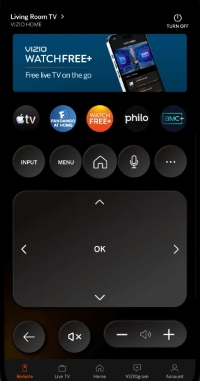
If you don't have the original Vizio remote, you can still access Netflix using your phone. The Vizio Mobile App can work as a virtual remote for a compatible TV, while select Cast-enabled Vizio models also let you send Netflix directly from the mobile app to the TV.
Option 1. Use the Vizio Mobile App as a Remote
Vizio offers a free mobile app for both iOS and Android devices. Once downloaded, you can pair it with your TV over your home Wi-Fi network. This turns your phone's touchscreen into a fully functional digital remote, allowing you to easily launch Netflix apps and navigate menus.
Option 2. Cast Netflix to a Compatible Vizio TV
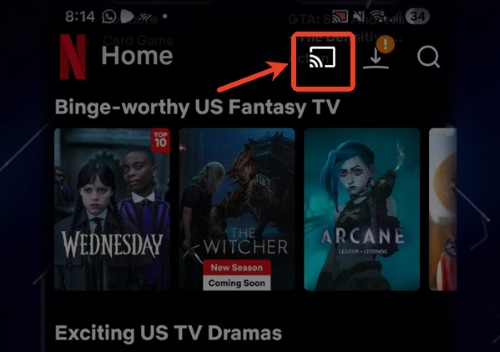
Some Vizio SmartCast TVs have Chromecast built directly into the hardware. You can open the Netflix app on your smartphone, tap the "Cast" icon in the upper right corner, and select your Vizio TV from the device list.
 Note:
Note:
Casting works only with select cast-enabled Vizio TVs. If the Cast icon does not appear in the Netflix mobile app, the TV may not support Netflix casting under the current device requirements.
Part 3. How to Sign Out or Change Netflix Accounts on Vizio TV
Whether you want to switch to another viewer, sign in with a different Netflix account, or remove your login before giving the TV to someone else, the right method depends on what you need to change. Switching profiles only changes the viewer within the same Netflix account, while changing accounts requires you to sign out first. You can also remove access remotely if you no longer have the Vizio TV in front of you.
Switch Netflix Profile
If you only want to change who is watching, there is no need to sign out of Netflix on your Vizio TV. From the Netflix home screen, open the left-side menu, move to the profile section, and select another profile associated with the same account.
Sign Out of Netflix on Vizio TV
To switch to a different Netflix account or remove your account from the TV, sign out directly from the Netflix app.
Step 1. Open Netflix and bring up the main menu. Scroll down and select Get Help.
Step 2. Choose Sign Out, then select Yes to confirm.
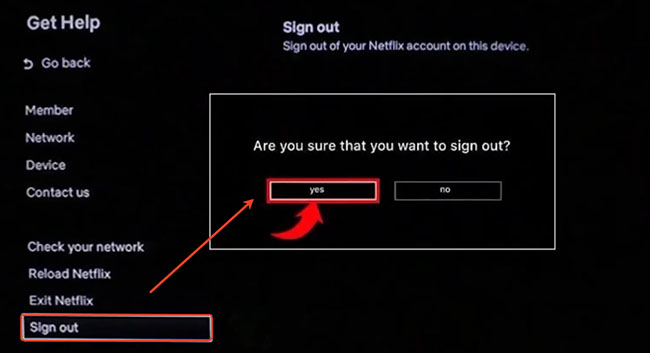
If the Netflix menu is unavailable or the app is stuck, you can also open the diagnostic screen using this sequence on the Vizio remote: ↑ ↑ ↓ ↓ ← → ← → ↑ ↑ ↑ ↑. Then select Sign Out to complete the process.
 Sign Out of Netflix on Vizio TV Remotely:
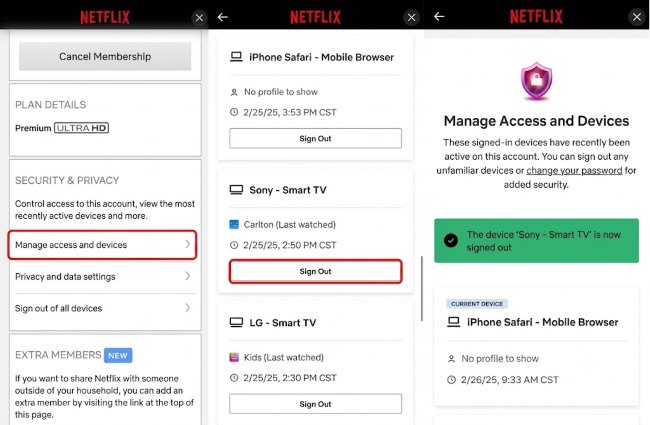
If you no longer have access to the TV when you forgot to sign out at a hotel or already sold the device, you can remove its Netflix access remotely. Sign in to Netflix from a browser, open Account > Manage Access and Devices, locate the Vizio TV, and select Sign Out.
Part 4. Netflix Won't Load on Vizio TV? Quick Fixes
If Netflix does not load on your Vizio TV, the cause is not always the same. A spinning logo, black screen, frozen interface, or playback failure can point to different issues involving the TV software, Netflix session, or network connection. Use the table below to match the symptom with the best first step before moving on to the quick fixes.
Quick Fixes for Netflix Not Working on Vizio TV
If Netflix gets stuck on the loading screen, freezes, or refuses to open on a Vizio TV, the issue may come from the Netflix session, the TV software, or the network connection. Try matching your specific issue to fix Netflix not working on Vizio TV below.
| What Netflix Is Doing | Try This First |
|---|---|
| Stuck on Netflix logo or spinning | Restart the Vizio TV |
| Netflix opens to a black screen | Power cycle the TV |
| Netflix freezes or the interface jumps | Restart Netflix or sign out and back in |
| Netflix opens but videos freeze | Try another title and audio track |
| Netflix fails on all devices | Check Netflix status and the network |
| "Netflix is no longer available" | Check Vizio model compatibility |
If you are still stuck, try working through these highly effective troubleshooting methods:
- Restart the Vizio TV. A system restart can clear temporary Netflix loading or interface problems.
- Power cycle the TV. Turn it off, unplug it briefly from the wall, reconnect the power after 60 seconds, and launch Netflix again.
- Check for Vizio software updates. Updating the TV system may resolve compatibility or app-loading problems.
- Sign out and sign back into Netflix. This refreshes the Netflix session without resetting the entire TV.
- Test Netflix on another device. If Netflix works elsewhere on the same network, the issue is more likely related to the Vizio TV than the internet connection.
How to Update or Uninstall Netflix on Vizio TV
Modern Vizio SmartCast TVs do not offer separate "Update" or "Uninstall" buttons for pre-installed apps like Netflix. That is because these apps are integrated into Vizio's cloud-based platform and are managed automatically. If Netflix is acting up, checking for a Vizio system update and restarting the TV is usually more useful than trying to reinstall the app.
To ensure your built-in app is running the latest version, follow this procedure:
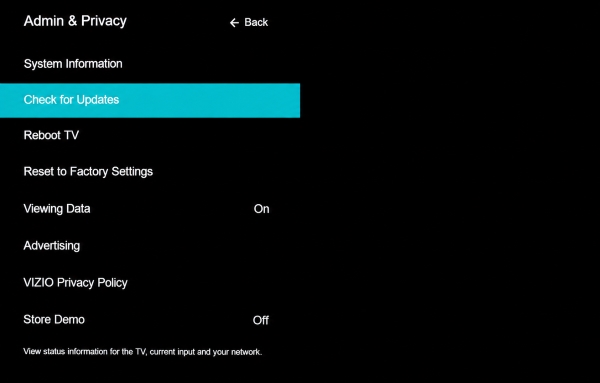
Step 1. Press the Menu or gear icon button on your Vizio remote, and navigate to the System tab.
Step 2. Select Check for Updates. If a new firmware version is available, the TV will download it, which automatically updates the core apps alongside the operating system.
Part 5. Try Another Method to Play Netflix on Your Vizio TV
If Netflix is no longer supported on your Vizio TV, keeps failing through the built-in app, or your connection is too unstable for smooth streaming, you do not have to rely on Vizio's native platform. An external streaming device, an HDMI connection, or local playback from USB can provide another way to watch Netflix on the same TV.
Option 1. Add a Streaming Stick or Box
If Netflix is no longer supported on an older Vizio TV, adding a streaming device is one of the simplest solutions. A Roku Streaming Stick, Amazon Fire TV Stick, or Apple TV runs Netflix independently of the TV's built-in platform. Connect the device to an HDMI port, switch your Vizio to that input, and open Netflix from the streaming device. If you already use an Apple TV, you can also follow our guide to watching Netflix on Apple TV and use the Vizio mainly as the display.
Option 2. Connect a Laptop with HDMI
For a temporary solution that does not require another streaming box, connect a laptop to your Vizio TV with an HDMI cable. Once the TV is switched to the correct HDMI input, it works as an external display for your computer. You can then open Netflix in a supported browser or app on the laptop and play the video on the larger TV screen.
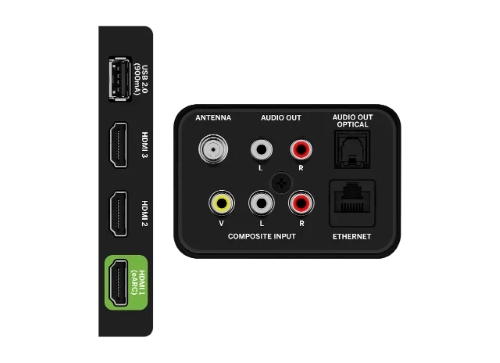
Option 3. Watch Netflix Offline on Vizio TV with VidiKeep
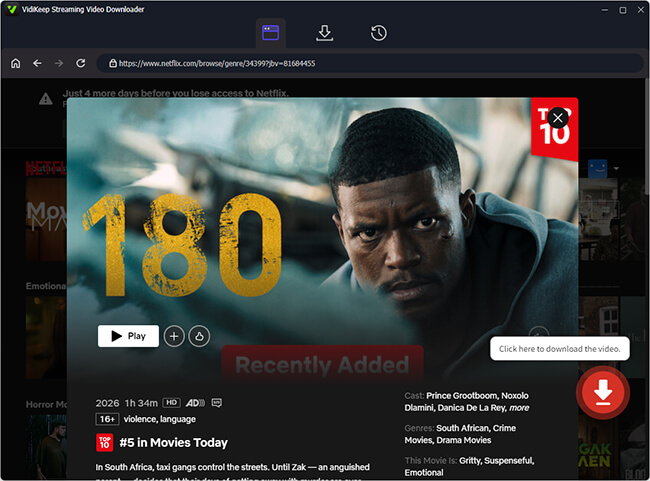
If unstable internet or repeated buffering is the main problem, another approach is to prepare the video on a computer first and play it locally on the TV. VidiKeep Streaming Video Downloader can save Netflix movies and episodes to MP4 or MKV files, giving you more flexibility for offline playback on compatible devices.

Download Netflix movies and shows in MP4/MKV format at 7X speed and enjoy offline viewing on any device.
Step 1. Open VidiKeep and download the Netflix movie or episode on your PC/Mac in MP4 or MKV format, and configure the available video, audio, and subtitle settings.
Step 2. Locate the downloaded Netflix files on your Windows PC or Mac, then copy them to a USB flash drive.
Step 3. Connect the USB drive to your Vizio TV and open its media player or USB media interface. Select the downloaded video to begin local playback without streaming it over the internet.
 Note:
Note:
USB playback support varies by Vizio model, so check that your TV supports the video format and codec used for the downloaded file before transferring a large library.
Part 6. Conclusion
Using Netflix on a Vizio TV becomes much easier once you know which setup your model uses. You can launch the app, switch accounts, and handle common playback issues with a few simple steps. If Netflix won't load on your Vizio TV or is no longer supported, there are other ways to allow you to keep watching your favorite shows and movies.

Jordan Rhodes is a Chief Technical Editor and Media Specialist at VidiKeep, specializing in creating diverse tech content, including streaming tutorials, software reviews, and video encoding tips.
Leave a Comment