How to Get & Watch Netflix on Kodi Easily
While Kodi doesn't offer an official Netflix app, you can still access your favorite movies and shows using the Netflix Kodi add-on. Setting up a reliable Kodi Netflix addon allows you to manage your movies and shows without constantly toggling between different streaming apps. This guide walks you through the installation process, essential setup tips, and an alternative way to enjoy Netflix on Kodi with a more reliable offline viewing experience.
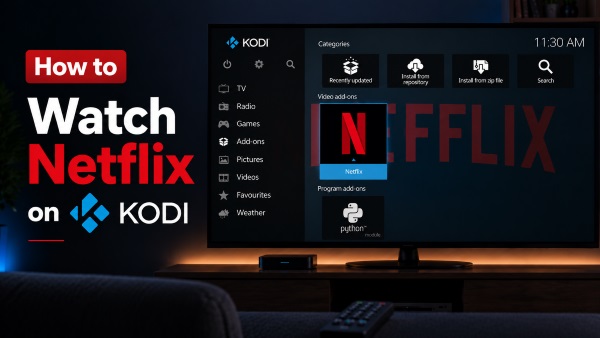
Part 1. Can You Watch Netflix on Kodi?
Yes. You can watch Netflix on Kodi by installing a community-developed Netflix add-on, as Netflix does not provide an official app for the Kodi media player. The add-on lets you browse your library, sign in to your account, and stream Netflix content directly within Kodi.
Keep in mind that you cannot watch Netflix on Kodi for free. The add-on serves as a client that connects Kodi to your Netflix account and relies on Google's Widevine DRM to play protected Netflix content. Without an active Netflix subscription, you won't be able to browse or stream any movies or TV shows.
Part 2. What You Need Before Getting Netflix on Kodi
Before installing the Netflix Kodi add-on, make sure your device meets the basic requirements below. Since the add-on is community-developed rather than officially supported by Netflix, compatibility may vary depending on your Kodi version, operating system, and DRM support.
| Requirement | Detail |
|---|---|
| Kodi Version | Kodi 19 or later (Kodi 20 or 21 recommended) |
| Netflix Account | Active subscription required |
| DRM | Widevine CDM |
| Required Add-ons | InputStream Adaptive, InputStream Helper |
| Supported OS | Windows, Linux, Android |
 Editor's Note:
The Netflix add-on may occasionally be affected by Kodi or Netflix updates. Recent DRM updates have caused Netflix buffering or crashes on certain Windows and Android devices. Keeping both Kodi and the add-on up to date helps ensure the best streaming experience.
Part 3. How to Install the Netflix Add-on on Kodi
For years, installing the CastagnaIT repository was the go-to method for integrating Netflix with Kodi. While you can still technically complete the installation using the steps below, please note that this method has become highly unstable due to recent Netflix DRM changes. If you still want to attempt the Netflix add-on installation for Kodi, please follow these steps:
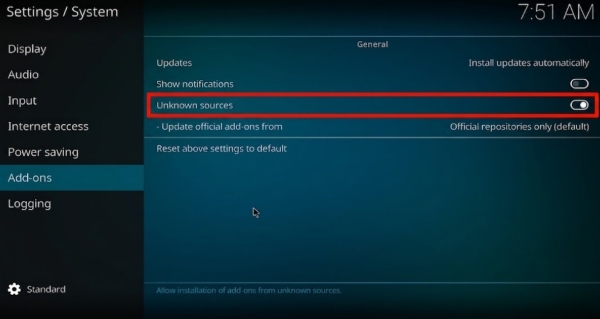
Step 1. Enable Unknown Sources. Start on the Kodi home screen and navigate to System Settings by clicking the gear icon. Open the "Add-ons" menu on the left side of the screen. Toggle the "Unknown sources" setting to the on position to permit third-party installations.
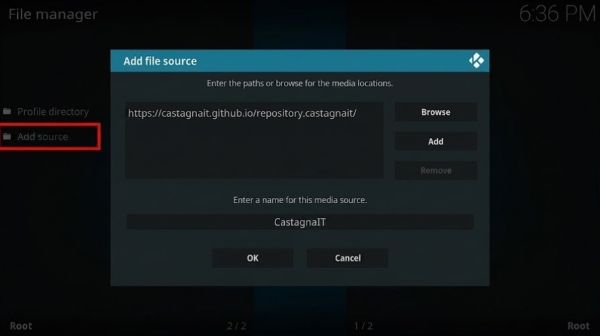
Step 2. Download the Repository. Return to the main System Settings panel and select "File manager". Click "Add source" and enter the repository URL below into the path field. Name this source something recognizable, like CastagnaIT, and save it.

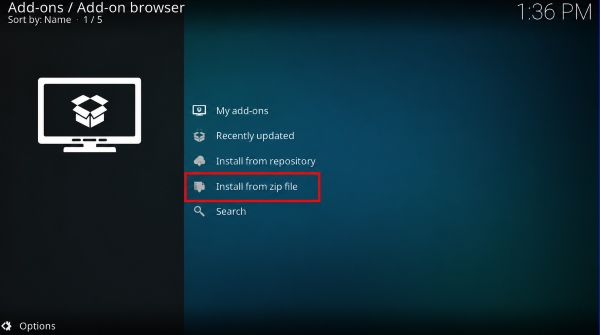
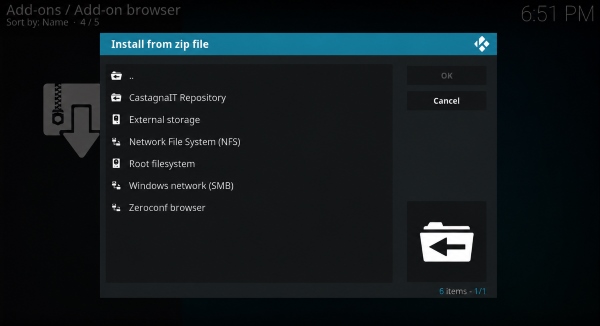
Step 3. Install from Zip File. Go back to the Kodi home screen and enter the Add-on browser. Choose "Install from zip file". Locate the CastagnaIT source you just added, select it, and click the zip file inside to install the repository framework to your system.
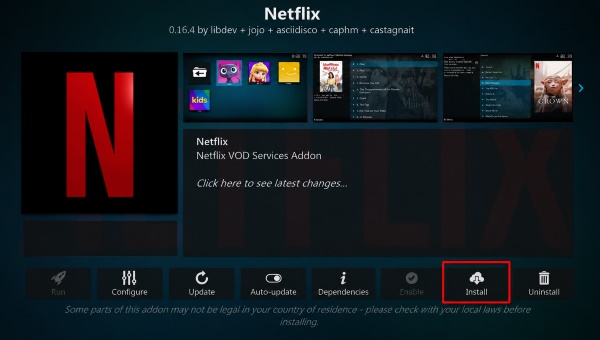
Step 4. Install the Netflix Addon. Once the repository is installed, select "Install from repository" within the Add-on browser. Navigate into the CastagnaIT Repository, find the "Video add-ons" category, select Netflix, and click "Install".
Essential Setup Tips for Watching Netflix on Kodi
- Install the Widevine CDM Update: The first time you play a Netflix movie or TV show, Kodi may prompt you to install or update Widevine CDM. This is normal and required to decrypt Netflix's protected content. Simply follow the on-screen instructions to complete the installation.
- Enable InputStream Adaptive: If the Netflix add-on installs successfully but videos won't play, check whether InputStream Adaptive is enabled. Go to "Add-ons > VideoPlayer InputStream" and turn it on if it's disabled. This is one of the most common causes of playback issues.
- Make Kodi Look Like Netflix: If you prefer Netflix's interface, you can install a custom Kodi skin such as Titan Bingie. It recreates the familiar Netflix experience with horizontal content rows, larger artwork, and auto-playing trailers.
Part 4. How to Sign In to Netflix on Kodi
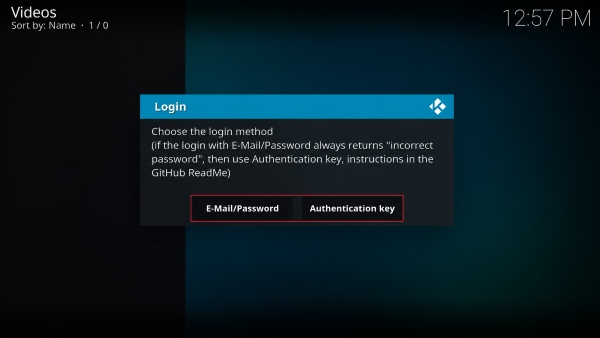
After successful installation, you need to link your active subscription to the player. The addon provides two ways to do this.
Method 1: Email and Password
This is the standard, most straightforward way to log in. Click the addon, select the email login option, and type in your standard credentials. If successful, your profiles will appear immediately.
Method 2: Authentication Key
Netflix frequently blocks third-party login attempts as a security measure, which can trap users in an endless "incorrect password" loop. If this happens, you will need to use a Kodi Netflix authentication key. This involves opening a desktop web browser, logging into your account, and using a community-built browser extension to generate a secure PIN file. You then transfer this file to your Kodi device to bypass the login block.
Part 5. Bonus: Download Netflix Videos for Kodi Offline Viewing
Recent Netflix updates have made the Kodi add-on increasingly unreliable, with many users reporting buffering, playback failures, and crashes. If you want a more stable way to enjoy Netflix with Kodi, VidiKeep Streaming Video Downloader is a practical alternative. It lets you download Netflix movies as MP4 or MKV files while preserving original video quality and metadata. Simply add the downloaded files to your Kodi library, you can enjoy your Netflix collection offline without DRM-related playback issues, or add-on compatibility problems.
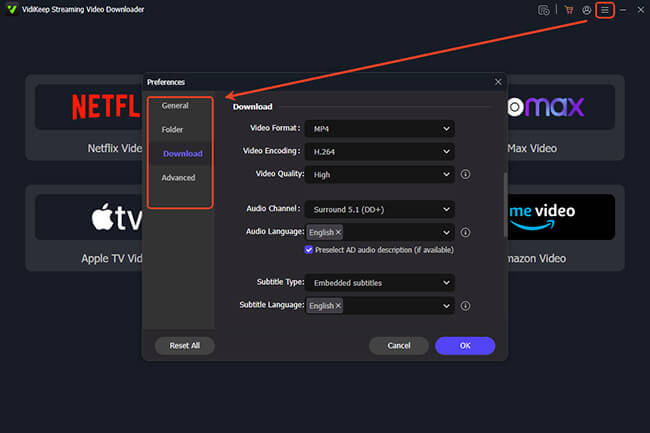
Step 1. Start by launching the VidiKeep application on your computer and navigating to the "Preferences" menu under the main icon, then select the "Download" tab. From here, you can choose to save your Netflix files as high-compatibility MKV or universal MP4 videos, and lock in your desired resolution. Once these configurations are saved, return to the main dashboard, click the built-in Netflix icon, and securely log in to your account.
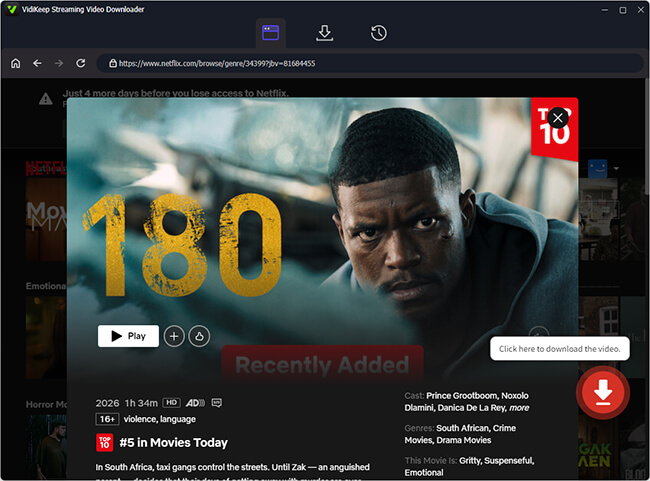
Step 2. Use the integrated web browser to surf the platform exactly as you would in a standard browser. You can search for titles by entering specific keywords in the search bar or by pasting a direct video link. Once the page of your desired movie or TV series loads, click the "Download" icon positioned in the lower-right corner of the screen.
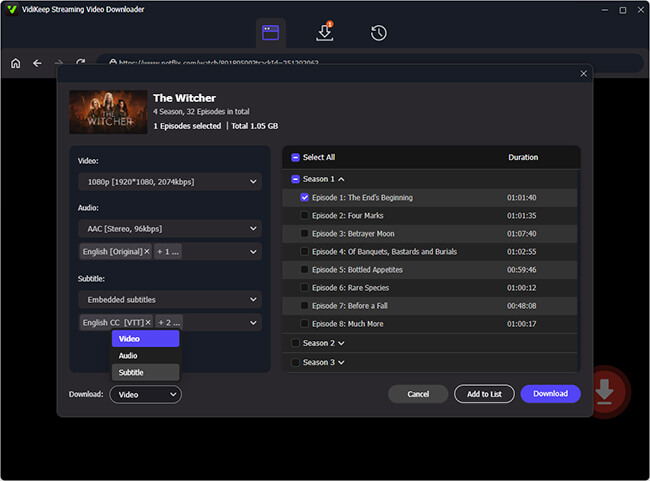
Step 3. A configuration panel will pop up, allowing you to select your preferred audio languages and specific subtitle tracks to preserve. If you are downloading an entire TV series, simply check the "Select All" box to queue up multiple episodes at once. Click the final "Download" button to let the software process the videos, saving them directly to your drive with all advertisements cleanly removed.
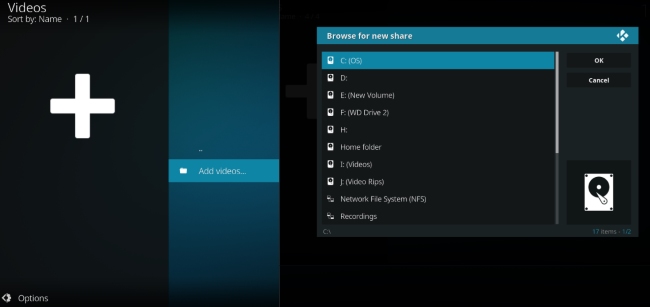
Step 4. Import your media to enjoy Netflix on Kodi. Once the process is complete, head to the "History" tab to locate your new, DRM-free files. Simply transfer these high-definition videos to your local media directory. Kodi's native library scraper will immediately index the files, download the correct cover art, and let you watch your favorite content offline without ever having to worry about a buggy, unstable Kodi Netflix addon.
 A Better Alternative When Netflix Kodi Add-on Stops Working:
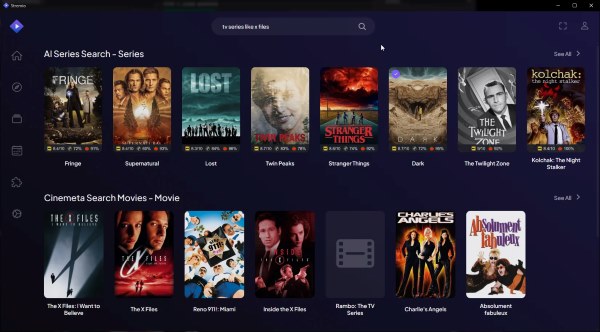
If you love Kodi's plug-and-play streaming and scraping capabilities but are tired of dealing with broken repositories and constant DRM updates, Stremio is one of the closest and easiest alternatives.
Unlike Kodi, which renders add-ons locally, Stremio uses cloud-based add-ons. When an API or streaming source changes, developers update the add-on on their servers, so you don't have to reinstall ZIP files or manually update repositories. It also offers a clean, Netflix-style interface and supports a large library of community add-ons.
Compatibility: Available on Windows, macOS, Linux, Android, Android TV, LG Smart TVs, and via Stremio Web on iPhone and iPad (with some feature limitations).
Part 6. Conclusion
While adding Netflix to Kodi via a repository was once the ultimate home theater hack, the DRM updates have made the traditional add-on route difficult to maintain. For a truly stable and frustration-free experience, downloading your content locally is the best modern solution. By integrating DRM-free files into your system, you can create an offline Netflix viewing experience on Kodi that never crashes or buffers.

Jordan Rhodes is a Chief Technical Editor and Media Specialist at VidiKeep, specializing in creating diverse tech content, including streaming tutorials, software reviews, and video encoding tips.
Leave a Comment