Netflix on Hotel TV: How to Watch & Sign Out
If you're in a hotel room wondering why Netflix won't cast to the TV or how to watch your favorite shows during your stay. In this guide, you'll learn the easiest ways to get Netflix on a hotel TV, along with the best practices for signing out of Netflix account before you check out.
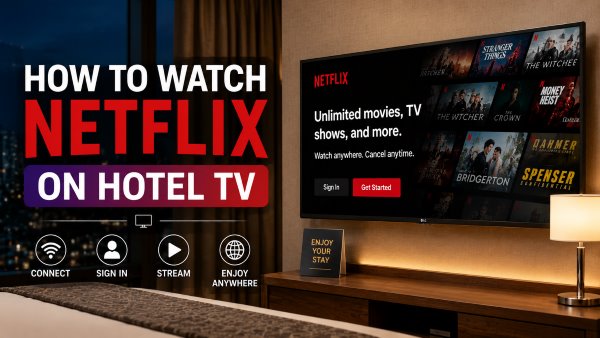
Part 1. Can You Watch Netflix on a Hotel TV?
Yes, you can watch your favorite Netflix movies and shows during your stay. Many major hotel chains in the United States, including Marriott, Hilton, Hyatt, and Best Western, now equip their guest rooms with smart TVs that support popular streaming services like Netflix. However, the exact setup varies by hotel. Some TVs have the Netflix app pre-installed, while others require you to connect your own device.
Part 2. How to Get and Watch Netflix on a Hotel TV
There are several ways to get and watch Netflix on a hotel TV. The best option depends on the type of TV in your room and the features it supports. Below, we'll walk you through three reliable methods, from using the built-in Netflix app to connecting an HDMI cable or your own streaming device.
 Can I cast Netflix to a hotel TV?
In most cases, no. In late 2025, Netflix officially discontinued mobile casting support to the vast majority of modern TVs and TV-streaming devices. Attempting to cast from your iOS or Android app to a smart TV or a newer Chromecast with Google TV will simply no longer work.
Casting will now only function on older Chromecast models without remotes and TVs explicitly equipped with built-in Google Cast. Furthermore, casting is unavailable if you are currently subscribed to the ad-supported Netflix tier.
Using the Built-In Netflix App
If your room has a modern smart TV, using the native app is the easiest way to get Netflix on a hotel TV. The best part is that you do not need to type your password on a public screen, which keeps your account much safer.
Step 1. Start by grabbing the hotel remote and looking for a dedicated Netflix button, or press the "Home" key to open the smart TV menu and locate the app manually.
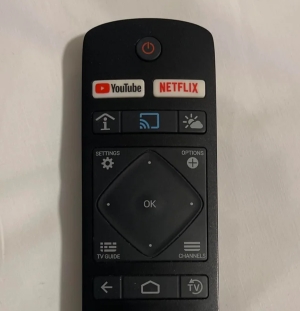
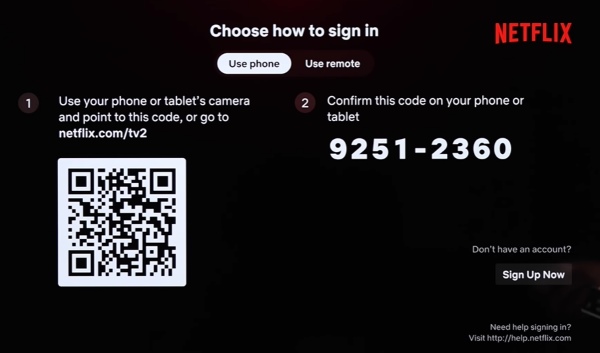
Step 2. Once the app opens, select the "Sign-in" option on the main welcome screen to begin the login process. At this point, the TV will typically present you with two options: you can either scan a QR code using your smartphone camera for an instant login, or select the "Use Remote" option to proceed manually.
Step 3. If you chose to use the remote, instead of painstakingly typing your password with the remote's directional pad, enter just your email address and select the "Send Sign-In Link" feature.
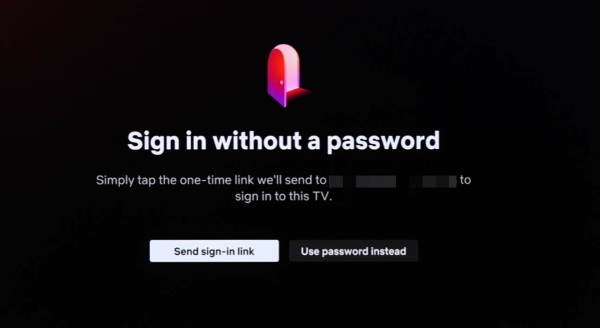
Step 4. Grab your smartphone, open your email inbox, and simply click the link Netflix just sent you to authorize the hotel TV automatically.
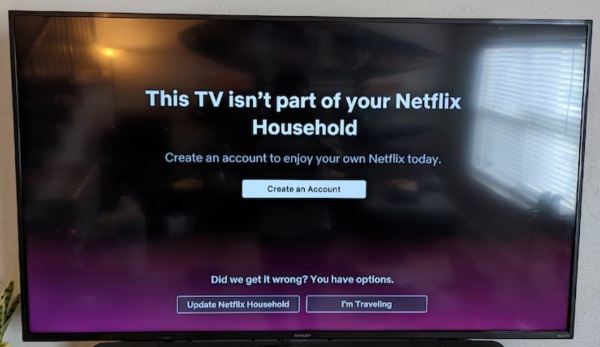
 Dealing with the Netflix "Household" Error on Hotel TV:
Immediately after logging in, you might see a message stating "Your TV isn't part of the Netflix Household" because Netflix flags the hotel's Wi-Fi as a network outside of your home. To quickly resolve this, you can simply select the "I'm Traveling" option, and then follow the prompt on the screen to verify your access via a quick email or text code.
Using an HDMI Cable
Hotel TVs often come with restrictions. Some block Netflix casting, while others don't include the Netflix app. In these situations, using an HDMI cable is usually a reliable way to stream Netflix on the hotel TV. It lets you stream from your own device without depending on the hotel's Wi-Fi or built-in streaming features.
Step 1. Connect one end of the HDMI cable to your laptop. If you're using a smartphone or USB-C laptop, first connect the USB-C-to-HDMI adapter. Plug the other end of the HDMI cable into an available HDMI port on the hotel TV.
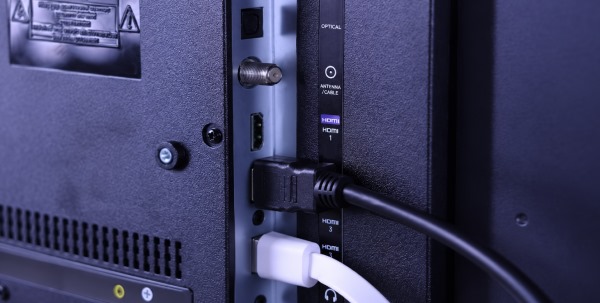
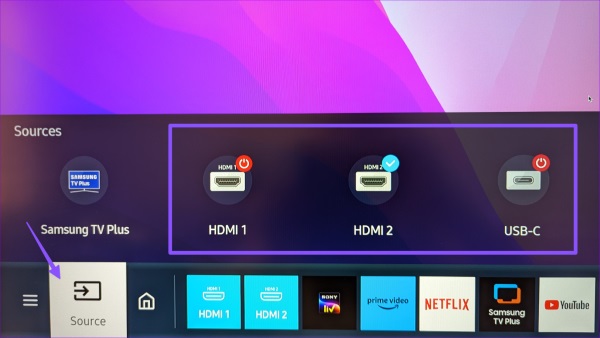
Step 2. Using the TV remote, press the "Input" or "Source" button and select the HDMI port you connected. Then open the Netflix app or visit the Netflix website on your device, and start playing your favorite movie or show. The video will appear on the hotel TV.
 Editor's Note:
Some hotels lock the TV inputs so you cannot change them with the remote. If you run into this wall, look directly behind the TV. If there is a small hotel set-top box plugged into the primary HDMI port, try unplugging it and plugging your cable directly into that slot instead.
Using a Fire Stick or Roku
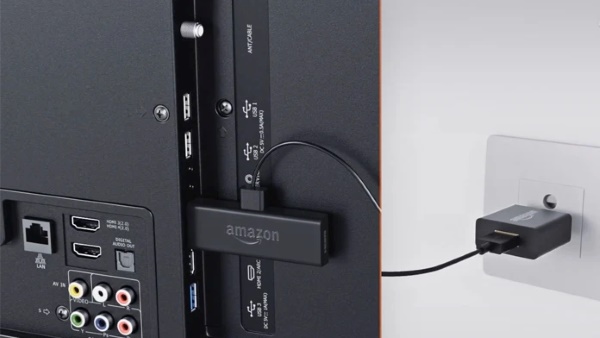
If you travel frequently, bringing your own streaming device like Fire TV Stick or Roku, is a smart choice to watch Netflix on a hotel TV. Simply connect it to the hotel's TV via HDMI and set it up on the hotel Wi-Fi.
Since all of your streaming apps are already signed in on your own device, you can pick up right where you left off at home. More importantly, you won't have to repeatedly sign in to or sign out of Netflix on the hotel TV, helping keep your account private and making checkout much easier.
Part 3. How to Sign Out of Netflix on a Hotel TV
The most critical step of watching Netflix in a hotel happens after you finish viewing. Leaving your account logged in can expose your personal information and give subsequent guests access to your subscription. Before you check out, you should confirm that whether you log out of all streaming apps and unplug your HDMI cables or streaming sticks.
How to Log Out Directly on the TV
Before checking out, it's always a good idea to log out of Netflix directly on the hotel TV. This takes only a few seconds and helps prevent the next guest from accessing your account.
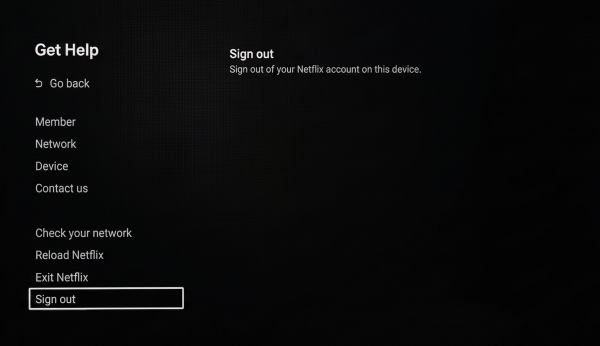
Step 1. Using the TV remote, press the Left directional button to open the side menu, then navigate to "Get Help" or "Settings".
Step 2. Select "Sign Out", then choose "Yes" when the confirmation message appears to complete the process.
How to Log Out Remotely
Forgot to sign out before leaving the hotel? Don't worry. You can remove the hotel TV from your Netflix account remotely using the Netflix app or any web browser.
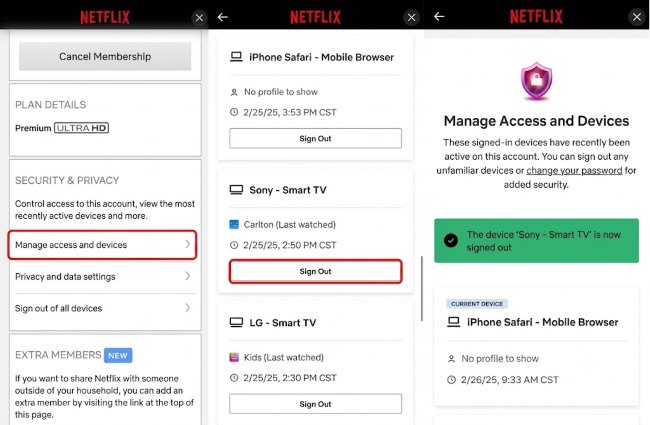
Step 1. Open the Netflix app or visit the Netflix website, then sign in to your account. Click your profile icon in the upper-right corner and select "Account".
Step 2. Scroll down to the "Security & Privacy" section and click "Manage Access and Devices".
Step 3. Find the hotel TV in the list of recently used devices, then click "Sign Out" under it. If you prefer extra peace of mind, select "Sign Out of All Devices" at the bottom of the page.
 Note:
Note:
Newly used hotel TVs may not appear in "Manage Access and Devices" immediately. It can take up to 48 hours for the device to show up in the list.
Part 4. The Ultimate Solution: Watch Netflix on ANY Hotel TV Offline
Sometimes the hotel Wi-Fi simply refuses to cooperate, or the TV is strictly locked in "Hotel Mode". When streaming live is not an option, local playback is your ultimate backup. By downloading your Netflix movies using VidiKeep Streaming Video Downloader before you leave home, you can guarantee buffer-free, high-quality entertainment on almost any hotel TV.
- Zero Wi-Fi Required: You can watch your shows flawlessly even if the hotel charges outrageous fees for premium internet or has a spotty connection.
- No Privacy Risks: Because you are playing a local file from a USB drive, you never have to log into your Netflix account on the hotel TV, meaning there is zero risk of forgetting to sign out.
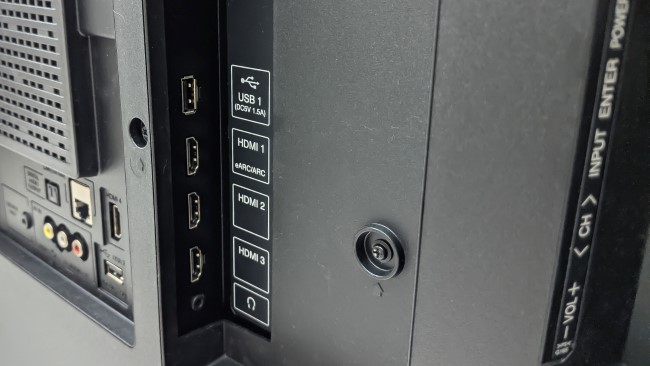
- Universal Playback: Almost every hotel TV on the market today, even older models, features a USB port on the side or back that allows you to play MP4 video files directly.
Download Netflix Movies and Shows for Your Next Trip:
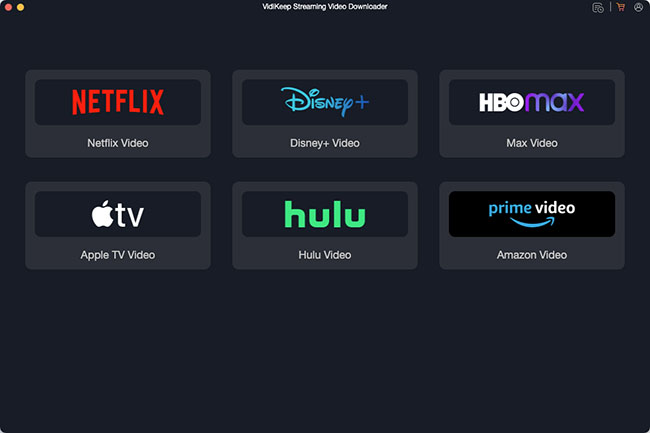
Step 1. Launch the software, click the Netflix icon on the main interface, and securely log in to your account using the tool's built-in web browser.
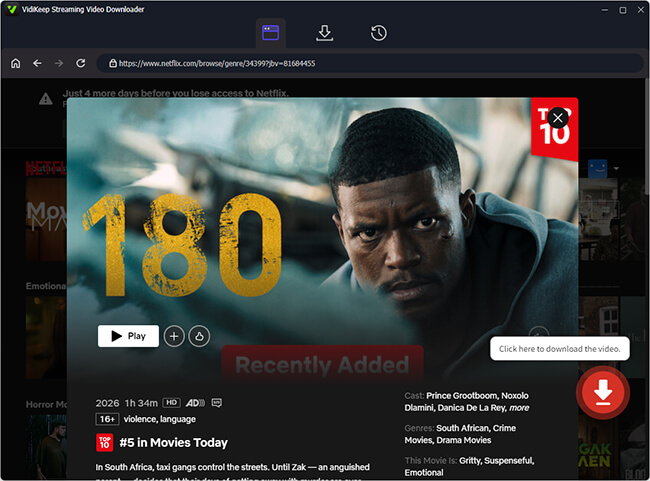
Step 2. Navigate the built-in Netflix player. Use the search bar to find the specific movies or TV series you plan to watch during your trip. Once you open the title's details page, simply click the floating "Download" icon to parse the video data.
Step 3. Customize your viewing preferences before initiating the final download. Set your output format of Netflix content as MP4 for maximum hotel TV compatibility, set the video quality, and select your desired audio tracks and multilingual subtitles.
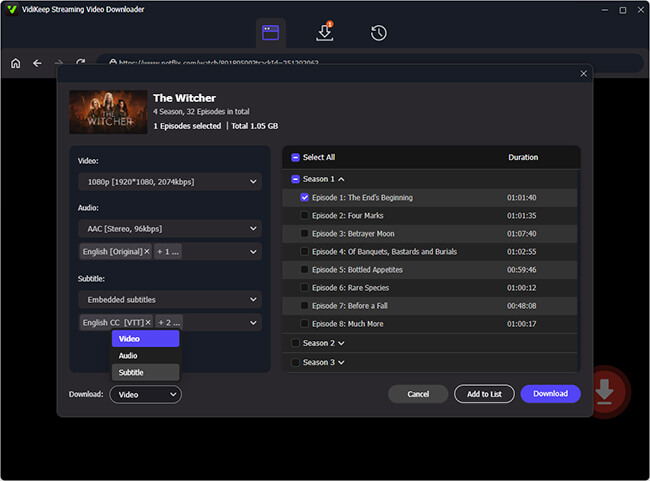
Step 4. Click the "Download" button at the bottom right. VidiKeep will rapidly process and save the DRM-free files directly to your local drive. Once finished, just drag and drop these MP4 files onto a standard USB flash drive, ready to be plugged into any hotel TV.
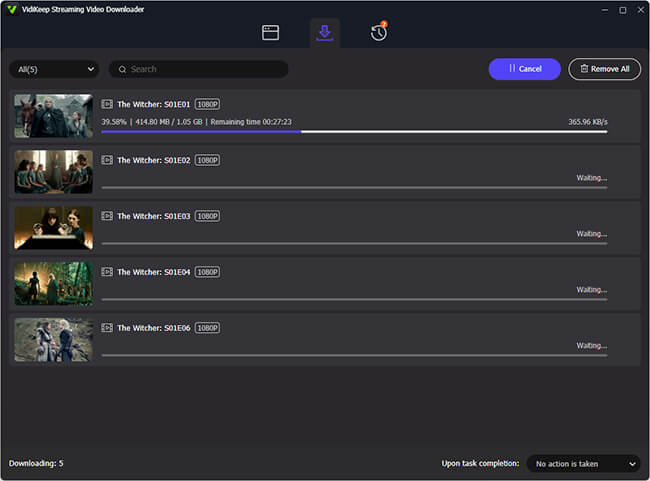
Step 5. After the downloads finish processing, plug your USB flash drive into your computer and drag the downloaded Netflix files into the folder. Once you arrive at your hotel room, plug the USB drive into the side of the TV, switch the input source to "Media" or "USB", and enjoy your shows from Netflix on the hotel TV smoothly.
 Disclaimer:
Tools like VidiKeep should only be used to download content for personal, offline viewing. Distributing or sharing downloaded copyrighted material may violate platform terms of service.
Part 5. Conclusion
Watching Netflix on a hotel TV is easier when you choose the right method for your situation. The built-in Netflix app works well for supported smart TVs, while HDMI cables or streaming devices offer more flexibility. For a more reliable travel setup, downloading your favorite Netflix titles in advance with VidiKeep can help you avoid unstable Wi-Fi and privacy concerns. Just remember to log out of your Netflix account before checkout to stay secure.

Jordan Rhodes is a Chief Technical Editor and Media Specialist at VidiKeep, specializing in creating diverse tech content, including streaming tutorials, software reviews, and video encoding tips.
Leave a Comment