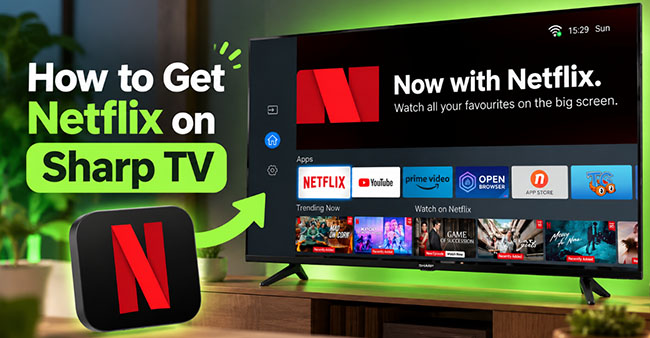
How to Get Netflix on Sharp TV [Troubleshooting]
If you're sitting on the couch ready to binge your favorite show, only to find Netflix freezing, missing, or refusing to launch on your Sharp TV, I know how frustrating that is. A while back, I tried setting up Netflix on an older Sharp AQUOS in our guest room, and it didn't work because of smart TV operating systems, outdated app stores, and weird compatibility errors.
The truth is, Sharp has used several completely different TV systems over the years, including Sharp Roku TV, Google TV, Android TV, and their own older custom interfaces like SmartCentral. How you get Netflix depends entirely on your TV model and smart TV system. Some Sharp TVs come with Netflix preinstalled, while others let you download it from an app store. On older models, Netflix may no longer be supported, even if the TV can still connect to the internet. Here is a step-by-step breakdown based on my own testing, including how to find the app, how to install it, how to fix Netflix not working on Sharp TV, and what to do if your TV has officially retired its Netflix support.
Check If Your Sharp TV Can Actually Run Netflix
Before you spend twenty minutes digging through menus to get Netflix on Sharp TV, let's make sure your Sharp TV is capable of running Netflix in the first place.
Grab your remote and hit the Home button. Look across your installed apps. If Netflix isn't sitting right there, try opening your TV's app store or search function to look for it.
If you're not sure which system your Sharp TV runs, check your home screen or the sticker on the back of the set for the exact model number. If you have an older Sharp Aquos smart TV and your Netflix app suddenly disappeared or started throwing error codes like R40, R12, or R25-9 around March of 2026, you aren't doing anything wrong.

When I tested an older 2014 Sharp AQUOS model, Netflix was actually pre-installed, but launching it gave me a generic "Service Unavailable" error. It turns out Netflix dropped support for many smart TVs made before 2015 due to security and playback updates. So, if your TV is getting close to a decade old, the app store might not show Netflix at all, or it might install but refuse to play.
How to Get Netflix on Sharp Aquos TV
Once you've confirmed that your Sharp Smart TV can access Netflix, you can refer to the following steps to install and connect Netflix on Sharp TV. The process here is generally quite smooth, though it varies slightly depending on the software environment your TV uses. If Netflix is already installed, skip the installation steps and open the app.
Connect Netflix to Sharp TV if It's Already Installed
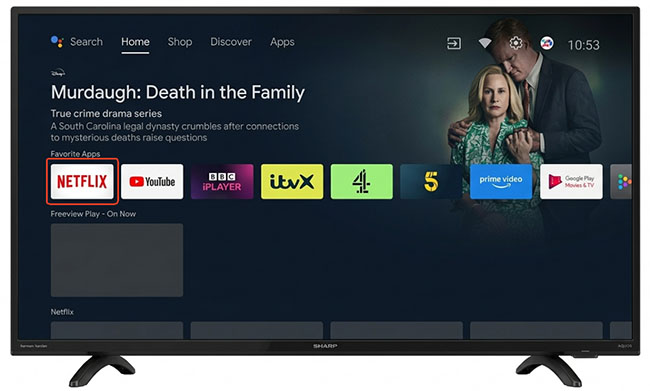
On many compatible Sharp TVs, Netflix is available directly from the home screen. You may not need to download anything.
- Turn on your Sharp TV and press Home on the remote.
- Find and select the Netflix icon.
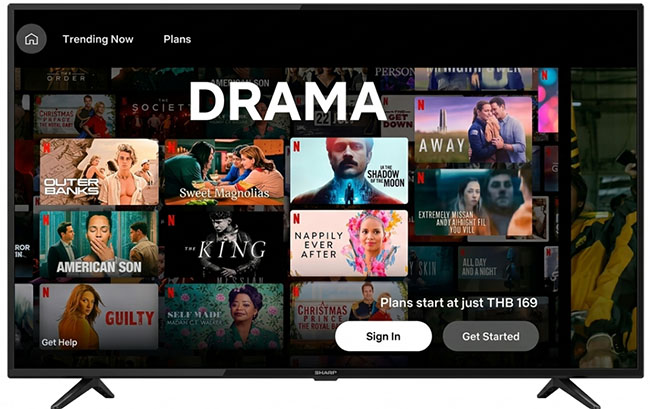
- Choose the sign-in option if prompted.
- Enter your Netflix account details and follow the on-screen instructions.
- After signing in, choose a title and start watching a Netflix video on your Sharp TV.
 Tips:
Tips:
Some older Sharp TV interfaces use buttons labeled Apps, Dock, or SmartCentral to access applications. If Netflix isn't visible on the main screen, check these menus as well.
Install Netflix on Sharp Google TV or Android TV
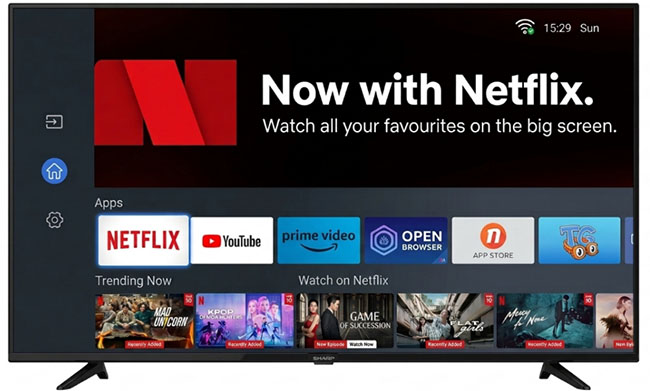
Many modern Sharp displays utilize Google's operating system, which makes adding new services very similar to downloading an app on a smartphone. You can usually find and install Netflix on Sharp Android TV or Google TV through the app store:
- Open the TV's home screen.
- Navigate to Apps or open the search function.
- Search for Netflix.
- Select the app and choose Install if that option is available.
- Open Netflix and sign in to your account to activate Netflix on Sharp Qquos TV.
 Tips:
Tips:
If you see an Open button instead of Install, Netflix is already installed. Select it to launch the app.
During my testing with a recent Sharp Android TV, I found that using the voice search feature on the remote: simply holding the microphone button and saying "Find the Netflix app", often bypasses the manual typing process entirely, which can be a real time-saver.
Watch Netflix on Sharp Roku TV
Sharp Roku TVs use the Roku interface, so you'll need to look for Netflix through the Roku home screen or Streaming Store.
- Press Home on your Roku remote.
- Look for Netflix in the list of installed channels.
- If it isn't there, select the Streaming Channels to open the Roku Channel Store and search for Netflix.
- Select Netflix and choose the Add channel option to add it if available.
- Return to the home screen, open Netflix, and follow the sign-in instructions.
Tips:
You can also point your smartphone camera or a QR reader app at the QR code shown on the Sharp TV screen to connect your Netflix account.
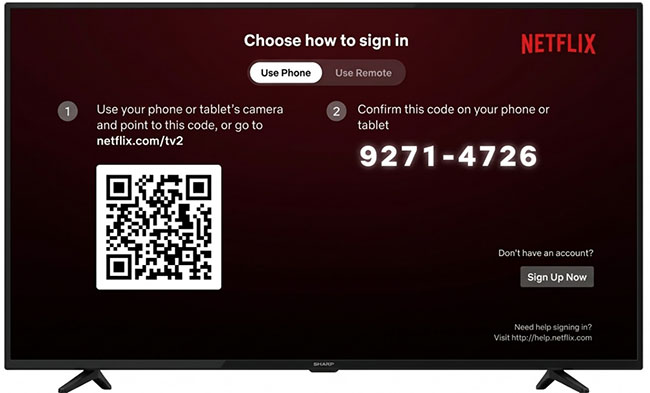
How to Get Netflix on Older Sharp Smart TV
If your Sharp TV is too old or simply won't let you download Netflix, don't rush out to buy a brand-new television. You can easily bypass your TV's outdated smart system using a few practical workarounds.
Option A: Download and Watch Netflix Movies on Sharp TV via USB
If your TV's app store is dead and you don't want to buy extra streaming hardware, this is one of the most reliable workarounds, especially if you have spotty Wi-Fi. During my testing on older Sharp AQUOS models, I found that even when the TV's Netflix app was completely unsupported, the TV's built-in media player could still read video files from a standard USB flash drive without any issues. Therefore, you can use VidiKeep Netflix Video Downloader to download Netflix movies and TV shows to common video files and then transfer and watch them on your Sharp TV via the USB port.
Here is how you can use VidiKeep Netflix Video Downloader to get your movies onto your TV:
Step 1. Open VidiKeep Netflix Video Downloader on your computer, select MP4 or MKV as the output format (both formats are widely supported by Sharp TV media players) and set your preferred audio tracks and subtitle language.
Step 2. Click the Netflix icon and log into your Netflix account within the tool, and search for the show or movie you want to save.
Step 3. Download the Netflix videos directly to your computer, then transfer the MP4/MKV files onto a USB flash drive formatted to FAT32 or NTFS.
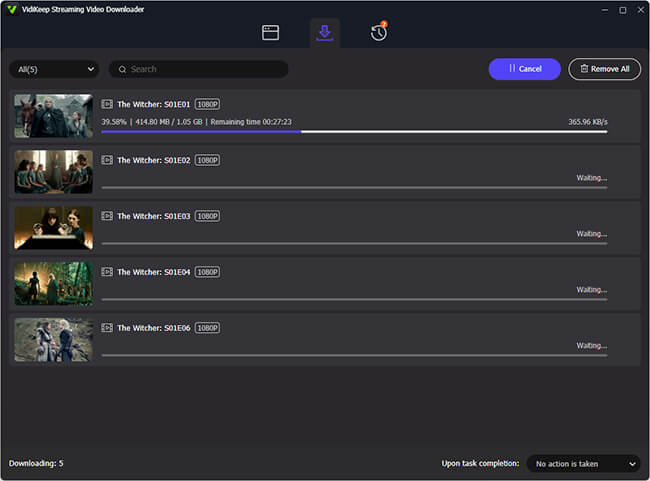
Step 4. Plug the USB drive into the USB port on the back or side of your Sharp TV. Press the Input or Media Player button on your Sharp remote, select your USB drive, and start watching your Netflix movies offline in full HD.
Option B: Stream Netflix to Sharp Smart TV via External Streaming Device
This is another clean, hassle-free fix if you want full live streaming capabilities. I plugged a $30 Roku Express (you could also use a Fire TV Stick, Chromecast with Google TV, or Apple TV) into an HDMI port on the back of our Sharp TV.
- Plug the streaming stick into an empty HDMI port of your Sharp TV and connect its power cable.
- Use the Sharp TV remote to switch your Sharp TV's corresponding input to that HDMI port.
- Follow the on-screen prompts to connect to Wi-Fi and download Netflix.
- Open Netflix on the external device, sign in your account, and view your favorite shows.
Option C: Connect a Laptop to Your Sharp TV Through HDMI
If you already have a laptop, you can use it to play Netflix on your Sharp TV without installing the Netflix app on the television.
- Connect your laptop to the TV using a compatible HDMI cable.
- Turn on the TV and change your TV input to match the HDMI port you used.
- Open a web browser on your laptop, head to Netflix Web Player, and start playing a title.
How to Fix Netflix Not Working on Sharp TV
If Netflix is installed on Sharp TV but won't open, keeps freezing, or displays an error, here are the exact fixes I run through when troubleshooting. The right fix depends on whether the problem involves the network, the app, or device compatibility.
- App Won't Open or Freezes: Don't just turn the TV off with the remote that often just puts it into sleep mode. Unplug the TV's power cord from the wall outlet, wait 60 seconds, and plug it back in. This clears the cached memory and solves most app crashes.
- Buffering or Connection Errors: Check if other internet apps on your TV (like YouTube) work. If they do, sign out of Netflix inside the app settings, restart your Wi-Fi router, and sign back in.
- "Device No Longer Supported" Message: If you see this specific prompt, no amount of restarting or resetting will bring the app back. Netflix has formally ended support for that TV's software version. Your best option at this point is downloading your shows to a USB drive via VidiKeep or grabbing an inexpensive streaming stick as mentioned above.
FAQs About Watching Netflix on Sharp Aquos TV
How to log out of Netflix on Sharp TV?
- From the Netflix home screen, navigate left to open the menu.
- Select Get Help (or the gear icon/Settings at the bottom right).
- Choose Sign out and confirm with Yes.
(Shortcut: If you cannot find the menu, enter Up, Up, Down, Down, Left, Right, Left, Right, Up, Up, Up, Up on your remote to trigger the diagnostic sign-out screen directly.)
How to reset Netflix on Sharp TV
- Inside the app, access the diagnostic screen using the remote code: Up, Up, Down, Down, Left, Right, Left, Right, Up, Up, Up, Up.
- Select Reset or Reload Netflix to wipe corrupt temporary data.
- Alternatively, clear app storage from the TV settings: On Android/Google TV models, go to Settings > Apps > Netflix > Clear Cache / Clear Data. On Roku models, highlight the Netflix channel, press the
*key, remove the channel, and reinstall it.
How to update the Netflix app on Sharp TV
- Android/Google TV models: Open the Google Play Store, go to your profile icon in the upper-right corner, select Manage apps & games, and choose Update next to Netflix.
- Roku TV models: Highlight Netflix on the home screen, press the
*button on your remote, and select Check for updates. (Updating system software via Settings > System > System update also automatically refreshes all channels).
Can you get Netflix on Sharp TV without a remote?
Yes, using either of these methods:
- USB Keyboard/Mouse: Plug a standard wired or wireless USB mouse/keyboard into the USB port on the back of the TV to navigate menus and launch the app.
- Smartphone Remote App: If the TV is already connected to your Wi-Fi network, download the official Roku app (for Sharp Roku TVs) or the Google TV app (for Sharp Android/Google TVs) on your phone to use the on-screen digital directional pad.
How to watch Netflix on Sharp TV in 4K/HDR
- Ensure your Netflix plan is the Premium tier (Standard tiers cap output at 1080p).
- Maintain a stable internet connection with download speeds of at least 15 to 25 Mbps.
- If using an external streaming device plugged into HDMI, go to the Sharp TV settings (Settings > TV settings / Inputs) and change the HDMI mode from Standard to Enhanced Format (HDMI 2.0/2.1) so the port supports the full HDR color bandwidth.
Do I need a Netflix subscription to watch Netflix on Sharp TV?
You need a Netflix account with an eligible subscription to stream titles. Installing or opening the app doesn't itself provide access to paid content. The supported plans and any device-specific restrictions may vary, so check the current Netflix requirements for your device and region.
Final Thoughts
Getting Netflix to work on a Sharp TV usually takes less than five minutes if your model is up to date. But if you find yourself stuck with a greyed-out icon or missing app store entries, save yourself the headache: don't waste hours trying to factory-reset an older TV. Download your favorite titles onto a USB drive with VidiKeep or pick up a cheap streaming stick, plug it in, and you’ll be streaming without a hitch.

Jordan Rhodes is a Chief Technical Editor and Media Specialist at VidiKeep, specializing in creating diverse tech content, including streaming tutorials, software reviews, and video encoding tips.
Leave a Comment