Netflix Not Working on Sony TV? How to Get & Fix It
Sony TVs have supported Netflix for years, but the exact setup can vary by BRAVIA model and TV software. In most cases, Netflix is already available on the TV, so you can open the app, sign in, and start watching with just a few steps. However, issues such as app freezes and loading errors can get in the way. This guide explains how to get Netflix on a Sony TV and troubleshoot common problems when Netflix stops working on a Sony TV.
Part 1. How to Get and Set Up Netflix on Your Sony TV
Most modern Sony Bravia displays run Google TV or Android TV, both of which integrate the Google Play Store directly into the home interface. If the Netflix app was removed or is not visible on your home screen, you can retrieve it directly from the application repository.
Step 1 Find Netflix on Your Sony TV
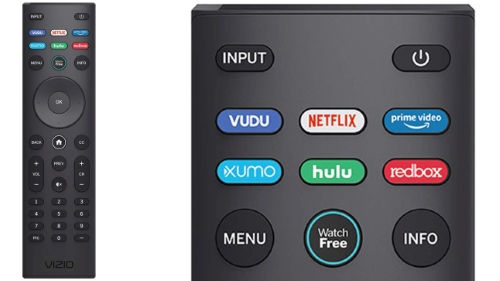
Press the Home button on your Sony remote and open the Apps, Your apps, or All Apps section. Look for the Netflix icon. On some Sony remotes, you can also press the dedicated Netflix button to launch the app directly. If Netflix is already listed, select it and move on to signing in. There is no need to reinstall an app that is already working normally.
Step 2 Install Netflix if It Isn't Available
If your Sony TV has the Google Play Store, open it from the Apps screen and search for Netflix. Select the official Netflix app and choose Install or Download. Once the installation is complete, select Open to launch Netflix.
If your Sony TV does not have the Google Play Store, especially for Sony models built before 2015. Check the Video, All Apps, or similar section for Netflix rather than assuming the app needs to be downloaded from an app store.
Step 3 Sign In to Netflix on Your Sony TV
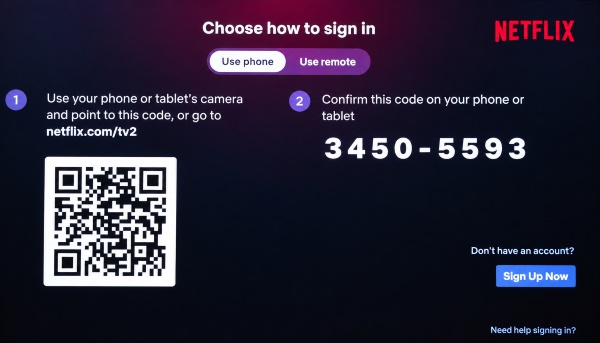
When you open Netflix, select Sign In. Depending on your TV and the current Netflix app, you may see more than one way to log in. After signing in, choose your Netflix profile. You can then browse the catalog, open a movie or show, and start watching Netflix on your Sony TV.
- Use your phone or tablet: If a QR code or sign-in code appears on the TV, scan the QR code with your phone or follow the on-screen instructions to confirm the code and sign in to your Netflix account.
- Use the remote: Select the option to sign in with the remote, then enter the email address or phone number and password associated with your Netflix account using the on-screen keyboard.
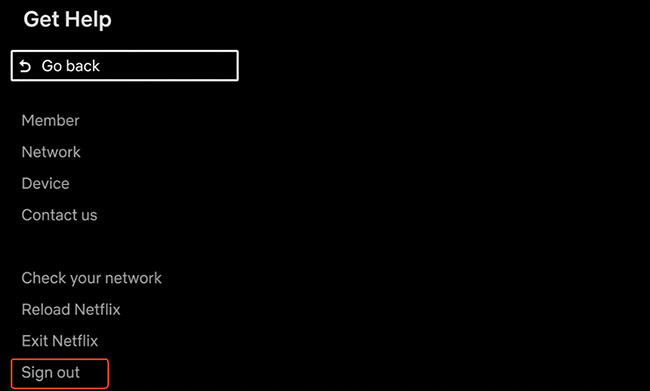
 How to Switch or Sign Out of Netflix on a Sony TV:
Need to use a different Netflix account? You usually need to sign out of the current Netflix account first. Open Netflix on your Sony TV, select Get Help from the menu. Choose Sign Out, confirm your choice, and then sign in with the new Netflix account. If you only want to exit Netflix on your Sony TV, simply press the Home button on the remote to leave the Netflix app and return to the TV's home screen.
Part 2. How to Watch Netflix on Older or Unsupported Sony TVs
Smart TV hardware eventually faces hardware deprecation as streaming applications adopt newer video codecs, higher encryption standards, and heavier graphical frameworks.
Compatibility Changes for 2015 Models
As of July 23, 2025, Netflix ended technical support for several 2015 Sony Bravia television lines due to technical limitations in their legacy hardware. If you own one of the following models, the native Netflix app will no longer open or stream video:
- KDL-32R500C
- KDL-40R510C and KDL-48R510C
- KDL-40R550C and KDL-48R550C
When launched on these models, the app typically displays a notification stating that the service is no longer compatible with the device. Fortunately, losing native app access does not mean you have to discard a perfectly functional display panel.
Method 1. Connect an External Streaming Device
The most practical hardware solution is connecting an external streaming media player to an available HDMI port.
- Options to consider: Devices like a Roku Streaming Stick, Amazon Fire Stick, Chromecast with Google TV, or Apple TV 4K.
- Why it helps: These dedicated streamers handle all video decoding and interface processing independently, bypassing the TV's aging processor.
Plug the stick into an HDMI input, connect it to your home Wi-Fi, and switch your TV input to that HDMI port. This approach effectively updates the interface of an older Sony TV without requiring a panel upgrade.
Method 2. Watch Netflix on Any Sony TV Offline via USB
If your Sony TV no longer supports the Netflix app or you want to avoid buffering issues caused by an unstable connection, saving Netflix videos for offline playback can be a practical alternative. Unlike the official Netflix download feature, which is limited to supported mobile devices and keeps videos inside the Netflix app, VidiKeep Streaming Video Downloader allows you to save Netflix content as MP4 or MKV files that you can move to a USB drive and play on compatible devices.
Step 1 Set the Download Format and Sign In to Netflix
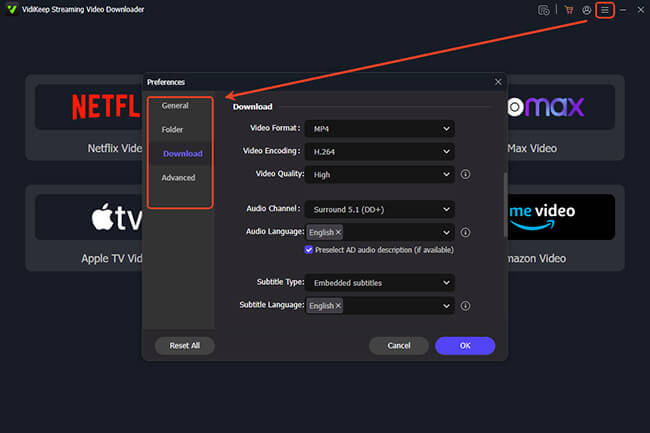
Open VidiKeep Streaming Video Downloader and go to Menu > Preferences > Download. Choose the output format to convert Netflix movies or shows to MP4 or MKV files, then adjust other options such as video quality and audio tracks based on your preferences. Next, selecting the Netflix icon and sign in with your Netflix account to access your library on the built-in web player.
Step 2 Choose the Netflix Movie or Show to Play on Sony TV
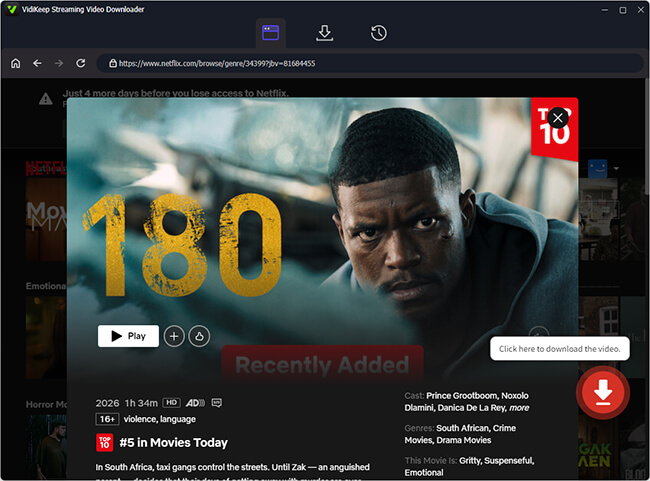
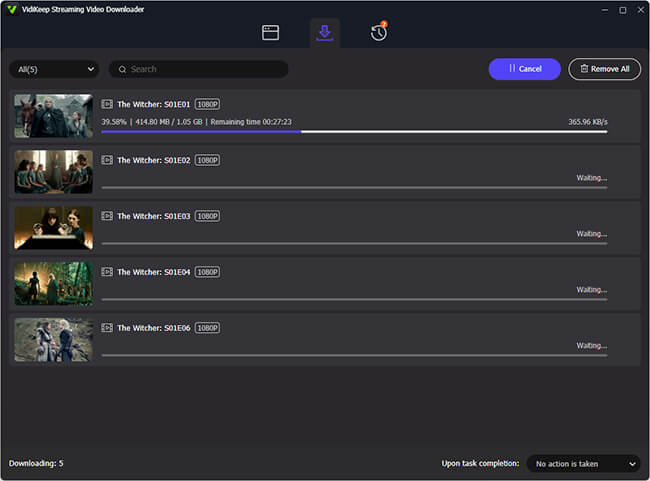
Search for the Netflix title or paste the URL of the movie or episode into the search bar. After the video loads, select the content you want to download. For TV series, you can choose multiple episodes at once instead of downloading them individually. Once everything is selected, click Download and wait for VidiKeep to save the videos to your computer.
Step 3 Transfer the Downloaded Netflix Files to a USB Drive
After the download finishes, locate the saved MP4 files on your computer and copy them to a USB flash drive. Because the videos are stored as local MP4/MKV files, you can move them between devices more easily.
Step 4 Play Netflix Videos on Your Sony TV
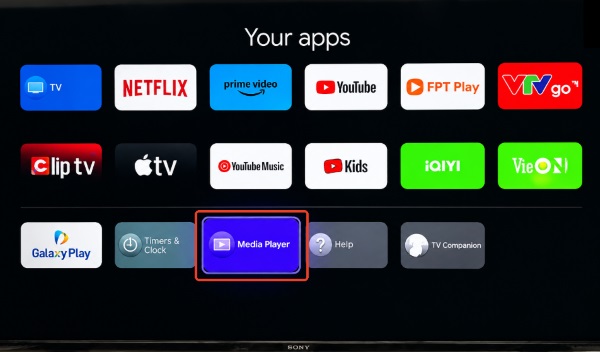
Insert the USB drive into your Sony TV's USB port and open the built-in Media Player app. Browse the USB storage, select the downloaded file from Netflix, and start playback. This method can be useful for older Sony BRAVIA TVs that no longer support the Netflix app, as well as situations where you want to watch content in areas with limited internet access.

Part 3. Troubleshooting: Netflix Not Working on a Sony TV
When Netflix stops working on a Sony TV, the problem can appear in several ways: the app may stay stuck on the loading screen, crash back to the Home screen, show a black screen, or fail to load content. These issues can be caused by a temporary network problem, outdated software, or corrupted app data. Start with the quick checks below and move on to more advanced fixes if the problem persists.
Quick Diagnostic: Netflix Stopped Working on Sony TV
| Problem | Likely Cause | Quick Fix |
|---|---|---|
| Black or blank screen | App cache issue or system glitch | Clear Netflix cache or restart your Sony TV |
| Netflix crashes back to the Home screen | Outdated app or corrupted files | Update or reinstall the Netflix app |
| Stuck on loading screen or Error 121 | Network connection problem | Restart your router and check the TV connection |
| Netflix won't open or shows "Device not supported" |
TV model compatibility issue | Check your Sony TV model or use an external streaming device |
Fix 1: Clear the Netflix App Cache
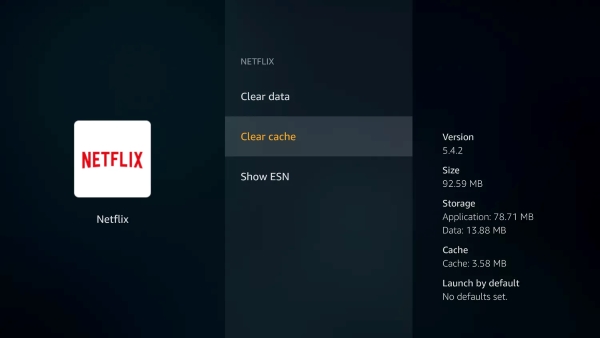
A bloated or corrupt cache is the single most common reason Netflix freezes or refuses to launch on Sony Android and Google TVs. Clearing the cache purges temporary files and cached thumbnails without erasing your saved account login credentials.
Step 1. Press the Home or Settings button on your Sony remote.
Step 2. Navigate to Settings > Apps > See all apps, and select Netflix from the list.
Step 3. Scroll down to select Clear cache, then confirm with OK.
Once cleared, relaunch the app from your home screen. In most cases of sluggish performance or frozen loading screens, this resolves the hang immediately.
Fix 2: Update or Reinstall the Application
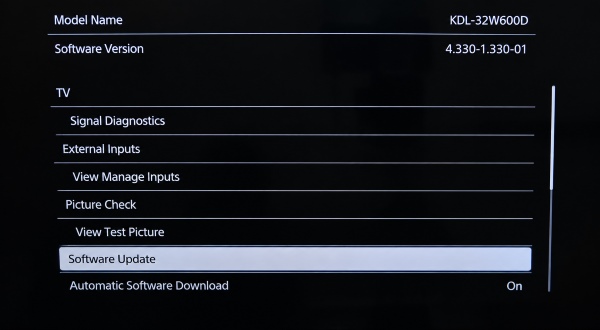
An outdated or damaged Netflix app can cause loading problems, crashes, or other unexpected behavior. Check for an update first; if that does not help, reinstall the app. On your Sony TV, open the Google Play Store, select your profile icon, and go to Manage apps and games. Find Netflix and select Update if an update is available.
If Netflix still crashes or fails to open, go to the TV's Apps settings and select Netflix. Choose Uninstall. Restart the TV, then reinstall or update Netflix from the Google Play Store.
Fix 3: Power Cycle the Sony TV (Soft Reset)
Putting your TV into standby mode using the remote control does not clear its active RAM. If an operating system process hangs in the background, only a full hardware power discharge will reset the system state.
Step 1. Turn off the TV, then disconnect the power cord directly from the wall outlet.
Step 2. Leave the TV unplugged for a minimum of 60 seconds.
Step 3. While still unplugged, press and hold the physical power button on the TV frame for 5 seconds to drain any residual capacitance.
Step 4. Plug the power cord back into the wall outlet and turn on the TV.
Fix 4: Restart Your Home Network and Router
A TV can appear connected to Wi-Fi while still having trouble reaching Netflix. This can result in endless loading, playback interruptions, or connection errors.
Unplug your modem and router, wait about 30 seconds, and plug them back in. Wait until your internet connection is restored, then try Netflix again.
If Netflix works inconsistently because of a weak Wi-Fi signal, move the router closer to the TV or connect the TV with an Ethernet cable if possible. You can also try switching between the available Wi-Fi bands to see whether the connection becomes more stable.
Part 4. Unlocking Netflix Calibrated Mode on Sony Bravia TV
If Netflix is already working normally on your Sony TV, you can take a few extra steps to fine-tune how movies and shows look. Netflix Calibrated Mode is available on select Sony BRAVIA models and is designed to bring the picture closer to the way Netflix content was mastered, with less emphasis on the bright, highly processed look often used in retail display modes.
Netflix Calibrated Mode vs. Standard Picture Settings
| Setting Feature | Default Standard Mode | Netflix Calibrated Mode |
|---|---|---|
| Color Temperature | Cool / Neutral | Warmer, closer to the intended reference white point |
| Motion Handling | Motion smoothing may be enabled | Designed to preserve the original cinematic motion |
| Dynamic Processing | May use additional contrast and picture enhancement | Uses a picture profile intended for Netflix content |
How to Turn On Netflix Calibrated Mode on a Sony TV
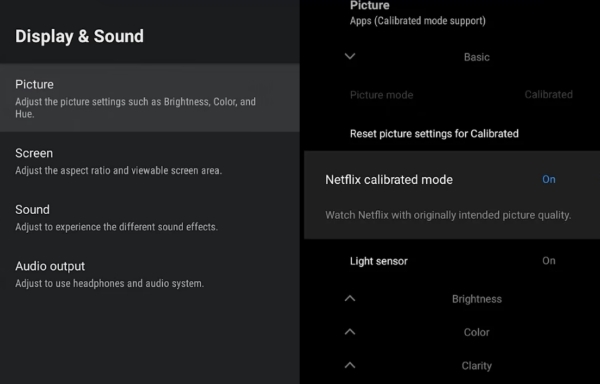
Step 1. Open the Netflix app on your compatible Sony TV and play a movie or TV show. Press the Quick Settings button on your Sony remote.
Step 2. Select Picture settings or the corresponding picture adjustment option. Look for Netflix Calibrated Mode in the available picture options. If your TV supports the feature, select it and switch it on.
Step 3. Check the picture in your viewing environment. Watch a few scenes with both darker and brighter areas to see how the change looks.
 Editor's Note:
Picture Brightness in Calibrated Mode: If Netflix Calibrated Mode looks dimmer than the picture settings you normally use, this can be expected. The mode is designed to preserve shadow detail and deliver a more accurate picture rather than maximize screen brightness. In a bright room, you may find the standard Cinema or Custom picture mode more comfortable for daytime viewing. For the most accurate results, try using Calibrated Mode in a dimly lit or light-controlled room.
Part 5. Conclusion
Getting Netflix on a Sony TV does not always require replacing your television. Newer BRAVIA models can usually access Netflix directly through built-in apps, while older unsupported models can continue streaming through external devices or alternative playback methods. By keeping your TV software updated, managing the Netflix app properly, and choosing the right solution for your model, you can enjoy Netflix on your Sony TV with fewer interruptions.

Jordan Rhodes is a Chief Technical Editor and Media Specialist at VidiKeep, specializing in creating diverse tech content, including streaming tutorials, software reviews, and video encoding tips.
Leave a Comment