How to Watch Netflix on Echo Show: Compatibility & Fixes
When I first set up an Amazon Echo Show, I wondered how convenient it would be to watch my favorite shows while doing other things around the house. Naturally, one of my first questions was: Can I watch Netflix on an Echo Show? As I looked into the available options, I found that the answer depends on the model and its features.
In this guide, I'll walk you through how to set up Netflix on supported Echo Show devices, share a few alternatives for models without native Netflix support, and explain how to troubleshoot common playback issues if Netflix stops working.
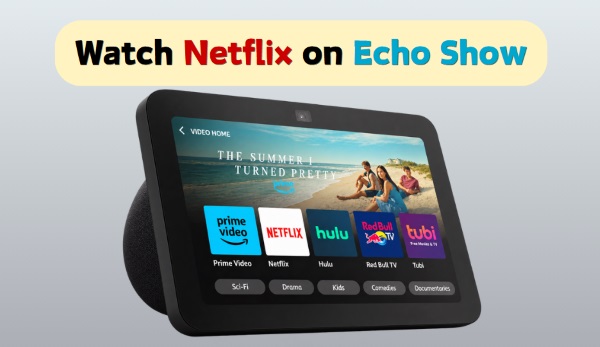
Part 1. Can You Watch Netflix on Echo Show?
In short: Some Echo Show devices support watching Netflix natively, but the specific method to access it depends heavily on the model, generation, and software environment. While the larger, newer screens act almost like fully-fledged smart TVs, some of the more compact or specific generational models have a restricted software ecosystem.
Echo Show Compatibility Guide: How Can You Watch Netflix on?
To figure out if you can play Netflix on your Amazon Echo Show right out of the box, I’ve put together this quick compatibility table. I highly recommend checking this before you start shouting commands at Alexa.
| Echo Show Model | Native Netflix App | Fire TV Interface | Recommended Method |
|---|---|---|---|
| Echo Show (1st & 2nd Gen) | Yes | No | Video Home Screen / Voice |
| Echo Show 5 (1st & 2nd Gen) | Yes | No | Video Home Screen / Voice |
| Echo Show 5 (3rd Gen) | No | No | Alternative Workarounds |
| Echo Show 8 (All Gens) | Yes | No | Video Home Screen / Voice |
| Echo Show 10 (All Gens) | Yes | No | Video Home Screen / Voice |
| Echo Show 15 & 21 | Yes | Built-in Fire TV | Fire TV App / Remote |
 How to Check Your Echo Show Model and Software Version:
If you aren't sure whether you bought an Echo Show 8 2nd generation or a 3rd generation, you can verify your specific model in seconds. Swipe down from the top edge of your smart display, tap Settings > Device Options, and tap About. Your Echo Show model and generation will be displayed right there.
Part 2. How to Set Up Netflix on a Compatible Echo Show
If your smart display is listed as fully supported in the table above, getting your streaming media up and running is incredibly straightforward. Here is the process I use depending on the device size.
Method 1. Watch Netflix on Compatible Echo Show Models
If you are trying to stream on a mid-sized display like the Echo Show 8 or Echo Show 10, these devices bypass the Fire TV menu for a more simplified, touch-friendly interface.
- From the Echo Show Home Screen: Swipe down from the top of the screen to open the quick settings panel, then tap Video to access the available video services. Find and select the Netflix icon to open the app. If this is your first time using Netflix on the device, follow the on-screen instructions to enter your Netflix account details. Once signed in, you can browse the available titles and start watching.
- Alexa Voice Commands: This is my personal favorite method. Say "Alexa, open Netflix" on a supported device. Once your account is linked, you can bypass menus entirely by saying, "Alexa, play The Crown on Netflix."
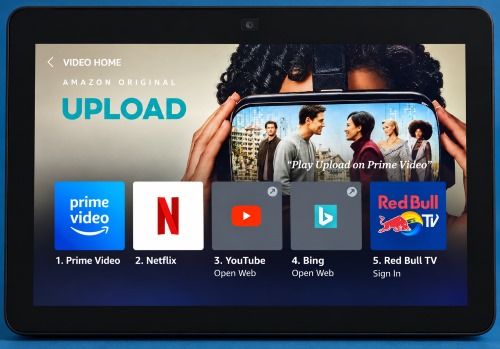
Method 2. Watch Netflix on Echo Show 15 and 21 with Built-In Fire TV
Because these larger, wall-mountable displays run the complete Fire TV operating system, learning how to get Netflix on an Echo Show 15 feels exactly like using a standard Fire TV Stick in your living room.
Step 1. Set up the Fire TV interface on your Echo Show if you haven't already done so during your initial device boot-up.
Step 2. Open the Fire TV interface using the on-screen home widget or a supported Alexa voice command (for instance, just say, "Alexa, open Fire TV").
Step 3. Locate Netflix among the available apps on the dashboard, or use the search function to find and install it from the Appstore.
Step 4. Sign in to your Netflix account with your email and password, pick your profile, and start watching.
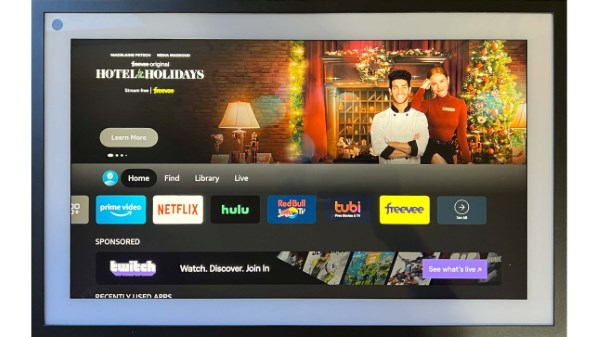
 Control Netflix with a Remote:
If using the touchscreen is inconvenient, you can consider pairing a compatible Alexa Voice Remote. Alternatively, you can utilize the virtual remote control feature within the Fire TV mobile app on your phone.
Part 3. How to Watch Videos on Echo Show Models Without Native Netflix Support
If your Echo Show doesn't support the native Netflix app, you may need to consider other ways to watch video content. For example, the Echo Show 5 (3rd generation) isn't included in Netflix's official list of supported models. Before exploring alternatives, it's also worth understanding the limitations of Netflix on Echo Show. Even on supported models, the viewing experience differs from watching Netflix on a Mac/ Windows computer or TV.
Even when using supported devices, I've noticed a few inherent hardware and software constraints:
- Offline downloads: The Netflix app on Echo Show does not support official offline downloads. You cannot save episodes directly to the device's internal storage.
- Video quality: Native Netflix playback on Echo Show is limited to a maximum resolution of 540p (SD). Because of strict digital rights management (DRM), it does not support 4K or HDR.
Alternative: Watch Downloaded Videos Using VidiKeep and Dropbox
When I realized I couldn't simply ask Alexa to launch Netflix on my newest Echo Show 5, I had to get creative. If you wish to play your own personal video files on an Echo Show, you can explore using a combination of VidiKeep, Dropbox, and compatible Alexa video-playback skills. By using VidiKeep Streaming Video Downloader on your desktop computer, you can legally download your favorite titles as widely compatible MP4 files. Here is the workflow I use:
Step 1 Install VidiKeep and Configure Output Settings
Download and launch VidiKeep Streaming Video Downloader on your PC or Mac. Open "Menu > Preferences > Download" to review the available output settings. Choose MP4 or MKV and adjust the video quality, audio, and other options to suit your playback needs. Next, select Netflix from the supported streaming platforms and sign in to your account.
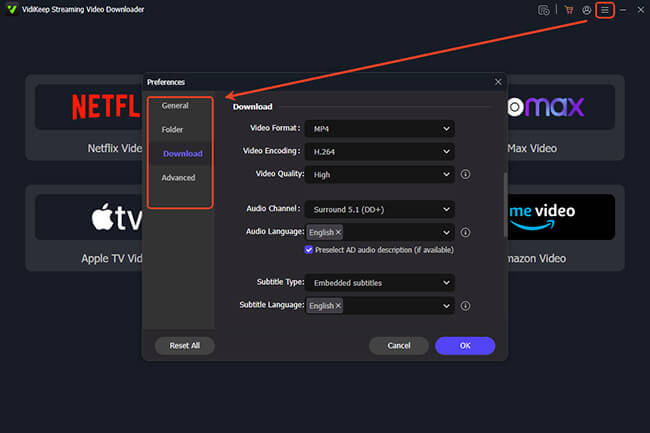
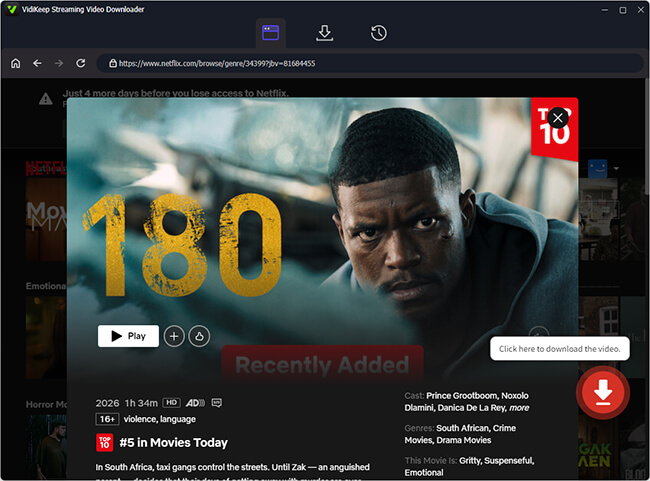
Step 2 Select and Download Your Videos
Browse the available titles in Netflix and select the movies or episodes you want to watch later. Click "Download" to add your selections to the download queue. Before proceeding, check that your chosen output format and quality settings are correct.
Step 3 Upload the Video Files to Dropbox
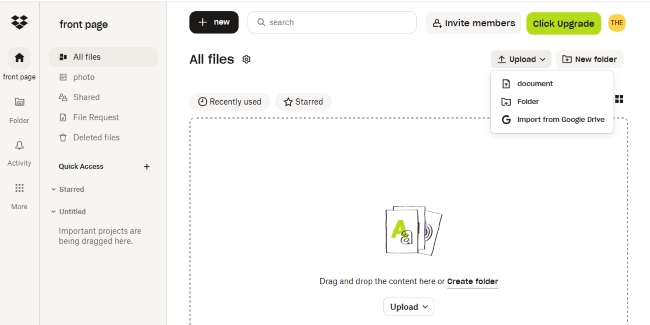
Once the downloads are complete, locate the resulting video files on your computer. Sign in to your personal Dropbox account through the website or desktop app, then tap "Upload" to add the Video files. Wait for the upload to finish before moving on. Keep in mind that Dropbox storage limits may apply, especially if you upload several large video files.
Step 4 Set Up My Video on Your Echo Show
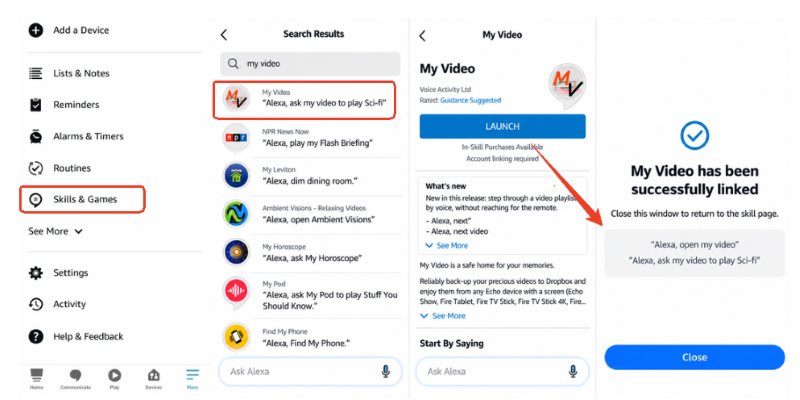
Open the Alexa app on your smartphone and search for the My Video from the "Skills & Games". If the skill is available and compatible with your device, enable it and follow its instructions to link your Dropbox account. Then try saying, "Alexa, ask My Video to play [Video Name]."
 Tips for a Better Viewing Experience on Echo Show:
In my experience, the Echo Show is best suited for short viewing sessions—such as in the kitchen, on a nightstand, or at a desk—rather than for a high-resolution, large-screen home theater experience.

Part 4. How to Fix Netflix Not Working on Echo Show
If Netflix stops working on your Echo Show 8 or disappears from the screen, start by checking the device software and playback method. The following fixes cover the most common issues without unnecessary steps.
Fix 1. Restart Your Echo Show and Check for Updates
Unplug your Echo Show, wait 30 seconds, and reconnect it. Once it restarts, swipe down from the top of the screen and open Settings > Device Options > Check for Software Updates, if available. Install any updates and try Netflix again. Menu names may vary by model.
Fix 2. Check Netflix Access and Alexa Commands
If Netflix won't open, check whether it appears in the Video menu or Fire TV interface, depending on your device. Confirm your internet connection and Netflix sign-in details. If Alexa doesn't respond to Netflix commands, try opening the app manually to determine whether the issue affects voice control or playback itself.
Fix 3. Try Netflix in the Silk Browser
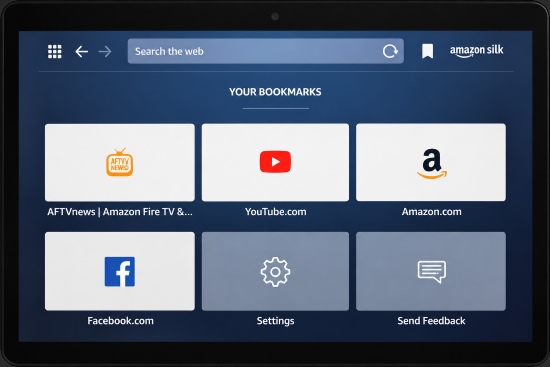
If your Echo Show supports the Silk browser, visit Netflix.com and try signing in. Browser playback is not guaranteed on every model, and it may not work as an alternative to the native app. The Echo Show 5 (3rd generation), for example, is not included in Netflix's published native-app compatibility list.
Fix 4. Troubleshoot a Missing Netflix Icon
If Netflix disappears after a software update, restart the device and check for updates first. On compatible models, look for Netflix in the Video menu; on the Echo Show 15 or 21, check the Fire TV interface.
If the issue began after enabling Alexa+ or an Early Access feature, verify whether Amazon has documented a related issue for your device and software version. Do not assume that leaving Early Access will restore Netflix unless a confirmed fix specifically recommends it.
Part 5. Summary
For supported Echo Show devices, you can choose between the built-in Fire TV interface or the native "Video" menu for quick streaming. For compact devices that do not support Netflix directly, consider using a web browser or an alternative supported streaming method—like using VidiKeep to download your media and streaming it via Dropbox. If the app is missing, fails to play content, or voice commands are not working, follow the troubleshooting steps specific to the issue you are experiencing to get your smart display back in working order.

Jordan Rhodes is a Chief Technical Editor and Media Specialist at VidiKeep, specializing in creating diverse tech content, including streaming tutorials, software reviews, and video encoding tips.
Leave a Comment