How to Watch Netflix on TCL TV (Full Guide)
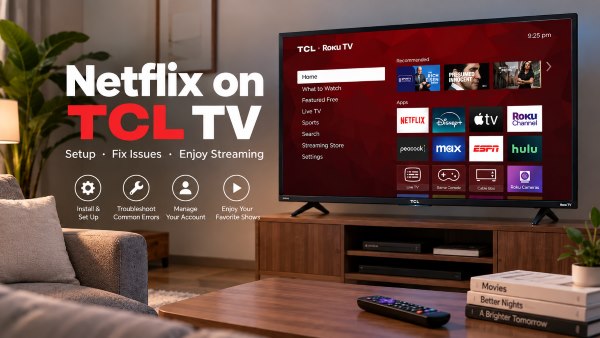
Most TCL TVs run either Roku or Google TV, both of which support Netflix right out of the box. Still, figuring out how to fix a frozen screen can be tricky. Here is a practical walkthrough for watching Netflix on your TCL TV and resolving common streaming issues.
Part 1. How to Get and Set Up Netflix on Your TCL TV
Many modern TCL TVs come with Netflix pre-installed, so check your home screen or remote for the app before downloading it. If you can't find Netflix, you can install it from the TV's app store. The steps vary by operating system. Below, we'll walk you through how to get Netflix on TCL Roku TV and TCL Google TV.
For TCL Roku TV:
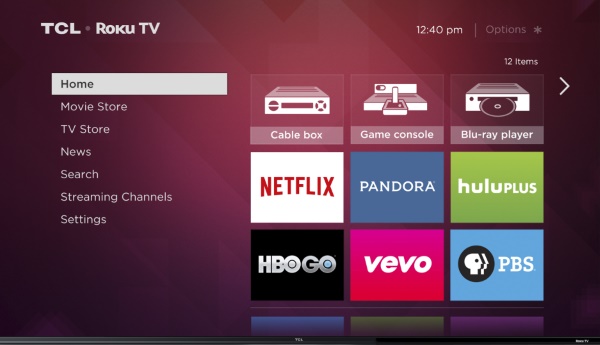
Roku operates its own digital storefront called the Streaming Channels store. Adding the application only takes a few moments.
Step 1. Press the Home button on your Roku remote to reach the main dashboard.
Step 2. Scroll down the left-hand menu and select "Search" or open "Streaming Channels."
Step 3. Type "Netflix" into the search bar, select the official application, and click "Add Channel" to install it.
For TCL Google or Android TV:
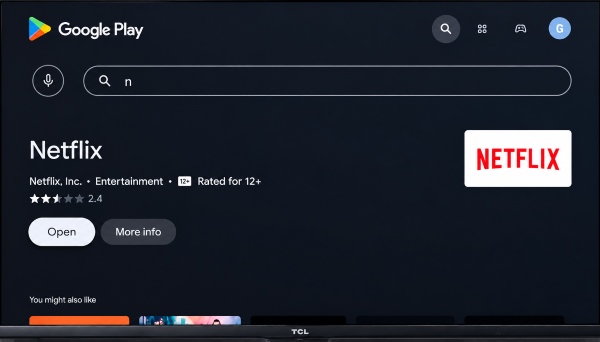
Google TV models rely on the Google Play Store for all application management. You will need to be logged into a Google account to download new software.
Step 1. Navigate to the "Apps" tab located near the top of your television's home screen.
Step 2. Open the Google Play Store and use the search function to look for Netflix.
Step 3. Select the application from the search results and choose "Install" to add it to your library.
 How to Watch Netflix in 4K or HDR on TCL TV:
Netflix supports Ultra HD and HDR on select TCL TVs. For 4K or HDR streaming, you need a compatible TCL TV and Netflix plan, a stable internet connection of at least 15 Mbps, and Netflix playback quality set to Auto or High. HDR also requires TV support for Dolby Vision or HDR10.
Part 2. How to Log Out or Sign Out of Netflix on TCL TV
Knowing how to log out of Netflix on a TCL TV is necessary when you want to change your Netflix account, switch user profiles, or reset a faulty connection. The sign-out option is tucked away inside a secondary settings menu, which can be easy to miss.
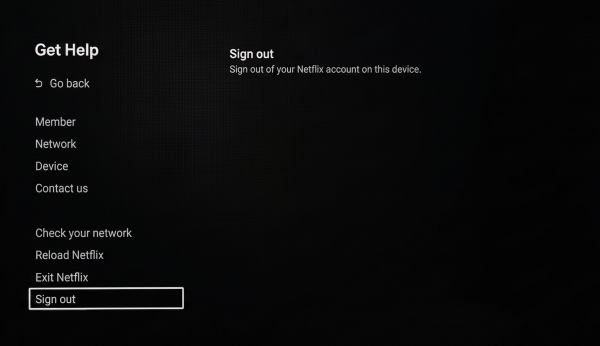
Step 1. Open the Netflix application and press the left directional arrow on your remote to reveal the side navigation menu.
Step 2. Scroll to the very bottom of this menu and select "Get Help". Then choose "Sign Out" and confirm your choice to remove the current profile.
 Editor's Note:
If the application is unresponsive and you cannot access the side menu, you can force the sign-out screen to appear using a specific remote code. Use your remote's directional pad to press: Up, Up, Down, Down, Left, Right, Left, Right, Up, Up, Up, Up. This hidden sequence prompts a diagnostic menu allowing you to sign out, start over, or deactivate the software.
Part 3. Troubleshooting: Fix Netflix Not Working, Crashing, or Freezing
When Netflix is not working on your TCL smart TV, the underlying cause is typically related to basic network connectivity or temporary software glitches. Regular maintenance can resolve most of these headaches.
Here is a quick reference guide for common problems and their most effective immediate fixes.
| Problem | Try This First |
|---|---|
| Netflix keeps loading or lagging | Test Wi-Fi and restart the router |
| Netflix keeps crashing | Update the app, clear cache/data, and reinstall |
| Netflix is frozen | Power cycle the TCL TV |
| Netflix keeps kicking you out | Sign out and sign back in, then reinstall |
| TCL TV can't reliably stream Netflix | Consider Netflix local playback method -- Part 4 |
1. Netflix Not Loading or Running Slowly
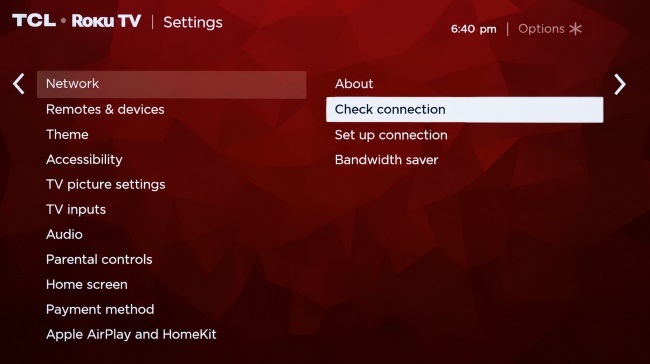
If Netflix is slow on your TCL Roku TV or gets stuck indefinitely on the red loading logo, poor network connectivity is the most common culprit. The same troubleshooting steps apply if Netflix is not working properly on a TCL Google TV or Android TV model; streaming high-definition video requires a stable Wi-Fi signal. Test your internet connection in the TV settings to ensure the signal strength is strong enough. If the connection drops frequently, unplug your wireless router for 30 seconds and plug it back in to refresh the home network.
2. Netflix Keeps Crashing or Closing
If Netflix repeatedly crashes, closes by itself, or sends you back to the TCL home screen, the problem may come from temporary app data, an outdated app or TV system, or an issue with the current installation. Rather than immediately reinstalling Netflix, start with the least disruptive fixes first. Updating the app and clearing its available cache can often refresh the app without removing your account or other settings.
For TCL Roku TV:
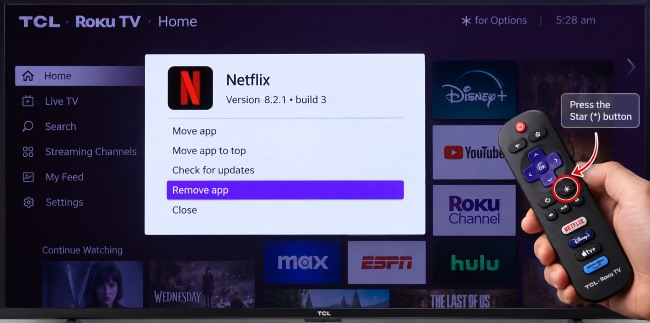
On Roku TV, there isn't a separate Netflix cache button like there is on Google TV. Instead, removing and reinstalling the Netflix channel provides a fresh app installation and can help clear repeated crashes on TCL Roku TV.
Step 1. From the Roku home screen, highlight Netflix, press the Star (*) button, and select Remove channel.
Step 2. Restart the TV, then open the Streaming Store, find Netflix, and select Add channel to reinstall it.
For TCL Google TV:
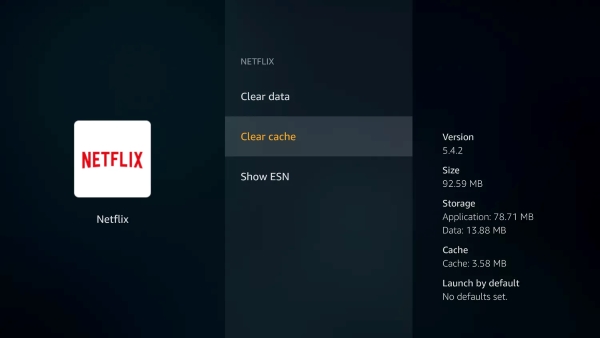
Google TV provides more direct controls for individual apps, so you can clear Netflix's temporary cache before resorting to a complete reinstall. This is a useful first step if Netflix suddenly started crashing or closing after previously working normally.
Step 1. Go to Settings → Apps → See all apps → Netflix → Storage & cache, then select Clear cache.
Step 2. If Netflix still crashes, return to the Netflix app settings, select Clear data or Uninstall, then reinstall Netflix from the Google Play Store.
3. Netflix Is Frozen or Shows a Black Screen
When your TCL TV freezes on Netflix or displays a persistent black screen with no audio, standard remote commands might stop working. If the TV is completely frozen or the screen remains black, a power cycle can help clear a temporary system state.
Step 1. Unplug the TV's power cord directly from the wall outlet or power strip.
Step 2. Hold down the physical power button on the TV chassis for about 15 seconds to drain any residual electrical charge.
Step 3. Wait one full minute before plugging the cord back in and turning the screen back on.
4. Netflix Keeps Kicking You Out
If the Netflix app repeatedly kicks you back to the TCL home screen, closes unexpectedly during playback, or constantly asks you to sign in, the issue usually stems from corrupted temporary data or a glitch in your account session.
First, try completely signing out of your Netflix account and then signing back in to refresh your session. If the application continues to close on its own, restart your television and check the system settings to ensure both the Netflix app and your TCL TV firmware are fully updated. Should the problem persist, you may need to follow the cache-clearing or reinstallation steps mentioned above to remove any corrupted installation files.
If Netflix seems to open entirely on its own while you are using the television, check your remote control. A stuck or dirty dedicated Netflix shortcut button can constantly send unwanted launch commands to the television.
Part 4. How to Watch Netflix Without Relying on the TCL Netflix App
If you have already tried the troubleshooting steps above but Netflix still does not work reliably on your TCL TV, another option is to download supported Netflix content for local playback. This can be useful when you want to avoid repeated buffering or rely less on the TV's built-in Netflix app.
VidiKeep Streaming Video Downloader is designed to save Netflix videos to a computer for offline playback. Instead of dealing with buffering or an app that constantly crashes on your TV, you can save the Netflix content locally. Once the video has been saved, you can transfer the Netflix file to a USB drive and try playing it through a compatible TCL TV media player.
Here is why this method provides a practical alternative to streaming directly:
- Flexible Local Playback: Instead of battling TCL TV Wi-Fi drops or app crashes, safely download Netflix videos to your computer. You gain ad-free offline access without worrying about strict expiration limits.
- High-Quality Output: Batch download full Netflix seasons into universally compatible 1080p MP4 or MKV formats. It preserves multilingual audio and subtitles, guaranteeing a cinematic viewing experience on your TCL TV.
- Bypass the Glitchy TV App: Transfer your downloaded movies to a USB flash drive, eliminating freezing, buffering, and random crashes.
Step 1 Set Up Netflix Video Settings and Log In
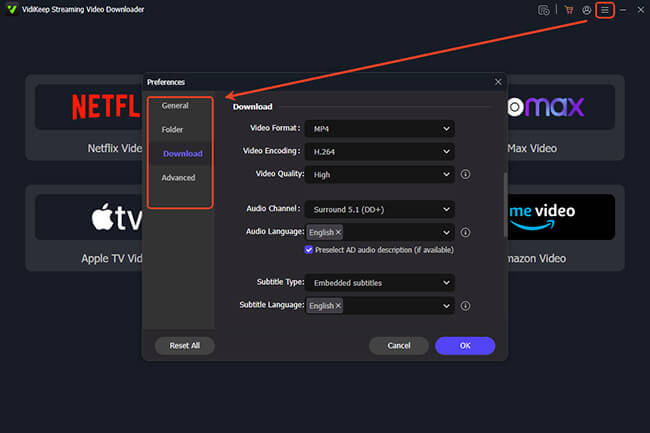
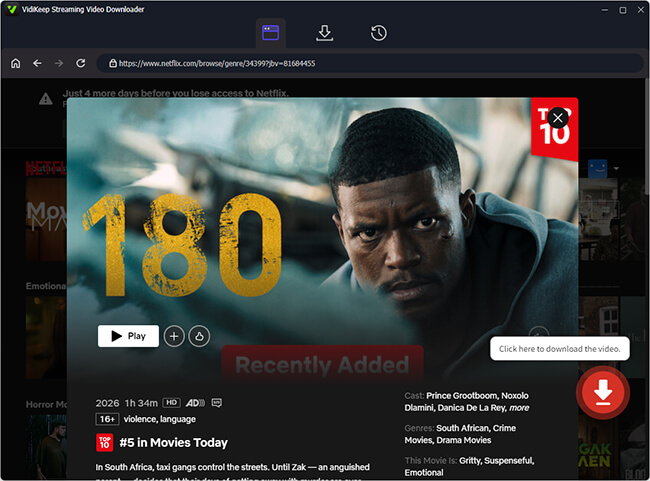
Launch VidiKeep Streaming Video Downloader and navigate to Menu > Preferences > Download. Choose your preferred format (MP4 or MKV), resolution, audio track, and subtitle language. Next, open the Netflix tab within the software and log in to your account to access your streaming library.
Step 2 Download Movies or Full TV Seasons from Netflix
Use the built-in search bar to find the title you want, or paste the video link directly. For TV shows, you can batch-select entire seasons at once rather than downloading episodes individually. Click the Download button to save high-definition video files straight to your computer.
Step 3 Play Netflix Offline on Your TCL TV via USB
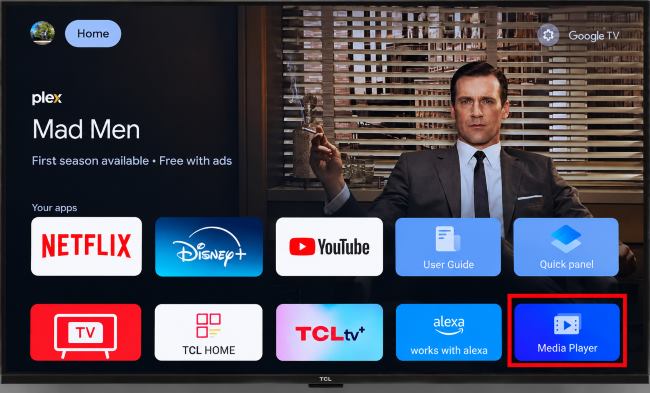
Transfer the downloaded files to a standard USB flash drive and plug it into your television. Open the TCL TV's built-in Media Player, navigate to your USB storage, and start playback. It is a reliable way to watch Netflix on a TCL smart TV without worrying about Wi-Fi drops, buffering, or the TCL TV Netflix app not working.
Part 5. Conclusion
Taking a few minutes to learn your television's interface can save a lot of frustration during movie night. By familiarizing yourself with the cache-clearing procedures and knowing how to perform a proper power cycle, you can keep your streaming environment running efficiently.

Jordan Rhodes is a Chief Technical Editor and Media Specialist at VidiKeep, specializing in creating diverse tech content, including streaming tutorials, software reviews, and video encoding tips.
Leave a Comment