How to Download and Watch Netflix on Chromebook via 3 Ways
I'm used to using the Netflix apps on my tablet. I'm planning to get a new Chromebook but I'm confused about how Netflix works on ChromeOS. I was wondering if Chromebooks allow you to install the actual Netflix apps (from the Play Store) or if you are forced to watch everything through the Chrome browser?
If you recently picked up a new laptop running Chrome OS, figuring out how to watch Netflix on a Chromebook is usually one of the very first tasks. Whether you are taking a break between classes on campus, relaxing at home, or preparing for a long flight, getting Netflix on a Chromebook should be completely frictionless. In this guide, we'll walk you through the exact methods of watching Netflix, including using the Netflix Android app, downloading content for offline viewing, streaming online, playing offline via the built-in media player, even at school, and providing troubleshooting tips.
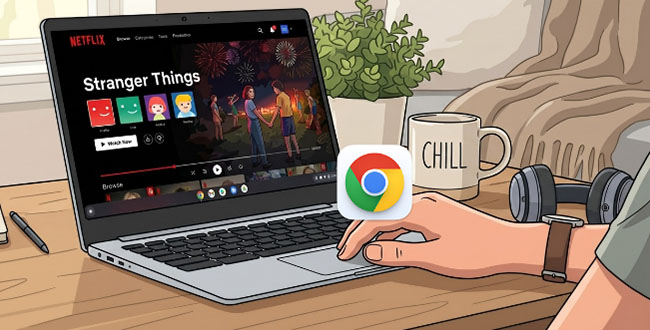
Part 1. How to Watch Netflix on Chromebook Offline via Netflix Android App
For the vast majority of modern Chrome OS users, downloading the official Android application from Google Play Store is the optimal path. This approach provides a dedicated interface that feels incredibly responsive and mirrors the experience you get on a smartphone or tablet.
Download and Install Netflix App for Chromebook:
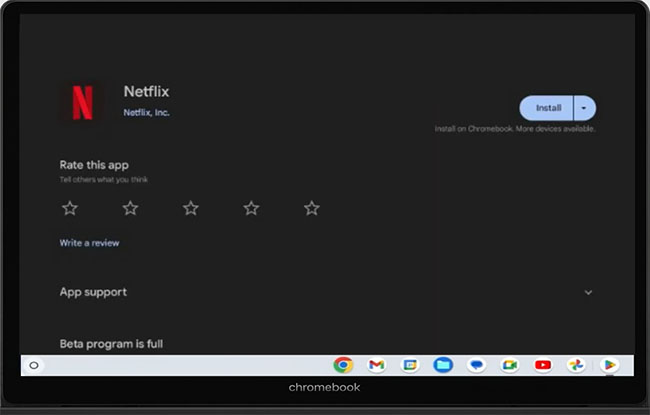
Step 1. On your Chromebook, open the Google Play Store and use the search bar to find the Netflix app.
Step 2. Click the Install button to download the app. Once the installation is complete, run the app from your apps list.
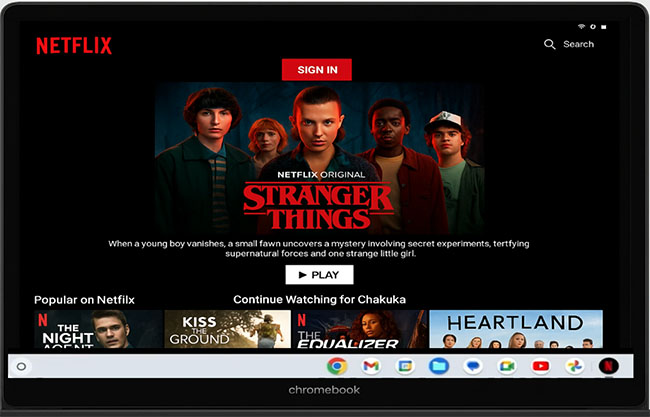
Step 3. Here, you can tap the Sign In button to enter your Netflix credentials and start streaming Netflix on Chromebook.
Download Netflix Movies on Chromebook for Offline Viewing
One of the great features of the Netflix app on Chromebook is the ability to download movies from Netflix on Chromebook for offline viewing. This is perfect for users who want to watch Netflix without using data or when there is no Wi-Fi connection available.
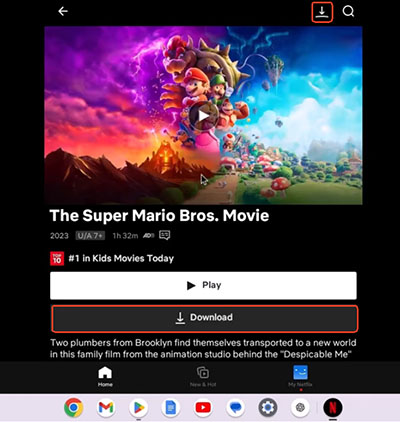
Step 1. Make sure you have the Netflix app installed on your Chromebook. Browse Netflix for content you want to download, such as a movie or TV show.
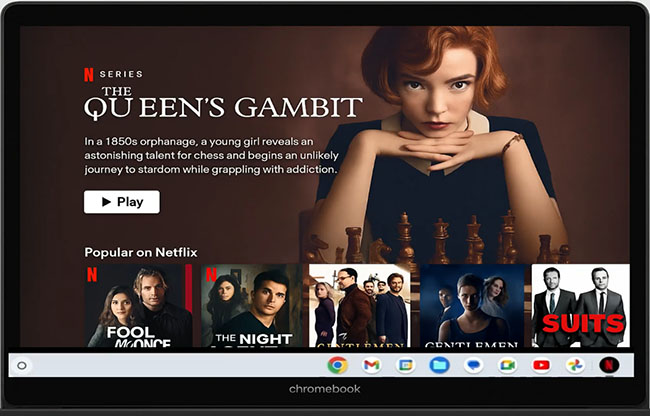
Step 2. Look for and tap the Download icon (usually a downward arrow) next to the movie or episode you want to save.
Step 3. Once the Netflix movies or episodes is downloaded, you can access it in the Downloads section of the Netflix app, even when offline.
 Pros:
Pros:
- Better performance: The app is generally more stable and optimized for streaming compared to the browser.
- Offline viewing: The app allows you to download Netflix movies and TV shows on Chromebook for offline watching, ideal for school, travel, or areas with poor internet access.
- Save data: You can download content while connected to Wi-Fi and avoid using cellular data when you're out and about.
 Cons:
Cons:
- Google Play Store support: Not all Chromebooks support the Google Play Store, so ensure your device is compatible.
- Storage space: If you plan to download Netflix shows for offline viewing, make sure your Chromebook has sufficient storage.
- Download expiration: Downloaded shows or movies may expire after 30 days, or once you start watching, depending on the title.
Part 2. How to Play Netflix on Chromebook via Web Browser
Not every device has access to the Google Play Store, especially if you are using an older model issued by a school or workplace. In these situations, playing Netflix on a Chromebook via the web browser is the perfect fallback. This method requires zero installation and taps directly into the hardware acceleration capabilities of your browser to deliver smooth playback. It is the fastest way to jump straight into a movie without altering your system.
Stream Netflix on Chromebook Online Via a Browser
Step 1. On your Chromebook, launch the Chrome browser and navigate to the official Netflix website.
Step 2. Log in to your Netflix account (email and password) and browse the catalog and pick your movie or TV show.
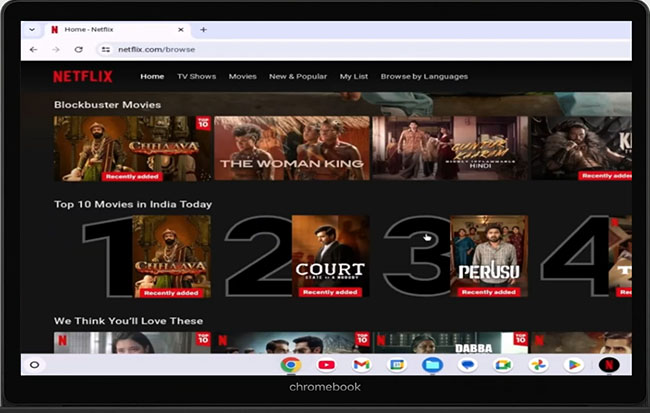
Step 3. Click the Play button to start streaming your chosen Netflix content on Chromebook.
How to Pin the Netflix Web Version as a PWA
Step 1. Open the Google Chrome browser on your Chromebook and navigate to the official Netflix website.
Step 2. Click on the three-dot menu icon (More tools/Customize and control) in the top-right corner of the browser window.
Step 3. Hover over Save and share or More tools (depending on the ChromeOS version) and select Create shortcut....
Step 4. In the pop-up box, type "Netflix" as the name, and crucially, check the box that says "Open as window". This forces Chrome to launch Netflix without the standard browser UI (tabs and address bar), giving it a native app feel.
Step 5. Click Create. The Netflix PWA will launch automatically. To pin it permanently, look down at your Chromebook's shelf (taskbar), right-click (or two-finger tap) the newly opened Netflix icon, and select Pin.
Pros:
- No installation needed: You don't need to download anything, saving storage space.
- Easy and quick setup: As long as you have a reliable internet connection, you can start watching right away.
Cons:
- Streaming quality: Browser streaming might not offer the same performance as the Netflix app, especially on lower-end Chromebooks.
- Buffering issues: If your internet connection is unstable, you may experience occasional buffering.
Part 3. How to Download and Watch Netflix on School Chromebook Offline
Many students find that school-issued devices come with strict administrative blocks that prevent the installation of the Netflix app for Chromebook or access to the website. To bypass these restrictions and ensure you can watch your favorite shows during breaks or on the bus, using VidiKeep Netflix Video Downloader is a highly effective alternative.
This software allows you to download Netflix movies and TV shows as MP4 or MKV files, which can then be played directly using the built-in media player on your Chromebook. It makes offline viewing easy and hassle-free. Besides, this tool also works with Disney+, Hulu, Apple TV, Amazon Prime Video, and HBOMax, which allows you to play all streaming videos on Chromebook offline.

Download Netflix movies and TV shows in MP4 or MKV format at 7X speed with zero quality loss, and enjoy offline viewing on any device, no Netflix subscription required.
 Secure Download
Download Movies on Netflix for Chromebook
Step 1. Install the VidiKeep Netflix Video Downloader on a personal Windows or Mac computer, as the downloader software itself cannot be installed directly onto Chrome OS.
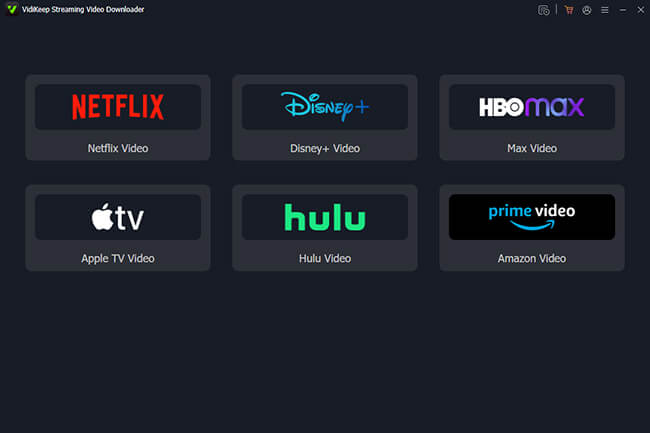
Step 2. Launch the program and tap the Netflix icon to access to its built-in Netflix Web Player. Sign in to your account and search for the movie or TV show you wish to save.
Step 3. Tap the small Download icon to load them and choose the video quality (e.g., 1080p) and audio tracks (e.g., English) for the download.
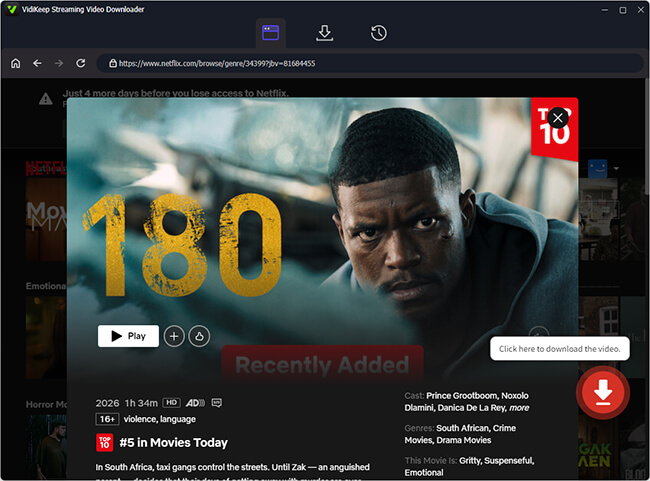
Step 4. Click the Download button to save the Netflix file to your computer; once finished, transfer the MP4 file to a USB flash drive. And then, you can sync Netflix videos to your Chromebook via the USB port.
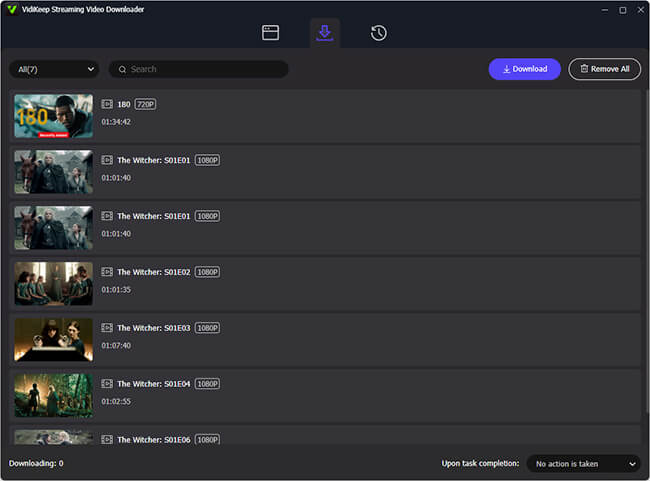
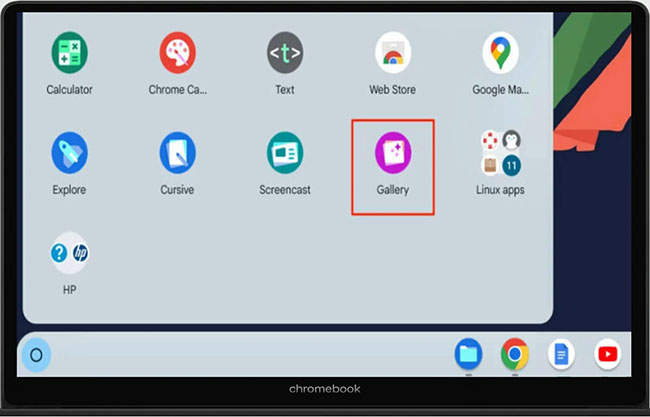
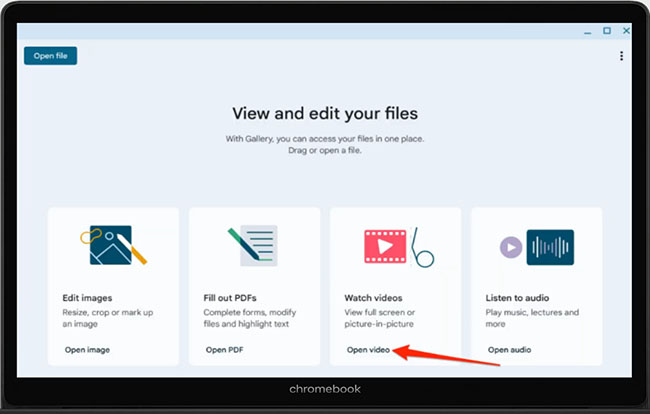
Step 5. On your school Chromebook, open the Gallery app and click the open video option under the watch videos section.
Step 6. Here, you can locate the unblocked Netflix files you transferred from your computer and double-click it to play the video offline at school, on the bus, or anywhere without an internet connection!
Pros:
- No Need for Netflix App: If your school Chromebook doesn't allow app installations, VidiKeep enables you to download Netflix content without needing the Netflix app.
- Compatible Formats: Downloaded videos are in MP4 or MKV, which are supported by the built-in media player on your Chromebook.
- Customizable Quality: VidiKeep allows you to choose the resolution and audio settings, so you can get the best experience based on your preferences.
- Offline Viewing Anytime: Once downloaded, the content can be watched offline without worrying about Wi-Fi access or data usage.
Cons:
- Free Limits: Free version has a three-minute length converison limitation. You have to upgrade to the full version to remove it.
- School Policies: Always be aware of your school's policy regarding downloading software or transferring files to school-issued devices.
 Disclaimer:
Downloading Netflix content through third-party software like VidiKeep should be for personal, offline use only. Make sure to comply with Netflix's terms of service and copyright laws when downloading and watching content.
Part 4. Troubleshooting: Netflix Not Working on Chromebook
Even with a strong, stable internet connection, you might encounter occasional technical glitches when trying to stream Netflix video on Chrome OS. Digital rights management (DRM) conflicts or outdated system software are frequently the culprits behind poor resolution or strange playback bugs. Thankfully, most of these problems can be resolved with a few simple adjustments to your system settings.
1. Playback Issues (Buffering, Black Screen, No Audio):
- Clear cache: If you're using the browser, clearing your browser cache can help resolve playback issues.
- Update your browser: Ensure your browser is up to date for the best streaming performance.
- Check your internet connection: Make sure your internet speed meets the requirements for streaming (5 Mbps for HD, 25 Mbps for Ultra HD).
- Check Chrome settings: Open your Chrome browser settings, search for "hardware acceleration," and toggle the feature off before restarting your browser.
2. Netflix App Not Installing on Chromebook
- Check Play Store compatibility: If the Netflix app is not showing up or isn't installing, ensure your Chromebook supports the Google Play Store.
- Update Chrome OS: Make sure your Chromebook is running the latest version of Chrome OS to avoid compatibility issues.
Part 5. FAQs about Getting Netflix on Chromebook
Can I watch in 4K resolution on Chrome OS?
Currently, the maximum resolution you can achieve when streaming through the Chrome browser or the Android app on these devices is typically 1080p (Full HD). This is due to hardware and digital rights management (DRM) configurations inherent to the operating system.
Why is the Netflix app not showing up in my Play Store?
If your device is managed by an administrator or a school district, they may have restricted access to entertainment applications. Additionally, extremely old devices running outdated versions of the operating system might no longer support the latest app updates.
Part 6. In Conclusion
Watching Netflix on a Chromebook is a simple and enjoyable experience, whether you choose to stream directly in a browser, install the Netflix app, or play offline via built-in media player. For the best experience, consider downloading Netflix movies and shows on Chromebook via VidiKeep for offline viewing, and don't forget to troubleshoot any issues you may encounter with playback or installation. By following the steps outlined in this guide, you'll be able to play your favorite Netflix shows and movies seamlessly on your Chromebook.

Jordan Rhodes is a Chief Technical Editor and Media Specialist at VidiKeep, specializing in creating diverse tech content, including streaming tutorials, software reviews, and video encoding tips.
Leave a Comment