How to Cast Netflix to Chromecast [Troubleshooting]
Using Netflix on Chromecast is easy, but the exact steps depend entirely on which generation of Chromecast you own.
- For Older Chromecasts (1st, 2nd, 3rd Gen & Ultra): You must open the Netflix app on your phone or tablet or the Netflix web player on your laptop and tap the Cast icon to send the Netflix video to your TV.
- For Chromecast with Google TV & Google TV Streamer: Netflix no longer supports mobile casting for these newer streaming devices. Instead, you must open the built-in Netflix app directly on the TV interface and control it using the included physical remote.
Understanding this distinction is the key to fixing most Chromecast Netflix casting issues. Below is a complete guide of how to cast Netflix to any Chromecast device.
Can You Use Netflix on Chromecast?
Yes, but your device model dictates how you interact with the app. Here is the current compatibility breakdown based on Netflix's official guidelines:
| Chromecast Device | Mobile Casting (Phone/Tablet) | Primary Way to Watch Netflix | Ultra HD, Dolby Vision or HDR Support | Subtitle & Audio support |
|---|---|---|---|---|
| Chromecast 3rd Gen & Older | Supported | Cast from the Netflix mobile app. | No | Subtitles, alternate audio, 5.1 surround sound |
| Chromecast Ultra | Supported | Cast from the Netflix mobile app. | Yes | Subtitles, alternate audio, 5.1 surround sound, Dolby Atmos |
| Chromecast 1st Gen | Supported (with limits) | Google support ended; may have glitches. | No | / |
| Chromecast with Google TV (HD & 4K) | Not Supported | Use the built-in TV app and physical remote. | Yes | Subtitles, alternate audio, 5.1 surround sound, Dolby Atmos |
| Google TV Streamer | Not Supported | Use the built-in TV app and physical remote. | Yes | Subtitles, alternate audio, 5.1 surround sound, Dolby Atmos |
 Important Account Restriction:
Netflix mobile casting or mirroring is only available on Standard or Premium plans. If you are subscribed to the Netflix's Standard with Ads tier, the Chromecast icon will be missing on Netflix. Netflix blocks you from casting a mobile device to your TV.
 Workaround:
If you don't want to upgrade your Netflix plan just for casting, you can use the VidiKeep Netflix Video Downloader. By downloading the Netflix videos to your laptop as local MP4 files, you bypass Netflix's in-app casting restrictions entirely. You can then use Chrome to cast that local video file to your TV, or connect via HDMI, regardless of which subscription tier you have.
How to Cast Netflix to Chromecast (2nd/3rd Gen & Ultra)
If you have a compatible legacy Chromecast (3rd Gen, Ultra, or older), the traditional mobile casting method remains functional. You can start Netflix from your phone or tablet and send the playback to the Chromecast-enabled TV. In my experience testing various home setups, this method still works reliably as long as network conditions are stable.
- The Chromecast should be set up and connected to your TV.
- Your phone or tablet and Chromecast should be connected to the appropriate Wi-Fi network.
- The Netflix app should be up to date.
- Your Netflix plan should support casting.
- On iPhone or iPad, Netflix needs the necessary local-network permission to discover compatible casting devices.
Set Up Chromecast with the Google Home App
If you're setting up a Chromecast for the first time, Google currently requires the Google Home app on a supported mobile device. Chromecast setup through a computer isn't supported.
Step 1. Plug the Chromecast into your TV's HDMI port and connect the included USB power cable to an outlet. Turn on your TV and switch the input source to the corresponding HDMI channel until the welcome screen appears.
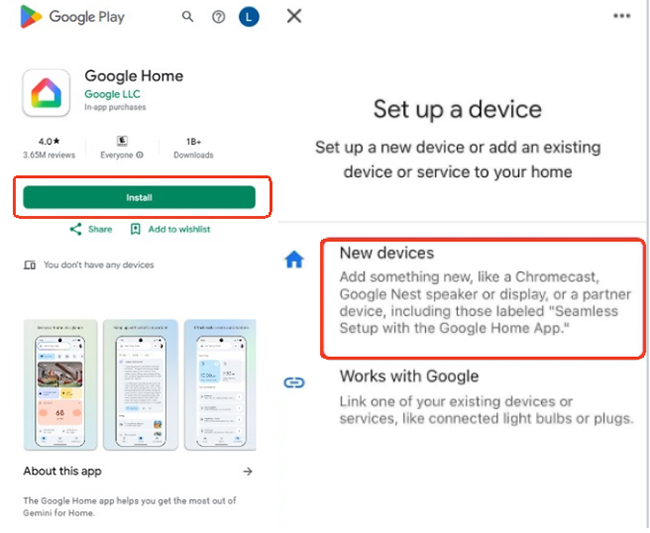
Step 2. Install and open the Google Home app on your Android phone or iPhone. Ensure your mobile device has its Wi-Fi, Bluetooth, and location services activated so it can easily detect the nearby hardware.
Step 3. Follow the automated prompts on your mobile screen to pair the devices. If the initial setup prompt does not launch automatically upon opening the app, tap the + icon in the top left corner, select Set up a device, and carefully follow the instructions to connect the dongle to the exact same Wi-Fi network your phone is using.
Cast Netflix From Android/iPhone/iPad to Chromecast
Step 1. Open the Netflix app on your Android or iOS device and sign in your Netflix Standard or Premium account.
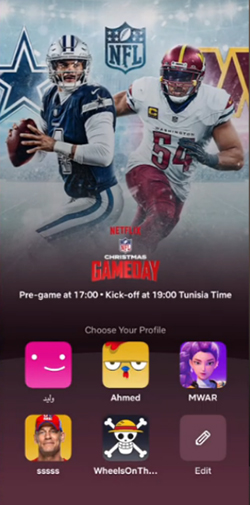
Step 2. Select your user profile. Now, you can start to browse your Netflix library and choose your favorite movie or TV show to play.
Step 3. Look for the Cast icon (a TV screen with Wi-Fi waves) in the upper right corner and tap it.
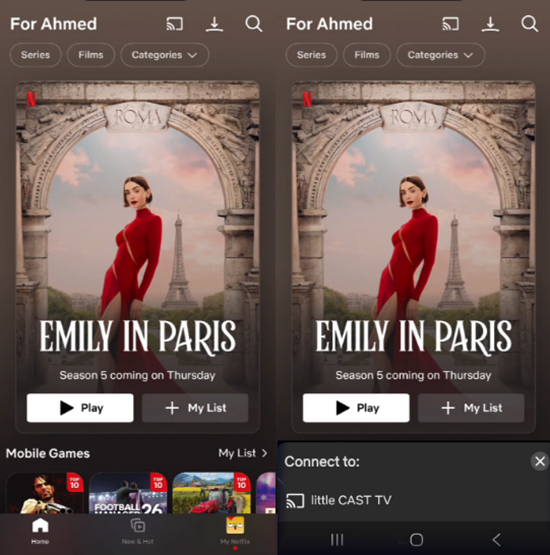
Step 4. Select your Chromecast from the pop-up list of available devices to begin streaming.
After the connection is established, your phone can act as the controller. Netflix allows you to pause, rewind, fast-forward, and change audio or subtitle settings from the mobile device.
How to Watch Netflix on Chromecast With Google TV/Google TV Streamer
Newer Google devices operate as standalone media hubs. Netflix's current mobile-casting list specifically excludes Chromecast with Google TV and the Google TV Streamer. Instead of depending on your phone to start Netflix playback, you can open the Netflix app directly on the TV and use the Google TV remote to browse, select profiles, search for titles, and control playback.
Step 1. Turn on the TV and Chromecast with Google TV. From the Google TV home screen, open Netflix or navigate to the Apps tab on your Google TV home screen and choose Netflix using the provided remote.
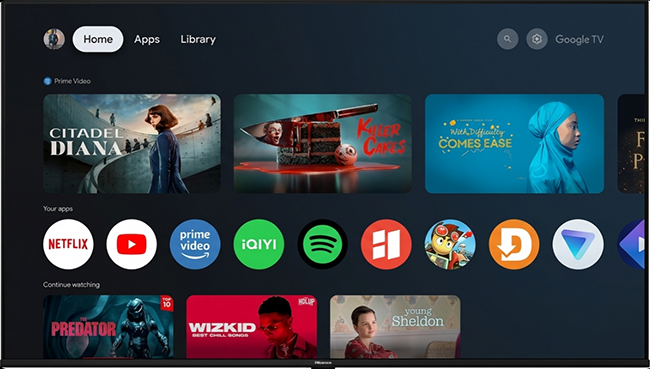
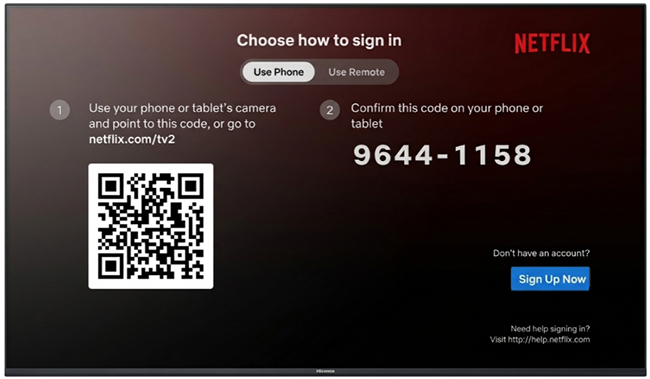
Step 2. Select Sign In option, enter your Netflix account details, and follow the on-screen instructions.
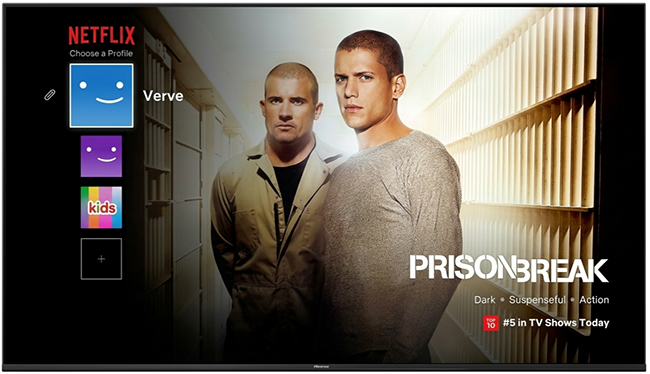
Step 3. Choose your profile, browse the interface directly on your television screen, select a Netflix movie or TV show, and start playing Netflix on Chromecast.
How to Chromecast Netflix from Laptop (All Devices)
Google and Netflix have shifted their focus primarily to mobile devices and native TV apps, but laptop casting is still entirely possible. You can still Chromecast Netflix from your laptop, but the process has changed. Instead of relying on a dedicated "Cast" button within the Netflix video player, you now need to use the built-in casting feature of the Google Chrome browser. Here is how you can do it right now from a Windows, Mac, or Chromebook device:
Step 1. Open Google Chrome app, set up your Chromecast, and ensure your laptop is connected to the exact same Wi-Fi network as your Chromecast.
Step 2. Go to Netflix.com, log in to your Netflix account, and start playing your movie or show.
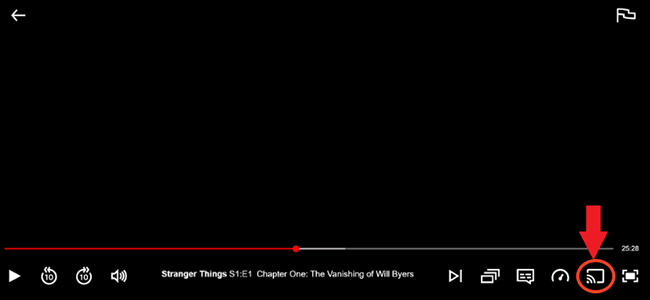
Step 3. In the now-playing screen, you can choose Cast tab to click on the name of your Chromecast to start streaming.
 Pro Option:
If wireless casting from Chrome is lagging or dropping audio, the most reliable fallback is to simply connect your laptop directly to your television using an HDMI cable. This bypasses the network entirely and guarantees high-quality, stable playback.
How to Fix Netflix Chromecast Not Working
When Netflix doesn't work with Chromecast, start by identifying where the problem occurs. A missing Cast button, an undetected Chromecast, and playback problems can have different causes.
The Cast Icon Missing on Netflix
First check your Chromecast model. Netflix currently lists Chromecast 3rd generation or older among its mobile-casting devices. If you are trying to cast Netflix to a Chromecast with Google TV or another device outside that list, the absence of the Netflix Cast destination may be expected rather than a network problem. If you have a supported casting device, check your Netflix plan and then continue with network and app troubleshooting.
Chromecast Doesn't Appear in Netflix
If you have a supported Chromecast, check the connection first. Your mobile device and Chromecast should be connected to the same Wi-Fi network, and the Chromecast should be powered on and available on the network.
On iPhone or iPad, also check that Netflix has permission to access the local network. Without that permission, the app may be unable to discover compatible Cast devices. If the problem continues, try these steps in order:
- Restart the Chromecast and mobile device.
- Update Netflix and relevant Google apps.
- Check the Wi-Fi connection and router.
- Reopen Netflix and try the Cast option again.
Google also recommends rebooting the streaming device when a Cast destination cannot be found.
Netflix Connects but Playback Doesn't Work
If the Chromecast appears but Netflix still won't play correctly, check whether the issue is specific to Netflix or affects other streaming services too. A restart can clear a temporary connection or app problem. If other services also have trouble, the network connection is worth investigating before changing Netflix-specific settings.
For account-related problems, check whether Netflix is asking you to verify the device or account. Network discovery and Netflix account authorization are separate issues, so changing Wi-Fi settings won't necessarily resolve an account-related message.
Netflix Is Buffering or Video Quality Is Poor
Streaming quality depends on several factors, including the Chromecast model, TV capabilities, Netflix plan, playback settings, and available internet bandwidth.
For Ultra HD playback, Netflix lists requirements that include a supported 4K device, compatible 4K TV, appropriate HDMI/HDCP support, a qualifying Netflix plan, and a steady internet connection. Netflix lists 15 Mbps or higher for Ultra HD streaming.
Google's general guidance for 4K streaming recommends at least 20 Mbps, so maintaining some headroom above the minimum can be useful when several devices share the same connection.

FAQs About Playing Netflix on Chromecast
Can I watch Netflix on Chromecast without a phone?
Yes, but only if you are using a Chromecast with Google TV or a Google TV Streamer. Older, dongle-only Chromecasts require a phone, tablet, or laptop to initiate playback.
Does Netflix support Apple AirPlay to Chromecast?
No. Netflix dropped support for Apple AirPlay years ago. To send video from an iPhone to a TV, you must use the native Google Cast icon inside the Netflix app, not the iOS Control Center AirPlay menu.
Why does Netflix work on my Chromecast, but not for Live Events?
Legacy Chromecast models lack the necessary technical infrastructure for live broadcasting. Netflix officially states that older generation Chromecasts cannot stream live events (like sports or live stand-up specials). You will need a newer device to access live content.
The Bottom Line
Successfully using Netflix on a Chromecast comes down to identifying your hardware. If you have a physical remote that came with your Chromecast, put your phone or laptop away, you need to use the TV interface. If you have an older dongle, make sure you're on a non-ad tier plan and that your casting device shares the exact same Wi-Fi network.

Jordan Rhodes is a Chief Technical Editor and Media Specialist at VidiKeep, specializing in creating diverse tech content, including streaming tutorials, software reviews, and video encoding tips.
Leave a Comment