How to Watch Prime Video on Fire TV Permanently
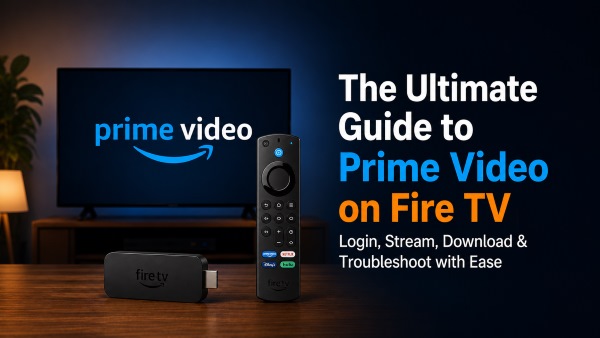
Amazon Fire TV and Prime Video are a match made in streaming heaven, offering instant access to thousands of movies, premium series, and live sports right from your couch. However, navigating account setups, or managing offline viewing can sometimes feel surprisingly complicated. This comprehensive guide has you covered how to log into or log out your account, as well as download your favorite shows from Prime Video permanently.
Part 1. How to Log Into Prime Video on Fire TV
Logging into your account is the very first step to enjoying Prime Video on Fire TV. You can quickly sync your Amazon subscription using a mobile browser or your smartphone's camera. Follow the instructions below to safely connect your device and start watching your favorite movies on Fire TV in minutes.
Step 1. Turn on your television and open the Prime Video app. If you don't see it on your home screen, go to your TV's App Store, search for "Prime Video", and install it.
Step 2. Select the "Sign in" option on the screen. The TV will display a unique activation code and a QR code. Keep this screen open while you grab your smartphone or computer.
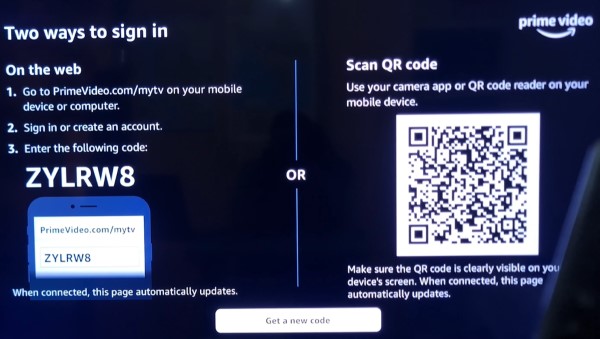
Step 3. Then connect your Prime Video account to Fire TV. You can link your TV using either your mobile browser or by scanning the QR code:
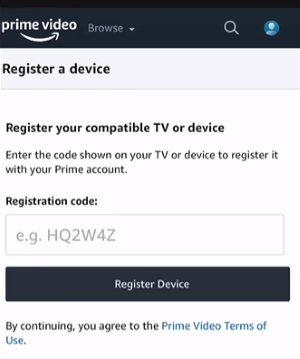
Via Web Browser: Open the web browser on your phone or computer and visit the Prime Video Activation Page. Log into your Amazon account if prompted. Type the exact registration code showing on your TV screen into the box and click "Register Device".
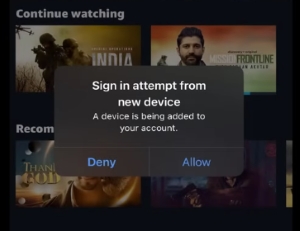
Via QR Code Scanning: Open the camera app on your phone and point it at the QR code on your TV screen. Tap the link that pops up to open your Prime Video mobile app. Press "Allow" on your phone to confirm the sign-in request. Once finished, your TV screen will automatically update to show that registration was successful.
How to Log into a Different Prime Video Account on Fire TV
When sharing a television or staying at a vacation rental, you might find yourself needing to switch between different Amazon subscriptions on the smart TV. However, you cannot simply push a button to sign out of a Prime Video account on its own. To log out and access a different user's library, you must disconnect the current Amazon account from the Fire TV entirely.
Deregistering and Adding a New Account
To change the primary account associated with the television, you have to deregister the hardware. Doing this will safely log you out of the current Prime Video account and allow you to link a new one.
Step 1. Navigate to your Fire TV home screen and open the "Settings" menu, Scroll through the menu options and select "My Account".
Step 2. Click on "Amazon Account" to view your current registration details. Choose "Deregister" from the list of options.
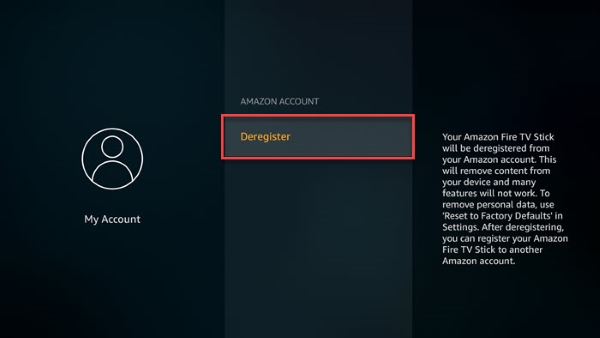
Step 3. Confirm your decision by selecting "Deregister" again when the warning prompt appears to successfully log out. Once the system finishes disconnecting, you will be taken back to the initial setup screen. From there, you can easily follow the prompts to sign in with your new Amazon account.
Switching Profiles (Same Account)
If the different Prime Video account you want to access is part of the same Amazon Household, you don't need to sign out or deregister the device at all. Instead, you can utilize the profile switching feature built directly into the application.
Step 1. Open the Prime Video app on your television. Navigate to the profile icon located at the top of the main menu navigation bar, then click the "Manage profiles" option.
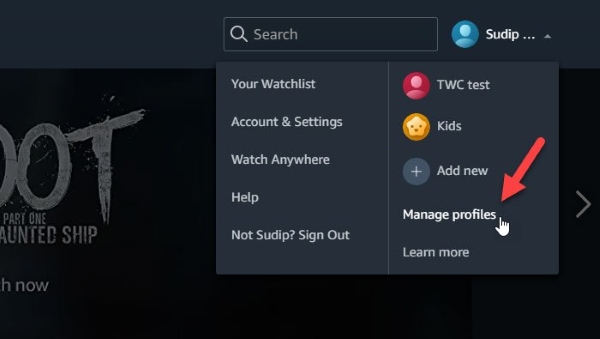
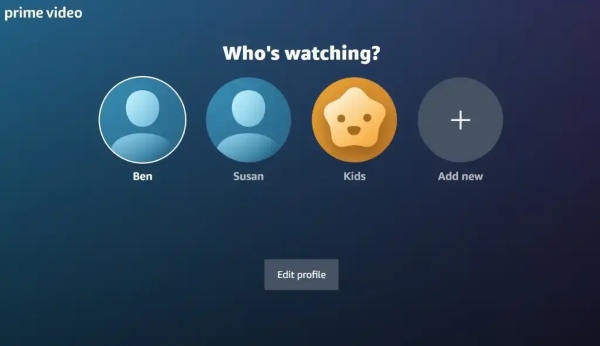
Step 2. Select your personal profile from the list to instantly switch your viewing dashboard. Using this method allows up to six different viewers to maintain their own personalized watchlists and tailored recommendations without disrupting the main device registration.
Part 2. Two Ways to Watch Prime Video on Fire TV
Once your account is securely set up, you can use your remote to browse the vast library of Prime Video for movies, series, and live sports. And there are multiple ways to control your viewing experience whether you prefer to send content from your smartphone or use advanced voice commands.
Navigate Smarter on Fire TV with Alexa+
You can easily look up specific titles directly from your Fire TV home screen. The system provides a dedicated search function that allows you to manually type out actors, genres, or movie names using your remote. Just navigate to the "Find" tab on your main home screen menu, and then select "Search" to bring up the on-screen keyboard and begin typing your query.
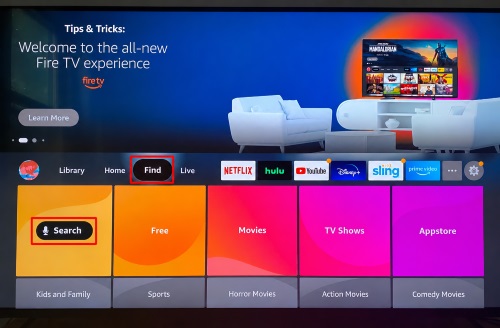
The latest generation of streaming sticks features Alexa+, a powerful generative AI tool that fundamentally changes how you interact with your media. This smart voice integration eliminates the hassle of typing and gets you to your entertainment much faster.
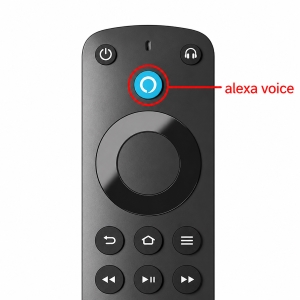
Instead of manually clicking through category menus, you can simply press the "Alexa Voice" button on your remote to utilize natural language commands. Because this new AI understands complex conversational context, you can ask for highly specific recommendations like "show me psychological thrillers with surprise endings" or even quote a famous line to find the exact film.
How to Cast Prime Video to Fire TV
If you prefer browsing for Prime Video movies on your mobile phone, you can easily push that content directly to your television. Casting is incredibly helpful when you are navigating long lists of episodes.
Step 1. Ensure your mobile device and your streaming stick are connected to the exact same Wi-Fi network.
Step 2. Open the Prime Video app on your iOS or Android device and locate the movie or show you want to watch.
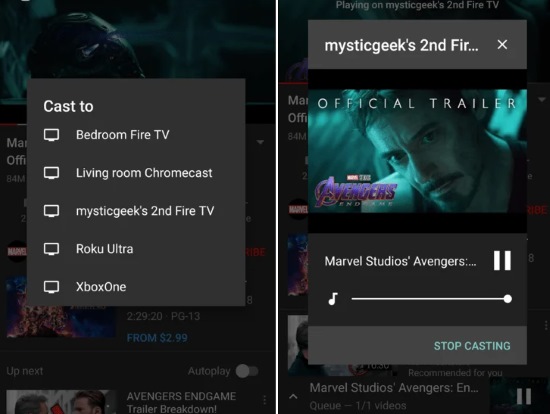
Step 3. Tap the "Cast" icon located in the upper right corner of your mobile screen and select your specific television model from the list.
Part 3. Download Prime Video Content For Offline Playback on Fire TV
While streaming directly on your television is highly convenient, network instability or sudden buffering can easily ruin a movie night. Utilizing a reliable downloader allows you to save your favorite media locally, ensuring seamless playback regardless of your internet connection status. The VidiKeep Streaming Video Downloader serves as an excellent companion tool for your entertainment setup, letting you convert streaming files into universally compatible formats, building a permanent media library to watch anytime.
Step 1 Setting Up Your Download Preferences
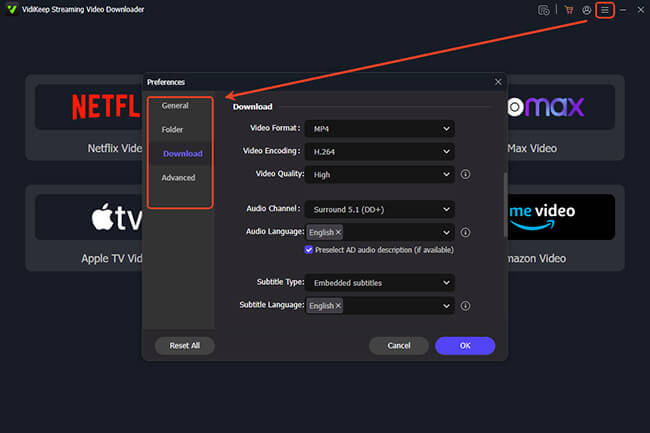
Download and launch the VidiKeep Prime Video Downloader on your computer, click the "Menu" icon, and navigate through "Preferences" into the "Download" tab. From this screen, you can choose either MP4 or MKV as your primary container format to ensure smooth compatibility with your media player. This menu also gives you total control over the output resolution, secondary audio tracks, and whether you prefer subtitles embedded directly into the picture or exported as standalone SRT files.
Step 2 Log Into Your Amazon Account
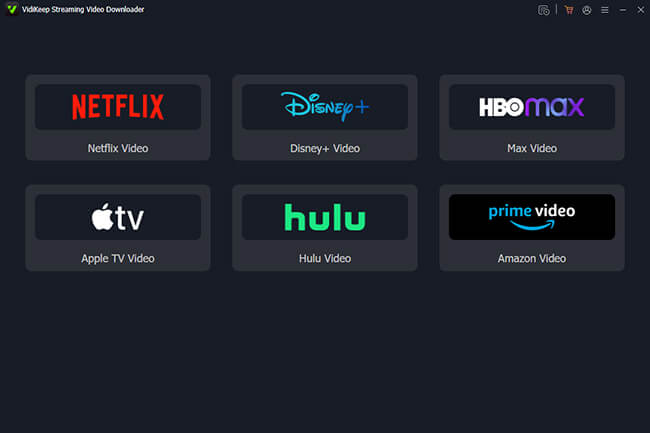
Select the dedicated "Amazon Video" icon from the main dashboard to launch the integrated web player, then click the "Sign In" button to access your library. This portal safely connects to the streaming platform to gather the necessary video metadata required for processing. You can rest assured that your login credentials remain private, as the software does not track, store, or distribute your personal details.
Step 3 Select the Movies and Shows for Watching on Fire TV
Insert the specific streaming link into the search bar, or simply type the title of the movie or show into the internal search box to locate your video. Once you hit the purple "Download" icon, the software will quickly compile the available video titles into a structured list. If you are preparing an entire season of a television series for a long trip, you can save time by ticking the "Select All" and "Add to List" checkbox.
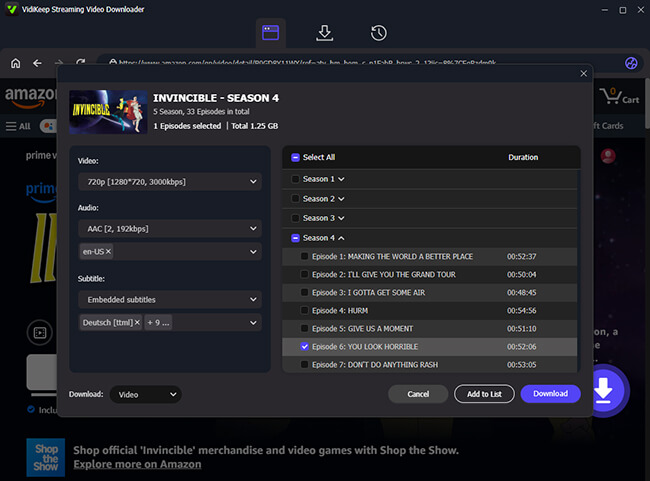
Step 4 Download and Transfer Prime Video Content to Fire TV
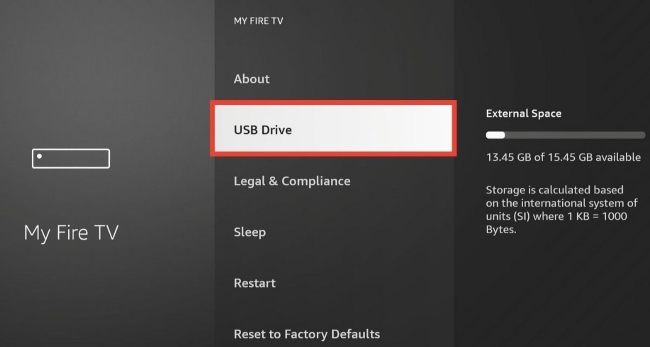
Click the final "Download" prompt to initiate the extraction process and save the movies or episodes locally. Once finished, your media is ready for transfer. You can easily move these files to a USB flash drive or a local media server like Plex to enjoy uninterrupted playback on your Fire TV device anytime you want.
 Disclaimer:
The information provided in this guide is for personal entertainment and backup purposes only. Any downloaded Prime Video videos should be used solely for private viewing by authorized users. Redistribution, public performance, resale, or commercial use of copyrighted content is strictly prohibited. Users are responsible for ensuring their activities comply with local laws and Amazon Prime Video's terms of use.
Part 4. FAQs about Prime Video on Fire TV
Can you watch Amazon Prime for free on Fire Stick?
The Prime Video app is free to download, but premium content requires a subscription. However, you can watch a rotating selection of ad-supported movies and shows for free, often categorized under Amazon Freevee.
How do I manage Prime Video Channels on Fire TV?
You cannot subscribe to or cancel Prime Video channels directly through the Fire TV interface. You must log into your Amazon account on a web browser, navigate to your account settings, and use the "Channels" tab to make any changes.
Does Prime Video support 4K on Fire TV
Yes, Prime Video fully supports 4K Ultra HD playback on Fire TV. To enjoy this quality, you need a 4K-compatible Fire TV device, a 4K television, a fast internet connection, and titles explicitly offered in UHD resolution.
Why can't I watch Amazon Prime on my Fire TV?
If you're using an older Fire TV or Fire TV Edition television, limited system resources can cause Prime Video to stop working properly. Many older models have only 1 GB of RAM, which may struggle with newer app updates, accumulated cache files, and background processes.
Try clearing the Prime Video cache or performing a factory reset to free up system resources. If performance issues persist, consider using a newer Fire TV Stick or Fire TV Cube connected via HDMI, which typically offers faster hardware and a smoother streaming experience.
Part 5. Summary
Navigating Prime Video on Fire TV is incredibly straightforward once you know how to manage your accounts, cast from mobile devices, and leverage advanced tools like Alexa+. From seamlessly streaming Prime Video on Fire TV to watching your favorite movies offline using VidiKeep, you now have total control over your viewing setup.

Jordan Rhodes is a Chief Technical Editor and Media Specialist at VidiKeep, specializing in creating diverse tech content, including streaming tutorials, software reviews, and video encoding tips.
Leave a Comment