How to Sign Out of Prime Video on All Devices
Figuring out how to sign out of Prime Video can sometimes feel like navigating a maze. Whether you need to log off a living room television after a weekend trip or you are trying to execute an Amazon Prime Video sign out of all devices to secure your account, knowing the exact steps is vital. This tutorial breaks down how to deregister amazon Prime Video securely and solute issues when you operate, ensuring you protect your privacy across every platform.
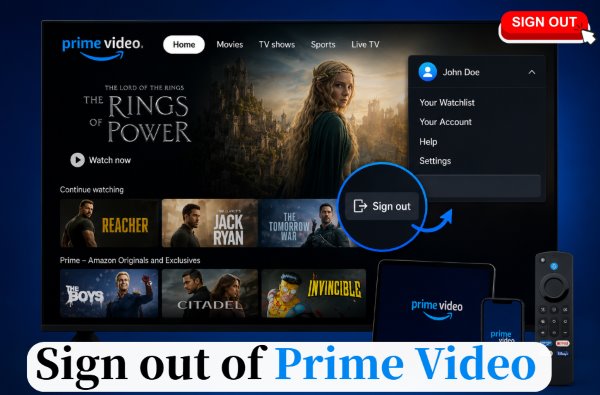
Part 1. How to Sign Out of Prime Video Across All Devices
When signing out of prime video, you will find that ending your active session looks slightly different depending on whether you are accessing the service through a web browser, a mobile app, or a television operating system. Logging off from any of these screens will securely protect your profile without impacting your active membership status.
1.1 Logging Off via Web Browser
If you attempting to sign out of prime video account using a web portal, the browser method offers a highly universal solution. This approach works identically on a laptop or using a mobile browser like Safari or Chrome on your phone, allowing you to remove your Prime Video account from the device remotely.
 How to Sign Out of Prime Video on All Devices at Once:
You do not have to manually log out of every single television, tablet, or smartphone individually if you want a clean slate. Using a web browser gives you the ultimate control over your account. By logging into the Amazon website and navigating to the "Manage Your Content and Devices" dashboard, you can view your entire hardware inventory in one place. You can easily select and deregister prime video from every connected screen simultaneously.
Step 1. Visit the Amazon website and sign in to the account linked to your Prime Video subscription.
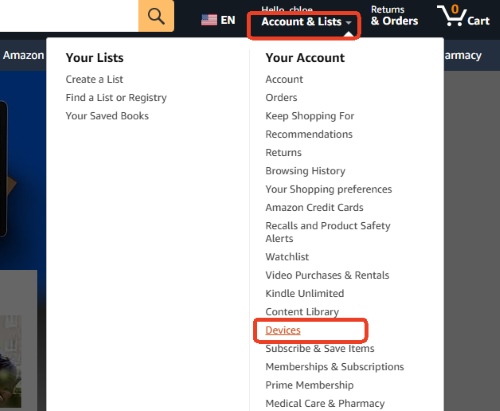
Step 2. Move your cursor over "Accounts & Lists" in the upper-right corner of the homepage to open the account menu. From the dropdown options, select "Devices" to manage all devices connected to your Amazon account.
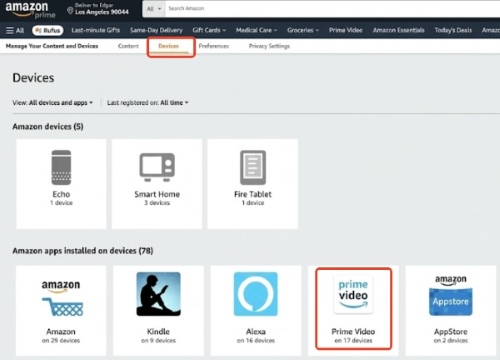
Step 3. You'll enter the "Manage Your Content and Devices" tab, then locate Prime Video from "Amazon apps installed on devices" section to view all registered devices using the app.
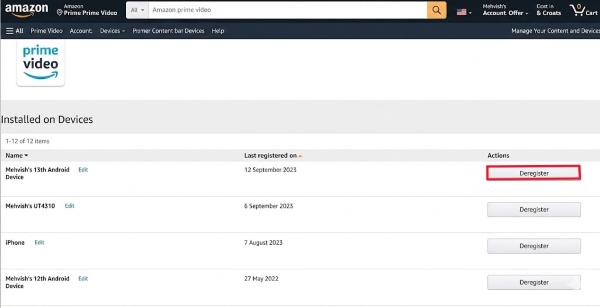
Step 4. Find the device you want to remove, then click "Deregister" next to it. Confirm Deregister again to sign out of Prime Video on that device successfully.
1.2 Disconnecting Your Profile on Mobile Apps
If you mainly watch movies and shows on your smartphone, signing out of the Prime Video app is quick and easy. Whether you're switching accounts, removing access from an old device, or troubleshooting playback issues, you can log out of Prime Video on your phone directly from the app settings in just a few taps.
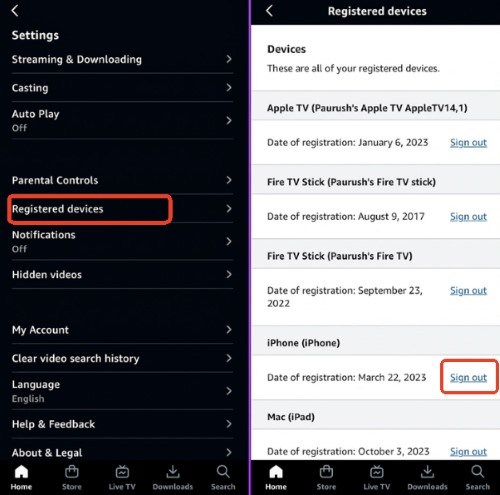
Step 1. Open the Prime Video app on your iPhone or Android device and tap the "Profile" icon in the bottom-right corner. Tap the "Settings" gear icon in the top-right corner to access your "Account" options.
Step 2. Scroll down and select "Registered devices" to see all devices currently linked to your Amazon Prime Video account.
Step 3. Locate the phone or device you want to remove, then tap "Sign out" next to it. Confirm your selection when prompted.
1.3 Sign Out of Prime Video on Fire TV
Amazon's proprietary streaming sticks and televisions handle account management quite differently from mobile or desktop applications. If you are trying to sign out of prime video on tv, you will notice that the logout button does not exist inside the prime app layout. Because the video service is woven directly into the core operating system, it requires a different approach. To safely solve how to sign out of prime video on fire tv, you actually have to visit the main hardware settings rather than the streaming app.
Step 1. Grab your remote and press the Home button to return to the main dashboard of your television. From there, navigate to the system "Settings" gear icon.
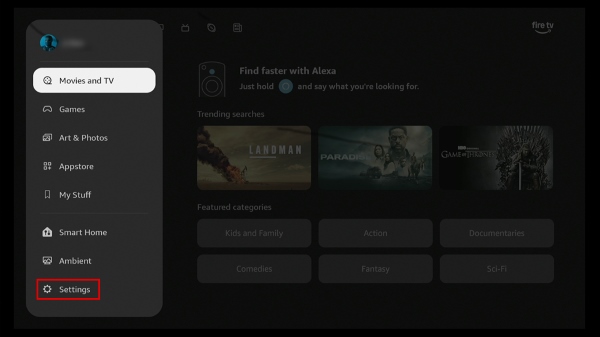
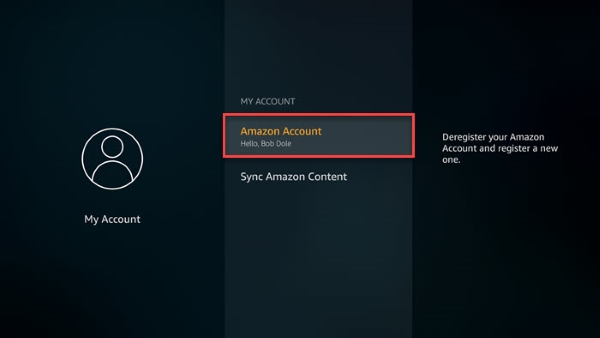
Step 2. Scroll through the settings menu and choose the "My Account" tile (also labeled Account & Profile Settings). Once inside this sub-menu, click directly on the "Amazon Account" option to view your current registration details.
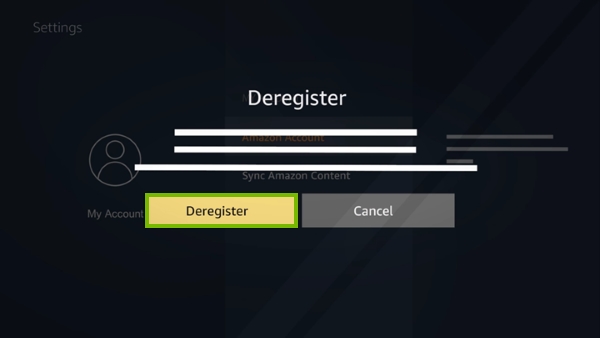
Step 3. Select the "Deregister" option and confirm your choice when the final warning prompt appears on the screen.
1.4 Removing Your Account from Smart TVs & Consoles
If you watch your favorite shows on an Roku, Apple TV, or Xbox, the platform functions just like any standard third-party application. This makes securing your account much easier since it does not affect the rest of your console. You can usually find the solution hidden within the app's internal side-menu for logging out amazon prime video on tv or console.
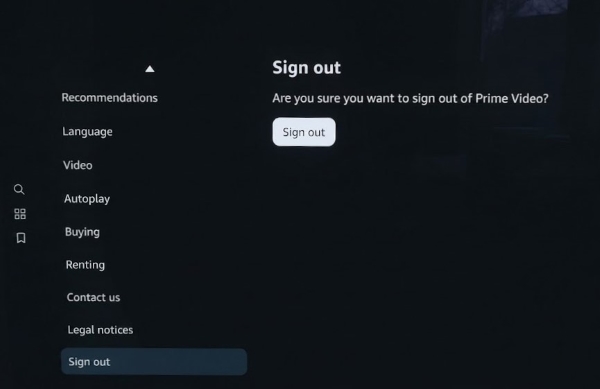
Step 1. Launch the Prime Video app on your television and press the left directional button on your remote to reveal the side menu, then select the "Settings" gear icon.
Step 2. Scroll completely to the bottom of the provided settings list until you reach the end of the choice. Click the "Sign Out" button, then confirm your decision on the pop-up warning screen.
Part 2. Fix Sign Out of Prime Video Issues
Even when you know the standard steps, technology does not always cooperate. When a frozen screen or looping login page blocks your path, these advanced troubleshooting strategies will help secure your Prime Video account.
Perform a Remote Sign-Out
Sometimes physical access to your screen is impossible. If you accidentally left your profile active on a hotel television, you must know how to sign out of prime video remotely to protect your privacy. Amazon's website offers a centralized security dashboard providing full administrative control over your hardware. Just follow the browser steps outlined in Part 1.1 to force an immediate disconnection from anywhere.
Clear the App Cache or Reinstall
Corrupted files often cause authentication loops. If you cannot sign out of prime video on tv because the menu crashes, wiping the app's memory usually helps. For Fire TVs, go to system settings to clear the cache. For other smart TVs, a fresh installation is easiest.
Perform a Hard Reset
Temporary power glitches can frequently freeze background authentication processes. When this happens, a hard reset forces the tv to drop its network connection and refresh the software interface.
Step 1. Unplug your smart TV or streaming box directly from the wall.
Step 2. Wait a full 60 seconds to let the internal power drain.
Step 3. Plug the equipment back in and relaunch the app.
Check for App Updates
Older versions of the Prime Video app might contain unpatched authentication bugs that prevent the system from executing logout commands. If you experience freezing or crashes when trying to sign out of prime video app, ensuring your software is up to date is the best fix.
Part 3. Access Your Prime Video Forever Before Signing Out
Before disconnect your profile, it is crucial to consider what happens to the shows you have saved Prime Video content for offline viewing. The moment you execute a signing out of prime video action, any offline files saved to a phone or tablet become unplayable once the account connection is broken. To prevent losing your favorite series, it pays to create a secure backup before signing out of your devices.
VidiKeep Streaming Video Downloader serves as the perfect workaround for this dilemma. This software allows you to bypass DRM restrictions and download your beloved streaming library as permanent, universally playable MP4 or MKV files. By doing so, you can build a permanent digital archive that functions completely independently of your Amazon membership status.
Step 1 Adjust Output Settings for Any Device
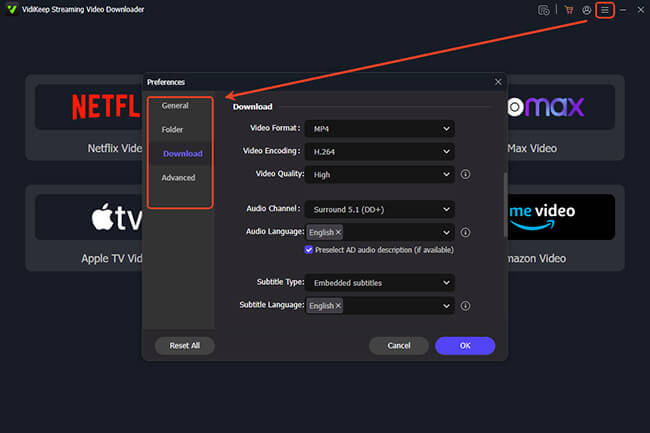
Start by configuring your desired output preferences. Open the software on your computer, click the top-right menu icon, and select "Preferences" followed by "Download". Choose MP4 as your primary output format to ensure your saved shows play perfectly on any screen even after your session ends. You can also adjust the video codec here to balance visual quality.
Step 2 Log In Your Prime Video
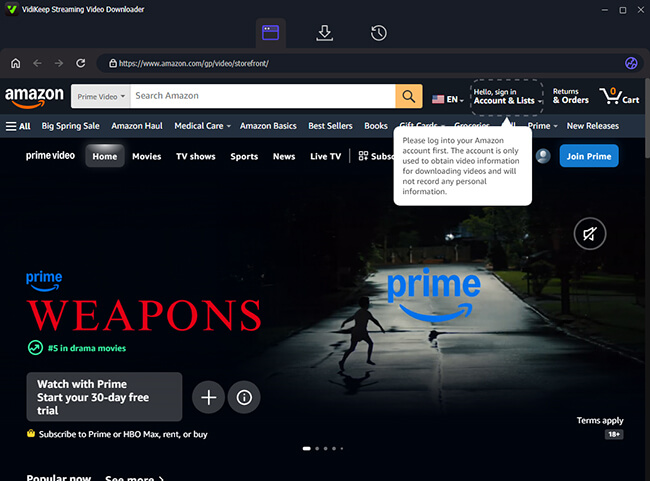
Access your streaming library directly through the program's secure built-in browser. Click the Amazon Video icon on the main dashboard and log in with your Amazon account. This temporary login grants the downloader access to your high-definition media, allowing you to secure your library right before you execute a prime video sign out of all devices.
Step 3 Locate the Amazon Shows to Keep
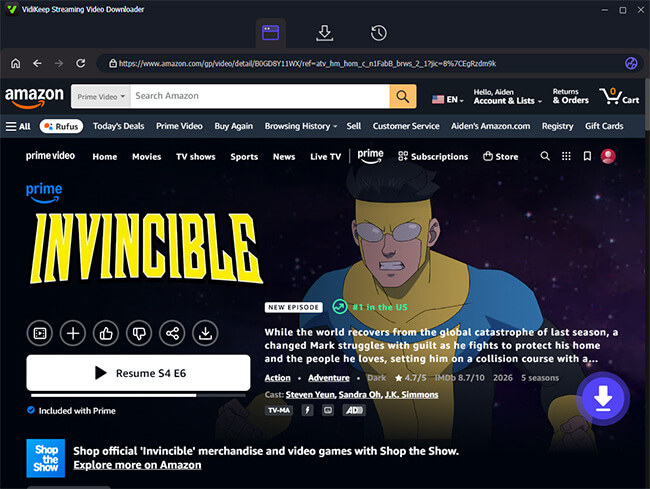
Search for the exact movie or television series you want to preserve and open its main detail page. Look for the floating purple floating "Download" button situated on the lower right side of the interface. Clicking this icon to analyze the media data and prepare for a smooth extraction.
Step 4 Confirm Preferences and Initiate the Download
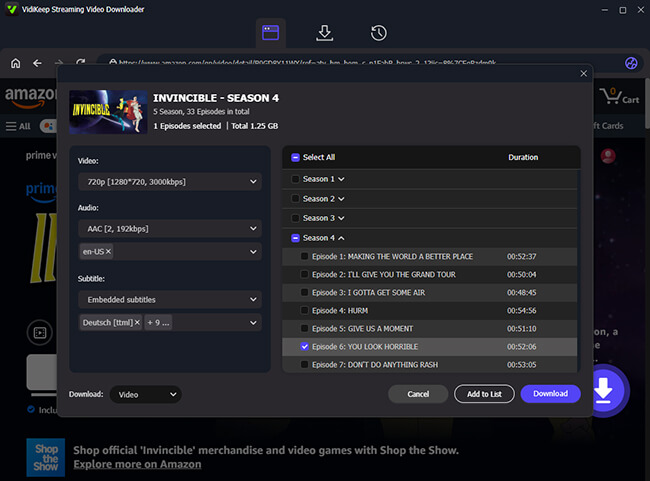
Confirm your final media settings in the pop-up configuration window. Once you are happy with your audio and subtitle choices, hit the "Download" button to start saving the file. If you are backing up a massive television series, use the convenient "Add to List" feature to queue up full seasons simultaneously instead of selecting episodes one by one.
Step 5 Secure Your Library and Safely Log Off
Confirm your final media settings in the pop-up configuration window. Once you are happy with your audio and subtitle choices, hit the "Download" button to start saving the file. If you are backing up a massive television series, use the convenient "Add to List" feature to queue up full seasons simultaneously instead of selecting episodes one by one.
Part 4. To Sum Up
Managing your Prime Video account security is simple once you understand the different device interfaces. While the exact logout steps vary between web browser, mobile, and smart TVs, you always have full control to protect your privacy. By utilizing the remote browser method to manage active sessions and backing up your favorite offline downloads with VidiKeep beforehand, you ensure that your personal data and your media library remain entirely yours.

Jordan Rhodes is a Chief Technical Editor and Media Specialist at VidiKeep, specializing in creating diverse tech content, including streaming tutorials, software reviews, and video encoding tips.
Leave a Comment