How to Save Prime Video to an SD Card Permanently
You may struggle with limited internal storage space on the mobile devices when trying to save your favorite Amazon Prime Videos for offline viewing. Fortunately, it is easy to set your device to automatically download Prime Video to an SD card. This allows you to build a substantial offline library without constantly battling storage-full warnings.
In this comprehensive guide, we will walk you through the official method for mobile devices and share a reliable workaround for moving Prime Video to SD card without playback restrictions.
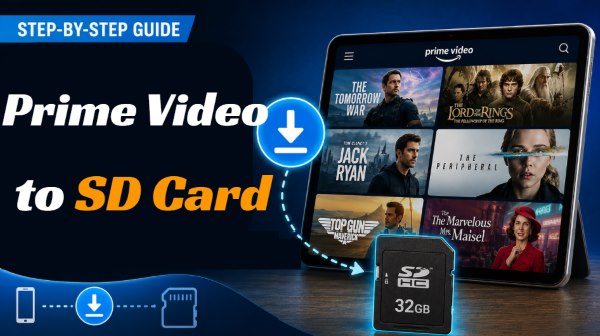
Part 1. How to Save Prime Video to an SD Card (Android & Fire OS)
While downloading to external storage is a great way to free up space, not all mobile users can take advantage of it, and the read/write speed of your SD card will directly impact your viewing experience. Before adjust the Prime Video settings for SD card, it is crucial to ensure that your hardware actually supports this feature.
- Supported Operating Systems and Devices: This official feature is currently only available on compatible Android smartphones, tablets, and Amazon Fire OS devices.
- Limitations of iOS Devices: Because Apple devices (iPhones and iPads) do not feature expandable memory slots, they natively lack the ability to use this official SD card download function.
- Recommended SD Card Speed: To ensure smooth, stutter-free playback for 1080p high-definition videos, it is highly recommended to invest in a Class 10 or UHS-1 (or higher) high-performance microSD card.
Set Amazon Prime Video Downloads to an SD Card Within the App
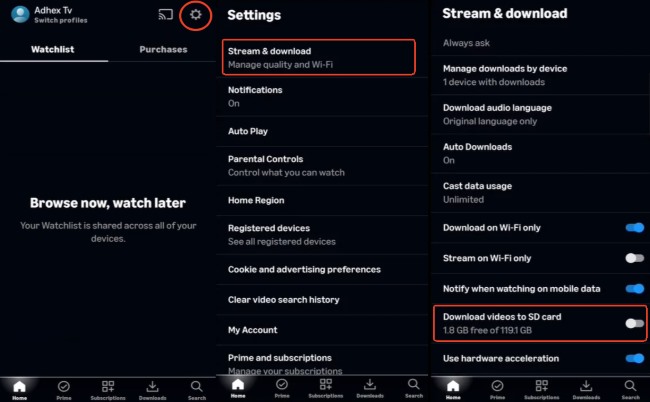
Step 1. Open the Amazon Prime Video app on your device and tap the Profile icon located in the top right corner of the screen.
Step 2. Press the "Settings" icon, which looks like a gear, and select "Stream & download" from the resulting menu.
Step 3. Scroll down the menu and tap "Download videos to SD card" to enable the option, ensuring all future downloads are saved to your external storage.
 How to Maximize Your SD Card Capacity:
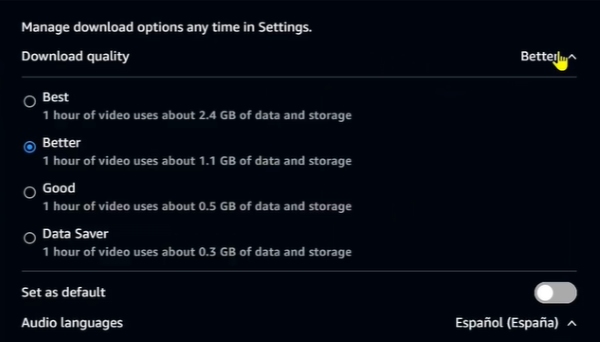
If you plan on downloading entire seasons of television shows, your storage space can deplete quickly even on a large SD card. You can manage your remaining capacity by adjusting the default download quality within the Prime Video app settings. Navigating to the download quality menu allows you to choose between Data Saver, Good, Better, and Best options.
The "Best" quality setting consumes approximately 1 GB of storage per hour of video. Choosing the "Good" or "Data Saver" options will significantly reduce the file size, allowing you to fit substantially more content onto your memory card at a slightly reduced resolution.
Part 2. How to Download and Move Prime Video to SD Card
While the official mobile app is convenient, Amazon imposes strict limitations on offline viewing that can frustrate avid movie watchers. Because the files are locked to a specific device with DRM protection, you cannot insert that SD card into a smart TV or laptop to watch your downloaded content. If you want permanent, restriction-free access to your media, using a dedicated desktop program is a highly effective alternative.
VidiKeep Streaming Video Downloader allows you to save Amazon Prime movies directly to your computer as standard, DRM-free MP4 or MKV files. Once downloaded, you can easily drag and drop these video files onto your SD card. This method completely bypasses Amazon's expiration (30 days/48 hours) and device playback restrictions.
Official Method vs. VidiKeep on Prime Video to SD Card
| Feature | Prime Video App | VidiKeep Downloader |
|---|---|---|
| File Format | Encrypted | MP4/MKV |
| Expiration Limits | Yes (48 hours to 30 days) | No (Keep forever) |
| Download Limit | 15 - 25 titles maximum | Unlimited |
| Device Portability | Locked to the downloading device | Playable on TVs, PCs, and phones |
Step 1 Adjust Your Ideal Viewing Preferences
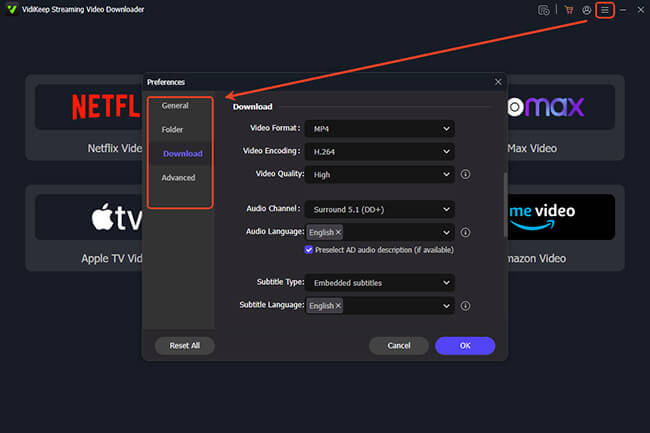
Instead of being locked into Amazon's proprietary, VidiKeep gives you complete control over how and where you store your videos. Open the "Preferences" menu and click over to the "Download" tab. You can easily customize a few key settings to match your exact needs: Choose MP4 or MKV as your output format for compatible playback. And select your preferred video resolution for the perfect balance of crisp visuals and manageable file sizes.
Step 2 Securely Access Your Amazon Library and Queue Up the Titles
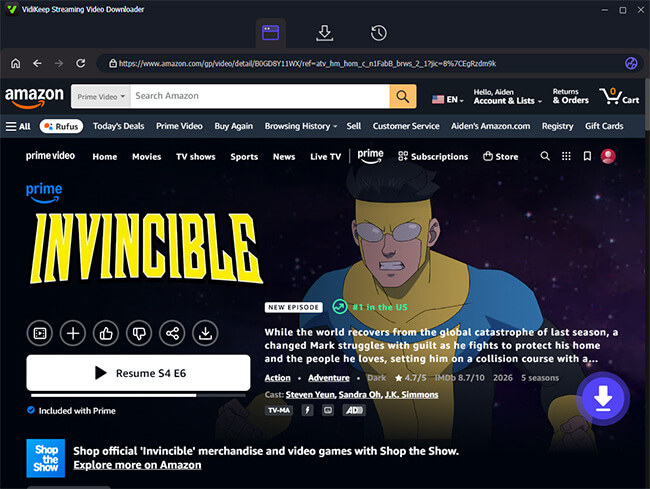
Click on the built-in Amazon Video icon to launch the software's integrated web browser. From there, simply hit the "Sign In" button and log into your account. Then you can either type the title directly into the built-in search box or paste a specific streaming link into the search bar. Once you load the correct video page, hit the prominently displayed "Download" icon so the software can analyze the available media.
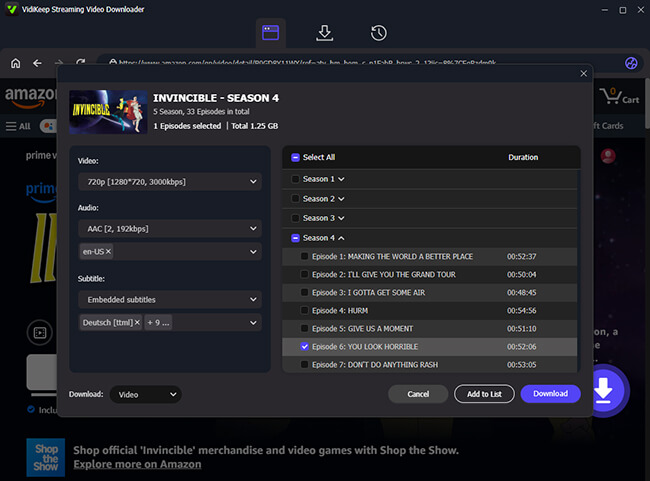
Step 3 Download and Move Prime Video to Your SD Card
If you are building a massive offline library for a long vacation, Simply check the "Select All" box and tap "Add to List" to queue up an entire season simultaneously. Hit the final "Download" button to initiate the extraction process and save the DRM-free episodes directly to your computer's local hard drive.
Then you just need to insert your memory card into your computer's card reader. From there, you can effortlessly drag and drop the files to save Amazon Prime video to an SD card for permanent, offline viewing anywhere you go.
Part 3. FAQs on Prime Video to SD Card
Can You Move Prime Video to an SD Card Directly?
No, you cannot directly move previously downloaded Amazon Prime videos from your device's internal storage to an SD card. The app's DRM protection prevents file transfers between different storage drives. If you need to free up internal space, you must delete the existing videos, change your default download path to the SD card, and download the content again.
Why Does It Say "SD Card Not Present"?
This is a common issue for Amazon Fire tablet users and usually occurs when the SD card has been formatted as "Internal Storage" or "Adopted Storage." The Prime Video app cannot distinguish the card from the device's native memory in this state. To fix the missing option, you need to reformat the SD card as "Portable Storage" through your device's main settings menu.
How Many Prime Movies Can I Fit on My Memory Card?
The number of movies you can store depends on the capacity of your SD card and the video quality you choose. A two-hour movie downloaded on the "Best" setting will take up nearly 2 GB of space, whereas the "Good" setting might only require 600 MB. Keep in mind that regardless of your card's size, Amazon restricts your account to holding roughly 15 to 25 titles at any given time.
Part 5. Final Words
For casual viewers, simply flipping the "Download to SD Card" switch in the official Prime Video app gets the job done quickly. However, if you are tired of your movies unexpectedly expiring, it might be time to rethink your strategy. By using a dedicated tool like VidiKeep, which transforms your SD card from a temporary rental space into a permanent and portable movie library, you can plays Prime Video movies on your own terms.

Jordan Rhodes is a Chief Technical Editor and Media Specialist at VidiKeep, specializing in creating diverse tech content, including streaming tutorials, software reviews, and video encoding tips.
Leave a Comment