Cast Amazon Prime to Chromecast: Setup & Quick Fixes
For years, streaming enthusiasts wondered if they could easily bridge the gap between their favorite platforms and television sets. Google and Amazon eventually aligned their services, making it simple to cast your Prime Video content via Google Chromecast. In this guide, I will walk you through exactly how to stream Amazon Prime on Chromecast. We will cover the basic setup and dive deep into troubleshooting if you find your Chromecast not working on Amazon Prime.
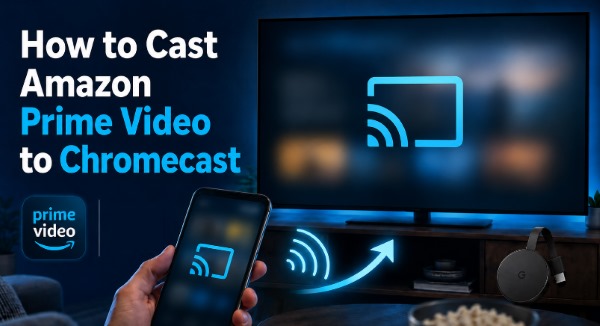
Part 1. Can You Watch Amazon Prime on Chromecast?
Yes. Prime Video supports Chromecast, so you can send supported Prime Video content from a compatible phone or tablet to Chromecast or another Google Cast-enabled display.
A traditional Chromecast mainly works as a receiver. You start Prime Video on a phone or computer, then cast the video to the TV. Chromecast with Google TV is different because it has its own interface, remote, and apps. You can still cast Prime Video to it, but you can also open the Prime Video app directly without using your phone.
| Method | How It Works | Phone/Computer Needed? | Best For |
|---|---|---|---|
| Cast Amazon Prime to Chromecast | Send Prime Video from another device |
Yes | Everyday casting |
| Prime Video on Chromecast with Google TV | Open Prime Video on TV | No | Watching without relying on another device |
Part 2. How to Cast Amazon Prime Video to Chromecast
Casting from a smartphone or laptop remains a popular way to watch Prime Video content on the TV. It feels incredibly intuitive to browse the Prime Video catalog on your phone and simply flick it to the big screen.
 Tips:
Tips:
Before casting, make sure your Chromecast is already connected to the TV and that both devices are using the same Wi-Fi network. It is also a good idea to keep Prime Video, Chrome, and your device software up to date.
Cast Amazon Prime to Chromecast from Android or iPhone
If you are using a mobile device, you need the official Amazon Prime Video app installed. Chromecast Amazon Prime from Android and iPhone follows almost the same process:
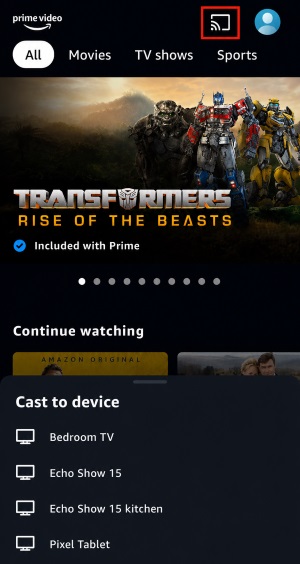
Step 1. Open the Prime Video app on your phone and sign in to your Amazon account. Tap the Cast icon in the upper-right corner and select your specific Chromecast device from the pop-up list.
Step 2. Then choose the movie or episode you want to watch. You can use your phone to pause, seek, and switch episodes while the video plays on the TV.
 Note:
Note:
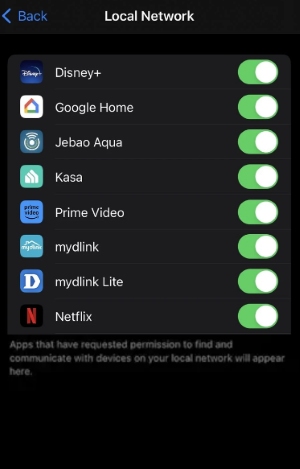
For iPhone and iPad, Prime Video also needs permission to discover devices on your local network. If Chromecast does not appear, go to Settings > Prime Video > Local Network and make sure it is enabled.
Chromecast Amazon Prime from Browser on a Laptop/Desktop
Sometimes, you might prefer to rent a movie or browse the expansive Prime library from a desktop or laptop computer. You can easily cast Amazon Prime video to Chromecast directly from your browser.
Step 1. Connect your computer and Chromecast to the same Wi-Fi network. Then open Prime Video in Google Chrome, sign in to your Amazon account, and start playing the Amazon Prime Videos you want to watch on your Fire TV, Roku, etc.
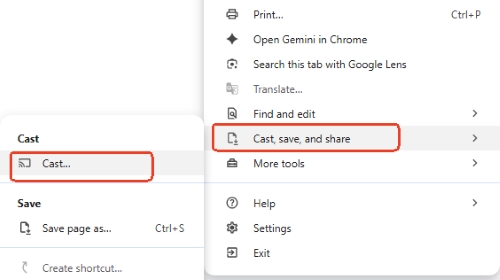
Step 2. Click Chrome's three-dot menu in the upper-right corner, then choose Cast, save, and share > Cast to open the list of available casting devices.
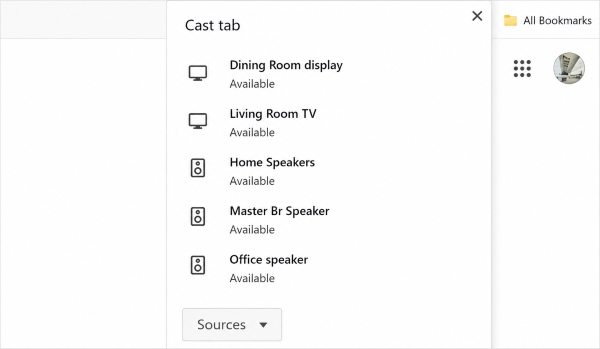
Step 3. Select your Chromecast, Chromecast with Google TV, or compatible Google TV device from the list. Wait a few seconds for the connection to be established.
Step 4. Keep the Prime Video tab open while the video plays on your TV. You can use your computer to pause, resume, seek, or stop playback when needed.
Part 3. How to Watch Amazon Prime on Chromecast with Google TV
Newer Chromecast models come equipped with the Google TV operating system and a dedicated remote. This built-in interface allows the device to function independently, meaning you don't actually need a smartphone to stream your media.
Watch Prime Video Directly
Step 1. Navigate to the Apps tab on your Google TV home screen, and search for and install the Prime Video app.
Step 2. Open the app and sign in to your Amazon account using your credentials.
Step 3. Use your remote to browse the library and press play on your chosen title.
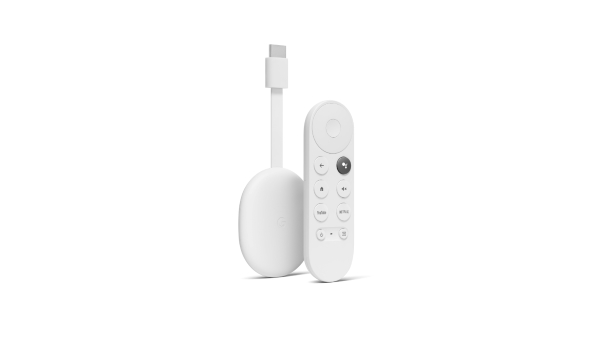
Cast Prime Video to the Google TV Interface
Even though your Chromecast has a built-in app, it still functions as a traditional casting receiver. If you prefer using your phone to search for movies rather than using the TV remote's keyboard, you can still follow the casting instructions from Part 2. The Google TV interface will smoothly stream Amazon Prime on Chromecast from your phone.
Part 4. Amazon Prime Not Casting to Chromecast? Try These Fixes
You might occasionally find your setup failing to connect. If you encounter issues streaming Prime Video to your Chromecast, you can usually resolve the glitch by identifying the specific symptom.
Let's break down the most common errors and how to fix them so you can get back to your entertainment.
The Chromecast Button is Missing on Prime Video
You open the Prime Video app, and the Cast icon is missing from the screen. When this happens, it means your phone physically cannot see the Chromecast on your local network.
Step 1. On iOS devices, double-check that Local Network permissions are granted in your settings.
Step 2. On Android devices, ensure your Google Play Services are fully updated.
Step 3. Access your home Wi-Fi router settings and disable features like AP Isolation or Guest Mode.
Why Can't I Cast Amazon Prime to Chromecast?
You can usually cast Amazon Prime to a Chromecast without a hitch. If the icon is missing or the stream is failing to initiate, it is normally caused by network isolation, specific device restrictions, or outdated software. Here are the primary culprits and how to resolve them:
- Different Wi-Fi Networks: This is the number one offender. Your phone might be connected to your router's 5GHz band, while the Chromecast is clinging to the 2.4GHz band. Ensure both devices are on the exact same Wi-Fi frequency.
- Using a Fire Tablet: If you are trying to cast from an Amazon Fire Tablet, it simply will not work. Amazon's proprietary tablets intentionally block direct casting to Google Chromecast devices due to software limitations and ecosystem competition.
- Local Network Permission (iOS): As mentioned earlier, iPhones enforce strict network privacy. Go to iOS Settings > Prime Video and make sure the Local Network permission is toggled ON.
- App or System Updates: An outdated Prime Video app or a pending firmware update on your Chromecast can break the connection handshake. Head to your app store and check for pending updates on your phone.
- VPN Interference: If you run a VPN on your phone for privacy, turn it off. VPNs encrypt and tunnel your traffic, which inadvertently blocks local network device discovery protocols.
Part 5. Bonus Tips: Watch Prime Video on TV Without Casting
If you are dealing with a flaky internet connection, the Cast button might repeatedly disappear, or the video might constantly drop in quality and buffer. In such situations, you can bypass casting and save Prime Video content as standard local files and play them on your TV via a USB drive or local media player.
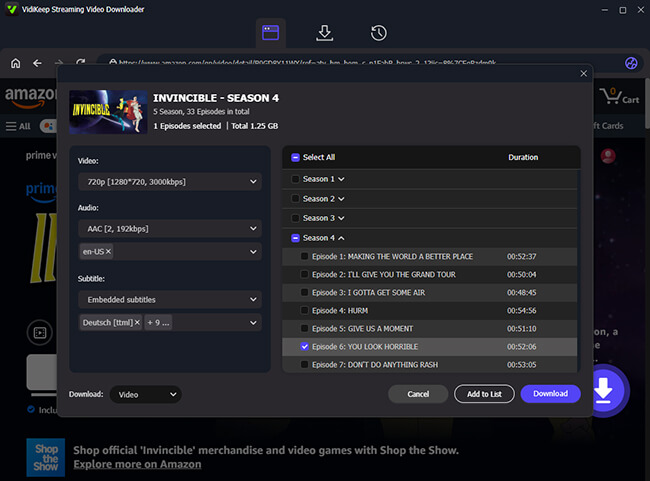
To achieve this, you can use a dedicated streaming video downloader like VidiKeep Streaming Video Downloader. It is designed to safely extract movies and TV shows from Prime Video and other major streaming platforms.
- Batch Downloading: Download Amazon Prime movies and shows into highly compatible MP4 or MKV files in one go.
- Retain Audio and Subtitles: The software preserves multilingual audio tracks and high-quality subtitles, ensuring a premium viewing experience.
- Offline Independence: Once downloaded, you no longer rely on a real-time Chromecast connection or active internet access to watch your content on the big screen.
Step 1. Open VidiKeep on your Mac or PC. Use the settings menu to choose your preferred video quality, audio track, and subtitle language.
Step 2. Select the Prime Video icon from the main interface. Sign in to your Amazon account using the built-in secure browser and locate the movie or episode you want to save.
Step 3. Click the download button to save the video directly to your computer's local hard drive.
Step 4. Transfer the newly created MP4 or MKV file to a USB flash drive. Plug that drive into your TV to play the local file flawlessly, regardless of your internet connection.
| Method | Best For | Internet Needed During Playback | Main Limitation |
|---|---|---|---|
| Chromecast | Quick everyday streaming | Yes | Depends on Wi-Fi and Cast connection |
| Chromecast with Google TV | Direct Prime Video playback | Yes | Requires compatible Google TV device |
| VidiKeep Prime Video Downloader | Offline or more stable playback | No after saving | Requires preparing the video beforehand |
Part 6. FAQs About Amazon Prime and Chromecast
Can I use Chromecast without a phone?
Yes, but only if you have a newer Chromecast with Google TV. These modern models come with a dedicated physical remote and an on-screen visual interface that allows you to download and use the Prime Video app directly on the TV. If you have an older, standard Chromecast dongle, you must use a phone or computer to cast the content.
Does Prime Video support 4K on Chromecast?
Yes, Prime Video fully supports 4K HDR streaming, but it depends on your specific Chromecast hardware. The Chromecast Ultra and the 4K versions of Chromecast with Google TV can stream supported Prime Video titles in stunning Ultra HD. If you are using a standard, older Chromecast model, your video quality will physically max out at 1080p HD.
Does casting count toward Amazon Prime Video's simultaneous stream limit?
Yes, it does. Amazon Prime Video allows you to stream up to three different titles simultaneously across different devices on the exact same account. When you cast a movie from your phone to your Chromecast, Amazon registers that as one stream.
Part 7. Conclusion
Casting Prime Video to Chromecast is straightforward once both devices share the same Wi-Fi network. Use the Prime Video Cast button on mobile or Chrome on a computer. If casting fails, check network access, permissions, and updates first. Chromecast with Google TV can also play Prime Video directly.

Jordan Rhodes is a Chief Technical Editor and Media Specialist at VidiKeep, specializing in creating diverse tech content, including streaming tutorials, software reviews, and video encoding tips.
Leave a Comment