Prime Video on Apple TV: Setup & Fixes
Are you trying to figure out how to watch Amazon Prime Video on Apple TV? While Apple's ecosystem is generally seamless, navigating between platforms can occasionally feel confusing. This guide covers three practical ways to access Prime Video on Apple TV, including using the official app, streaming via AirPlay, and watching downloaded videos offline. It also provides solutions for common Prime Video playback issues to help you enjoy a smoother viewing experience.

| Apple TV Model | Prime Video Support Level |
|---|---|
| Apple TV 4K (All Generations) | ✅ Yes (Native App / 4K HDR) |
| Apple TV (4th Gen) | ✅ Yes (Native App) |
| Apple TV (3rd Gen) | ⚠️ AirPlay Only |
| Apple TV (1st & 2nd Gen) | ⚠️ AirPlay Only |
Part 1. Watch Amazon Prime Video Using the Official Apple TV App
If you own a recent generation of the Apple TV, there is no need to jump through hoops to access your favorite Amazon originals. The App Store hosts a native Prime Video app designed specifically for the big screen. This method is highly recommended over casting, as it allows you to take full advantage of seamless Siri voice commands and stunning 4K HDR playback.
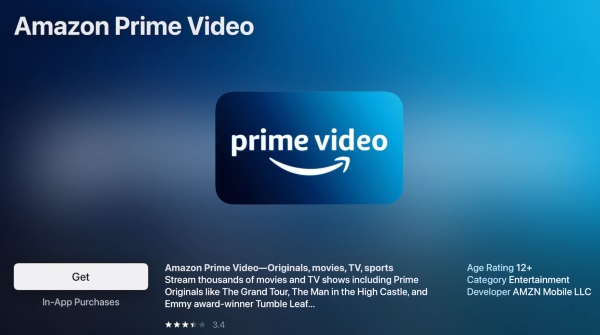
Step 1. Turn on your Apple TV and open the App Store from the Home screen. Search for Amazon Prime Video, select the official app from the search results, and click "Get" to download and install it.
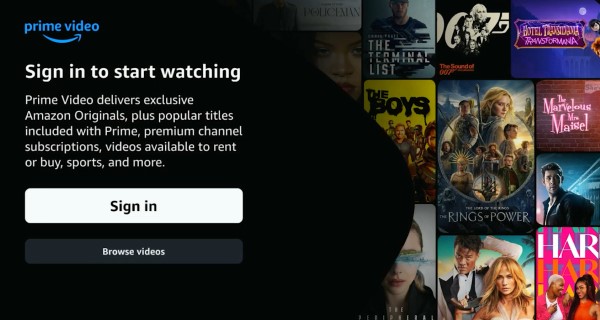
Step 2. Once the installation is complete, open the Prime Video app and select "Sign in". You can either enter your Amazon account credentials or scan the QR code displayed on your TV with your phone to sign in more quickly.
 Editor's Note:
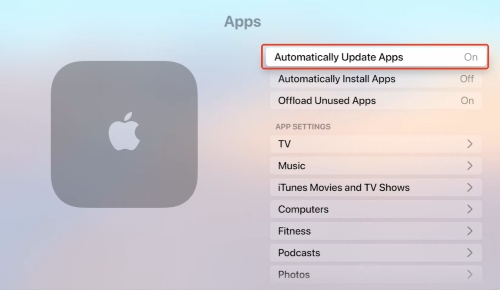
To ensure you always enjoy the latest feature rollouts and top-tier streaming stability, it is highly recommended to know how to update the Prime Video app on Apple TV. For automatic updates, you can go to "Settings > Apps" and turn on "Automatically Update Apps", so it seamlessly updates overnight in sleep mode. If you prefer to manually check or force an update at any time, simply open the App Store and search for "Amazon Prime Video." If a newer version is available, the standard "Open" button will be replaced by an "Update" button.
Part 2. Stream Prime Video to Apple TV via AirPlay
While installing the official Amazon Prime Video app is the easiest and most reliable way to watch on Apple TV, it may not be the most convenient option in every situation. If you're using someone else's Apple TV and don't want to enter your Amazon account details, or you're using an older Apple TV model without App Store support, AirPlay provides a convenient workaround. With a few taps, you can stream Prime Video from your iPhone, iPad, or Mac to your Apple TV without installing the app.
Step 1. Make sure your iPhone, iPad, or Mac and your Apple TV are connected to the same Wi-Fi network. Also, ensure AirPlay is enabled on your Apple TV by going to "Settings > AirPlay and HomeKit" if you haven't configured it before.
Step 2. Open the Amazon Prime Video app on your iPhone, iPad, or Mac, then sign in to your Amazon account if prompted. Browse your library and start playing the movie or TV show you want to watch.
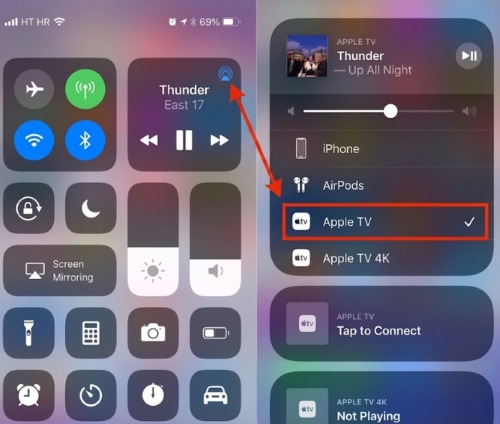
Step 3. Tap the screen to display the playback controls, then select the "AirPlay" icon. Choose your Apple TV from the list of available devices, and the video will begin streaming wirelessly to your TV. You can continue using your mobile device to pause, skip, adjust the volume, or stop playback at any time.
 Limitations:
While AirPlay offers a convenient way to stream Prime Video to Apple TV, it relies on a stable Wi-Fi connection throughout playback. Your Apple device and your Apple TV must remain connected to the same network, and any weak signal, network congestion, or limited bandwidth may result in buffering, reduced video quality, audio sync issues, or playback interruptions.
Part 3. Watch Prime Video Offline on Apple TV
Although the native Prime Video app on Apple TV delivers the most reliable streaming experience, it still depends on an active internet connection. If you're traveling, have limited bandwidth, or frequently encounter unstable Wi-Fi, streaming interruptions can quickly become frustrating. In these situations, watching your favorite movies and TV shows offline is often a more practical choice.
A practical solution is VidiKeep Streaming Video Downloader. It enables you to download eligible Prime Video movies and TV shows to your Mac or Windows PC in MP4 and MKV, while preserving high video quality along with available audio tracks and subtitles. Once the videos are saved locally, you can stream them to your Apple TV via AirPlay or a media server for smooth offline playback. This workflow gives you greater flexibility, especially when you're away from a stable internet connection. Here's how to watch Prime Vide on Apple TV offline.
Step 1 Prepare Prime Video Downloads for Apple TV Playback
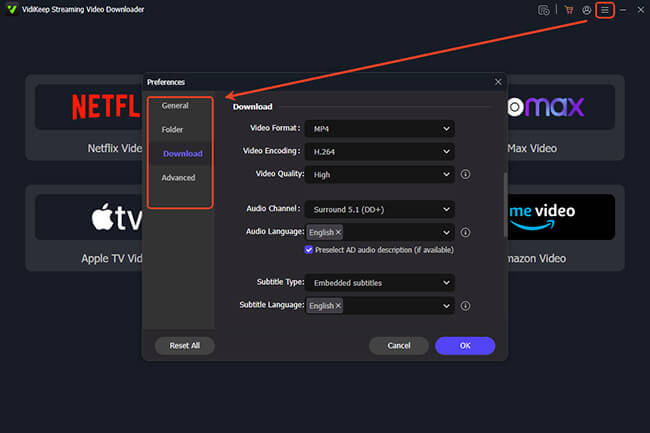
Launch VidiKeep Streaming Video Downloader on your Mac or Windows. Before downloading, adjust the output settings based on how you plan to watch the videos on Apple TV. From the " Preference > Download" menu, choosing widely supported formats such as MP4 or MKV ensures that the saved files can be easily played through AirPlay and Home Sharing solutions.
Step 2 Download Prime Video Titles to Watch Offline
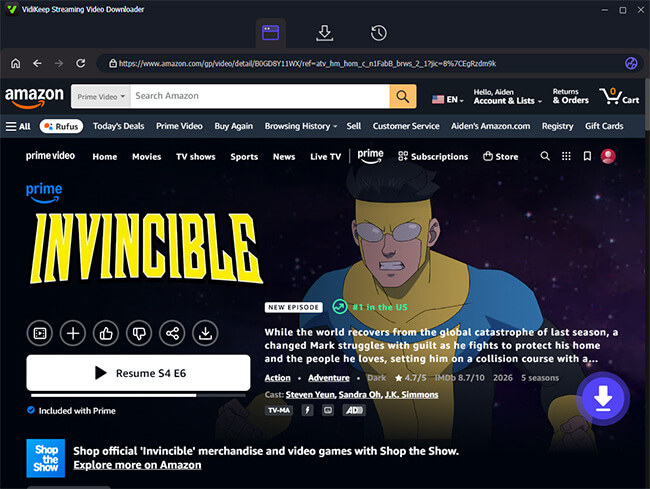
Sign in to your Amazon account through VidiKeep's built-in browser and find the movie or TV show you want to watch on Apple TV. Enter the detailed page of one show, and there is a "Download" icon in the right corner.
Step 3 Save Videos Locally Before Streaming to Apple TV
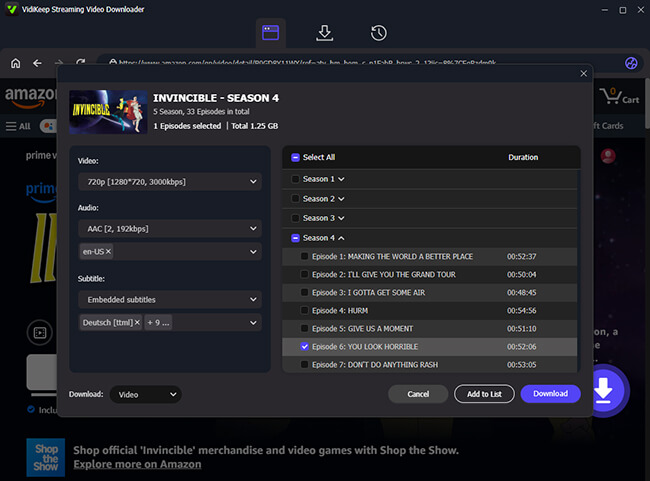
For TV series, you can select multiple episodes by tapping "Add> Add to List" and add them to the download queue, allowing you to prepare your offline library more efficiently. Then click the "Download" button and customize options such as video quality, audio tracks, and subtitles.
Step 4 Watch Prime Video Offline on Apple TV
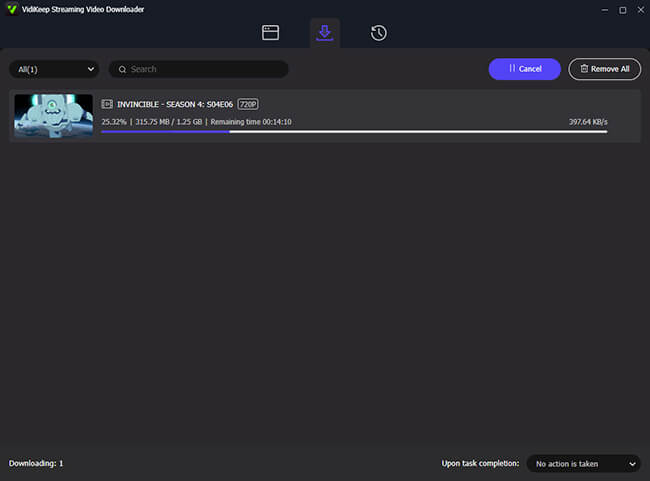
Once the download starts, VidiKeep saves the selected Prime Video titles to your computer. You can check the progress and access completed files from the "History" section. Since the videos are stored locally, there is more flexibility when preparing content for Apple TV playback, allowing you to stream them to your Apple TV using the AirPlay feature on a Mac.
 How to Use Home Sharing for Apple TV Playback:
Alternatively, you can use "Home Sharing" to watch downloaded videos from your personal library without mirroring your screen. On your Mac, open the Apple TV app, go to "File > Import" to add your video files, then enable "Home Sharing" in your settings. After that, open the "Computers" app on your Apple TV to access and play your Mac's media library directly on your TV.
Part 4. Fixes for Prime Video Not Working on Apple TV
When Amazon Prime Video stops working on Apple TV, the cause is usually related to a temporary app error, outdated software, or an unstable network connection. Instead of trying random fixes, identifying the exact issue can help you restore playback faster. Below are the most common Prime Video problems on Apple TV and the solutions that usually work.
Prime Video Won't Open or Gets Stuck on the Loading Screen
One of the most common issues is when the Prime Video app freezes on the startup screen, stays stuck on the Amazon logo, or becomes completely unresponsive. In most cases, this is caused by a temporary app glitch that can be cleared with a quick restart.
What to try:
You just need to force close the Prime Video app and reopen it. If the issue persists and the app remains unresponsive, a system-wide restart is often the most effective way to clear out minor cache conflicts and refresh the hardware connection. This process effectively clears temporary memory and resets the device's communication with your network.
Prime Video Playback Is Blurry, Buffering, or Shows a Black Screen
If Prime Video opens normally but videos appear blurry, keep buffering, or show a black screen while audio continues playing, the issue is often related to network performance or an HDMI connection problem.
What to try:
Step 1. First, check your connection, head to Settings > Network on Apple TV.
Step 2. If you confirm that your Wi-Fi or Ethernet connection is stable, restart your router if necessary.
Step 3. If the network is working properly, restart Apple TV: Settings > System > Restart. This can refresh the video output connection and resolve temporary playback issues.
Prime Video Keeps Crashing or Closing Unexpectedly
If Prime Video repeatedly exits to the Apple TV Home screen while browsing or playing content, the app may be outdated or its installation data may have become corrupted.
What to try:
Open the App Store and check whether a Prime Video update is available. If updating does not fix the issue, reinstall the app. A fresh installation often resolves persistent crashes without affecting your Amazon account or watch history.
Part 5. Final Words
Achieving a smooth Prime Video experience on your Apple TV is straightforward. By using the native app for optimal 4K resolution or opting for AirPlay for quick casting, you can easily keep your favorite content accessible. We also covered using the VidiKeep Streaming Video Downloader as a reliable offline alternative for users with unstable internet connections. Should you encounter Prime Video not working, the simple steps in the article will resolve the most common errors.

Jordan Rhodes is a Chief Technical Editor and Media Specialist at VidiKeep, specializing in creating diverse tech content, including streaming tutorials, software reviews, and video encoding tips.
Leave a Comment