Best Ways to Rip Amazon Prime Video
"How do people rip movies from streaming platforms like Amazon? I've seen people ripping movies and TV shows from OTT platforms. Can someone please enlighten me on how these people do it?"
-- From RedditWhile the official Prime Video app does offer offline downloads, its expiration limits and device restrictions can feel restrictive. As a result, many users begin looking for ways to rip Amazon Prime Video and store their favorite content permanently on personal devices. In this guide, we'll explore several proven methods for building your own offline Amazon Prime media library, from high-efficiency video downloaders to free recording tools.
Part 1. Can You Rip Video From Amazon Prime
It is technically possible to rip Amazon Prime Video with the right tools, but it comes with strict technical limitations. Amazon uses advanced DRM to prevent unauthorized distribution of its content. This encryption ensures that you cannot simply right-click and save a movie to your hard drive. Therefore, any method for downloading movies from Amazon Prime involves circumventing these protections using a specialized downloader or workarounds for recording. Before diving into the detailed steps, check out the quick comparison table below to decide which approach best suits your needs.
| Feature | VidiKeep Streaming Video Downloader | OBS Studio | PlayOn |
|---|---|---|---|
| OS Support | Windows / macOS | Win / Mac / Linux | iOS / Android / Web |
| Speed | Extremely Fast | Slow (Real-time 1:1) | Moderate (Cloud-based) |
| Ease of Use | High (User-friendly) | Moderate (Technical setup) | Moderate |
| Output Format | MP4, MKV | MP4, MKV | MP4 Only |
| Quality | Up to 1080p | Variable (Depends on PC) | Up to 1080p (Lossy) |
| Best For | Batch saving & High Quality | Zero cost | Mobile users & convenience |
 Disclaimer:
Please remember that all content captured should be used strictly for personal, private, and non-commercial viewing. Sharing, uploading, or distributing any content you capture is a clear violation of copyright laws. We always encourage you to use the official offline viewing features whenever possible to support the creators you love.
Part 2. How to Extract Amazon Prime Videos Using Downloader
If you want to know how to rip video from Amazon Prime quickly and in the highest possible quality, using a dedicated extraction tool is the best approach. VidiKeep Streaming Video Downloader acts as a highly efficient Amazon Prime Video converter, designed to securely bypass DRM restrictions. It accesses your account through a built-in browser to pull the file directly. This results in significantly faster speeds, higher visual fidelity, and the ability to retain original multi-language audio and subtitle tracks, allowing rips subtitles from Amazon Prime.

Download your favorite Amazon Prime Video content to MP4 or MKV with lossless quality and subtitile extraction.
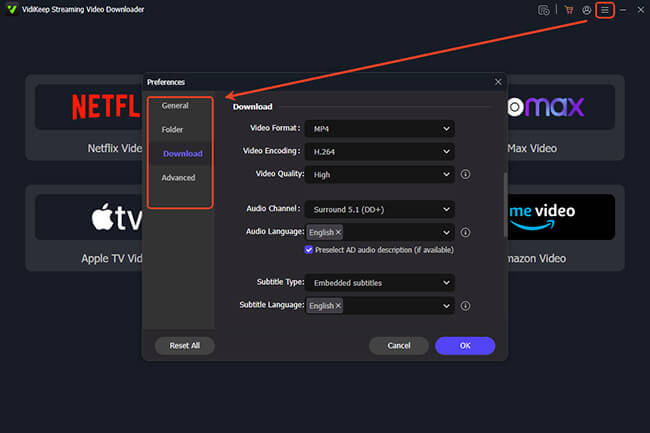
Step 1. Launch VidiKeep on your computer and set your output parameter, typically located under the "Menu" > "Preference" > "Download". Here, you can set your primary output format to MP4 or MKV, ensuring your downloaded files will have universal compatibility across your devices.
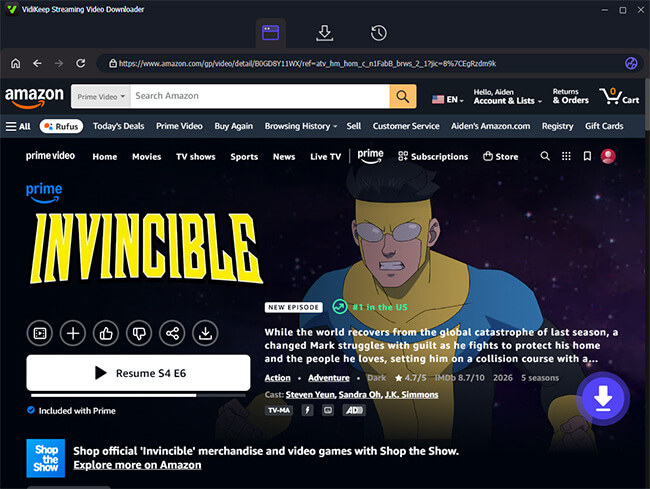
Step 2. Click the Amazon Video icon on the main dashboard to open the secure, built-in browser. Sign in with your account so the tool can access the library tied to your active Prime subscription. Search for the movie or show you like and open its detail page. Look for the floating purple "Download" button on the lower right side of the screen and click it.
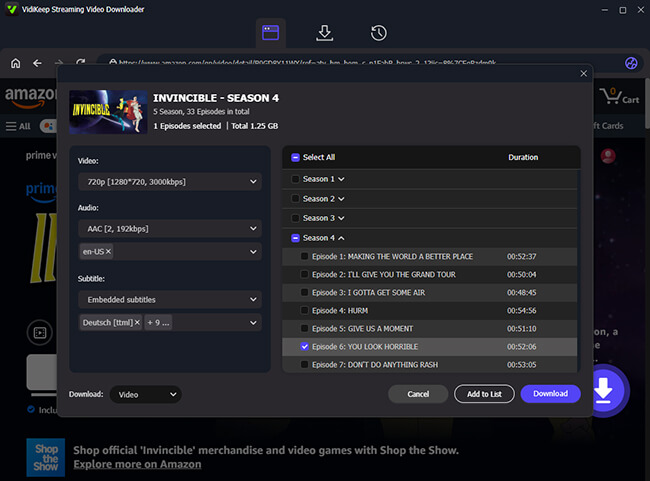
Step 3. A configuration window will pop up, allowing you to finalize your preferences. Select your desired video resolution, audio tracks, and subtitle languages. If you are grabbing a TV series, you can use the "Add to List" feature to batch-queue entire seasons before hitting the final "Download" button to initiate the extraction.
Step 4. Monitor the progress bar at the top of the interface. Once the download is complete, simply navigate to the "History" tab to locate your DRM-free files, which are now permanently stored on your computer.
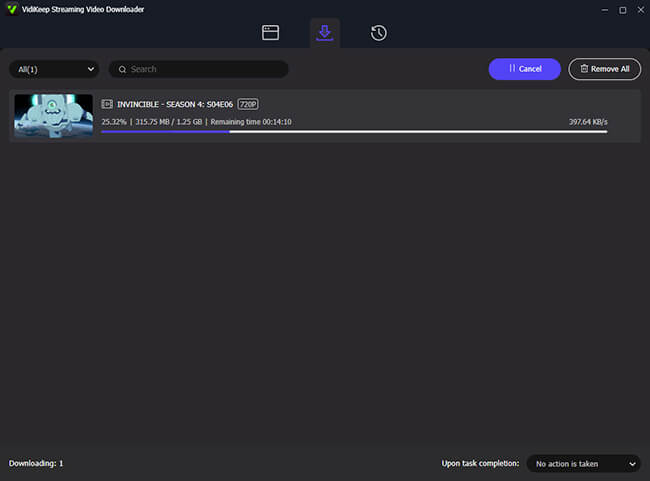
 Pros:
Pros:
- Batch-queue feature for saving entire TV seasons at fast speed
- Easily extracts original subtitles and multiple audio tracks
- Outputs universally compatible MP4 files with high visual fidelity
 Cons:
Cons:
- Requires downloading and installing third-party software
- Premium features require a paid license after the free trial
Part 3. How to Rip Movies From Amazon Prime via Screen Recorder
Amazon Prime Video downloaders are undeniably effective, but they might not fit everyone's workflow. If you would rather not use third-party extraction software, you can choose to record content from Amazon Prime via a screen capture tool. Although capturing real-time playback takes a bit more technical finesse to bypass DRM black screens. Even so, it is a proven and reliable solution for creating a personal offline Amazon video library.
Record Limitation:
You might be tempted to use the native screen recording feature on your mobile device to save a movie directly from the app. Unfortunately, this won't work. Because of strict DRM protections, attempting to record the Prime Video app on iOS or Android will immediately trigger a block, leaving you with a black screen and often no audio.
OBS Studio
OBS Studio is an open-source software that is widely considered the best free program to rip content from Amazon Prime. It is fully compatible with Windows, macOS, and Linux, allowing you to capture high-quality video. However, since it records your screen directly, you must configure your system carefully to avoid triggering Amazon's strict DRM protections.
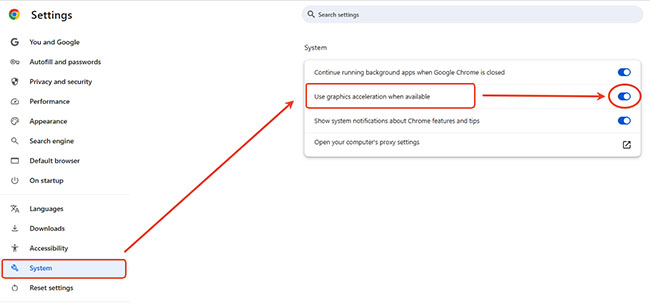
Step 1. To successfully record Amazon Prime Video without a black screen, you need to go to your browser's system settings and toggle off "Use hardware acceleration when available" (also labeled "graphics acceleration"). And Firefox is also highly recommended, as it often handles this workaround better.
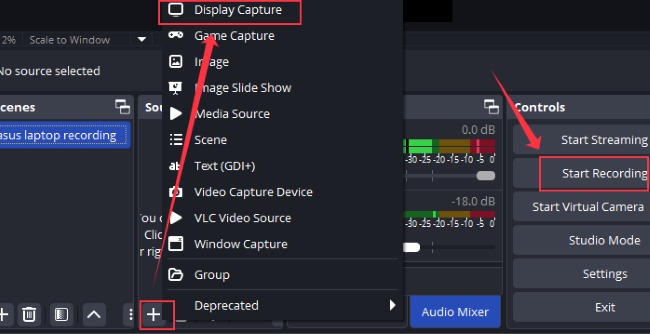
Step 2. Launch OBS Studio and create a new recording scene. Under the "Sources" menu, click the "+" icon and add a "Display Capture" to your dashboard. It is best to avoid using "Window Capture", as these are much more easily detected by streaming platforms.
Step 3. Navigate to the software's Settings and open the "Output" tab to choose a universally supported format, such as MP4. Next, verify your audio mixer settings to ensure desktop sound is enabled, capturing both the video feed and the movie's soundtrack.
Step 4. Open the Amazon Prime player in your browser and switch to full screen. Click "Start Recording" in OBS, let the movie play out entirely, and click "Stop Recording" when the credits roll to save your offline file.
Limitation:
Amazon frequently updates its anti-piracy protocols. Even with hardware acceleration disabled, you may still occasionally experience black screens or choppy frame rates. Because OBS records in real-time, a two-hour movie takes two hours to capture. If you want to avoid these technical hurdles and save time, using a dedicated extraction tool like VidiKeep remains the most reliable solution.
Pros:
- 100% free with no watermarks
- Works on Windows, Mac, and Linux
- Customizable video and audio settings
- Captures any on-screen activity
Cons:
- 1:1 recording time
- High CPU usage can slow down your computer
- High risk of black screen errors from DRM
- Output quality depends on your internet and monitor
- No batch processing or automatic subtitle extraction
PlayOn
If you want to extract Amazon Prime videos directly onto your smartphone or tablet, PlayOn Cloud provides a highly convenient alternative. Unlike desktop-bound software such as EaseUS, Audials One, or FonePaw Screen Recorder, this app automatically captures streaming media across multiple platforms and saves Amazon Prime Video as a MP4 file. This makes playback incredibly easy on almost any modern screen.
Note:
This convenience comes with formatting limitations. It cannot save Amazon videos in MKV or other common formats. Instead of a standard subscription or flat fee, you must purchase credits to fund their recordings: use 1 credit for SD (480p) and HD (720p) recordings, while Full HD (1080p) recordings cost 3 credits.
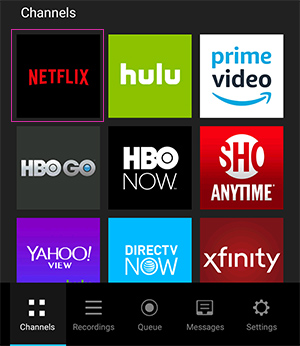
Step 1. Launch the app and navigate to the designated "Channels" section. Select the Amazon Prime Video option to browse through the catalog and find the specific media you want to capture.
Step 2. Simply tap the "Record" button to begin the capture process. The platform will handle the heavy lifting by processing the video entirely on its remote servers rather than using your device's resources.
Step 3. Head over to your "Recordings" tab once the cloud processing wraps up. You will have a seven-day window to download the final Amazon video files to your smartphone or tablet.
Pros:
- Broad cross-platform compatibility (Windows, Mac, iOS, Android).
- Supports high-definition captures up to 1080p resolution.
- Downloaded files are yours to keep permanently without expiration.
- Allows for convenient one-click batch processing.
Cons:
- The overall capturing process can be quite time-consuming.
- The final output experiences some loss in overall video quality.
- Relies on a somewhat confusing and tiered credit system.
- Restricted entirely to standard MP4 output formats.
Part 4. FAQs on Amazon Prime Video Ripping
Is it legal to rip videos from Amazon Prime?
It is a bit of a gray area. While bypassing DRM violates Amazon's Terms of Service and local copyright laws, ripping content strictly for personal, offline viewing is often viewed similarly to recording a show on a DVR. However, sharing, uploading, or selling ripped videos is strictly illegal. When possible, it is always safest to just use the official Prime Video app for offline downloads.
Is there a way to rip Amazon Prime Video for free?
Yes, but most online converters won't work for this. Your best free option is an open-source screen recorder like OBS Studio. However, keep in mind that screen recorders capture video in real-time, which can be time-consuming. It is also a fairly unstable process, and you may run into recording errors, like the dreaded black screen.
Why do I get a black screen when I try to screen record Prime Video?
This is actually a built-in security feature doing its job. Amazon uses strict DRM to protect its media. When it detects standard screen recording software running in the background, it intentionally blocks the video feed to prevent unauthorized copying. To completely avoid this issue, you will generally need to use a dedicated extraction tool like VidiKeep Streaming Video Downloader instead of a basic screen recorder.
Part 5. Conclusion
When it comes to ripping content from Amazon Prime Video, a dedicated downloader is the most reliable choice if you prioritize speed, high-definition quality, and efficient batch downloads. On the other hand, if you prefer a free solution and don't mind the time commitment of recording videos in real time, screen recording can still be a practical alternative.

Jordan Rhodes is a Chief Technical Editor and Media Specialist at VidiKeep, specializing in creating diverse tech content, including streaming tutorials, software reviews, and video encoding tips.
Leave a Comment