Amazon Prime Video on Fire Tablet: The Ultimate Guide
Amazon Fire tablets make it easy to watch Prime Video on a portable screen. Since Fire OS is closely integrated with Amazon services, you can access movies and TV shows on your Fire tablet without the setup other devices require. Whether you're using an older Kindle Fire or a newer Fire model, this guide explains how to watch Prime Video on Fire Tablet, download videos for offline viewing, and manage child access.
Part 1. Can You Watch Amazon Prime Video on a Fire Tablet?
Yes. Amazon Fire tablets are designed to work with Prime Video, making it possible to stream Prime Video content directly from the tablet. However, the viewing experience can vary depending on your Fire OS version and device generation.
Is Prime Video Available on All Fire/Kindle Fire Tablets?
Prime Video is supported on Fire tablets, including the Fire 7, Fire HD 8, Fire HD 10, and Fire Max 11. On supported devices, it is integrated into Fire OS, so you typically don't need to install it separately. While older Kindle Fire models may have limited compatibility or playback quality.
Do You Need an Amazon Prime Membership to Use a Fire Tablet?
No. You can use a Fire tablet with a free Amazon account. However, watching titles included with the Prime Video catalog generally requires a Prime membership or other eligible access. Without it, you can still purchase or rent individual Amazon titles.
Part 2. How to Watch Prime Video on a Fire Tablet
Once your Fire tablet is connected to Wi-Fi, just tap the Prime Video app icon on the Home screen to access Amazon titles on your tablet. You can also pick up where you left off or browse recommendations based on your viewing history.
Step 1. Open Prime Video from your Fire tablet's Home screen. If you don't see it, use Search to find the app. Browse the available titles or search for a specific movie or TV show.
Step 2. Tap a movie or show to open its details page. Here, you may be able to stream, rent, purchase, or download Amazon Prime videos depending on the title.
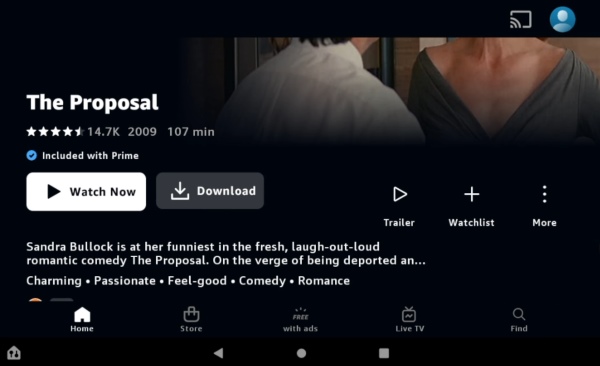
Step 3. Choose the movie or an episode, then tap Watch Now to start streaming. If you've already watched part of the title, Prime Video may offer an option to continue from where you left off.
How to Sign Out or Switch Prime Accounts on Fire OS
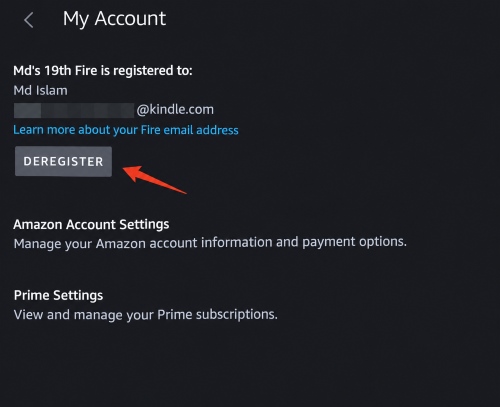
Unlike iOS or standard Android, Fire OS links Prime Video directly to the tablet's primary Amazon account, and there is no in-app sign-out button. To switch or sign out of your Prime accounts, you must deregister the device at the system level:
Step 1. Swipe down from the top of the screen and tap the Gear icon to open Settings. From there, go to My Account to manage the Amazon account linked to your Fire tablet.
Step 2. Select Deregister and confirm when prompted. Once the tablet is deregistered, you can register it again with a different Amazon account and access the Prime Video benefits linked to that account.
Switching user profiles without deregistering is also possible if your family uses Amazon Household. You can pull down the quick-settings shade from the top edge, tap the profile avatar, and select an authorized secondary adult profile to access their linked video benefits.

Part 3. How to Download Prime Video Movies & Shows for Offline Viewing
Storing movies locally is essential when traveling or dealing with spotty Wi-Fi networks. Fire OS offers native tools for caching video files directly to the device, alongside external software solutions for permanent storage.
Method 1: Download Videos Officially via the Prime Video App
Prime Video lets you download supported movies and shows directly to your Fire tablet for offline viewing. The download option appears on the title page when the content is eligible.
Step 1. Open the movie or show you want to download and tap Download. For TV shows, you can usually download individual episodes.
Step 2. Choose a download quality such as Data Saver, Good, Better, or Best, depending on the options available.
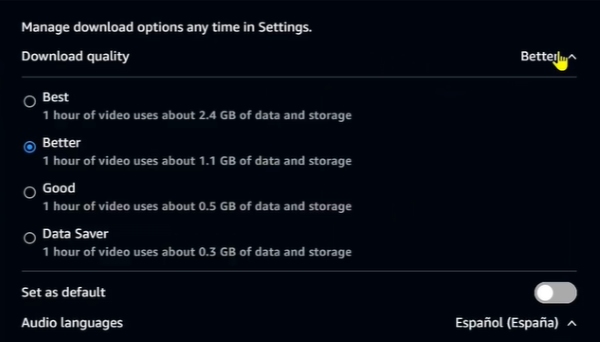
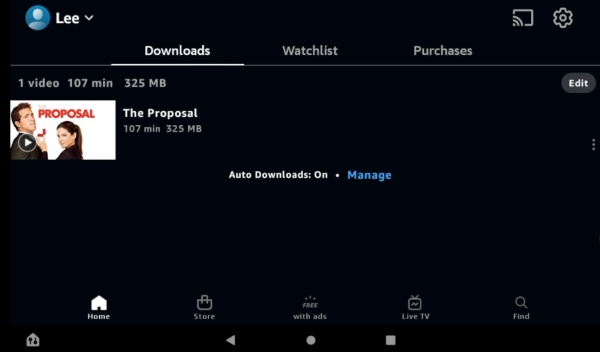
Step 3. Once the download is complete, open the Downloads tab in Prime Video to find and watch your saved titles offline.
Method 2: Save Prime Videos as Local Files with VidKeep
If you need a local video file rather than an in-app download, VidKeep Streaming Video Downloader provides another option. It can save supported Prime Video content as MP4 or MKV files on a Windows or Mac computer, which you can then transfer to your Fire tablet.
If you want to keep copies indefinitely without expiration timers or device-playback limits, third-party software like Vidikeep provides an alternative pathway. Vidikeep runs on your desktop computer (Windows or macOS) to save Amazon Prime videos as local files.
| Feature | Prime Video App | VidKeep |
|---|---|---|
| Download location | Inside Prime Video | Local storage |
| Offline viewing | ✅ | ✅ |
| Output format | App-managed download | MP4 / MKV |
| Transfer to Fire Tablet | Not needed | USB transfer |
| Best for | Simple offline viewing | Keeping a local copy for playback |
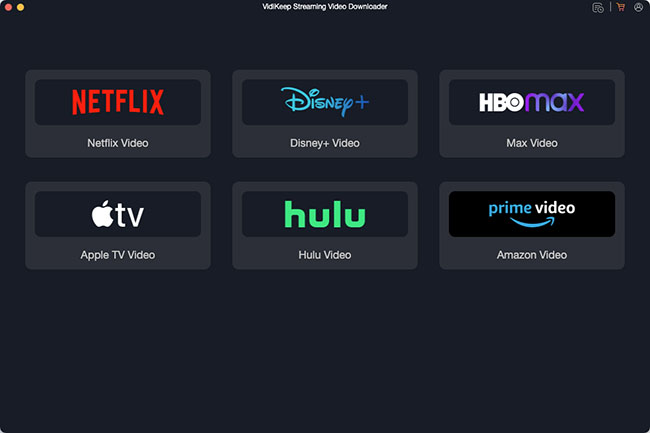
Step 1. Open VidKeep on your computer and select Prime Video from the available streaming services. Sign in to your Amazon account through the built-in browser.
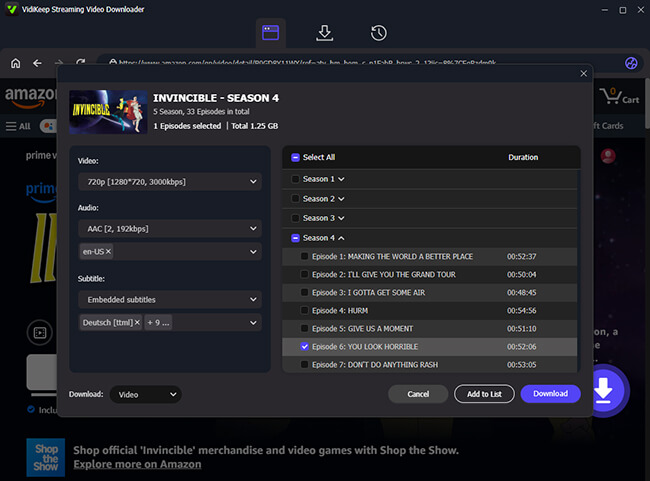
Step 2. Find the movie or TV show you want to download and open its details. Choose your preferred video quality, audio track, and subtitle language from the available options, then click Download to start saving the video to your computer.
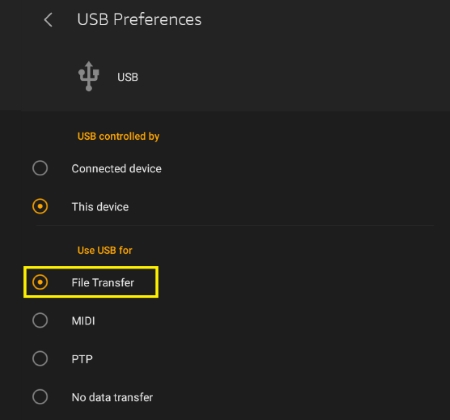
Step 3. Once the download is complete, connect your Fire tablet to the computer with a USB-C cable. Select File Transfer on the tablet if prompted, then locate the downloaded video and copy it to a suitable folder on your Fire tablet for local playback.
Part 4. Managing Amazon Prime Video on Kids Fire Tablets
Amazon Fire Kids tablets use Amazon Kids to create a child-friendly environment with parental controls and content restrictions. Instead of giving children unrestricted access to the full Prime Video catalog, parents can control which videos are available from the child profile.
 Can You Use Prime Video on an Amazon Kids Tablet Profile?:
The full Prime Video app isn't available in the same way on a Child Profile. Instead, parents can share eligible video content from the adult profile for the child to watch.
How to Share Prime Videos with a Child Profile
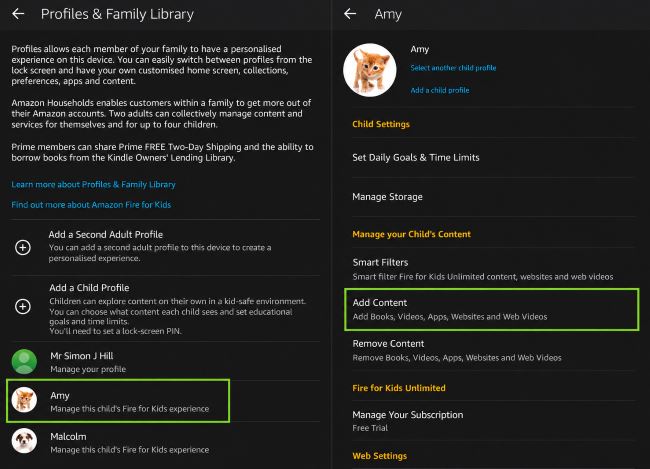
Step 1. Switch to the Adult Profile, open Settings, and go to Profiles & Family Library. Select the Child Profile you want to manage.
Step 2. Choose Add Content, then open the Videos section to view available titles.
Step 3. Select the videos you want your child to access and tap Done. The shared titles will then appear in the child's profile.
Why Can't I Add Prime Video to a Kids Profile?
If a Prime Video title doesn't appear in the sharing list, check whether it is eligible for sharing and whether the child's age settings allow it. If a video fails to show up in the sharing menu:
- Ensure the video was actually purchased or added to your primary account library rather than just added to a watchlist.
- Check the age filter slider in the Parent Dashboard, as strict age ratings automatically hide shared videos that exceed the set threshold.
- Confirm the tablet is connected to Wi-Fi to sync new content permissions from the adult account.
Part 5. FAQs About Prime Video on Fire Tablets
Can you cast Prime Video from a Fire tablet to a TV?
Yes, depending on your TV and Fire tablet model. You can use a compatible casting or Display Mirroring feature to show Prime Video on a TV. The available options vary by device, so check your tablet and TV settings if the casting icon doesn't appear.
Can you download Prime Video content to an SD card?
On supported Fire tablets, Prime Video downloads can be stored on a compatible microSD card. If the option is available, open the Prime Video settings and select the SD card as the download location. This lets you save downloaded videos to the SD card and free up storage space on your tablet.
How do you fix Prime Video when it stops working on a Fire tablet?
If Prime Video keeps crashing, returning to the Home screen, or showing a black screen, start with simple fixes such as restarting the tablet and checking for app and Fire OS updates. You can also clear the app's cache or data if the problem persists.

Jordan Rhodes is a Chief Technical Editor and Media Specialist at VidiKeep, specializing in creating diverse tech content, including streaming tutorials, software reviews, and video encoding tips.
Leave a Comment