Prime Video Black Screen with Sound? Ultimate Fixes
"Why is my Prime Video screen black when I try to stream a movie or show? The audio plays normally, but I only see a black screen. Other streaming services work fine, so I'm not sure what's causing this issue or how to fix it." --Amazon Forum
Watching Prime Video with sound but no picture can be frustrating. If you encounter screen suddenly turns black during playback, this guide walks you through the most effective solutions to This guide explains the common causes and practical fixes to restore Prime Video playback across different devices and get back to watching your favorite content.
Part 1. Why Is My Prime Video Screen Black?
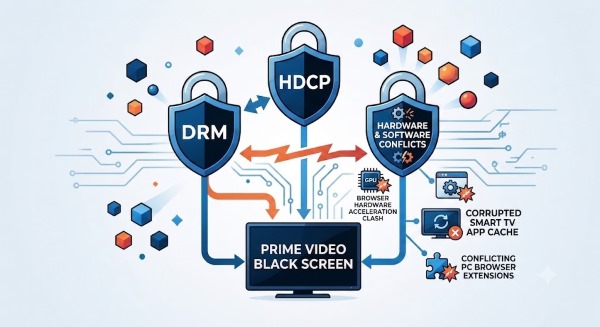
When Prime Video outputs audio without video, the root cause almost always traces back to DRM or High-bandwidth Digital Content Protection (HDCP). Amazon enforces strict encryption standards to stop unauthorized copying or piracy of its content. If the platform detects screen capturing software, a non-compliant HDMI connection, or an unsupported dual-monitor setup, the video feed is immediately blocked.
Beyond security triggers, simple hardware and software conflicts can also cause the screen to go dark. The browser's graphic acceleration (formally called hardware acceleration) can clash with Amazon's DRM. Similarly, corrupted app caches on your smart TV or conflicting browser extensions on your PC can easily break the web player.
Part 2. How to Fix Prime Video Black Screen on PC/Mac/TV
Since Prime Video black screen issues can occur across different devices, the right fix depends on where you watch content. Below, we've grouped the most effective troubleshooting steps by platform to help you quickly restore video playback.
 Editor's Note:
When we tested these solutions, disabling graphic acceleration in Chrome resolved the black screen issue roughly 80% of the time for PC users. However, if you travel frequently or have a spotty internet connection, downloading the Prime Video files on your computer via VidiKeep proved to be the most stress-free way to guarantee smooth playback.
Fixing Amazon Prime Video Black Screen on PC and Mac
Prime Video black screen on PC or Mac issues are often caused by browser settings, conflicting extensions that interferes with playback.
The browser extensions designed to adjust video playback speed or block ads frequently conflict with Amazon's security layer. Additionally, an active VPN or proxy may also interfere with Prime Video's location verification system, causing playback errors or a black screen in some cases.
Step 1. Open your browser's extension manager and temporarily disable video playback extensions, ad blockers, screen recording tools, or capture-related add-ons before reloading the page.
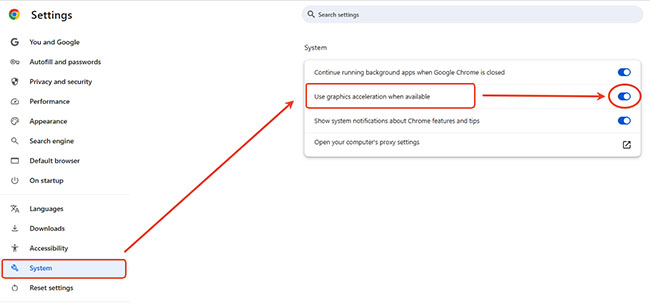
Step 2. Navigate to your browser's system settings, disable the "graphics acceleration" feature, and restart the browser to test playback.
Step 3. Turn off your VPN or proxy connection to ensure Amazon's server does not flag your network as an unauthorized connection.
 Tips:
Tips:
If you prefer using the dedicated Prime Video app on Windows rather than a browser, a full reinstallation is rarely necessary. You can easily fix corrupted application files by heading to "Settings > Apps", locating the Amazon Video app, clicking "Advanced Options", and choosing "Repair". This restores the player's core components without deleting your local settings.
Resolving Prime Video Black Screen on Smart TVs and Streaming Devices
Smart TVs and media sticks constantly run background tasks, accumulating cached data that can eventually cause your Amazon Prime Video to go dark or freeze. Simply pressing the power button may only put some TVs into standby mode instead of fully restarting the system, which leaves those temporary glitch files that keep Prime Video stuck on a black screen.
- Unplug your Smart TV or streaming stick from the wall, wait 60 seconds to drain residual power, and plug it back in.
- Clear the Prime Video app cache via your TV settings, or uninstall and reinstall the app if your TV platform supports it.
When streaming through a Fire Stick or an external HDMI adapter, a persistent black screen or a flashing HDCP error points to an HDMI handshake issue, meaning the TV, streaming device, and cable fail to complete the required HDCP security check.
Step 1. Remove any unverified HDMI hubs and plug your Fire TV stick directly into the television's primary HDMI port, or try testing a new High-Speed HDMI cable.
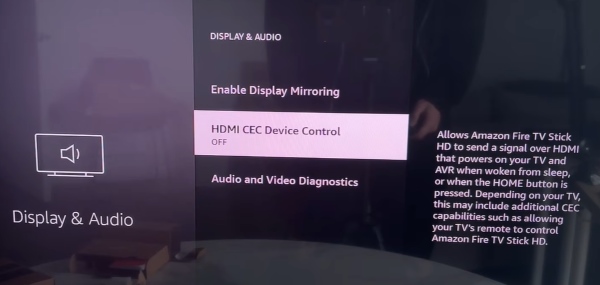
Step 2. Refresh the hardware handshake on a Fire TV by navigating to "Settings > Display & Audio" and switching "HDMI-CEC Device Control" off and then back on.
Step 3. Reset your Fire TV output resolution by pressing and holding the "Up" button and "Rewind" button together on your remote for five seconds until the system cycles through available resolutions. Then you can watch your Amazon Prime Video on Fire TV smoothly.
How to Stream Prime Video on Discord without a Black Screen:
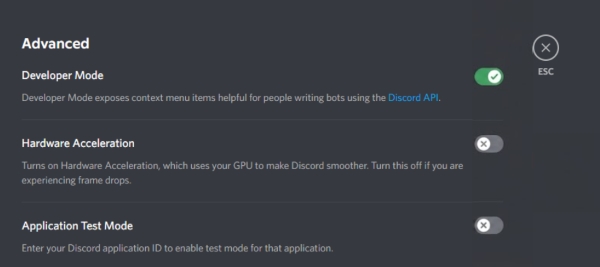
Streaming Prime Video on Discord often triggers a black screen because both the browser and Discord use hardware acceleration. To fix this, open Discord's User "Settings", select "Advanced", and turn off "Hardware Acceleration". Then, disable graphic acceleration in your web browser. When starting your stream, make sure to share the specific browser window rather than your entire screen.
Part 3. How to Screen Record Prime Video Without a Black Screen
Why does Prime Video turn black when recording? As mentioned earlier, standard screen recording tools instantly trigger Amazon's DRM security protocols, blanking out the picture to prevent unauthorized distribution. However, if you are looking to capture short clips for personal use, certain recording tools offer compatibility features designed to handle black-screen playback issues caused by protected streaming content.
Here is a quick comparison of reliable tools that can navigate these restrictions:
| Tool | Best For | Key Feature | Difficulty | Supported OS | Pricing |
|---|---|---|---|---|---|
| OBS Studio | Advanced users | Disable acceleration + display capture |
Medium | Win / Mac / Linux | Free |
| EaseUS RecExperts | Beginners | Black Screen Fix | Easy | Windows / Mac | Freemium |
| RecordFab | Background recording | Record while minimized | Easy | Windows / Mac | Freemium |
How to Use EaseUS RecExperts to Record Prime Video without Black Screen
In this guide, we use EaseUS RecExperts as an example to demonstrate how to record Amazon Prime Video while avoiding common black screen issues. EaseUS RecExperts is particularly user-friendly because it features a built-in utility specifically designed to bypass streaming blackouts.
Note:
Always disable "Graphic Acceleration" in your browser before you start recording to ensure a smooth capture process.
Step 1. Open EaseUS RecExperts and select the "Full Screen" capture mode. Selecting the entire desktop ensures that the software frames the video player perfectly, capturing every detail of your chosen Amazon Prime movie or show without clipping the edges.
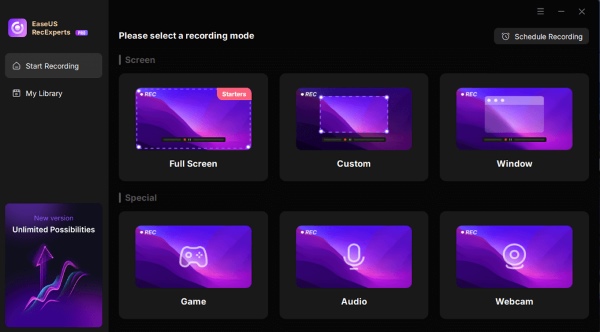
Step 2. Turn on the system sound capture and disable the microphone input, which prevents unwanted background room noise from ruining the movie track.

Step 3. Then load the Amazon Prime Video title you wish to capture and click the "Rec" button, and quickly press play on your Amazon Prime movie. If the media player triggers a DRM security blackout, locate and activate the "Black Screen Fix" utility within the EaseUS interface.

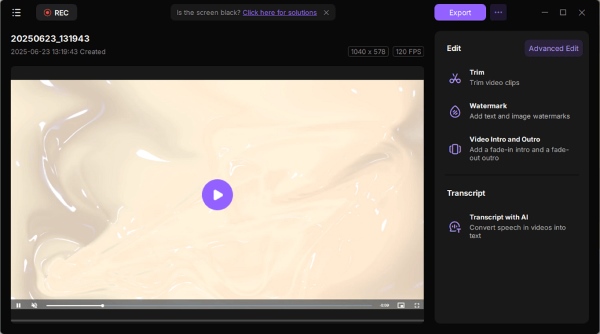
Step 4. Evaluate your captured footage inside the preview window that automatically populates once the session concludes. From this dashboard, you can utilize the built-in trimming tools to slice away unwanted content, finalizing a clean clip for your offline storage library.
Part 4. How to Bypass Prime Video Black Screens on Any Device
If you want a guaranteed way to watch your favorite movies without interruption, and adjusting those settings feels too tedious, downloading the content offline is the ultimate solution. VidiKeep Streaming Video Downloader bypasses black screen errors during playback by letting you save videos locally for permanent offline viewing.
VidiKeep effortlessly batches downloads movies and TV shows from Amazon Prime Video into high-quality MKV or MP4 formats. Because you are playing a local file rather than streaming through a browser, HDCP and browser extension conflicts are completely eliminated.
- High-Quality Output: Preserves stunning 1080P clarity for a premium offline cinematic experience.
- Original Audio & Subtitles: Retains multi-language subtitles and Dolby Atmos audio tracks.
- Batch Downloading: Queue up entire seasons of TV shows to download all at once.
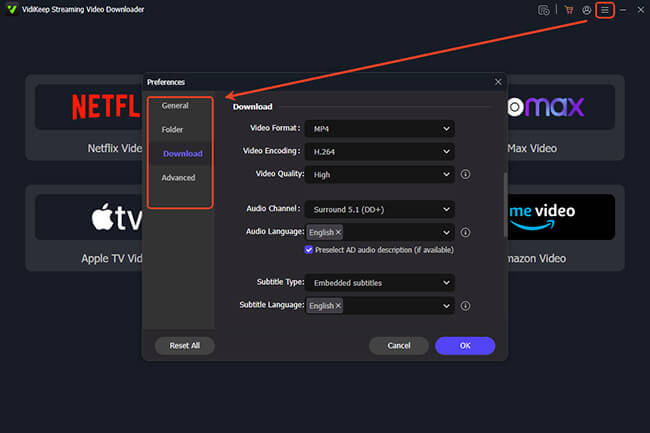
Step 1. After installing and launching VidiKeep on your computer, take a moment to customize your output settings. Click the menu icon in the top-right corner, navigate to the "Preferences" panel, and select the "Download" tab to lock in your preferred video format and visual quality. Once your settings are configured, click the Amazon Prime Video icon and sign in to access your library.
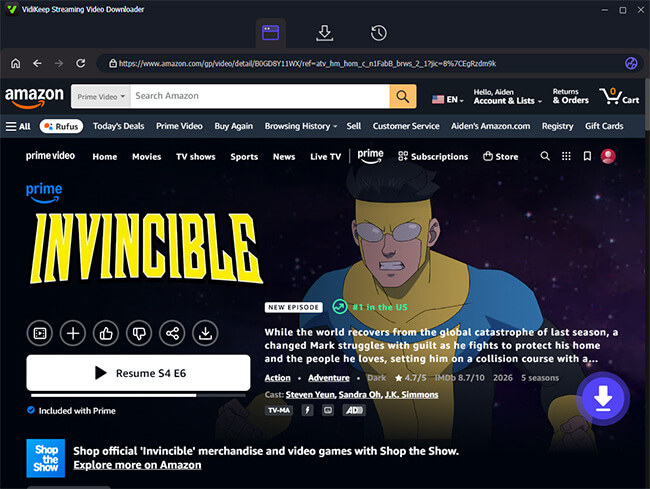
Step 2. Use the software's embedded web browser to search for the specific movie or TV show you want to save. Because you are navigating the catalog inside a specialized application rather than a standard desktop browser, you avoid the graphic acceleration triggers that usually cause the screen to go dark. Once you land on a title's detail page, simply click the floating "Download" icon that appears to let the software analyze the video source.
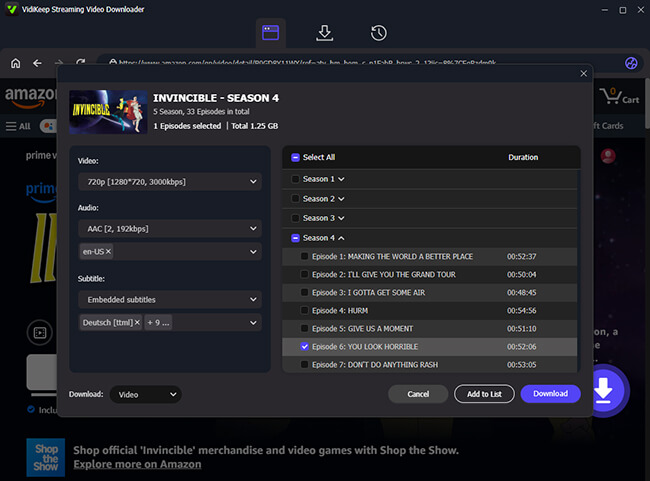
Step 3. If you are saving a television series, utilize the "Select All" and "Add to List" features to queue up an entire season for rapid batch processing. Then review the left sidebar to confirm your desired resolution and subtitle languages for the selected media, then click the "Download" button to begin saving the files to your hard drive. Now you have the DRM-free Prime Video files ready for flawless playback on any device without black screen.
 Disclaimer:
Please be aware that the tools and methods discussed in this guide are strictly intended for personal, offline viewing to help you resolve technical playback errors. We strictly oppose digital piracy and do not endorse sharing, distributing, or commercializing downloaded media in any form.
Part 5. Conclusion
Dealing with an Amazon Prime Video black screen is frustrating, however, some quick fixes will restore your movie night in minutes in most of the time. For those who need to record clips or want to bypass streaming restrictions entirely, tools like EaseUS and VidiKeep offer reliable workarounds.

Jordan Rhodes is a Chief Technical Editor and Media Specialist at VidiKeep, specializing in creating diverse tech content, including streaming tutorials, software reviews, and video encoding tips.
Leave a Comment