How to Download Amazon Prime Movies on iPad/iPhone
Watching Amazon Prime Video on an iPad or iPhone is convenient, but keeping your favorite movies and shows available offline requires knowing how Prime Video downloads work. This guide explains how to get Amazon Prime Video on iPad and iPhone, download Prime movies and shows through the official app and powerful downloader, and troubleshoot common issues when Amazon Prime videos won't download.
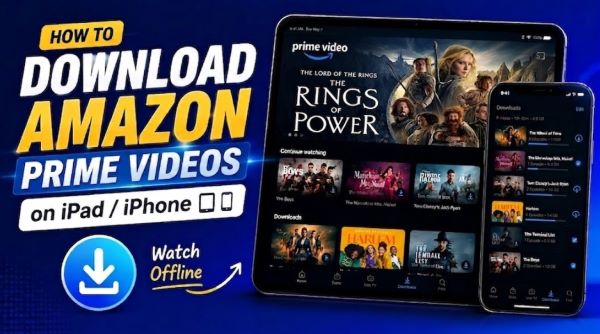
Part 1. Can You Get Amazon Prime Video on iPad & iPhone?
Yes, you can watch and download Amazon Prime Video content on iPad and iPhone through the official Prime Video app, as long as your device and account meet a few basic requirements.
- Active Subscription: You need an active Amazon Prime membership or a standalone Prime Video subscription to stream content and use the download feature for supported titles.
- iOS Compatibility: The Prime Video app requires iOS 14.0 or later. If you have an older iPad that cannot update to iOS 14, you may still be able to install a previous compatible version of the app if you have downloaded Prime Video before using the same Apple account.
- Enough Storage Space: Before downloading movies or shows, check your iPhone or iPad storage, as the high-quality Prime Video downloads can take up significant space.
Part 2. How to Download Prime Movies & Shows on iPhone/iPad via the Official App
The official iOS app is the most reliable way to get Amazon Prime Videos offline. However, the rules differ depending on whether you are downloading a movie from Amazon Prime included with your subscription or one you have explicitly purchased.
| Features | Prime Included Titles | Purchased/Rented Videos |
|---|---|---|
| Cost | Free with subscription | One-time fee |
| Expiration | 30 days (48 hrs after starting) | Never (Rents expire in 48 hrs) |
| Need Prime membership | Yes | No |
| Download available | Some titles | Supported purchases |
How to Download Included Prime Movies & Shows on iPad/iPhone
You can download eligible Prime Video titles directly from the Prime Video app on your iPad or iPhone. Before downloading, check the available storage space and choose a suitable video quality to avoid running out of space.
Step 1. Launch the Prime Video app on your iPad or iPhone, ensuring you are signed into your active Amazon account.
Step 2. Browse or use the search bar to find the specific movie or TV show episode you want to watch offline.
Step 3. To saving the movies or shows from Amazon Prime to your iPhone or iPad, just tapping the "Download" icon located right next to the movie title or individual episode.
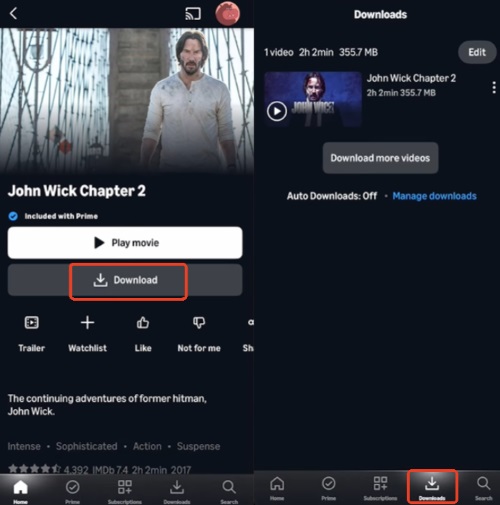
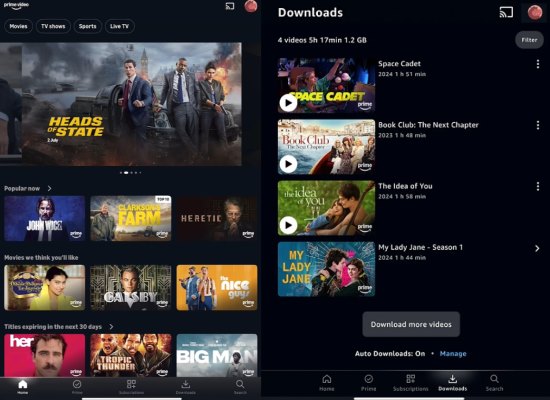
Step 4. Then head over to the "Download" section to view the downloaded content from your Amazon Prime Video app on iPad or iPhone.
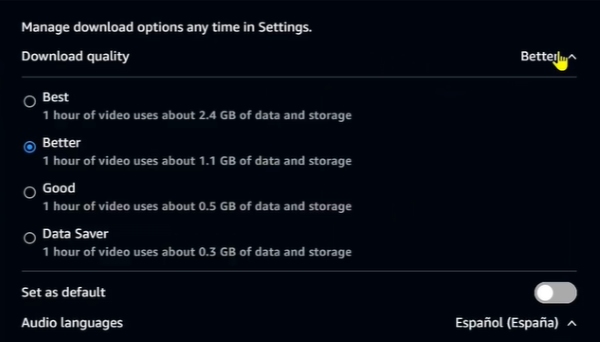
 Manage iOS Storage by Adjusting Download Quality in the Prime Video Settings:
To save space, you should manage your iOS storage by adjusting the download quality in the Prime Video settings. Navigate to My Stuff > Settings > Streaming & Downloading > Download Quality. You can choose between Data Saver, Good, Better, and Best, which range from around 0.6 GB to nearly 6 GB per hour of footage.
How to Get Purchased or Rented Amazon Movies on iPad/iPhone
To watch purchased or rented Amazon movies on iPad or iPhone, open the Prime Video app and go to your library. Purchased titles remain in your account, while rented movies are available only during the rental window.
Step 1. Open the Prime Video app on your iPad or iPhone and search for the movie you want. On the title page, tap "Buy or Rent", then confirm your payment method to complete the transaction.
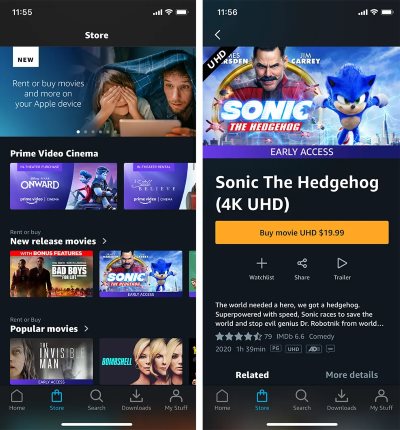
Step 2. Launch the Prime Video app and tap "My Stuff" in the bottom-right corner. Select "Purchases & Rentals" to view movies and shows linked to your Amazon account.
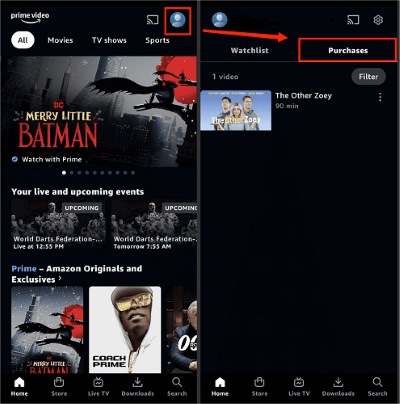
Step 3. Tap the movie or show you want to watch. Purchased titles can be played anytime while they remain available in your Amazon library, while rented titles must be watched within the rental period. For supported titles, tap the "Download" button on the title page to save the movie or episode inside the Prime Video app.
Part 3. How to Download Amazon Prime Videos Permanently on iPad/iPhone
While the official app is convenient, it heavily restricts your viewing experience with DRM encryption, time limits, and device caps. If you travel frequently or simply want to back up your favorite movies and shows from Prime Video without worrying about expiration dates, using a dedicated desktop downloader like Vidikeep Streaming Video Downloader is a smart move.
Vidikeep bypasses the annoying offline viewing limits of the official app. It allows you to save Prime videos on your Mac and Windows as MP4/MKV files, which you can then easily transfer to your iPad or iPhone for unrestricted offline playback.
| Feature | Official Prime Video App | Vidikeep Amazon Prime Downloader |
|---|---|---|
| Format | Encrypted DRM | Universal MP4 / MKV |
| Expiration | 30 days max | Permanent |
| Portability | Locked to the iPad / iPhone app | Transfer to any device |
How to Watch Prime Video on iPad/iPhone Offline
Step 1 Sign in to your Amazon Account in Vidikeep
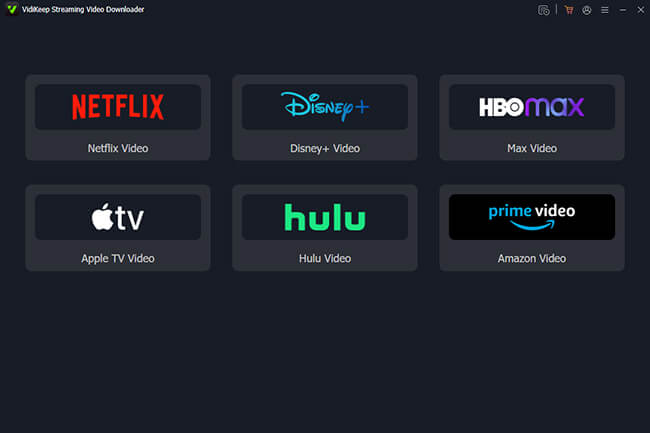
Open Vidikeep and select Amazon Prime Video from the supported streaming services. Use the built-in browser to access Prime Video, then sign in with your Amazon account to find the movies or shows you want to save on your iPad or iPhone.
Step 2 Search for the Prime Video Title You Want to Download
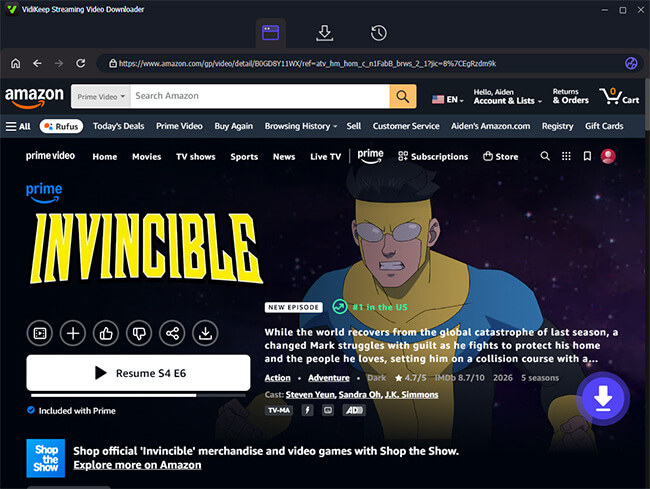
You can search for a movie or show in the built-in browser or paste the video URL into the search field. After loading the video page, click the "Download" button to let Vidikeep detect the available download options.
Step 3 Customize Download Settings for Offline Viewing
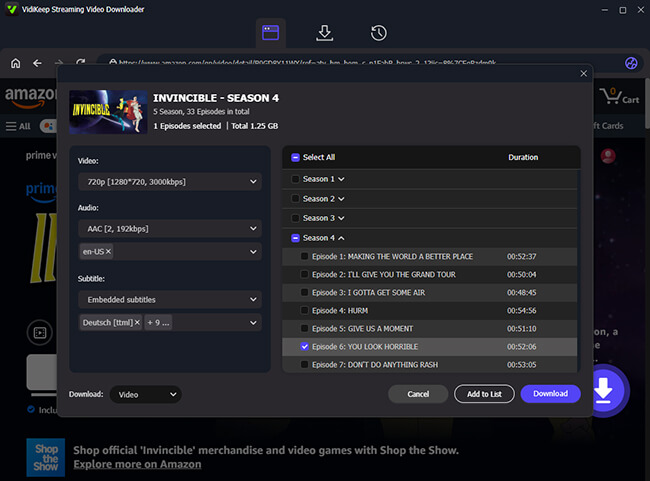
For movies, choose your preferred video quality before starting the download. If you are saving a TV series, you can select multiple episodes and add them to the download list at once using the "Add to List" button. VidiKeep also allows you to adjust available options such as video quality, audio tracks, and subtitles. Then tap the "Download" icon to start the process.
Step 4 Transfer Downloaded Videos to Your iPad/iPhone
Once the download is complete, connect your iPad or iPhone to your computer and transfer the saved video files using Finder on Mac or iTunes/File Sharing on Windows. After moving the files, you can watch your Amazon Prime videos on your device without relying on the Prime Video app on iPhone or iPad.
 Note:
Note:
The official Prime Video app remains the recommended option for quick offline viewing. Vidikeep is designed for users who need more control over downloaded files, such as storing videos locally, managing their media library, or watching content on iOS and other devices.
Part 4. Why Can't Amazon Prime Download on iPad/iPhone?
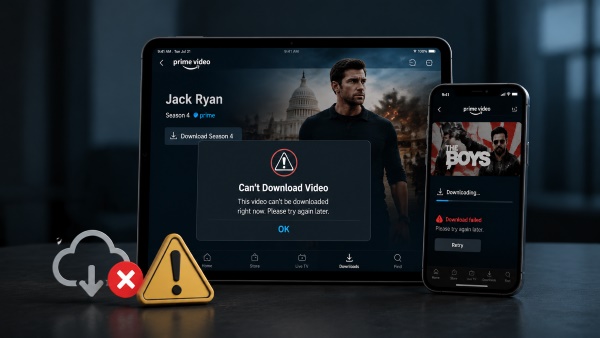
If you cannot download Amazon Prime movies or shows on your iPad or iPhone, the issue is usually related to title availability, device settings, storage limits, or app problems. Try the following fixes to get Prime Video downloads working again.
The Title Doesn't Support Downloads
Not every movie or show on Amazon Prime Video can be downloaded for offline viewing. Download availability depends on content licenses and your region. If the download button is missing, that title may only be available for streaming.
Check Your iPad/iPhone Storage Space
Prime Video downloads can take up a significant amount of storage, especially when saving HD movies or multiple episodes. Go to "Settings > General > iPhone/iPad Storage" to check available space and remove unnecessary files or apps before downloading Amazon Prime videos again.
Update or Reinstall the Prime Video App
An outdated Prime Video app may cause download errors or prevent videos from saving properly. Check the App Store for updates. If the problem continues, try deleting and reinstalling the app to refresh its data and fix possible app issues.
Review Device Limits and Account Restrictions
Amazon limits the number of devices that can be registered for Prime Video downloads. If you have reached the device limit, sign in to your Amazon account in a browser, open "Account & Settings > Your Devices", and remove old or unused devices.
Check Your Internet Connection and Download Settings
A weak connection can interrupt Amazon Prime video downloads on iPad or iPhone. Make sure you have a stable Wi-Fi connection. If downloads are restricted to Wi-Fi only, check the Prime Video app settings and adjust the download preferences if needed.
Part 5. FAQs about Amazon Prime Video Downloads on iPad/iPhone
Why did my downloaded Prime Video disappear?
Amazon Prime downloads do not last forever. For standard subscription content, you have 30 days to start watching a downloaded video. Once you press play, you only have 48 hours to finish it before it automatically deletes or requires an internet connection to renew the license.
Can I use AirPlay to watch Amazon Prime Video from iPhone/iPad on TV?
Yes, but only if you have an active internet connection. Due to DRM restrictions, the official app blocks you from using AirPlay or casting downloaded offline videos to a TV while completely disconnected from the web.
Where are Prime Video downloads stored on iPhone/iPad?
They are stored directly within the Prime Video app's hidden sandbox data. You cannot access the raw video files through the iOS Files app or camera roll.
Can I transfer Amazon Prime downloads to a USB drive?
You cannot transfer videos downloaded through the official mobile app to a USB drive due to encryption. However, if you use a third-party tool like Vidikeep to save the videos as MP4s on a computer first, you can freely move those Prime Video files to any USB drive or external storage.

Jordan Rhodes is a Chief Technical Editor and Media Specialist at VidiKeep, specializing in creating diverse tech content, including streaming tutorials, software reviews, and video encoding tips.
Leave a Comment