How to Rent Videos on Amazon: Full Guide
If you only want to watch one movie, renting it on Amazon can make more sense than paying for another subscription or buying the title outright. The process is simple, but the Rent option, rental period, and viewing restrictions can be easy to miss. This guide covers how to rent movies on Amazon Video and what to know afterward.
Part 1. Can You Rent Movies and Videos on Amazon?
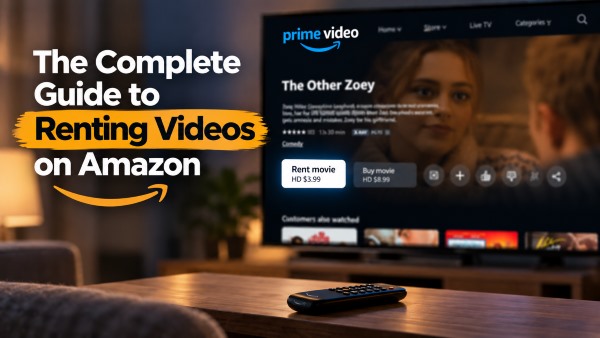
Yes. You can rent a wide selection of movies and videos on Amazon, including many recent releases, popular titles, and older movies. Rental availability varies by title, so some movies may offer Rent, while others may only be available to buy or may already be included with Prime. When a movie is available for rent, you can usually find the Rent option on its details page and pay a one-time fee instead of purchasing the title.
Do You Need Amazon Prime to Rent a Video?
No. You don't need an Amazon Prime membership to rent or buy digital movies on Amazon. A standard Amazon account with a valid payment method is enough to complete the rental and watch the movie through Prime Video.
Here is a quick breakdown of how standard streaming compares to renting and buying digital content:
| Feature | Included with Prime | Renting on Amazon | Buying on Amazon |
|---|---|---|---|
| Payment | Prime subscription | One-time rental fee | One-time purchase fee |
| Prime membership required | ✅ | ❌ | ❌ |
| Extra payment for individual title | ❌ | ✅ | ✅ |
| Viewing period | While your Prime access remains active | 30 days to start; 48 hours after playback begins | Generally available in your digital library |

Part 2. How to Rent Movies and Videos on Amazon
Renting a movie on Amazon is straightforward once you have a valid payment method linked to your account. Whether you're using Prime Video on a smart TV or browsing Amazon in a web browser, you can usually find the rental option directly on the movie's details page.
Step 1. Open the Prime Video app or visit Amazon in a desktop browser. Sign in to the Amazon account you want to use for the rental and make sure your payment method is up to date.
Step 2. Go to the Store section to browse movies available for rent, or use the search bar to find a specific title. Open the movie's page to check whether a Rent option is available.
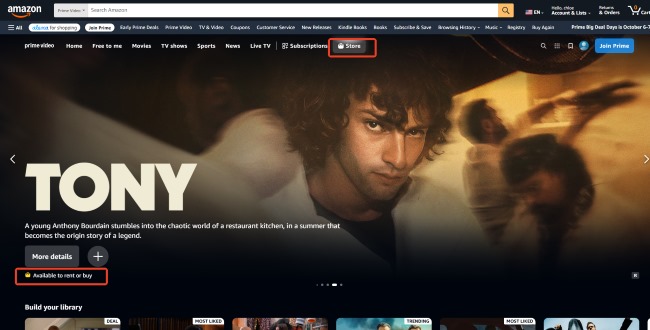
Step 3. Select the movie to open its details page and look for the Rent button. Check the rental price and available options before selecting the rental option to continue.
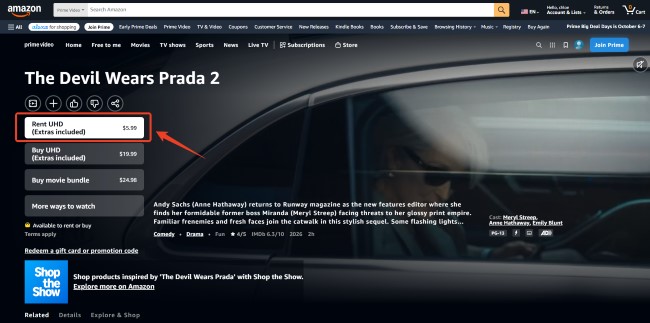
Step 4. Choose an available video quality, such as UHD, HD, or SD, if multiple options are offered. Review the price and payment details, then confirm your rental to add the movie to your library.
 No "Rent" Option in the Prime Video Mobile App?
If you are using a smartphone and notice there is no option to rent on Amazon Prime Video, it is likely because Amazon disables in-app purchases on iOS and Android to avoid app store commission fees. To easily bypass this restriction, simply open your phone's mobile web browser (like Safari or Chrome), log into the Amazon website, and complete the transaction there.
How Long Do You Have to Watch a Rented Amazon Video?
You usually have 30 days to start a rental for most Amazon rentals. Once you press play, you typically have 48 hours to finish it. During this period, you can usually watch it more than once before the rental expires.
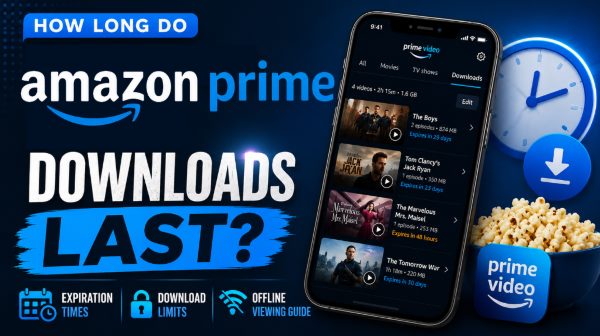
How long do Amazon Prime downloads last? Discover the official expiration rules, and learn how to keep your offline videos permanently.
Part 3. How to Download Rented Movies on Amazon
Amazon lets you download rented movies for offline viewing through its supported mobile apps, including iOS, Android, and Fire tablets. This is convenient when you’re traveling or don’t have Wi-Fi, but official downloads remain subject to Amazon’s rental rules, including the rental expiration period.
For more control over local playback, VidiKeep Streaming Video Downloader provides a desktop alternative for Windows and Mac. It can save supported Amazon Prime Video content, including rented titles, with options for video quality, audio tracks, and subtitles. This gives you more flexibility than app-based offline viewing, allowing downloaded files to be played locally with compatible media players or smart TVs.
Step 1 Set Your Download Preferences
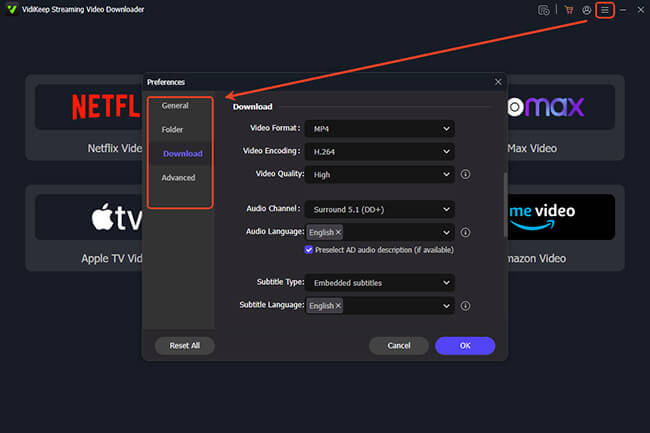
Install and open VidiKeep Streaming Video Downloader on your Windows PC or Mac. Before downloading a rented Amazon video, click Menu > Preference > Download to choose the output format and save Amazon Prime videos in MP4 or MKV, along with your preferred codec, audio language, and subtitle settings. Then select Amazon Video from the main interface to open Amazon in VidiKeep's built-in browser and sign in to your account.
Step 2 Find Your Rented Amazon Video
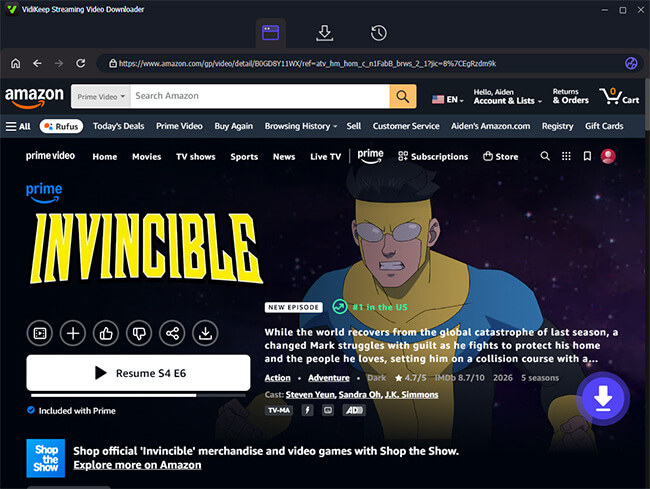
After signing in, browse Amazon and open your rented movie from your library. Select the title you want to save for offline viewing, then click the floating Download button in the lower-right corner. VidiKeep will analyze the video and load the available download options, so you can review the settings before starting.
Step 3 Download the Rented Amazon Video
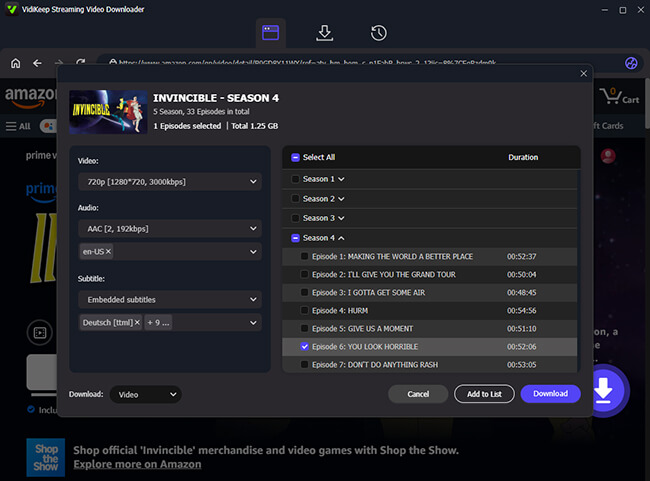
Confirm your preferred settings in the pop-up window, then click Download to start. If you're saving a rented TV series, use Add to List to queue multiple episodes or a full season. Once the download is complete, open the History tab to find the saved files and play them locally.
 Disclaimer:
When downloading rented Amazon videos with VidiKeep, make sure your use complies with Amazon’s terms, copyright laws, and the rules that apply in your region. This method is intended for personal use only; download or keep content only when you have the right to do so.
Part 4. Why Can't I Rent on Amazon Prime Video?
If you can't find a Rent button on Amazon Prime Video, it doesn't necessarily mean there's a problem with your account. Rental availability can vary by title, location, and licensing rights, while playback or library issues may prevent a rental from working properly even after you've paid for it. Here are some common reasons to check:
- The Movie Isn't Available for Rent: Some titles may only be offered for purchase, included with Prime, or unavailable for digital viewing in your region. Rental options can also change as licensing agreements are updated.
- The Rental is Missing from Your Library: Make sure you're signed in to the same Amazon account used to complete the rental. Digital purchases and rentals are tied to the Amazon account that made the transaction.
- The Title or Rental Option Has Changed: A movie may previously have been available to rent but later switch to purchase-only, become included with Prime, or leave the digital catalog.
Part 5. FAQs About Renting Movies on Amazon
Can I share rented movies with my Amazon Household?
While an Amazon Household setup allows family members to share free Prime shipping and streaming benefits, digital video purchases and rentals are strictly excluded. A video rental is permanently tied to the exact profile used to make the payment. If you want to share Amazon videos with your family members, they must log into your specific account on their device.
How many devices can stream a rental at the same time?
Amazon enforces strict simultaneous streaming rules for rented content. You are only permitted to stream a rented video on one device at a time. If you attempt to watch a rental on your TV and someone else opens the same rental on a tablet, the platform will block the second stream.
Can you use Amazon gift cards or digital credits to pay for video rentals?
Amazon automatically applies any eligible gift card balances or digital promotional shipping credits toward your movie rental before charging your credit card. However, your account must still have a valid payment card attached and 1-Click purchasing enabled to authorize the digital transaction.
Part 6. Conclusion
Renting Amazon movies requires no Prime membership, but it comes with strict time limits. If the rental button vanishes on mobile, simply use a web browser to bypass restrictions. To avoid expiration timers, tools like VidiKeep provide a permanent offline viewing solution for your rented Amazon videos.

Jordan Rhodes is a Chief Technical Editor and Media Specialist at VidiKeep, specializing in creating diverse tech content, including streaming tutorials, software reviews, and video encoding tips.
Leave a Comment