2 Ways to Convert Prime Video to MKV
Building the ultimate offline movie library, only to have your downloads expire. While Amazon's DRM restricts your media to their app, there is a proven way to break free. This guide will show you how to convert Amazon Prime Video to MKV. We'll unlock the best tools for archiving your favorite Amazon Prime shows in lossless 1080p.
Part 1. Can You Convert Amazon Prime Video to MKV?
No. You likely noticed the video files you downloaded from the Amazon Prime Video are impossible to play on other devices. This happens because Amazon utilizes DRM to encrypt its content. And you cannot natively export or convert these encrypted cache files into an MKV format just by changing the file extension.
Why Choose to Convert Prime Video to MKV?
While MP4 is incredibly common, the MKV container is often the superior choice for archiving movies and TV shows. The primary advantage of an MKV file is its ability to act as a universal wrapper. It can hold the main video track alongside multiple audio streams. Furthermore, MKV flawlessly supports embedded soft subtitles. Converting to MKV ensures you retain the 5.1 Dolby surround sound and high-definition video quality that cinematic releases deserve.
| Feature | MP4 | MKV |
|---|---|---|
| Best For | Everyday use, web streaming, mobile | High-quality archiving, home media servers |
| Compatibility | Universal (Plays everywhere) | Excellent on TVs/servers |
| Audio Support | Standard stereo (AAC) | Surround sound (Dolby 5.1) |
| Subtitle Support | Hardcoded (Burned in) | Selectable soft subtitles (SRT, VTT) |
| Video Quality | Compressed (Lossy) | Uncompressed (Lossless) |
| File Size | Smaller (Optimized for space) | Larger (Optimized for quality) |
Part 2. How to Download Prime Video as MKV
Because Amazon frequently updates its encryption protocols to block standard web tools, utilizing a professional Prime Video converter is the most reliable method for acquiring local files. One highly effective tool for this job is the VidiKeep Streaming Video Downloader.
Instead of capturing your screen in real-time, it analyzes the video stream and downloads the Prime Video files directly to your Windows or Mac. This method ensures that the downloaded Amazon video retains its original 1080p resolution and allows you to select which specific audio tracks and subtitle languages to package into the final MKV file.

Download your favorite Amazon movies and shows to MKV or MP4 for offline viewing on any devices.
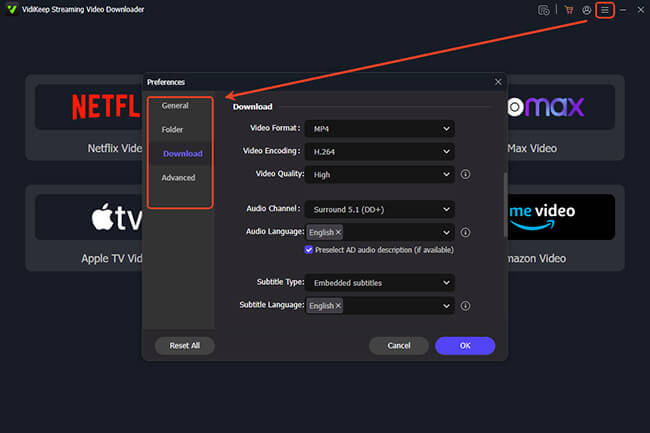
Step 1. Install and open the VidiKeep app on your computer, then customize how your video output. click the menu icon in the upper-right corner, and navigate to the "Preferences" panel and "Download" tab and set your default output format to MKV.
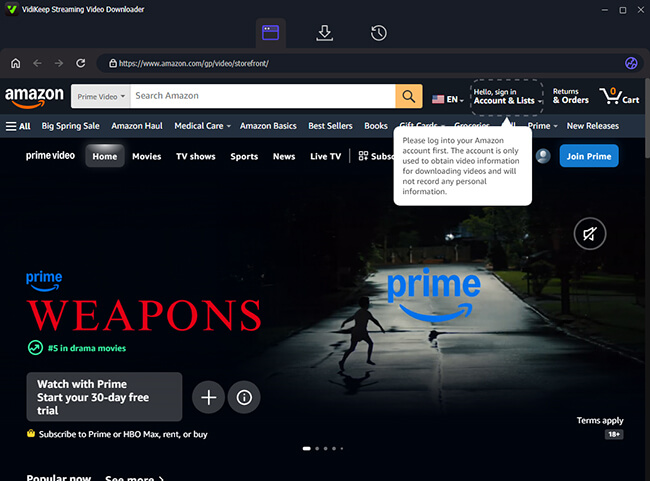
Step 2. Click on the built-in Amazon Prime Video portal to launch the integrated secure browser. Log into your active Prime account so the software can safely parse the titles available in your subscription library.
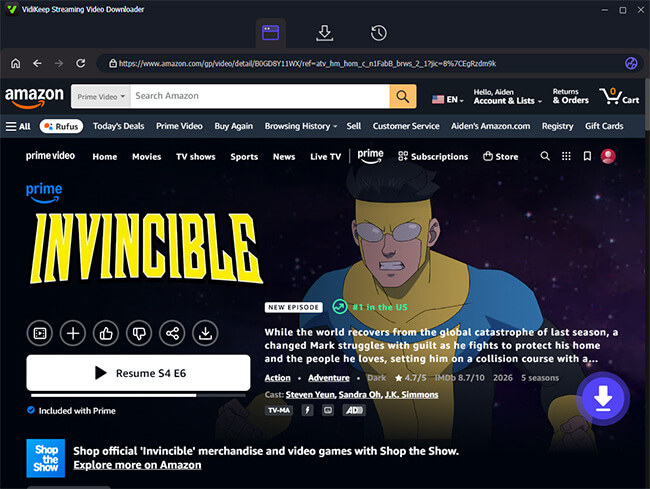
Step 3. Use the search bar within the embedded browser to locate the intended content to save offline. Enter the detail page, and you'll see a floating "Download" icon to appear. Click it to trigger the progress for fetching and saving.
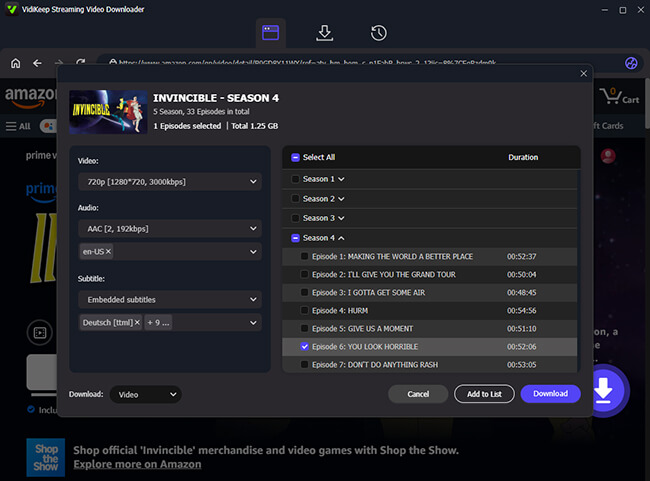
Step 4. Review the configuration window to confirm your video quality, audio codecs (such as Dolby 5.1 surround sound), and preferred subtitle languages. When you are satisfied with the setup, click the "Download" button to process the video. Also you can select the "Add to List" option to queue up an entire season for batch processing.
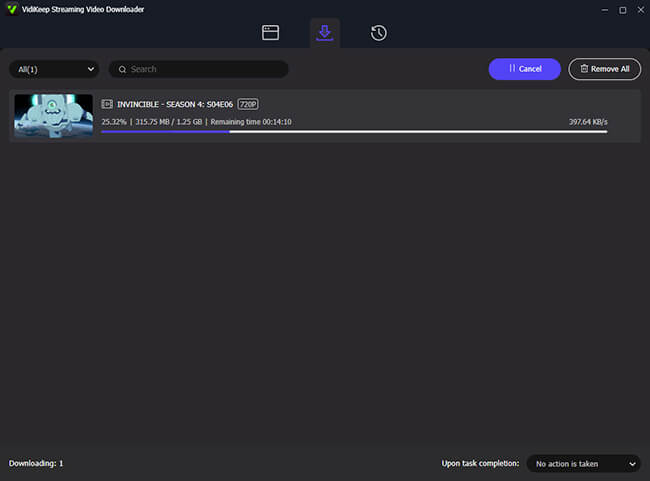
Step 5. Head over to the "History" tab once the status bar reaches completion to locate your local files. Your media is now permanently stored as an unencrypted MKV file, ready to be watched offline whenever you want.
Part 3. How to Record Prime Video to MKV
If you only need to save a short clip or prefer not to use video converter, screen recording is a universal alternative. However, streaming platforms actively block generic screen recorders. When you attempt to record a streaming site, your screen will usually black out. EaseUS RecExperts is a strong option here because it features advanced capture modes designed to capture protected video windows, and it allows you to export your final recording directly into the MKV format.
 Tips:
Tips:
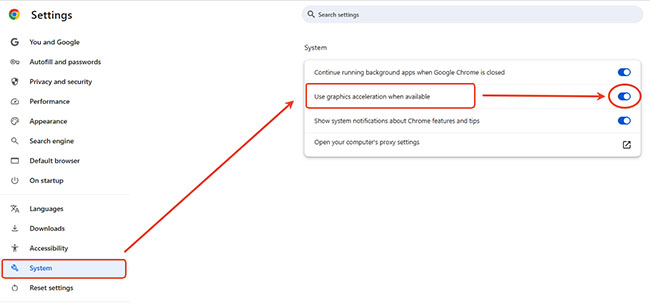
Before using this method, you must prepare your browser to prevent the black screen error. Open your browser settings on Chrome, search for toggle the "graphic acceleration" feature off. Next, restart your browser immediately.
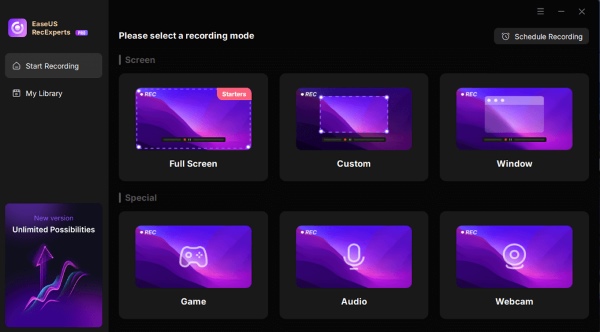
Step 1. Open EaseUS RecExperts and select the "Full Screen" capture mode. Selecting the entire desktop ensures that the software frames the video player perfectly, capturing every detail of your chosen Amazon Prime movie or show without clipping the edges.
Step 2. Go to the software's output settings and switch the default video format from MP4 to MKV. Simply navigate to "Settings > Video > Output format", then select MKV from the available options.
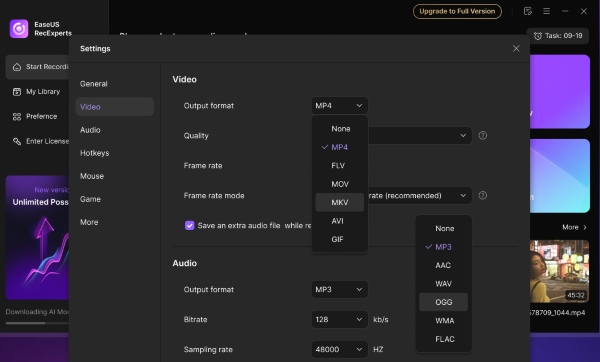
Step 3. Turning on the system sound capture and disabling the microphone input, which prevents unwanted background room noise from ruining the movie track. Then load the Amazon Prime Video title you wish to capture and click the "Rec" button and quickly press play on your Amazon Prime movie. If the media player triggers a DRM security blackout, locate and activate the "Black Screen Fix" utility.

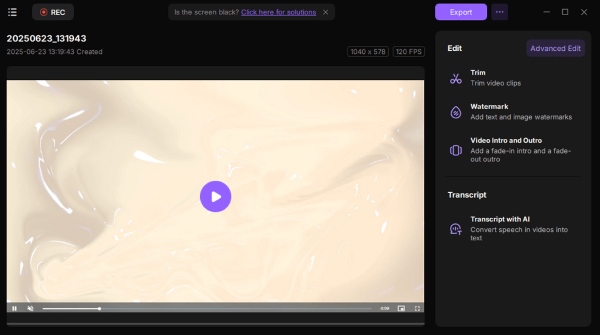
Step 4. Evaluate your captured footage inside the preview window that automatically populates once the session concludes. From this dashboard, you can utilize the built-in trimming tools to slice away unwanted content, finalizing a clean clip for your offline MKV storage library.
Part 4. FAQs About Prime Video to MKV Conversion
Does converting Prime Video to MKV reduce video quality?
Not necessarily. MKV is a container format and does not affect video quality by itself. If you use a dedicated Prime Video downloader, the original resolution and bitrate can usually be preserved. Screen recording, however, requires re-encoding and may introduce quality loss, such as reduced sharpness or dropped frames.
Can I play converted MKV files on any device?
Most modern devices, including Android phones, Smart TVs, and media servers, support MKV playback. However, some Apple devices and older media players may not open MKV files natively. In such cases, using a compatible player like VLC can resolve playback issues.
Can I keep subtitles when converting Prime Video to MKV?
Yes. Many Prime Video downloaders allow you to save subtitles as embedded, external, or selectable tracks within the MKV file. In contrast, screen recordings typically capture subtitles as part of the video image, meaning they cannot be turned on or off later.
How can I retain Dolby Digital Plus audio when converting Prime Video to MKV?
To preserve surround sound, choose EAC3 or AC3 audio output if your downloader supports it. MKV can store these high-quality audio tracks without re-encoding. Screen recording tools generally capture audio in stereo, making it difficult to retain the original Dolby Digital Plus experience.
Part 5. Conlusion
Downloading Amazon Prime Video as MKV is the ultimate way to build a high-quality media library. While screen recorders work well for quick clips, using a dedicated downloader like VidiKeep is the best solution for full movies. It easily saving you time while preserving the untouched 1080p resolution and rich surround sound your home theater deserves.

Jordan Rhodes is a Chief Technical Editor and Media Specialist at VidiKeep, specializing in creating diverse tech content, including streaming tutorials, software reviews, and video encoding tips.
Leave a Comment