How to Download Apple TV Movies/Shows 2026
Planning a long flight or heading somewhere with unreliable Wi-Fi? Relying on a live internet connection to stream your favorite Apple TV content isn't always practical. Fortunately, saving your media from Apple TV for offline viewing is entirely possible, though managing your library can feel a bit restrictive. Whether you simply want to download Apple TV shows for a daily commute or are looking to export Apple TV movies and shows as MP4 or MKV, this complete guide will walk you through exactly how to get it done.
Part 1. Can You Download Apple TV Shows and Movies
Yes, you can download Apple TV shows and movies for offline viewing, provided you use compatible hardware. Apple allows you to save content locally for uninterrupted playback without Wi-Fi, though these DRM-protected files remain locked strictly within the Apple ecosystem. You can easily download media directly through the official Apple TV app. Supported personal devices include: iPhones, iPads, Mac, Windows and Android.
 Tips:
Tips:
Despite this flexibility for mobile and desktop users, Apple imposes strict boundaries on living room entertainment. You cannot download content directly onto the physical Apple TV box, smart TVs, streaming devices, or via tv.apple.com. On those platforms, you are strictly limited to live streaming.
Part 2. How to Download Apple TV Content with a Subscription
Managing your offline library is incredibly easy since the Apple TV app interface is nearly identical across mobile and desktop platforms. As long as you have an active subscription or a purchased film, saving media directly to your device takes just a few taps or clicks. Here is the straightforward process to download movies from Apple TV using the official app.
Fetching Videos from Apple TV on iPhone/iPad/Mac/PC
Step 1. Open the Apple TV app on your iPhone, iPad, Mac, or Windows PC.
Step 2. Use the search bar or browse the "Apple TV" tabs to locate the specific movie or TV show episode you want to save. Tap or click on the title to open its detail page.
Step 3. Locate the "Download" icon, which looks like a cloud with a downward-pointing arrow. Click or tap this button to initiate the download. For TV shows, you can usually find this icon next to each individual episode.
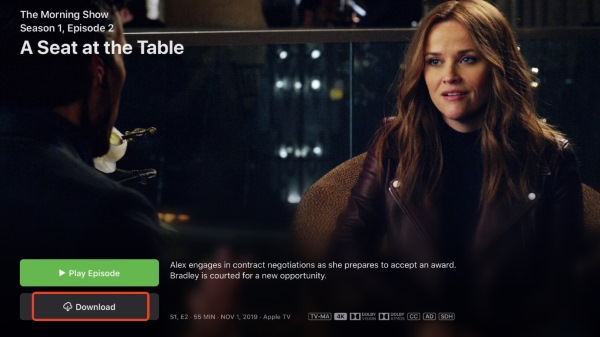
Step 4. Once the download is complete, navigate to the "Library" tab at the bottom or sidebar on desktop and select "Downloaded" to access your offline content
 Limits for Official Apple TV Downloads:
- Device Limits: Offline downloads are typically capped at 6 simultaneous devices per family account. If you reach this limit, you must delete older files from one device before downloading new ones.
- Purchased Content: These files are yours to keep permanently on compatible devices, with absolutely no expiration dates.
- Rented Content: Rentals expire 30 days after the transaction or 48 hours after you hit play. Additionally, a rented title can only be downloaded to one device at a time.
Part 3. How to Export Apple TV Movies and Shows Locally
While the official app is convenient, it heavily restricts how and where you can play your saved media. If you want to view Apple TV offline, you need a dedicated desktop tool to bypass these limitations. VidiKeep Streaming Video Downloader is a robust solution that lets you batch download all your streaming video on a Mac or PC at once.
It empowers you to effortlessly save content not just from Apple TV, but also from major platforms like Netflix, Disney+, Hulu, and Max. You can seamlessly convert Apple TV movies and shows to MP4 or MKV formats while preserving the original multi-language audio tracks and subtitles. This ensures you experience clarity in 1080p—including exclusive MLS highlights and entire seasons of a hit series anytime.

Download your favorite Apple TV movies and shows to MP4/MKV in lossless quality for offline viewing anywhere.
Converting Movies and Shows from Apple TV to MP4/MKV
Step 1 Configuring Your Apple TV Output Preferences
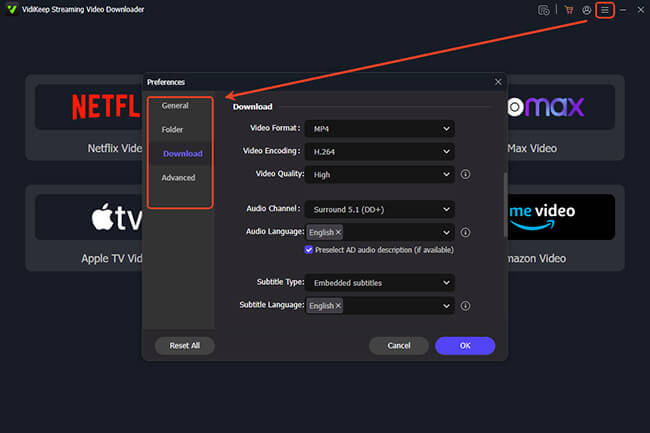
Before grabbing any media, it is highly recommended to configure your export parameters. Click the "Menu" button at the top, navigate to "Preference > Download" tab. This menu is where you dictate the file type from MP4 or MKV format, while also tweaking the video codec for storage optimization and locking in your default language tracks.
Step 2 Choosing The Video Platform
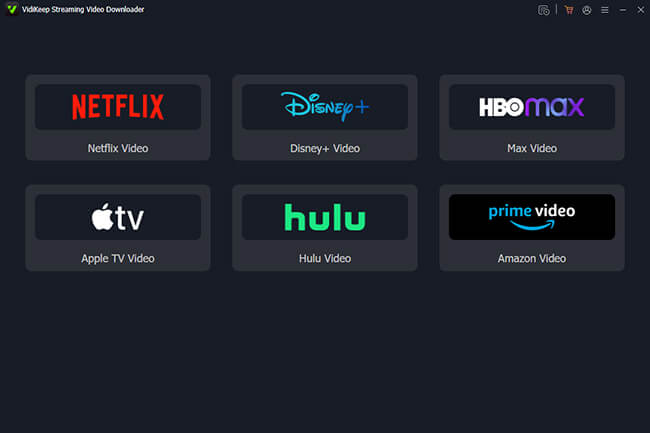
Return to the program's home screen, which features a comprehensive grid of globally supported streaming services. Scan the icons to locate the Apple TV Video module and click on it to enter the dedicated downloading interface.
Step 3 Accessing Your Apple Account
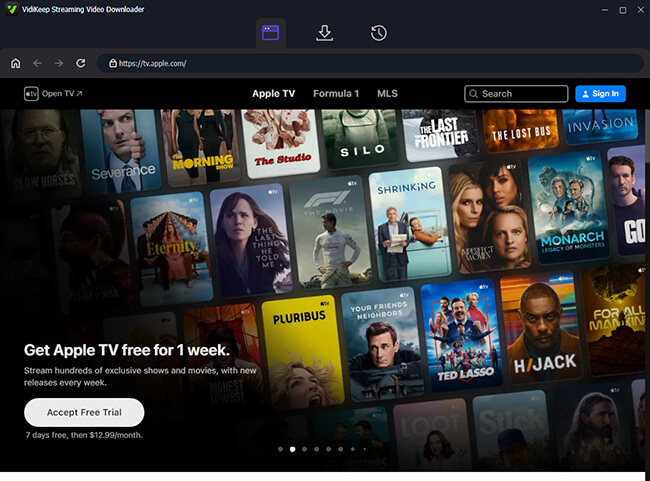
VidiKeep utilizes a built-in, highly secure web browser that opens the official Apple sign-in portal directly within the application window. Simply enter your Apple account to gain access to Apple TV originals with your active subscription.
Step 4 Finding the Movies and Shows to Download
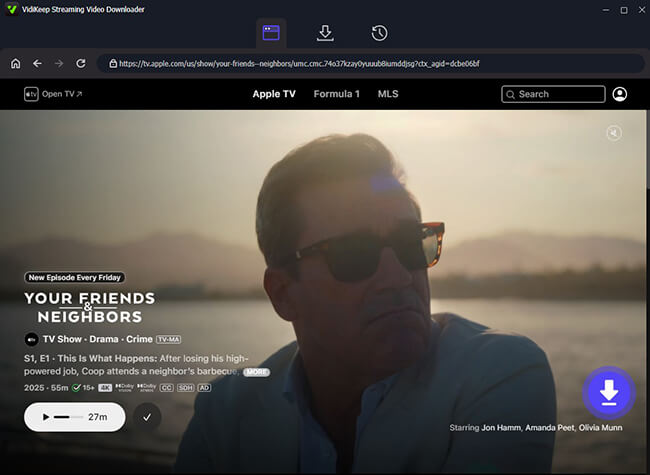
Search through the catalog to locate the desired movies or shows from Apple TV. Once you are on the title's main landing page, click the floating "Download" button situated in the bottom-right corner of the window. The software will immediately start fetching the video data.
Step 5 Downloading Apple Shows for Offline Playback
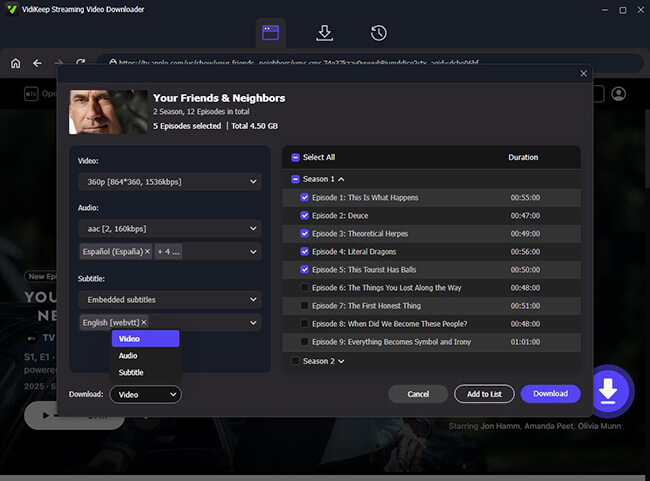
A final configuration window will pop up, giving you one last chance to review your resolution and audio choices. Hit the final "Download" button to initiate the transfer. You can take advantage of the "Add to List" function to queue up several episodes at once. Once the extraction is complete, head over to the "History" section to locate your permanent, DRM-free video files.
Part 4. FAQs About Storing Apple TV Shows and Movies
Can you keep a rented movie from Apple TV for offline viewing?
Yes, you can absolutely download a rented movie for offline viewing, but you cannot keep it permanently. Apple imposes a strict digital ticking clock on all rental transactions. From the moment you rent the film, you have exactly 30 days to open the app and hit play.
Can I download Apple TV movies natively as MP4 files?
No. When you download a movie or show through the official Apple TV app, the file is heavily encrypted with DRM and stored in a proprietary format. You cannot simply open your device's folders, locate an MP4 file, and transfer it to a USB drive or tablet. To get a MP4 or MKV file is by using a dedicated third-party video converter tool like VidiKeep.
Why can't I download movies from Apple TV?
In most times, if you cannot download a show or movie, you might have reached your account's overall download limits, or the specific third-party channel might simply not allow offline viewing. If a download fails, check the following issues:
- Your device lacks sufficient internal storage space for high-definition files.
- You have exceeded your simultaneous device limit.
- Your current Wi-Fi connection is dropping out during the transfer.
Part 5. Final Thoughts
Understanding how to empowers you to take your entertainment anywhere, regardless of your Wi-Fi situation. For most users, using the official Apple TV app on an iPhone, iPad, or Mac is the quickest way to secure movies on Apple TV for a commute or trip. However, if you are looking for permanent storage or cross-platform compatibility, official Apple downloads will fall short. Utilizing a tool like VidiKeep Streaming Video Downloader is the best way to get your Apple TV movies and shows, giving you ultimate control over your digital library.

Jordan Rhodes is a Chief Technical Editor and Media Specialist at VidiKeep, specializing in creating diverse tech content, including streaming tutorials, software reviews, and video encoding tips.
Leave a Comment