How to Watch Netflix on Amazon Fire Tablet
This guide covers Netflix installation, device compatibility, and viewing options on Amazon Fire tablets. To watch Netflix on an Amazon Fire tablet offline, you can use Netflix's built-in download feature or explore third-party tools. You'll also learn which Fire OS versions support downloads, and what to do if Netflix is missing from the Appstore, or won't download your chosen movie or show.
 Key Takeways:
- Netflix Installation: The official Netflix app is natively available directly through the Amazon Appstore.
- Capability Limits: App installation and offline downloads require Fire OS 5.0 or later. Full HD streaming is exclusively limited to certified models like the Fire HD 8 and Fire HD 10.
- Flexible Viewing: Stream through the official app or the built-in Silk browser. To watch offline, rely on Netflix's native download feature or use third-party tools like VidiKeep Streaming Video Downloader.
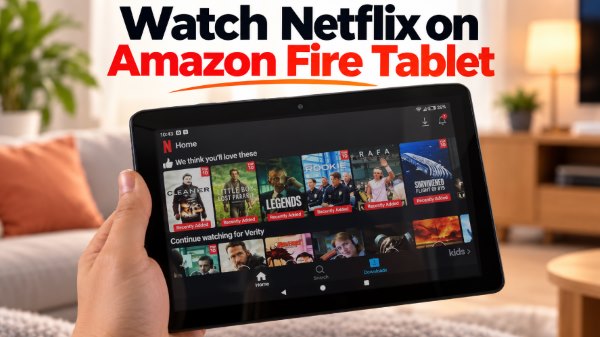
Does Netflix Work on Amazon Fire Tablets?
Yes, Netflix is available on supported Amazon Fire tablets. However, your tablet's Fire OS version affects app and download support, while its display capabilities determine whether you can watch in Full HD. Before installing Netflix, check your device's compatibility so you know which features to expect.
Netflix Compatibility on Amazon Fire Tablets
Most of the difference comes down to the tablet model. Netflix lists the Fire HD 8, Fire HD 10, and Fire Max 11 among the models that support Full HD playback. Fire Kids tablets can also run Netflix, but support depends on the underlying tablet model and whether the app is allowed in the child's profile.
| Fire Tablet | Netflix App | Full HD (1080p) | Offline Downloads |
|---|---|---|---|
| Fire 7 | √ | ✗ | √ |
| Fire HD 8 | √ | √ | √ |
| Fire HD 10 | √ | √ | √ |
| Fire Max 11 | √ | √ | √ |
| Fire Kids tablets | √ | Depends on model | √ |
 Editor's tip:
Before troubleshooting a missing Netflix app or a failed download, check which Fire OS version your tablet is running. Open Settings > Device Options > System Updates to view the software information and check for updates. If the app still doesn't appear, your tablet may not support the current version of Netflix.
How to Install Netflix on an Amazon Fire Tablet
 Quick Tip Before You Start:
Check your Fire OS version and available system updates first. Head into Settings > Device Options > System Updates to make sure your Fire OS is current. Also make sure you are currently logged into an adult profile, as child profiles block direct Appstore access. If the app still isn't listed, your device or software version may not support the current release.
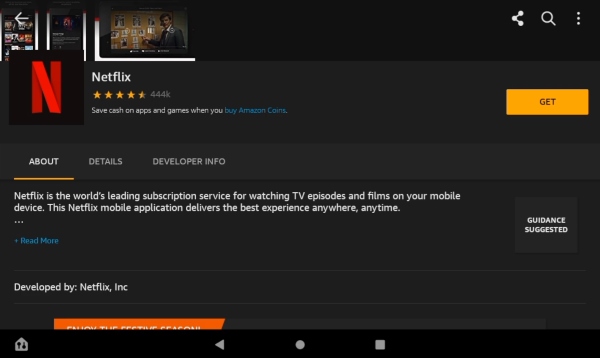
Step 1. Wake up your Fire tablet and tap the Appstore icon on the home screen. Then click the search bar and type Netflix. Select the official Netflix app from the search results to open its download page.
Step 2. Tap "Get" to download and install the app. Wait for the installation to finish, then tap "Open". Enter your Netflix email address and password to sign in. Once you're in, you can browse movies and TV shows and start streaming.
How to Add Netflix to an Amazon Fire Kids Profile
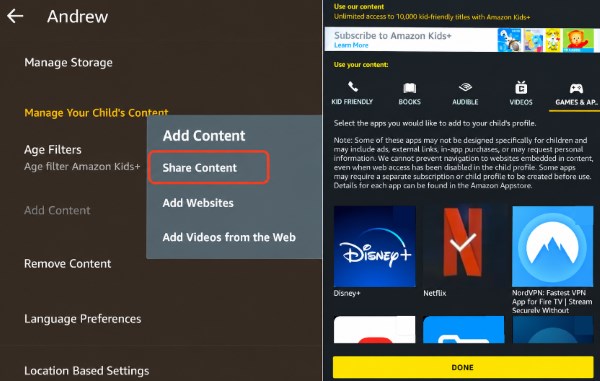
If you handed a Kids Edition tablet to your child, you've probably noticed that they cannot download apps themselves due to Amazon Kids' strict walled-garden restrictions.
To bypass this, you must grant access from the parent profile. First, download and install Netflix on your main adult account using the steps above. Next, go to your tablet's Settings, select Profiles & Family Library, and tap on your child's profile. Tap "Add Content > Share Content", check the box next to Netflix, and tap "Done". The app will now show up on your child's dashboard.
How to Download Netflix Movies on a Fire Tablet for Offline Viewing
Taking your Fire tablet on a flight or a road trip means you will need to download Netflix content ahead of time. Netflix lets you download selected movies and TV episodes to watch when you don't have an internet connection.
Method 1: Use the Official Netflix App
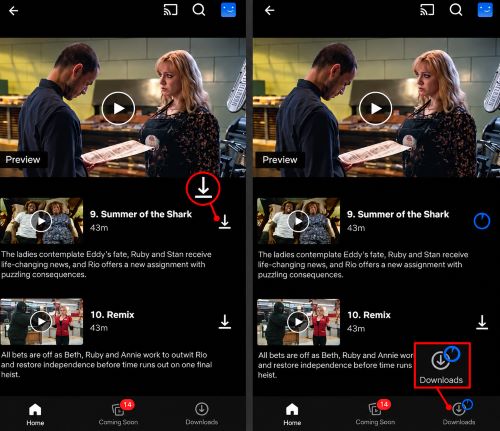
As long as your tablet supports it, downloading is straightforward. Open the Netflix app on Fire tablet, tap the downward-pointing arrow next to the title you're ready to watch for your trip.
Step 1. Open Netflix and find the movie or TV show you want to watch. Look for the "Download" icon next to the title or episode.
Step 2. Tap the icon and wait for the download to finish. Once finished, head over to the "Downloads" section in Netflix to find your saved content.
 Editor's Note on Limitations:
Be aware that not every title is available for download. If the Download icon isn't shown, that title may not be available for download. Furthermore, official Netflix downloads come with strict expiration timers (often expiring 48 hours after you hit play), and they are locked inside the app. Given that base Fire tablets often only have 32GB of storage, you will run out of space very quickly.

Method 2: Use the VidiKeep Streaming Video Downloader
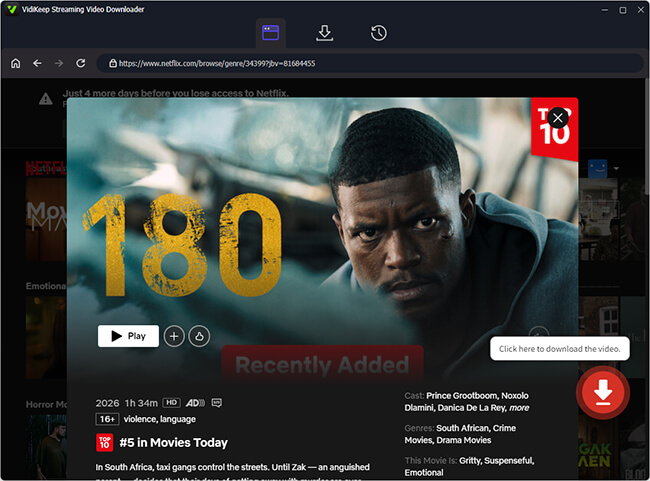
If you want to keep movies permanently without worrying about the limitations of Netflix, our team recommends using a desktop tool. VidiKeep Streaming Video Downloader is a third-party desktop tool marketed for saving videos from supported streaming services. It allows you to rip video files from Netflix on your computer and save them as universal MP4/MKV files. Once downloaded, you can simply transfer them to your Fire tablet via a USB cable, saving you storage space and letting you watch offline forever.
Can You Save Netflix Downloads to an SD Card?
Yes, Netflix supports saving downloads to an SD card on compatible Amazon Fire tablets. If your tablet has limited internal storage, moving future downloads to an SD card can free up space. To save Netflix to an SD card, open Netflix and go to My Netflix > Profile > App Settings > Download Location, then select your SD card. If the Download Location option doesn't appear, check whether your tablet recognizes the SD card.
Why can I stream Netflix but not download it on my Fire tablet?
If the download button is completely missing, you are likely using an older tablet that doesn't meet the hardware requirements, or the specific movie you want is restricted by the copyright holder.
Also, insufficient storage space can prevent downloads from starting or completing.
Can you watch Netflix on an Amazon Fire Tablet without installing the App?
Yes. You can open the built-in Amazon Silk browser, navigate to the Netflix website, and log in there. However, the browser playback is generally clunky and lacks touch optimization. For the most reliable experience, always use the official app.
Troubleshooting: How to Fix Netflix Problems on an Amazon Fire Tablet
Netflix can run into problems on Fire tablets, from app crashes and buffering to failed downloads. The right fix depends on what is going wrong. You can use the table below to find the issue that best matches yours, then follow the relevant steps.
| Problem | What to check first |
|---|---|
| Netflix is missing or won't open | App compatibility, updates, and profile restrictions |
| Video keeps buffering | Wi-Fi connection and app updates |
| Screen looks too dark | Brightness and display settings |
| Downloads fail or won't play offline | Fire OS version, storage, title availability, and download status |
Netflix Won't Open or Is Missing from the Appstore
A missing Netflix app can point to a compatibility issue or restrictions in an Amazon Kids profile. When the app is already installed but won't open or keeps crashing, start with these steps:
- Clear the cache: Open the tablet's app settings, select Netflix, and tap Clear Cache if the option is available. Menu names may vary by Fire OS version.
- Check for updates: Install any available Fire OS updates, then check whether Netflix has an update in the Amazon Appstore.
- Reinstall the app: If Netflix still freezes or crashes, uninstall it, restart the tablet, and reinstall it from the Amazon Appstore if it remains available for your device.
Netflix Keeps Buffering or the Screen Goes Dark
Buffering can result from a weak Wi-Fi connection or a temporary problem with Netflix. Try streaming another title or using a different app. If other services also buffer, check your internet connection. When only Netflix is affected, restart the app and check for updates.
A dark screen calls for a different approach. Increase the tablet's brightness and check its display settings. If the problem occurs only during Netflix playback, compare the same device's display in another app before changing additional settings.
Netflix Won't Download or Play Offline
Downloads may fail because the tablet is running low on storage, or the selected title isn't available for download. These devices fill up incredibly fast, so check your available internal storage first.
What if a downloaded video refuses to play? Downloaded videos can also become unavailable when their viewing period expires or Netflix needs to refresh their status. If you have been offline for an extended period, simply reconnect your tablet to Wi-Fi for a few seconds, and check the Downloads section for any expiration notice or prompt to renew the download.
Conclusion
Getting Netflix working on your Fire tablet usually starts with two checks: whether your device supports the app and which features its Fire OS version allows. Install Netflix through the Amazon Appstore and use the built-in download feature for offline viewing on supported devices. If the app won't open or downloads fail, focus on the specific problem before changing settings or reinstalling Netflix.

Jordan Rhodes is a Chief Technical Editor and Media Specialist at VidiKeep, specializing in creating diverse tech content, including streaming tutorials, software reviews, and video encoding tips.
Leave a Comment