How to Screen Record Netflix on PC, Mac & Mobile
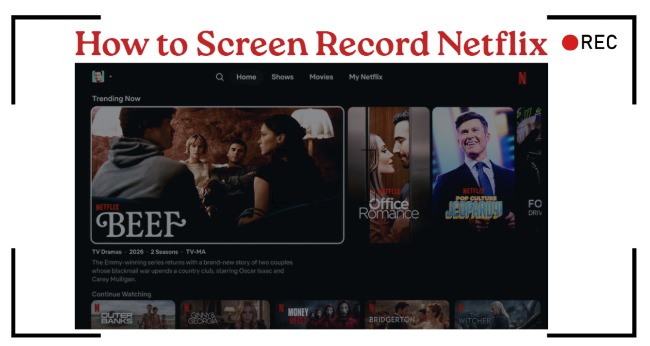
If you are trying to figure out how to screen record Netflix, you have likely run into the common black screen issue. Because Netflix uses DRM technologies to protect copyrighted content, many traditional screen recorders may capture only a black screen. Below is a comprehensive guide on how to screen record on Netflix across your PC, Mac, iPhone, and Android without a black screen.
- Best Overall: Audials One — A premium solution that captures streams flawlessly with automation features and better workflow management.
- Best Mobile Method: PlayOn Cloud — A reliable cloud-based DVR that processes recordings on remote servers, avoiding mobile restrictions.
- Best Black Screen Solution: VidiKeep — A dedicated downloader that fetches source files directly, eliminating the need for real-time recording.
Part 1. Can You Screen Record Netflix?
Yes, you can use screen recording tools to capture your display while watching Netflix, but the result depends on your device, browser, recording software, and Netflix's content protection system.
Streaming platforms like Netflix use DRM technologies, including Widevine and HDCP, to protect copyrighted video content and control how protected playback is delivered. When a screen recorder attempts to capture protected video output, the recording software may not receive the actual video frames correctly, resulting in issues such as a black screen while audio or other elements continue working.
Part 2. How to Screen Record Netflix on PC and Mac
For users who want to screen record Netflix on PC or Mac, desktop software usually provides more control than mobile solutions. The right tool depends on whether you prefer an automated streaming recorder, a beginner-friendly capture program, or a completely free solution with advanced settings. Below are three popular options with different strengths.
1. Audials One
 Best for:
Users who want a more automated Netflix recording workflow with features like scheduled recording, video organization, and format options.
Audials One is a dedicated streaming recorder designed for users who want to screen record Netflix movies and shows on PC. Unlike general screen recording software such as OBS Studio, Audials focuses on recording streaming playback and provides automated features to help capture and organize videos more efficiently.
It supports popular output formats like MP4 and offers features such as adjustable recording quality, automatic detection, and scheduled recording. These options make it a convenient choice for users who frequently watch Netflix and want a simpler way to manage multiple recordings.
How to Record Netflix with Audials One
Step 1. Download and install Audials One on your Windows PC, then launch the program. From the main interface, select "Video Streaming" to access the streaming recording features.
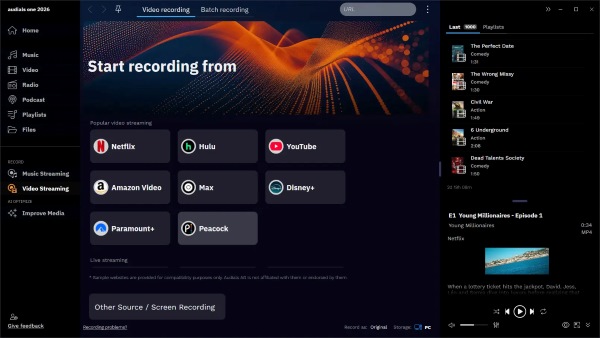
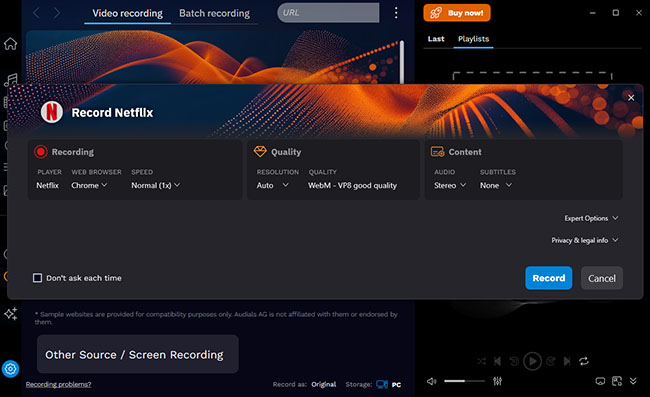
Step 2. Choose Netflix from the available streaming services and customize your recording preferences, including output format, video quality, and other recording options. MP4 is a practical choice if you want the recorded videos to work with most media players and devices.
Step 3. Click the "Record" option in Audials One. The software will guide you to open Netflix in your browser. Play the movie or episode you want to record, and let Audials detect the playback before starting the recording process.
Step 4. Once the recording is complete, Audials processes the video and adds it to your Audials playlist. The file can then be accessed from your selected output folder, allowing you to organize or transfer the recorded video for personal offline viewing.
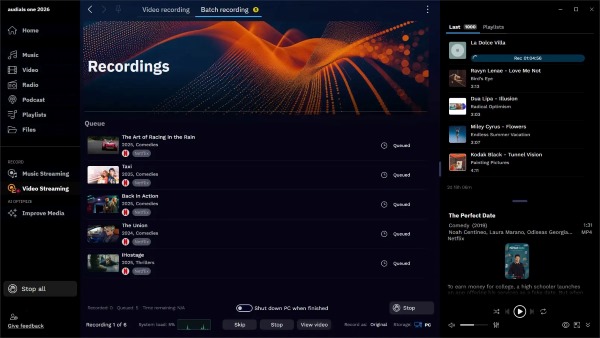
 Record Multiple Netflix Movies and Shows with Scheduler:
If you want to record several Netflix movies or episodes, Audials One includes a recording scheduler that lets you prepare multiple recordings in advance. This can save time compared with manually starting each recording one by one.
2. EaseUS RecExperts
Best for:
Beginners who want an easy-to-use screen recorder with flexible capture modes and simple audio settings.
If you are looking for a simpler way to screen record Netflix on PC or Mac without dealing with complicated settings, EaseUS RecExperts is a beginner-friendly option worth considering. Compared with advanced tools like OBS Studio, it provides a cleaner interface and combines screen capture, audio recording, and basic editing features in one place. It supports full-screen, window, and custom-area recording modes, allowing users to capture their desktop activity while adjusting output settings based on their needs.
How to Capture Netflix with EaseUS RecExperts
Step 1. Launch EaseUS RecExperts and select your preferred capture area. For Netflix movies or shows, the "Full Screen" mode is usually the easiest option because it records the entire playback area without manually adjusting the frame.
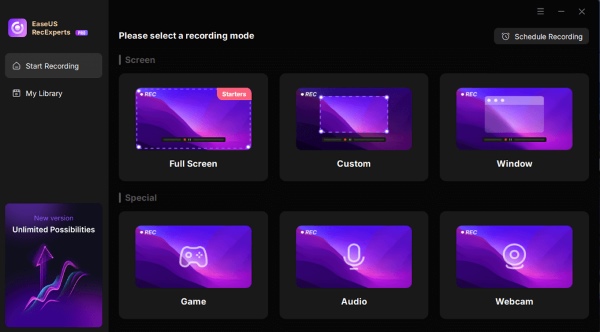
Step 2. Open the output settings and choose your preferred video format and quality. Enable "system sound" to capture the movie audio, and disable the microphone if you do not want external background noise included in the recording.

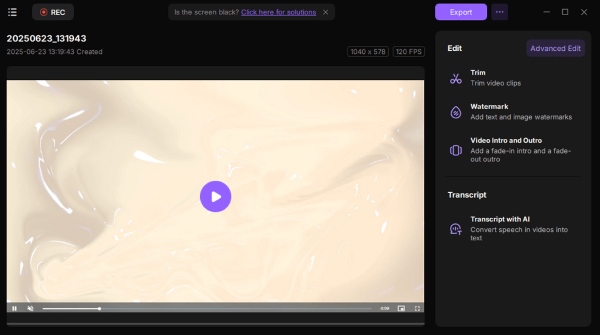
Step 3. Open Netflix in your browser, select the movie or episode you want to capture, and click the "REC" button in EaseUS RecExperts. When finished, stop the recording and review the saved file using the built-in preview and editing tools.
3. OBS Studio
Best for:
Users who want a free and customizable screen recorder with advanced control over video sources and audio settings.
For users who prefer a free and highly customizable solution, OBS Studio is one of the most popular screen recording tools available. It provides detailed control over video sources, audio channels, and recording settings, making it a flexible choice for users who want more control over their Netflix screen recording setup. However, OBS requires more manual configuration compared with beginner-friendly recorders, especially when setting up browser capture and audio sources.
How to Screen Record on Netflix with OBS Studio
Tips:
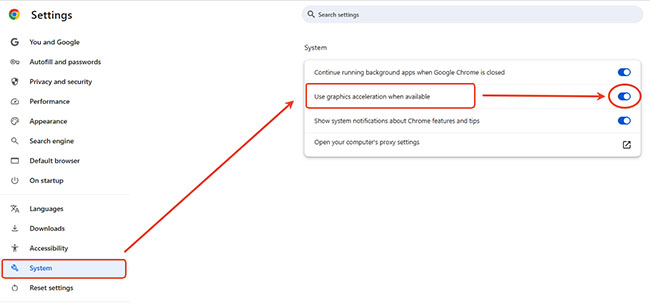
Before starting the recording, open your browser settings and disable hardware acceleration. In Chrome, go to "Settings > System" and turn off "Use graphics acceleration when available", then restart your browser. This step may help prevent playback issues that can occur when recording protected streaming content.
650 304
Step 1. Launch Netflix in your browser and open the movie or episode you want to record. Keep the playback page ready before configuring OBS Studio.
Step 2. Open OBS Studio and go to "File > Settings > Output" to adjust your recording preferences. Under the audio settings, make sure "Desktop Audio" is enabled so the system sound from Netflix can be captured.
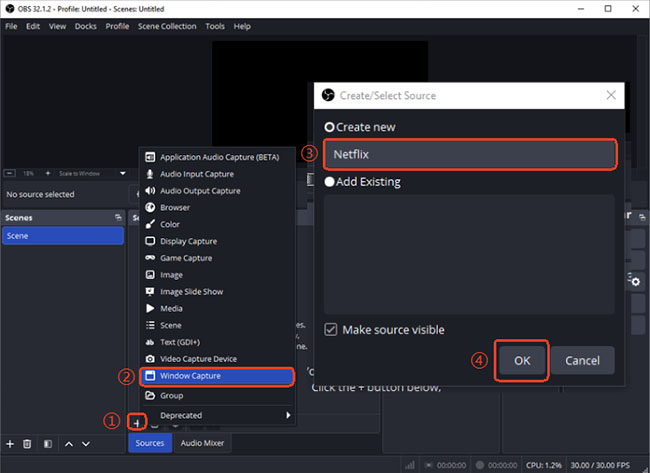
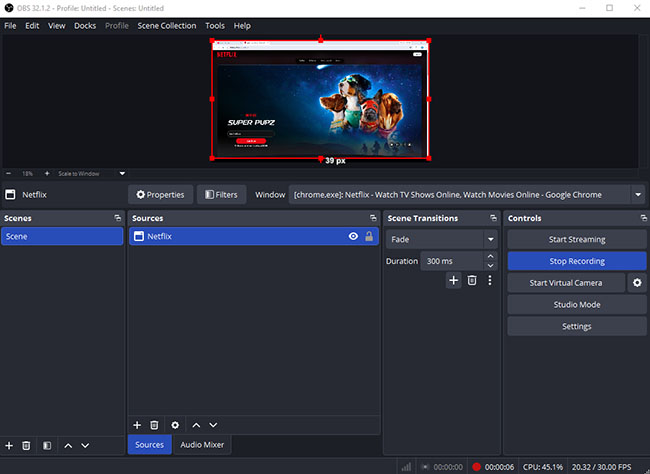
Step 3. In the "Sources" panel, click the + icon and select "Window Capture". Choose your browser window where Netflix is playing and confirm the capture source.
650 473
Step 4. Click "Start Recording" in OBS Studio, then return to Netflix and begin playback. When finished, click "Stop Recording", and OBS will save the recorded file to your selected output folder.
650 474
 Limitations:
OBS Studio is free and offers advanced customization, but it has a steeper learning curve than simpler screen recorders. Since it was not designed specifically for streaming platforms, users may need to adjust capture methods, browser settings, or audio options depending on their setup. Recording results can also vary because streaming services use content protection technologies.
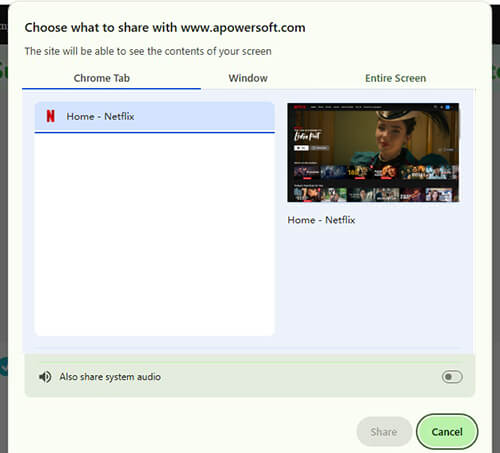
Bonus Tips—Apowersoft Free Online Screen Recorder:
If you only need to screen record Netflix clips or make quick captures, Apowersoft Free Online Screen Recorder is a convenient browser-based option. It lets you record your screen, system audio, and microphone without installing software. Suitable for short videos, tutorials, and simple captures, it also includes basic editing tools. However, it may not be ideal for long Netflix recordings and provides fewer advanced controls than dedicated screen recording software.
Part 3. How to Screen Record Netflix on iPhone and Android
If you want to record Netflix on iPhone or Android but do not want to keep your phone screen active during the entire process, PlayOn Cloud offers a different approach. Instead of using your device’s screen recorder, it works like a cloud-based DVR that records supported streaming content remotely and lets you download the finished video afterward.
This makes it a convenient option for mobile users who want a simpler way to save streaming videos without keeping their phone running throughout the recording process.
How to Record Netflix Videos with PlayOn Cloud
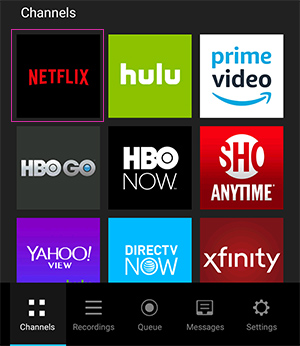
Step 1. Open PlayOn Cloud and go to the channel list. Select Netflix and follow the instructions to connect your streaming account.
Step 2. Browse or search for the Netflix movie, episode, or series you want to save. Tap the "Record" button to add the video to your recording queue. For TV shows, you may also be able to select multiple episodes depending on the available options.
Step 3. Once PlayOn Cloud finishes processing the recording on its servers, the video will appear in your recordings library. You can then download the file to your mobile device and watch it offline whenever you want.
 Limitations:
PlayOn Cloud is designed for users who prefer a cloud-based recording workflow rather than traditional screen recording. However, it depends on supported streaming services and available recording plans or credits. Recording availability, video quality, and features may also vary depending on your location and service changes.
Part 4. How to Screen Record Netflix Without Black Screen
Real-time screen recording can be inconvenient for longer Netflix movies or shows because it requires your device to stay active throughout the entire playback. In addition, protected streaming content may not always be captured correctly, resulting in issues such as black screens or missing video output.
For users who want to save Netflix videos for offline viewing, VidiKeep Streaming Video Downloader offers a different approach. Instead of recording your screen in real time, it saves videos for offline playback, helping you avoid common screen recording issues and providing a more flexible viewing experience.

Rip Netflix videos in up to 1080p quality at 7X faster speed. Keep subtitles and enjoy your favorite movies and shows offline without screen recording issues.
 Secure Download
-

1.Batch Downloading
Save multiple Netflix episodes or entire seasons more efficiently instead of recording each video separately. This is especially useful for users who want to prepare several shows before traveling or watching offline.
-
2.Flexible Video Quality Options
Choose suitable video quality settings based on your needs and available sources. This provides more control over your offline videos compared with traditional screen recording, which depends on playback conditions.
-
3.Preserve Subtitles and Audio Tracks
Keep available subtitles and audio options when saving videos, making it easier to enjoy international movies and TV shows in your preferred language during offline playback.
Part 5. Best Netflix Screen Recording Methods Compared
| Tool | Platform | Key Advantage | Best For |
|---|---|---|---|
| Audials One | Windows | Streaming-focused workflow | Automated Netflix recording |
| EaseUS RecExperts | Windows/Mac | Simple recording controls | Beginner-friendly screen recording |
| OBS Studio | Windows/Mac/Linux | Advanced customization | Free and advanced recording |
| PlayOn Cloud | iOS/Android | Cloud-based recording | Mobile users who prefer cloud recording |
| VidiKeep | Windows/Mac | Avoids traditional screen recording issues | Watching Netflix offline without black screen issues |
Part 6. FAQs on Screen Record Netflix
Why does Netflix screen recording show a black screen?
Netflix recordings often show a black screen because of DRM protection. When a screen recorder tries to capture protected playback, the browser, system, or graphics settings may block the video output. As a result, the recording may include audio, subtitles, or the cursor while the actual video appears black.
Is it legal to screen record Netflix for personal use?
Recording Netflix content may violate Netflix’s Terms of Use and copyright rules, depending on how the recording is used. Saving, sharing, or distributing recorded videos without permission can lead to copyright issues. Always check the applicable laws and Netflix’s policies in your region before recording.
What is the maximum resolution when recording Netflix?
The recording quality depends on your browser, device, Netflix plan, and recording method. Some browsers may limit playback quality because of DRM restrictions, while other setups may support higher resolutions. Your final recording quality is usually limited by the playback quality available on your device.

Jordan Rhodes is a Chief Technical Editor and Media Specialist at VidiKeep, specializing in creating diverse tech content, including streaming tutorials, software reviews, and video encoding tips.
Leave a Comment