How to Fix Disney Plus Error Code 83 on TV, Mobile, Browser
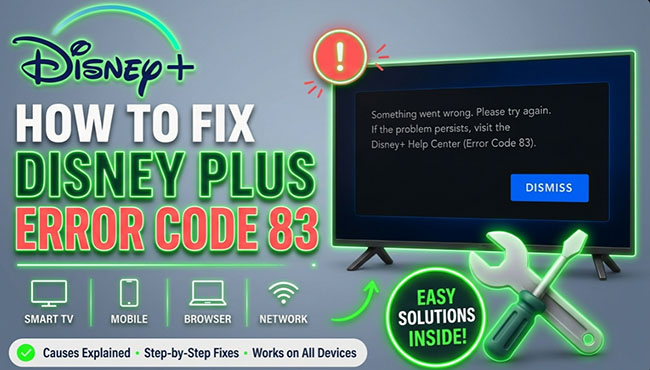
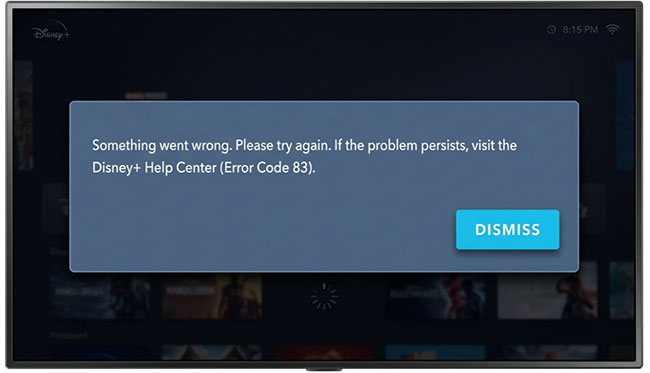
Disney Plus Error Code 83 is one of the more frustrating streaming issues because it usually appears without a clear explanation. One moment everything is fine, and the next, the screen goes black with an error prompt, saying "Something went wrong. Please try again. If this problem persists, visit the Disney+ Help Center (Error Code 83)".
In most cases, the issue is not random, it is tied to device compatibility, DRM verification failures, or network-related restrictions. This guide breaks down the problem into a fast-fix diagnostic checklist, real-world case studies, and advanced hardware solutions so you can bypass the trial-and-error and get back to streaming.
Part 1. Quick Fix for Disney+ Error Code 83 (Try This First)
Before you start resetting your router or changing account passwords, run this 60-second test to immediately isolate whether the issue is your internet connection or your playback hardware.
The 60-Second Diagnostic Test:
- Disconnect your streaming device (Roku, Fire Stick, Smart TV, or laptop) from your home Wi-Fi.
- Turn on the cellular hotspot on your smartphone and connect your streaming device to it.
- Open Disney+ and try playing the exact same video.
- If the video plays perfectly: Your home network or Internet Service Provider (ISP) is causing the block. Skip to Part 3 (Network Fixes).
- If you still get Error Code 83: The issue is isolated to your local device hardware, firmware, or DRM software. Skip to Part 4 (Hardware Fixes).
The Quick Recovery Solution
If you want a quick baseline reset before digging deeper, execute these actions in order:
- Force Close: Completely shut down the Disney+ app (or refresh/restart your desktop browser).
- Re-Authenticate: Log out of your Disney+ account and sign back in.
- Disable VPNs: Turn off any active proxy or VPN services on your device or router.
- Power Cycle: Fully restart your streaming hardware.
Part 2. What Causes Disney Plus Error Code 83? Real-World Case Studies
To fix Disney+ Error Code 83 permanently, you have to understand that it is a late-stage playback authentication failure. Your account is fine, the app loads, but the secure video stream itself is blocked at the final second.
Real User Case 1: The Xfinity TV Box Loop
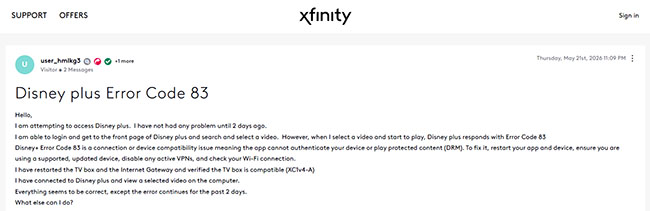
The Symptom: A user logged into Disney+ normally on their Xfinity box (Model XC1v4-A). They could browse the home screen, search, and select titles without issues. However, the moment they pressed play, error 83 popped up. The app worked fine on their PC, but the TV box failed for two straight days despite a standard router reboot.
The Technical Breakdown: Because logging in and browsing worked, the internet connection was fine. Because it worked on a PC, the account wasn't banned. The failure at the exact moment of playback points directly to an HDCP / DRM handshake failure between the cable box and the TV screen.
Real User Case 2: "Everything Looks Perfect, But Playback Fails"
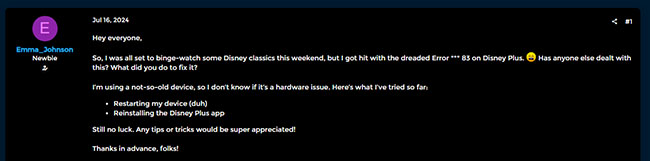
The Symptom: A user on a modern, fully supported mobile device suddenly encountered error 83. They restarted the device and reinstalled the app, but the error remained for days.
The Technical Breakdown: This is a classic soft DRM session desynchronization. The device is compatible, but the secure background authentication token used to handshake with Disney's video servers became corrupted in the device's deep cache. A basic reinstall doesn't always wipe these system-level tokens.
Summary of Root Causes for Error Code 83 on Disney+
- DRM / HDCP Handshake Failures (Most Common): The secure connection chain between your device, HDMI cable, and display monitor fails Disney's security check.
- Device Session Desync: The app's internal state or security certificate becomes corrupted after a silent background update.
- Network or Routing Blocks: Your ISP's DNS routing stalls the security validation request, triggering a timeout error.
Part 3. Network and Connection Fixes for Error Code 83 on Disney Plus
If the hotspot test pointed to your internet, your router and Disney's servers are having a miscommunication. Here is how to clean up that connection.
The Full Chain Cleanup
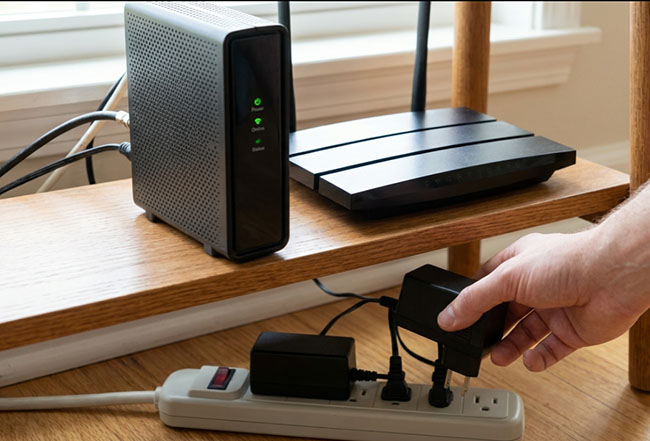
Restarting your router isn't always enough. You need to clear the memory across your entire network chain all at once.
Step 1. Unplug your modem, your router, and your streaming device from the wall.
Step 2. Wait a full 60 seconds to let any residual power drain out of the capacitors.
Step 3. Plug the modem back in first, wait for the lights to stabilize, then plug in the router, and finally power on your streaming device.
Change DNS Settings and Disable VPNs
Disney aggressively blocks VPNs to enforce regional licensing agreements. If you have a location-masking VPN active at the router level or directly on your device, turn it off immediately.
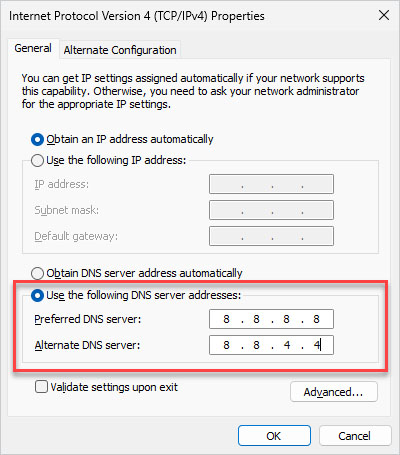
Sometimes, your internet provider's default DNS struggles to route traffic to Disney's servers efficiently. Changing your network settings to use Google's public DNS servers (8.8.8.8 and 8.8.4.4) often forces a clean connection route and bypasses the error.
Part 4. Hardware and DRM Handshake Fixes to Disney Error Code 83
If the hotspot test failed, your internet connection likely isn't the problem. The issue is occurring locally with your hardware, most commonly due to a breakdown in secure communication (known as a DRM handshake) between your devices.
Check Device or Firmware Compatibility
For smart TVs, gaming consoles, and streaming sticks, ensure your underlying system is up to the task:
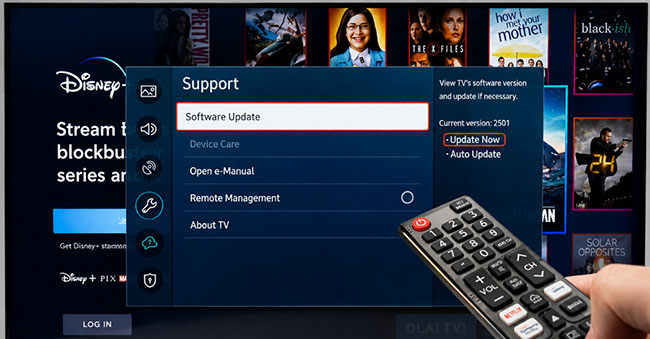
- Update System Software: Outdated operating systems can break compatibility with modern streaming apps. Check your device's settings menu for any pending OS or firmware updates and install them.
- Confirm Official Support: Disney+ occasionally phases out support for older hardware (like older Samsung/LG TVs or first-generation Roku sticks). Double-check that your specific device model is still officially supported by Disney.
- Avoid Screen Mirroring: Casting or mirroring your screen from a phone or laptop to a TV frequently triggers Error 83 because it bypasses DRM security checks. Use the native Disney+ app on your TV or streaming device instead.
Update or Reinstall the Disney+ App
Outdated or corrupted app files are a frequent culprit for playback failures. Fixing this takes just a couple of minutes:
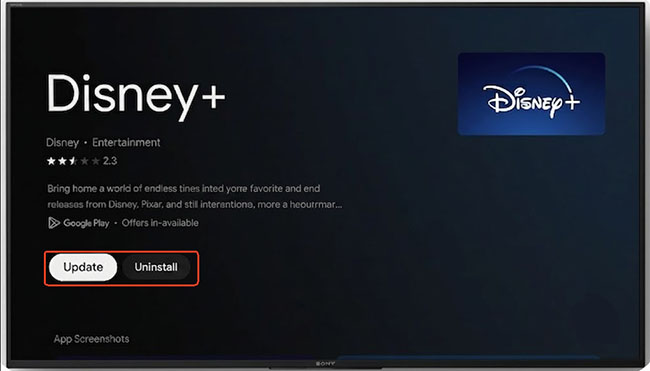
- Check for Updates: Navigate to your device's app store and ensure Disney+ is running the latest available version.
- Perform a Clean Reinstall: If an update doesn't fix the error, completely uninstall the Disney+ app, restart your device, and download it again. On smart TVs, this process clears out corrupted cache data and forces your device to negotiate a brand-new DRM handshake with Disney's servers.
Bypass AV Receivers and Soundbars
This is a surprisingly common fix that most tech support pages miss. Older AV receivers (like certain Yamaha models) and Soundbars sometimes fail Disney's strict DRM security checks during HDMI pass-through.
- The Test: Unplug your streaming device from the receiver or Soundbar and plug it directly into an HDMI port on the back of your TV.
- The Fix: If the error disappears, your audio equipment is blocking the DRM handshake. To fix this permanently, you will need to update the firmware on your audio receiver, or leave the streaming device plugged into the TV and route the audio back to your receiver using the TV's HDMI ARC port or an optical cable.
Inspect HDMI Cables and Display Connections
DRM handshake failures are a frequent hidden cause of Error 83 on external displays, projectors, or multi-monitor setups. If you are using an external screen, verify your physical connections:
- Verify HDCP Compliance: Ensure your HDMI cables and the ports on your TV/monitor support HDCP (High-bandwidth Digital Content Protection). Older cables or ports often trigger this error, especially with 4K content.
- Remove Intermediaries: Avoid using HDMI splitters, switches, capture cards, or unsupported adapters (like older VGA-to-HDMI converters). These devices frequently break the secure DRM chain.
- Simplify Your Setup: Disconnect any secondary displays or monitors. Try playing the video on a single, direct screen to see if a multi-monitor conflict is triggering the block.
Pro Tips: Bypass DRM Issues Completely with VidiKeep
If you are constantly battling Error Code 83, HDCP handshake failures, or device compatibility restrictions, the most permanent workaround is to remove the strict streaming checks entirely by watching offline.
By using VidiKeep Disney Plus Video Downloader, you can download Disney+ movies and shows and save them as common, universally supported video files (such as MP4 or MKV). Because these files are saved locally without restrictive DRM wrappers, you can:
- Eliminate Error Code 83: You completely bypass the Disney+ app and its strict server-side security checks.
- Play on Any Device: Watch your downloaded content on older TVs, unsupported AV receivers, projectors, or external monitors without ever triggering a DRM handshake failure.
- Watch Offline: Enjoy uninterrupted playback using your preferred media player (like VLC) without worrying about Wi-Fi drops, ISP routing issues, or mobile hotspot limits.
Part 5. Platform-Specific Fixes for Disney+ Error Code 83
Sometimes the bug is hyper-specific to your platform. Over the past few months, the streaming community has found several weird but highly effective workarounds.
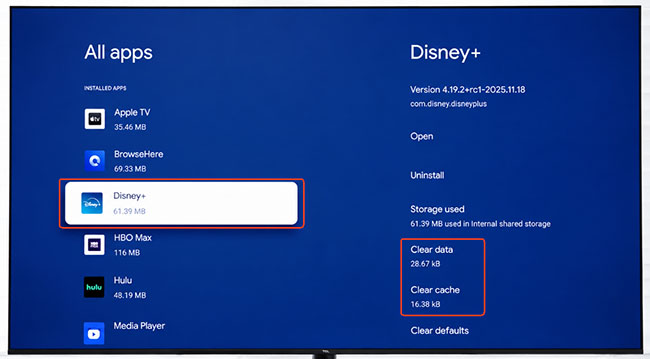
For Smart TVs & Fire Sticks (Clear App Cache)
If you are using a Roku, an Amazon Firestick, or a smart TV, corrupt app memory is often the root cause. These devices hold onto temporary data to load apps faster, but a bad update can corrupt that data and block your stream. The fastest way is to completely wipe the app's cache.
Step 1. Navigate to your device's main settings menu and find the "Apps" or "Channel" management section.
Step 2. Select Disney Plus, then choose the options to "Clear Cache" and "Clear Data."
Step 3. Relaunch the Disney+ app and log back in to test your stream.
For Xfinity Cable Boxes (Clear Local Storage)
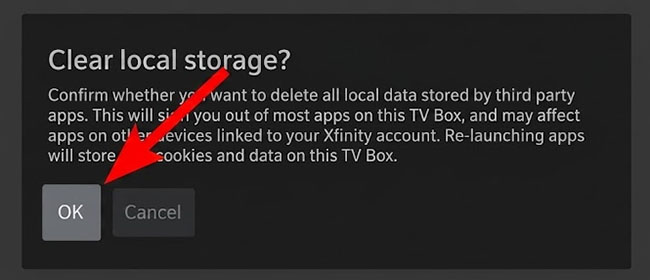
Trying to watch Disney Plus through an Xfinity set-top box comes with its own unique set of bugs. Standard restarts rarely work here because the cable box handles privacy settings differently than a normal streaming stick. You actually have to clear the background local data to fix the connection timeout.
Step 1. Grab your Xfinity remote and press the Xfinity button to open the main menu.
Step 2. Navigate to the Settings gear icon, then select the Privacy menu.
Step 3. Click on "Clear Local Storage" and confirm it. Once that finishes, relaunch the Disney Plus app.
For PC & Browsers (Windows Media Feature Pack
Watching on a Windows desktop or laptop browser can trigger error 83 if your operating system lacks the right media playback tools. Disney's web player relies on secure, background video extensions that might be missing from your specific version of Windows.
Step 1. Open your Windows Settings and search for "Optional Features."
Step 2. Look for the "Windows Media Feature Pack" and install it if it is missing from your system.
Part 6. FAQs About Error Code 83 on Disney Plus
What does Disney+ Error Code 83 mean?
It is a security protection mechanism. It means Disney+ cannot verify that your hardware, browser, or network environment is completely secure and compliant with their anti-piracy (DRM) requirements.
Why does Error Code 83 keep appearing on my device?
This usually indicates repeated failure in device compatibility checks or DRM authentication, especially on older TVs or unstable networks.
Is Disney+ down when Error Code 83 appears?
Not usually. It is more commonly a local device or network issue, though temporary server problems can occur.
Why does it work on my phone but not my TV?
This is a device compatibility or DRM issue. Phones often support newer DRM standards than older smart TVs.
Part 7. In Conclusion
Disney+ Error Code 83 is rarely caused by a single issue. In most cases, it comes down to a mix of device compatibility, DRM validation, or network instability. The most efficient approach is to start with quick resets, then isolate whether the problem is device-related, network-related, or security-related. Once the root category is identified, the fix becomes straightforward rather than repetitive trial-and-error.

Jordan Rhodes is a Chief Technical Editor and Media Specialist at VidiKeep, specializing in creating diverse tech content, including streaming tutorials, software reviews, and video encoding tips.
Leave a Comment