How to Fix Amazon Prime Video No Sound
"Is anyone else having problems with no sound on Prime Video when watching on a TV? The audio works perfectly fine on my iPad, but when I stream Prime Video on my TV, there's no sound at all." --Facebook
You press play on Amazon Prime Video while the speakers stay silent. Maybe the sound works on your phone but has no audio on your TV. These are usually caused by audio settings, device compatibility, or playback glitches. In this guide, we'll walk through practical ways to fix Prime Video no sound problems on TVs, streaming devices, and browsers.
Part 1. Why Is Amazon Prime Video Playing with No Sound?
When Prime Video suddenly loses sound, finding the cause first can save you from trying random fixes that do not address the real problem. Prime Video no sound issues usually happen when the app, your streaming device, and your audio system fail to communicate correctly. In most cases, the problem comes from one of these areas:
| Common Cause | What Happens |
|---|---|
| Audio format compatibility | Some TVs or soundbars cannot properly process Dolby Digital Plus or Dolby Atmos, causing missing voices or no sound. |
| Incorrect audio output settings | Sound may be sent to the wrong device, such as a soundbar, Bluetooth speaker, or HDMI audio system. |
| HDMI connection issues | A loose cable or HDMI communication error can allow video playback while interrupting audio. |
| App or system glitches | Corrupted cache, outdated apps, or device software issues can cause sudden audio dropouts. |
| Muted devices or browser settings | A muted browser tab, remote, or connected headset can silently block audio output. |
Part 2. Quick Checks Before Diving In
Before diving into complex menus or altering your audio pipeline, take a moment to eliminate simple hardware oversights. Often, what feels like a software crash is nothing more than a misplaced setting or a loose plug.
Step 1. Test another streaming app. Open an alternative streaming app such as YouTube or Netflix to determine whether the silent playback is widespread or isolated to Prime Video.
| Test Result | What It Means |
|---|---|
| No sound on all apps | TV or audio system problem |
| Only no sound on Amazon Prime | Prime Video app or settings issue |
| Sound works on phone but not TV | TV output or HDMI issue |
Step 2. Check mute and volume. Double-check that your TV remote, soundbar, and streaming stick are completely unmuted and set to an audible level.
Step 3. Reconnect HDMI. Unplug the HDMI cable connecting your streaming box or external sound system to the TV, blow away any dust, and firmly set it into the port.
Part 3. Fixes for Prime Video No Sound on Smart TVs
If other applications play sound normally while Prime Video remains stubbornly quiet, the issue rests with the Prime Video client or how your TV decodes Amazon's stream.
Fix 1. Power Cycle Your TV and Restart the Prime Video App
Modern smart TVs rarely shut down when you press the power button on your remote; instead, they enter a low-power standby mode. Because the system never truly turns off, corrupted background processes and audio engine glitches remain stuck in the TV's working memory. A cold reboot flushes this volatile cache and forces the hardware to re-establish a clean audio pipeline.
Step 1. Close the Prime Video app completely rather than merely switching back to your television's home dashboard.
Step 2. Disconnect the TV's power cord directly from the wall outlet and wait 60 full seconds.
Step 3. Plug the power cable back in, turn the TV on, and launch Prime Video again.
 Editor's Note:
If reaching the wall plug is difficult, most Android TV and Google TV remotes let you initiate a true system restart simply by holding down the power button for about five seconds until the restart dialog appears.
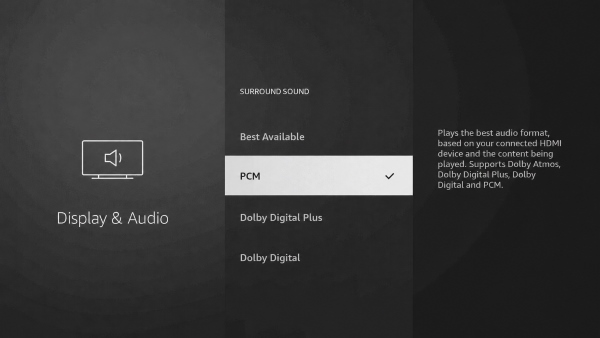
Fix 2. Switch Digital Audio Output Format to PCM
One of the most widespread Prime Video issues is hearing background music and special effects while the actors' voices are totally silent. This happens because Prime Video feeds multi-channel 5.1 surround sound to your TV, which routes the dialogue to a center speaker that does not exist in a basic stereo setup. Forcing your TV to output PCM resolves this mismatch by downmixing everything into two channels.
Step 1. Go to your television's main Settings menu and select the Sound or Audio submenu.
Step 2. Look for Digital Audio Output, Audio Out Format, or HDMI Audio Format.
Step 3. Change the active setting from Dolby Digital to PCM or Stereo.
Fix 3. Adjust In-Player Audio Track & Prime Video "Dialogue Boost"
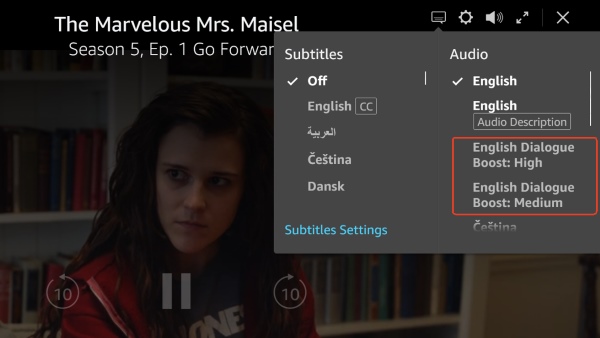
Not all Amazon Prime audio problems originate from your television's system menus. Amazon embeds a dedicated audio switcher within the video player itself, allowing you to select different audio descriptions or multi-language feeds. Sometimes a movie defaults to an unsupported commentary track or an alternative dub that lacks an audio track.
While a movie or show is playing, press the Up button on your remote and open the Audio & Languages tab. Make sure your main language track is selected rather than a descriptive audio track. If dialogue is consistently drowned out by effects, select Dialogue Boost: Medium or High to elevate the vocal frequencies directly at the source.
Fix 4. Clear App Cache and Application Data
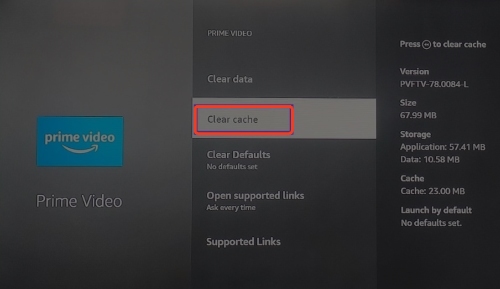
Smart TV applications retain a surprising amount of temporary data to speed up navigation and store profile tokens. When these stored files become corrupted following an app crash or interrupted stream, the audio engine can drop out while the video stream continues. Clearing this data refreshes the installation without forcing you to reconfigure the entire television.
Step 1. Open your TV's Settings and head into the Apps section.
Step 2. Locate Prime Video from the list of downloaded applications.
Step 3. Select Clear Cache, followed by Clear Data, then relaunch the app and log back in.
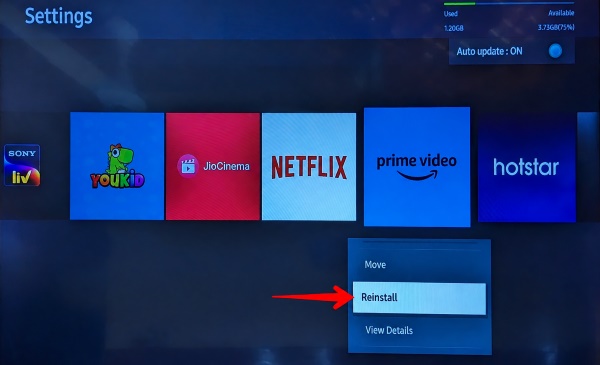
Fix 5. Update or Reinstall the Prime Video App
Streaming providers regularly update their back-end codecs and digital DRM layers to patch vulnerabilities and improve compression. Running a legacy version of Prime Video creates compatibility friction that frequently results in audio dropouts or playback errors.
Check your TV's dedicated app store for pending updates to the Prime Video app. If you are already running the latest version, delete the application entirely, reboot your TV to clear lingering application files, and download a fresh copy directly from the store.
Fix 6. Reset Your TV Sound Settings
If you have changed sound effects, enabled surround modes, or connected different audio devices in the past, your TV may still be applying settings that Prime Video does not handle well.
Try resetting your TV's sound settings: Settings > Sound > Reset Sound. This will remove custom audio adjustments and restore the default configuration. Your apps and personal settings will remain unchanged.
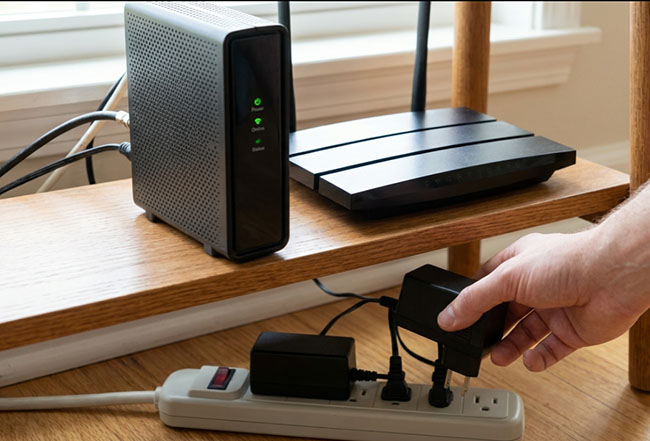
Fix 7. Restart Your Router and Streaming Device
Network issues are not usually the first thing to check for audio problems, but an unstable connection can occasionally affect streaming playback. Try restarting your setup:
- Turn off your TV or streaming stick.
- Unplug your router and modem and wait around 30 seconds.
- Turn everything back on and test Prime Video again.
This is worth trying if the sound issue happens randomly or appears during longer viewing sessions.
Part 4. Device-Specific Workarounds
Because each operating system handles digital rights management and hardware handshakes differently, platform-specific bugs require tailored adjustments.
Fix 1. Prime Video No Sound on Roku
Roku OS includes an automated audio detection feature designed to identify the capabilities of connected soundbars and receivers. Unfortunately, this automatic handshake can sometimes misidentify stereo setups as Dolby Digital Plus, causing Amazon Prime on Roku to lose audio output completely.
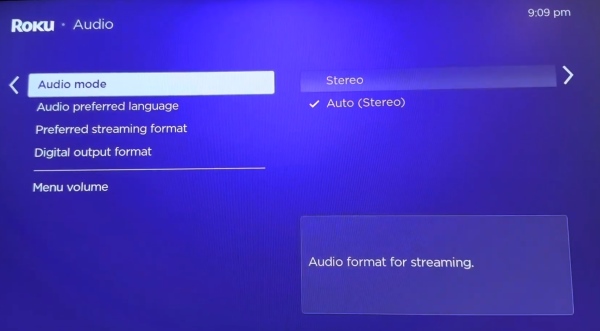
Step 1. Press the Home button on your Roku remote and navigate to Settings → Audio.
Step 2. Change Audio Mode to Stereo, and set Streaming Audio Format (or HDMI output) to PCM-Stereo instead of Auto. This forces Roku to use a more compatible audio format and can restore sound in Prime Video.
Fix 2. Prime Video No Sound on LG TV
LG webOS models occasionally lose their digital audio handshake, particularly after completing an over-the-air system update or when switching inputs between consoles and streaming sticks. This often manifests as total silence exclusively inside native webOS apps.
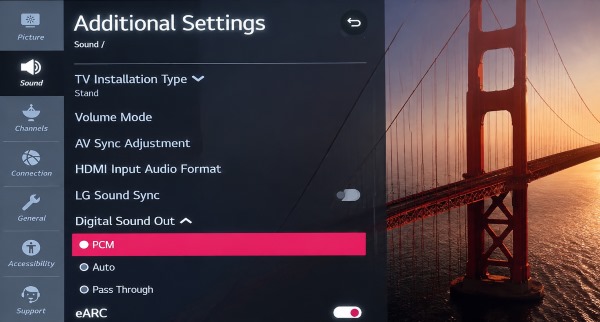
If Prime Video has no sound on your LG TV while other apps work normally, the issue is often related to the TV's audio output settings, especially after connecting a soundbar or changing HDMI devices. Go to Settings → Sound → Sound Out. Make sure the correct output is selected:
- Internal TV Speaker for built-in speakers
- HDMI ARC/eARC or Optical for external audio devices
If you are using a soundbar and still hear no sound, try changing: Settings > Sound > Advanced Settings > Digital Sound Out from Auto/Pass Through to PCM. This can fix compatibility issues with certain audio formats.
Fix 3. Prime Video No Sound on PC Browsers
Watching Prime Video through desktop browsers introduces layers of software interactions where browser settings, extensions, and operating system controls collide. An accidental tab mute or an outdated browser GPU process can quietly silence media while the video plays unhindered.
Begin by inspecting the Prime Video browser tab: if you see a crossed-out speaker icon, right-click the tab and choose Unmute Site. Next, navigate to your browser settings and toggle off Graphic Acceleration, which often causes decoding collisions on older graphics cards. Finally, open your operating system's Volume Mixer to confirm that your specific browser is not independently muted at the system level.
Part 5. Alternative Solution: Watch Prime Video Offline Without Audio Glitches
If Prime Video continues to lose sound even after trying the above methods, the issue may be related to real-time streaming conditions. For users who frequently experience Prime Video audio dropouts or missing dialogue issues across different devices, offline viewing can provide a more stable alternative. By saving Amazon Prime videos on your Mac or PC, playback no longer relies on continuous streaming or real-time audio processing.
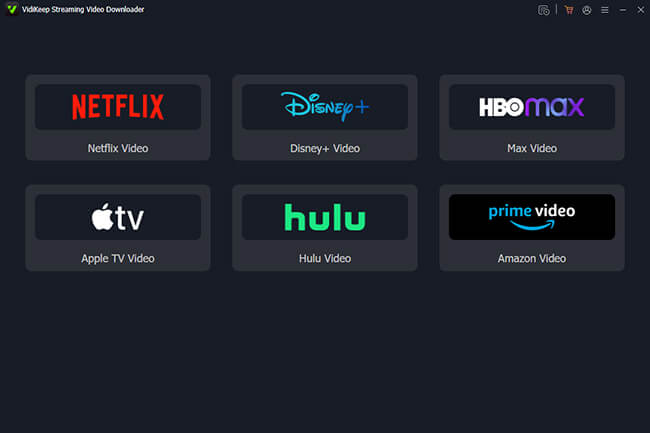
Tools like VidiKeep Streaming Video Downloader allow you to download videos from Amazon Prime and watch them offline with compatible media players, helping avoid Amazon Prime sound issues.

Save Prime Video content offline with original audio tracks, avoiding streaming interruptions, audio issues, and device compatibility problems.
- High-Quality Audio Preservation: Keeps original audio tracks, including EAC3 5.1 surround sound and AAC stereo, helping avoid missing dialogue or audio quality issues.
- Universal MP4/MKV Output: Saves videos in widely supported formats for smoother playback across different devices and media players.
- Flexible Subtitle and Audio Management: Save subtitles as internal soft subs or standalone external SRT files alongside your preferred audio language tracks.
- Batch Download for Offline Viewing: Download multiple videos at once and enjoy stable playback without buffering or audio issues.
Part 6. Final Thoughts
Tackling an issue like Amazon Prime Video no audio usually comes down to refreshing app data or switching output channels. When streaming platform bugs get in the way, saving videos locally eliminates the playback headache, letting you enjoy your favorite Prime Video movies with crisp, synchronized audio.

Jordan Rhodes is a Chief Technical Editor and Media Specialist at VidiKeep, specializing in creating diverse tech content, including streaming tutorials, software reviews, and video encoding tips.
Leave a Comment